
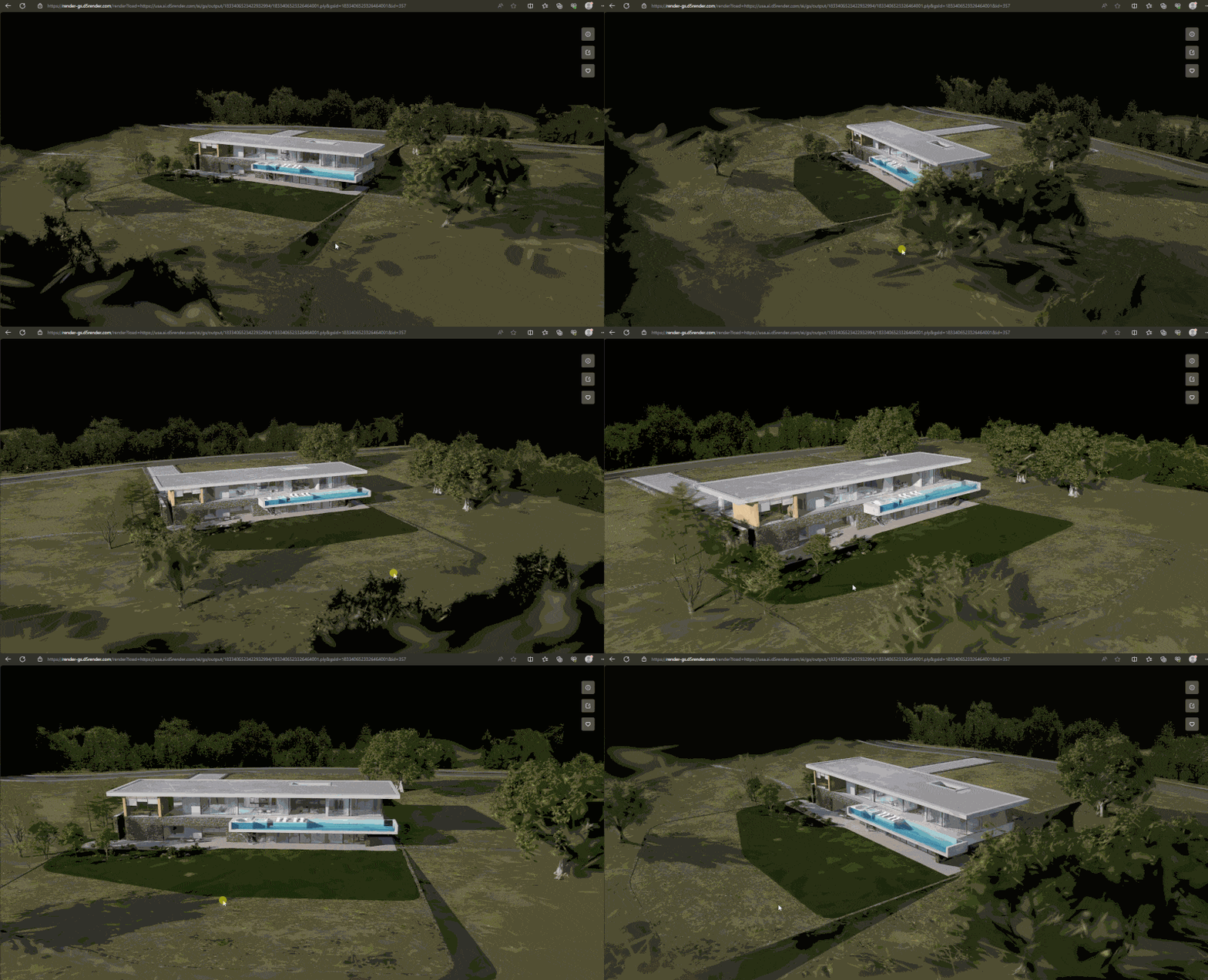
Want to create stunning virtual tours that wow clients? D5 Render makes it easy with professional-grade tools for immersive 3D experiences. Unlike basic solutions, D5 combines renderizado en tiempo real with interactive features like hotspots and 3D dollhouse views – all in one intuitive platform. No complicated workflows, just stunning results that bring your designs to life. Let’s explore how to make the most of D5’s virtual tour capabilities!
How to create virtual tours | User Manual >
Key Takeaways on Virtual Tour with D5 Render
- La pregunta está vacía. Por favor, introduce un texto para traducirlo.Powerful & Easy-to-Use – D5 Render’s real-time rendering and intuitive tools make professional virtual tours effortless.La pregunta está vacía. Por favor, introduce un texto para traducirlo.
- Rich Interactive Features – Create immersive tours with hotspots, 3D dollhouse views, and floor plan navigation—all in one platform.La pregunta está vacía. Por favor, introduce un texto para traducirlo.
- Instant Sharing & Collaboration – Publish and share tours instantly via D5 Showreel with links or QR codes.

1. What is a Virtual Tour?
A virtual tour is an interactive 3D experience that lets viewers digitally explore spaces—whether real estate, architectural designs, or commercial environments—as if they were there in person. With D5 Render, creating these immersive tours becomes effortless, thanks to its powerful real-time rendering engine and seamless integration with the Showreel platform. Unlike traditional methods, D5’s workflow allows you to design, refine, and share professional virtual tours with interactive hotspots, 3D dollhouse views, and instant cloud publishing—all in one streamlined process. Ready to elevate your presentations? Let’s dive into how D5 Render makes virtual tours not just visually stunning, but truly engaging.
2. D5 Render: 5 Virtual Tour Features for Immersive Experiences
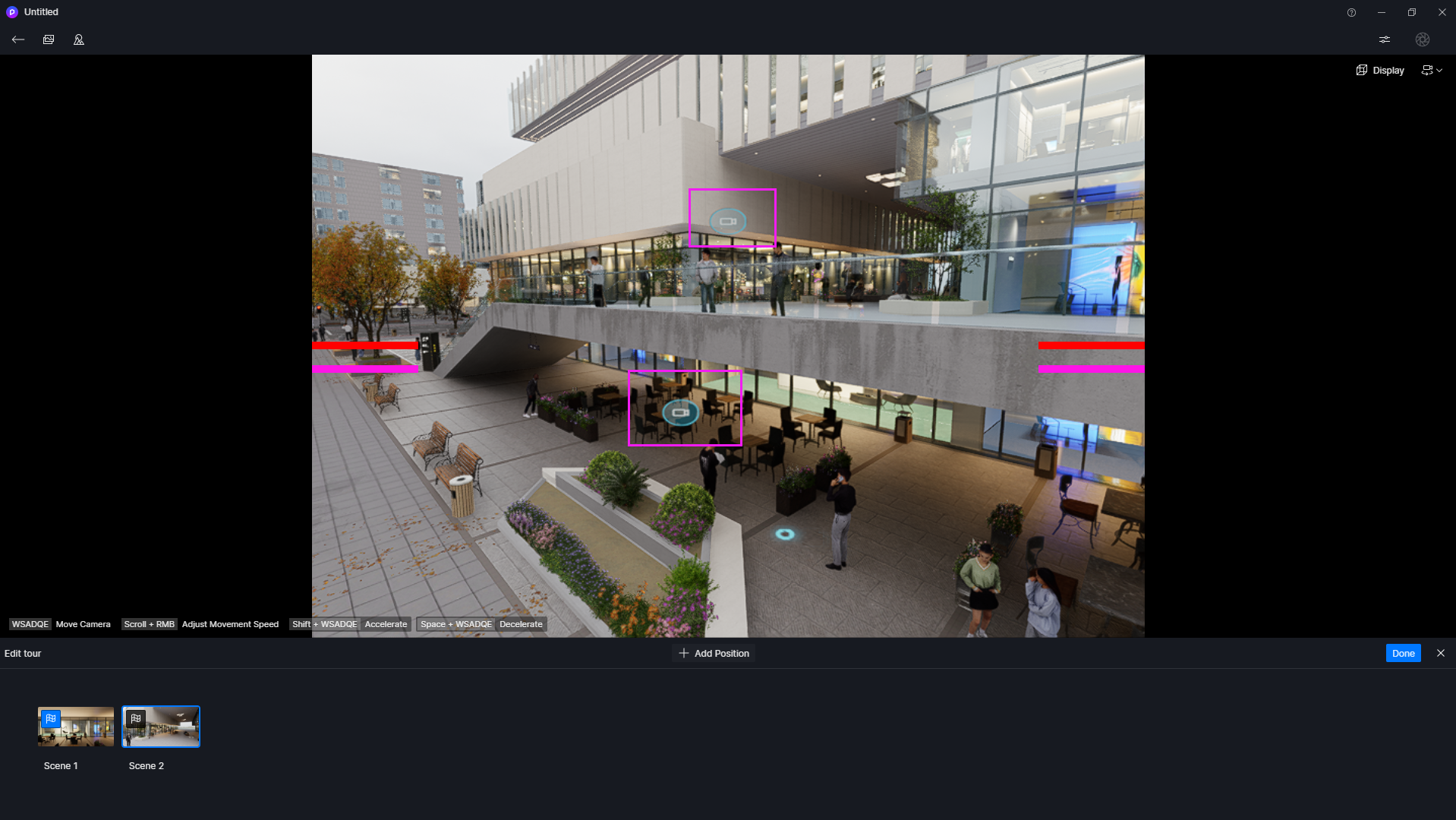
2.1 Camera position switching
When setting up tour points, the camera defaults to floor level. Adjust this in the gallery to match real-world perspectives for more natural movement.
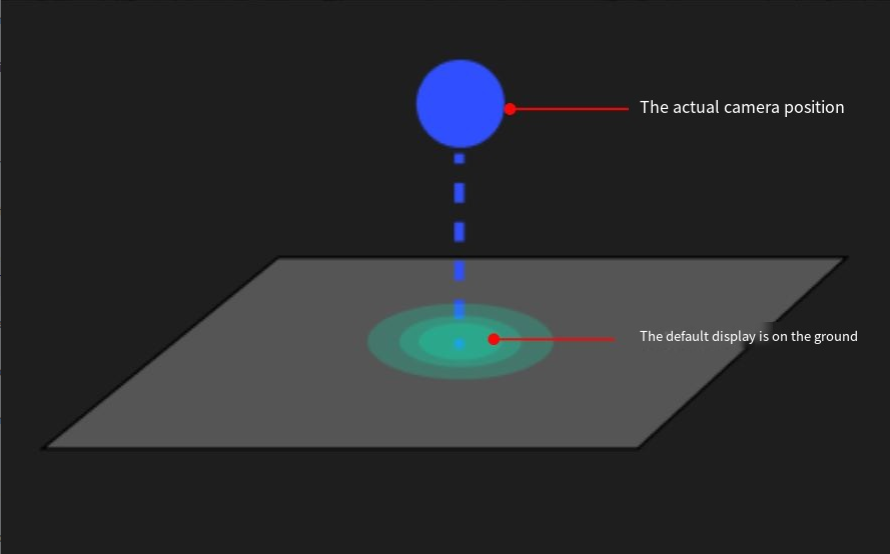
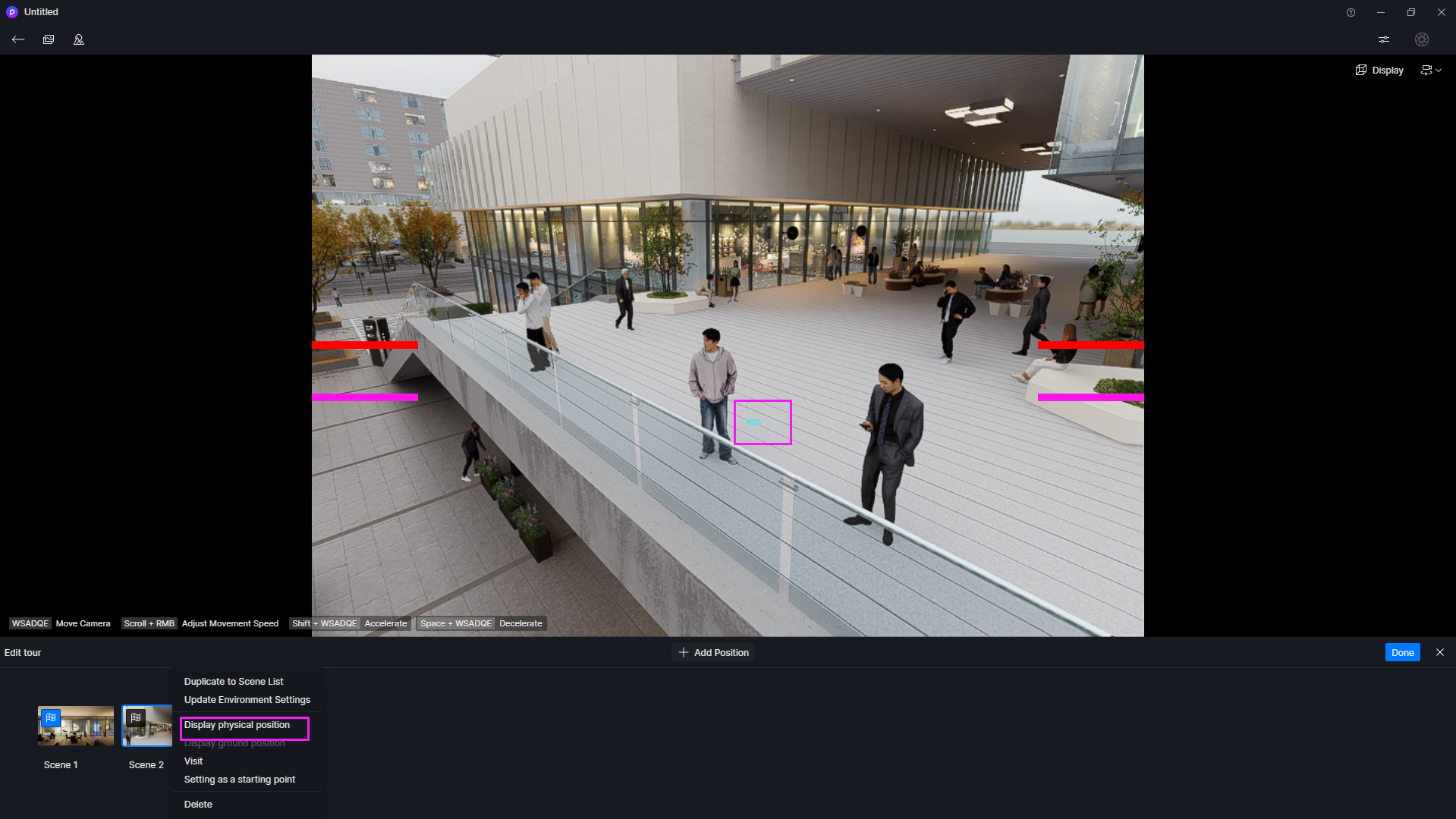
To ensure enhanced realism and continuity in virtual tours, it is recommended to use ground position for indoor scenes and physical position for outdoor or aerial-view scenes.
- La pregunta está vacía. Por favor, introduce un texto para traducirlo.Indoor scenes: Stick with ground-level positioning for seamless transitions.
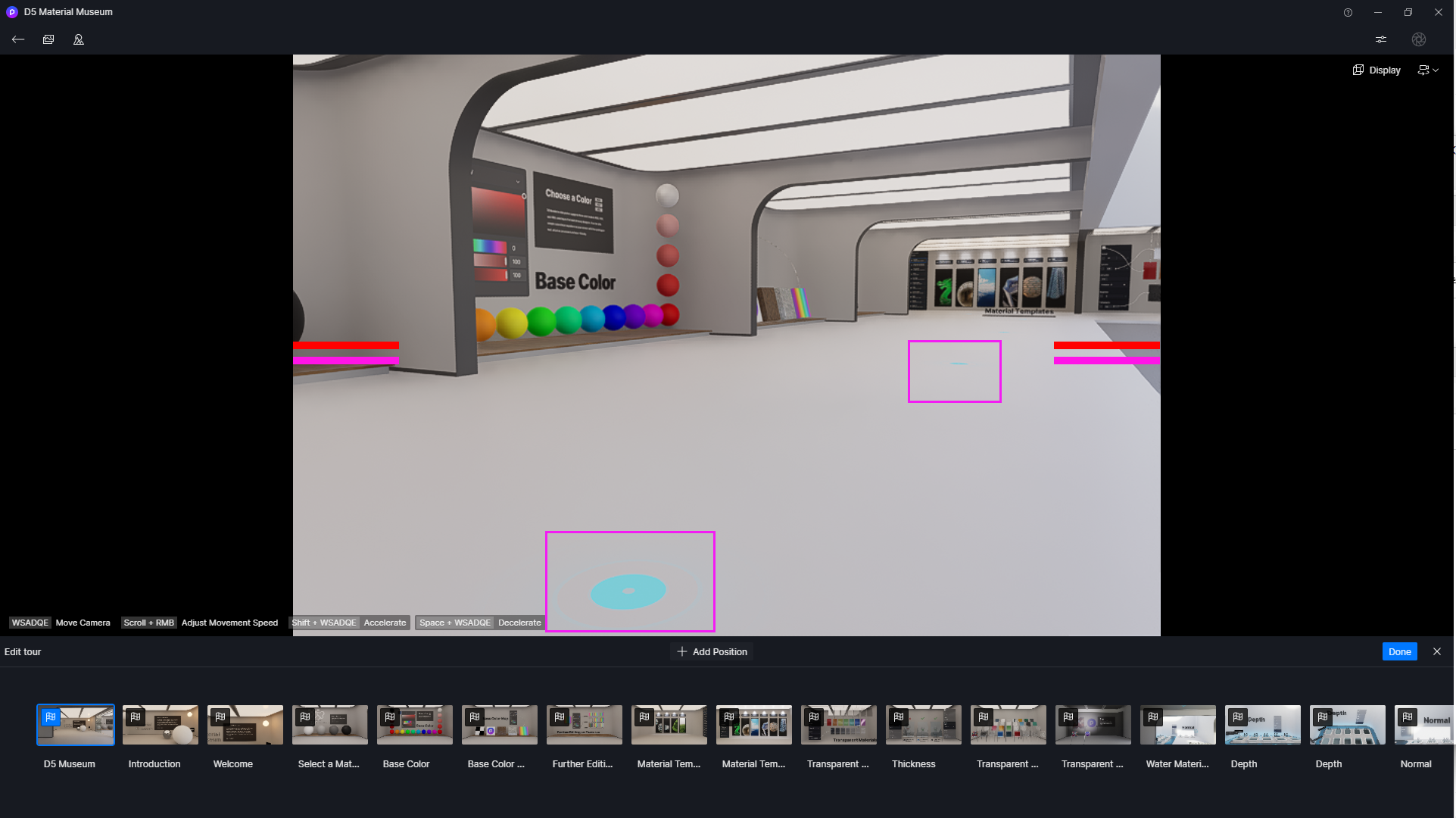
- La pregunta está vacía. Por favor, introduce un texto para traducirlo.Outdoor or aerial views: Use physical camera placement for authentic perspective shifts. Just click any point to instantly jump there.
2.2 Interactive Hotspots
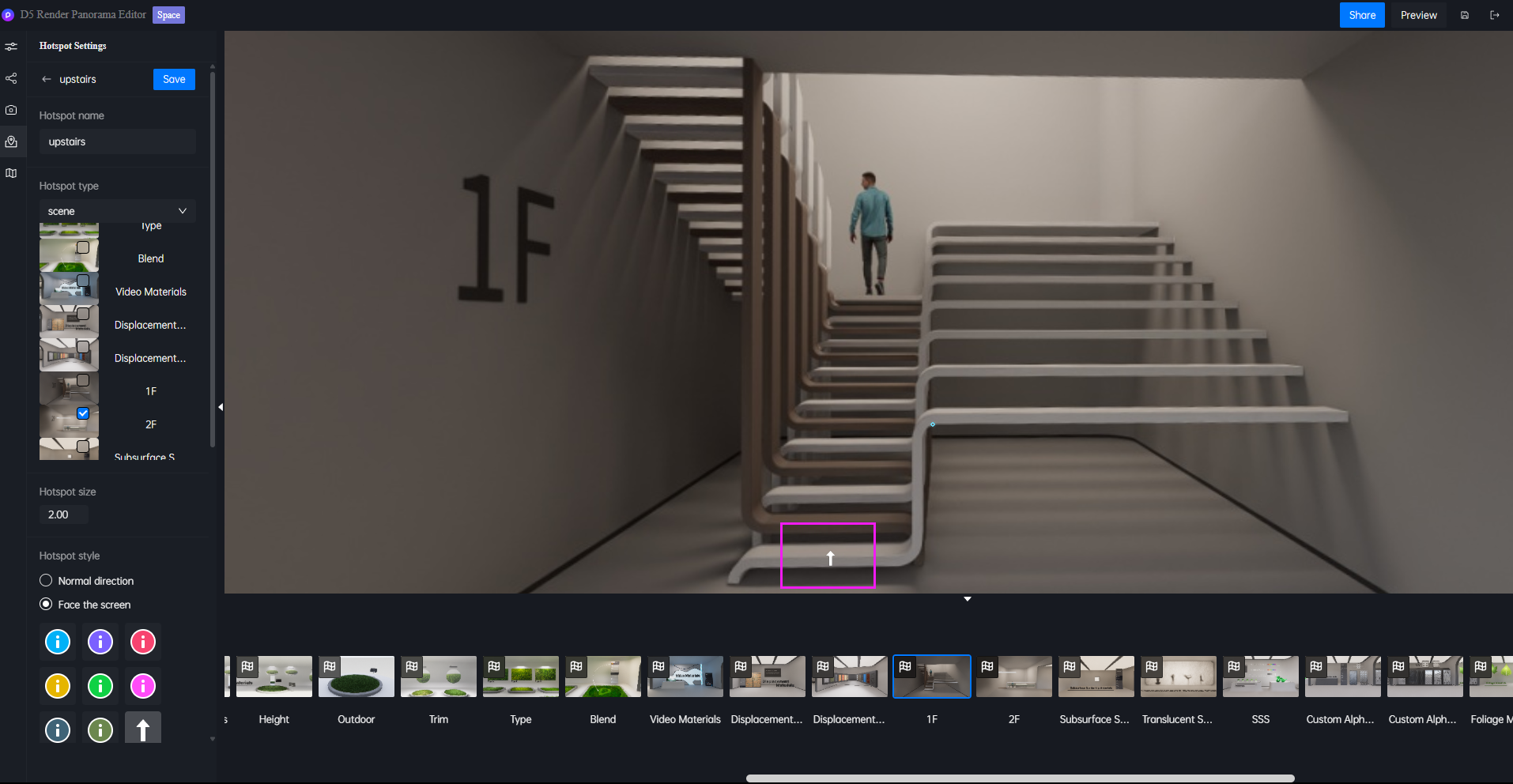
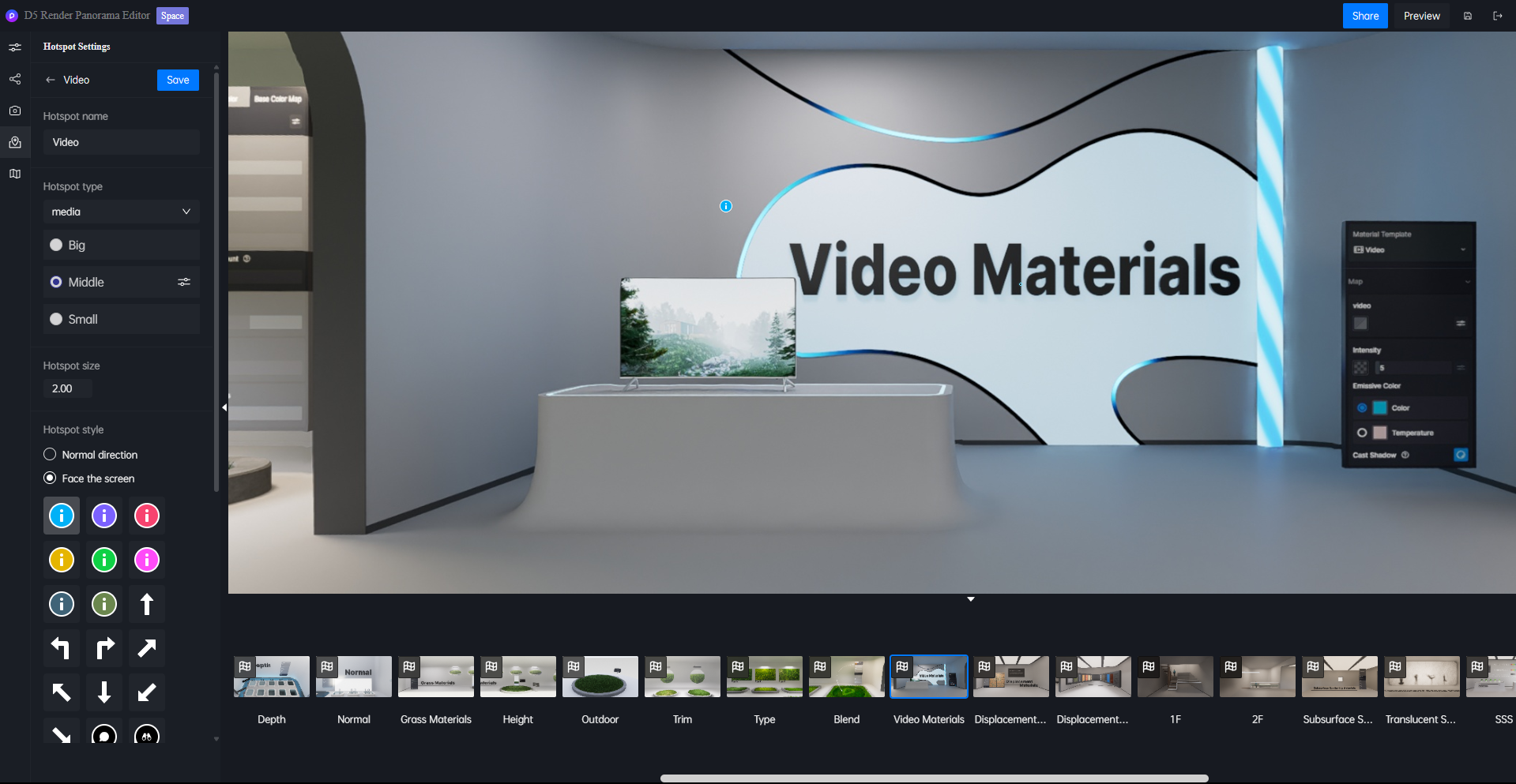
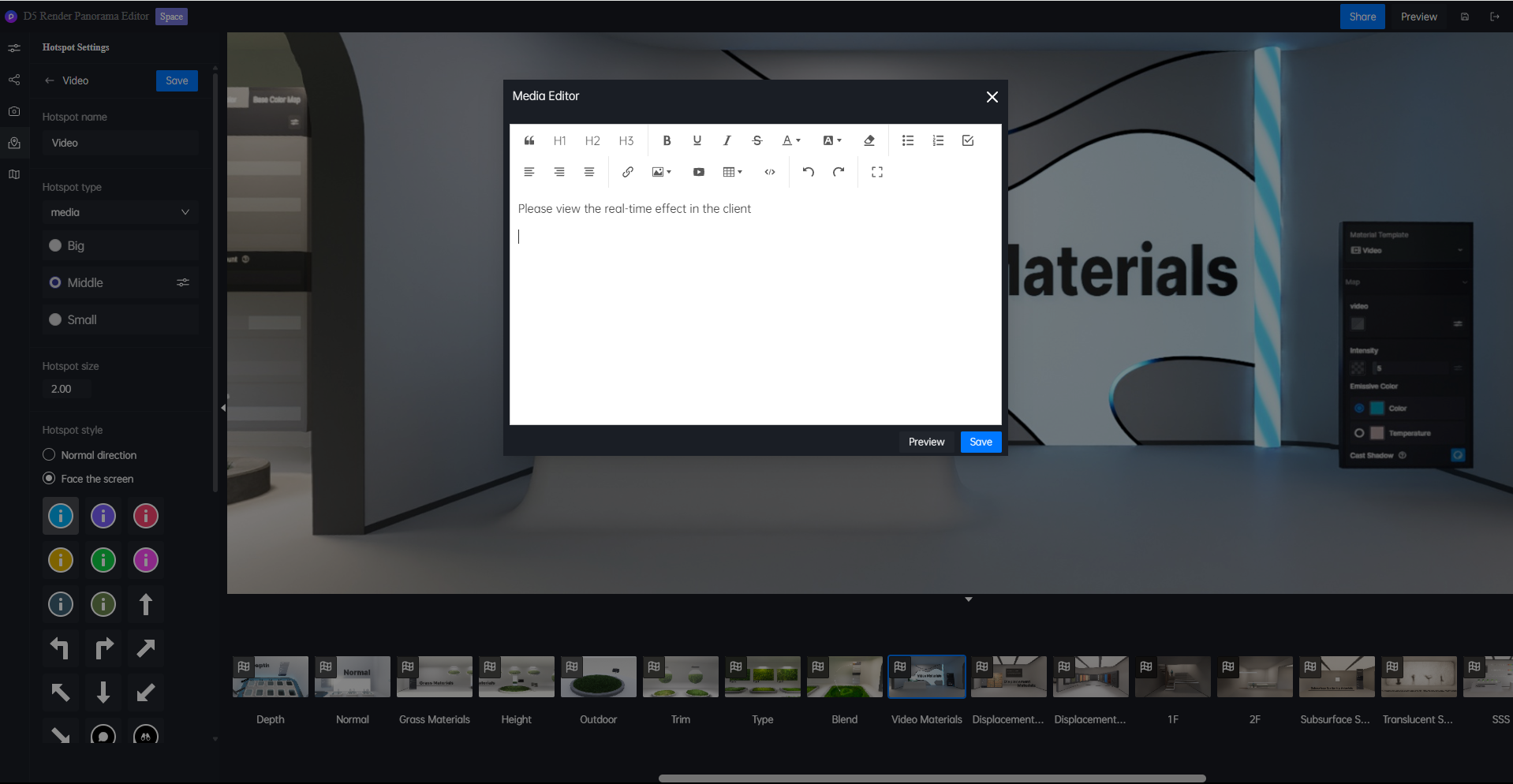
D5 Render offers two powerful hotspot types to enhance your virtual tours: Scene Hotspots for navigation and Media Hotspots for additional content. These interactive elements let viewers jump between locations or explore rich media with just a click.
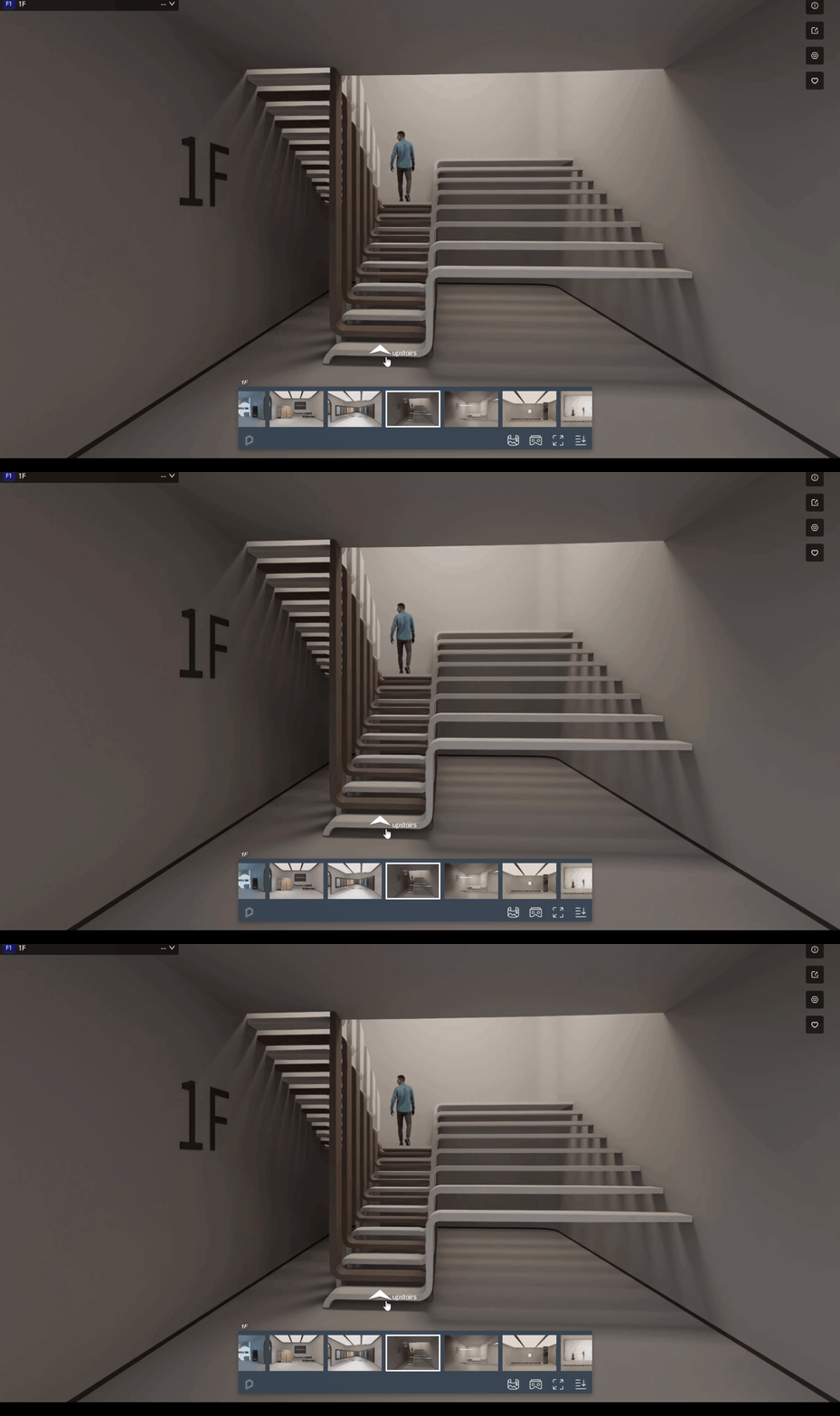
- La pregunta está vacía. Por favor, introduce un texto para traducirlo.Scene Hotspot: Select destinations and customize icons from the left panel. Choose between static or animated markers for better visual guidance.
- La pregunta está vacía. Por favor, introduce un texto para traducirlo.Media Hotspot: Embed text, images, videos, or links in pop-up windows. Adjust sizes to fit naturally into your scene.
2.3 Real-time Floor Plan Navigation
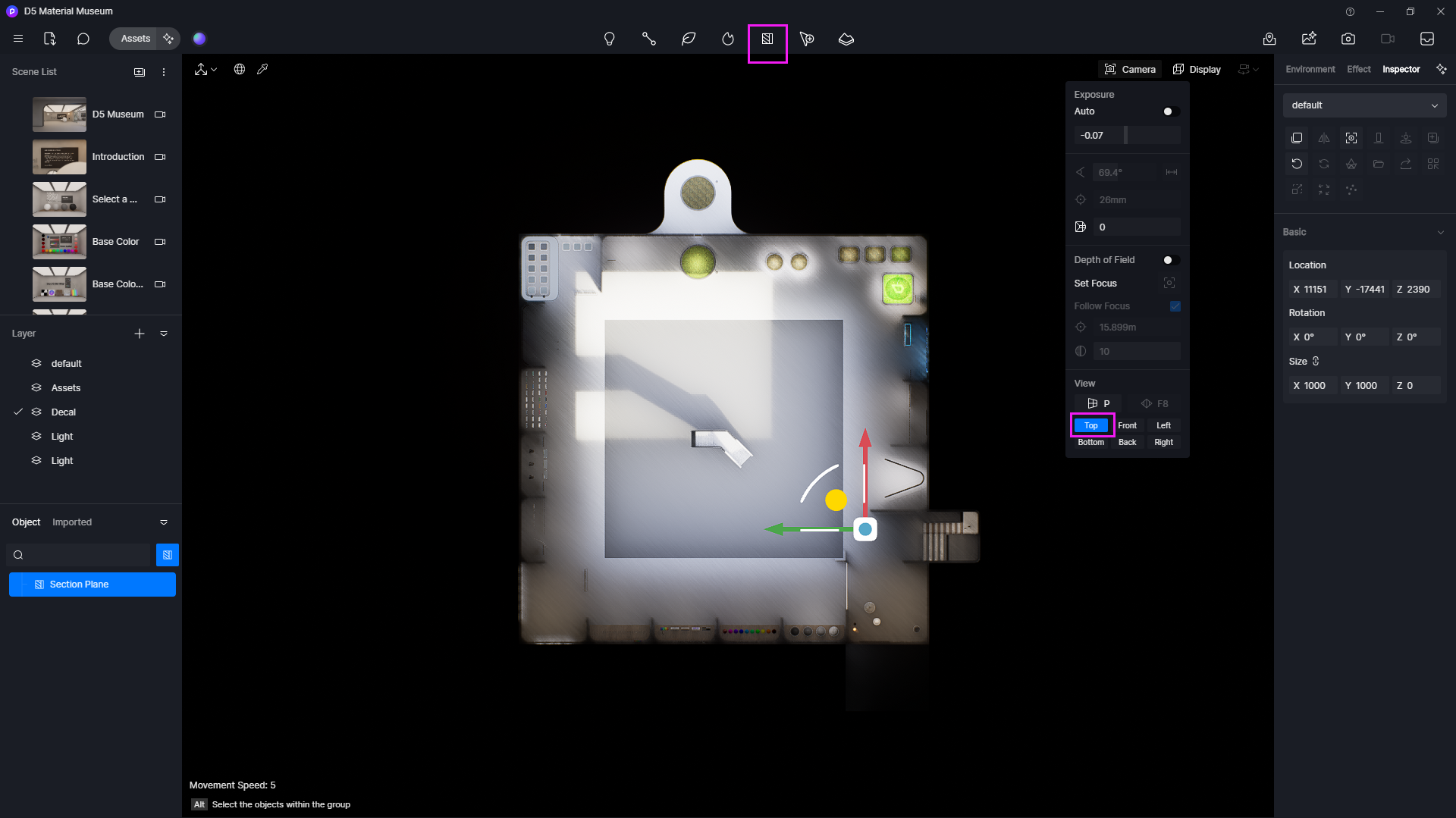
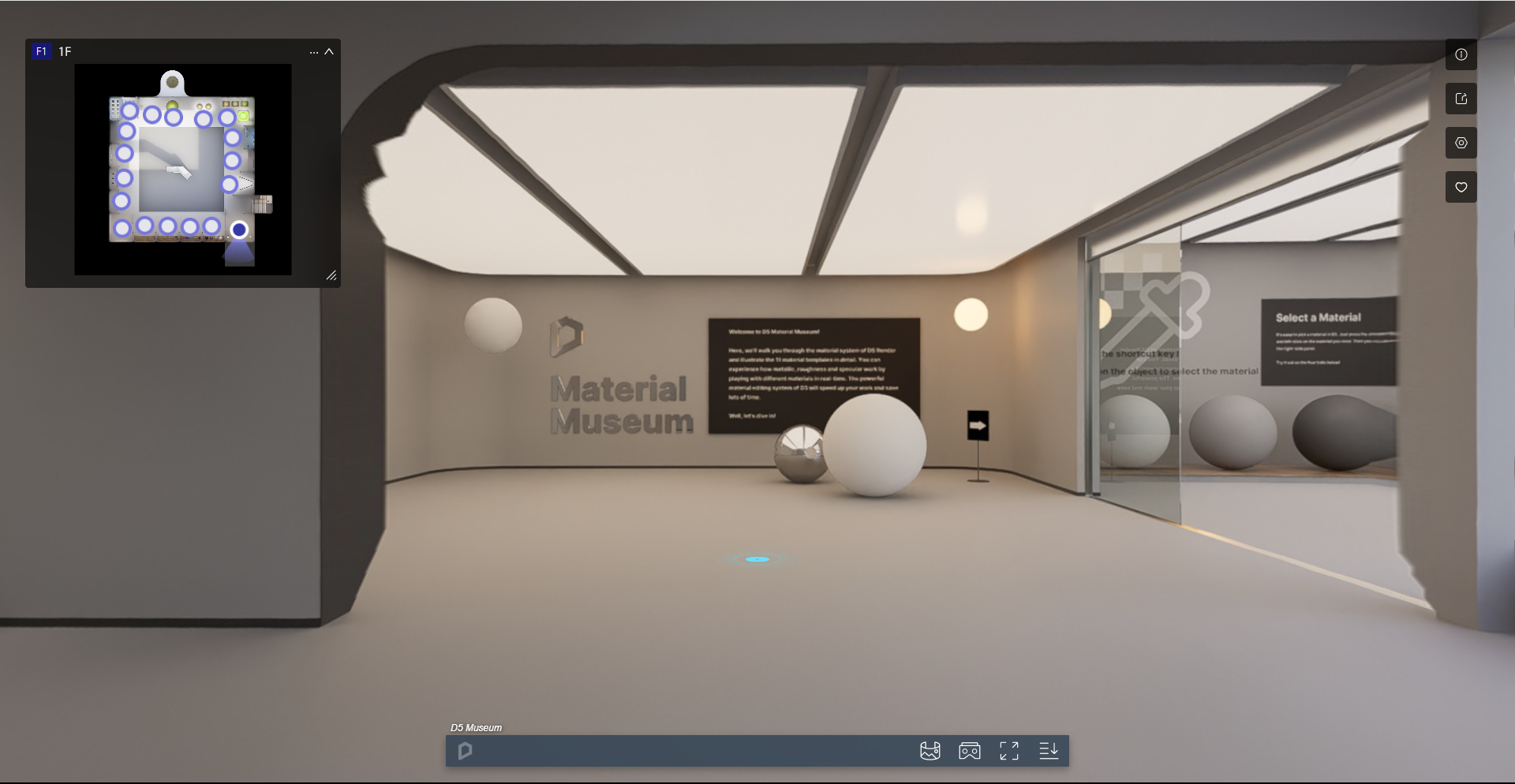
If you have a floor plan, simply upload it directly. No floor plan? No problem – D5 Render’s Section Plane tool lets you create one instantly.
In the gallery view, place camera markers on the left-hand map panel. Double-click to set positions, then click to fine-tune.
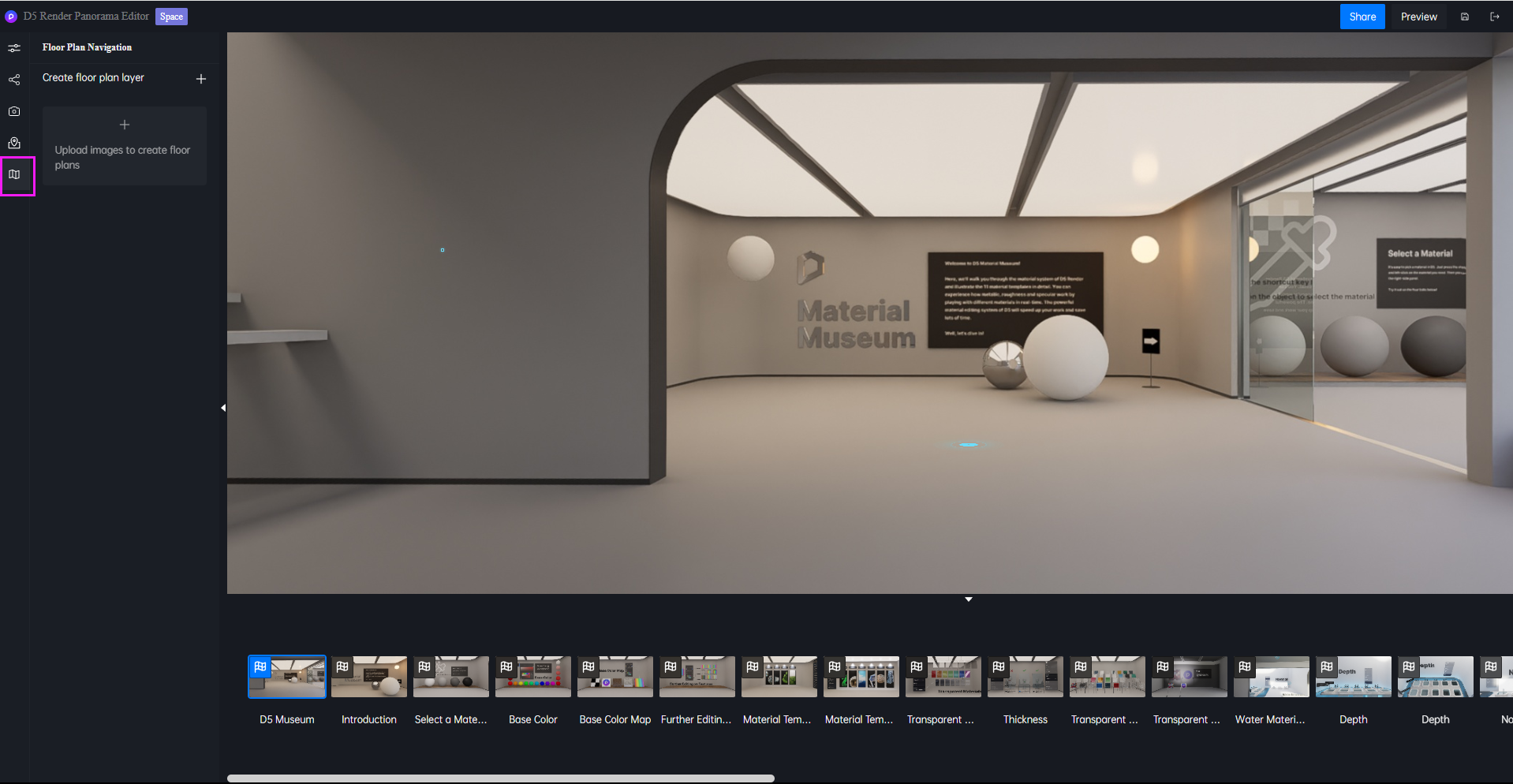
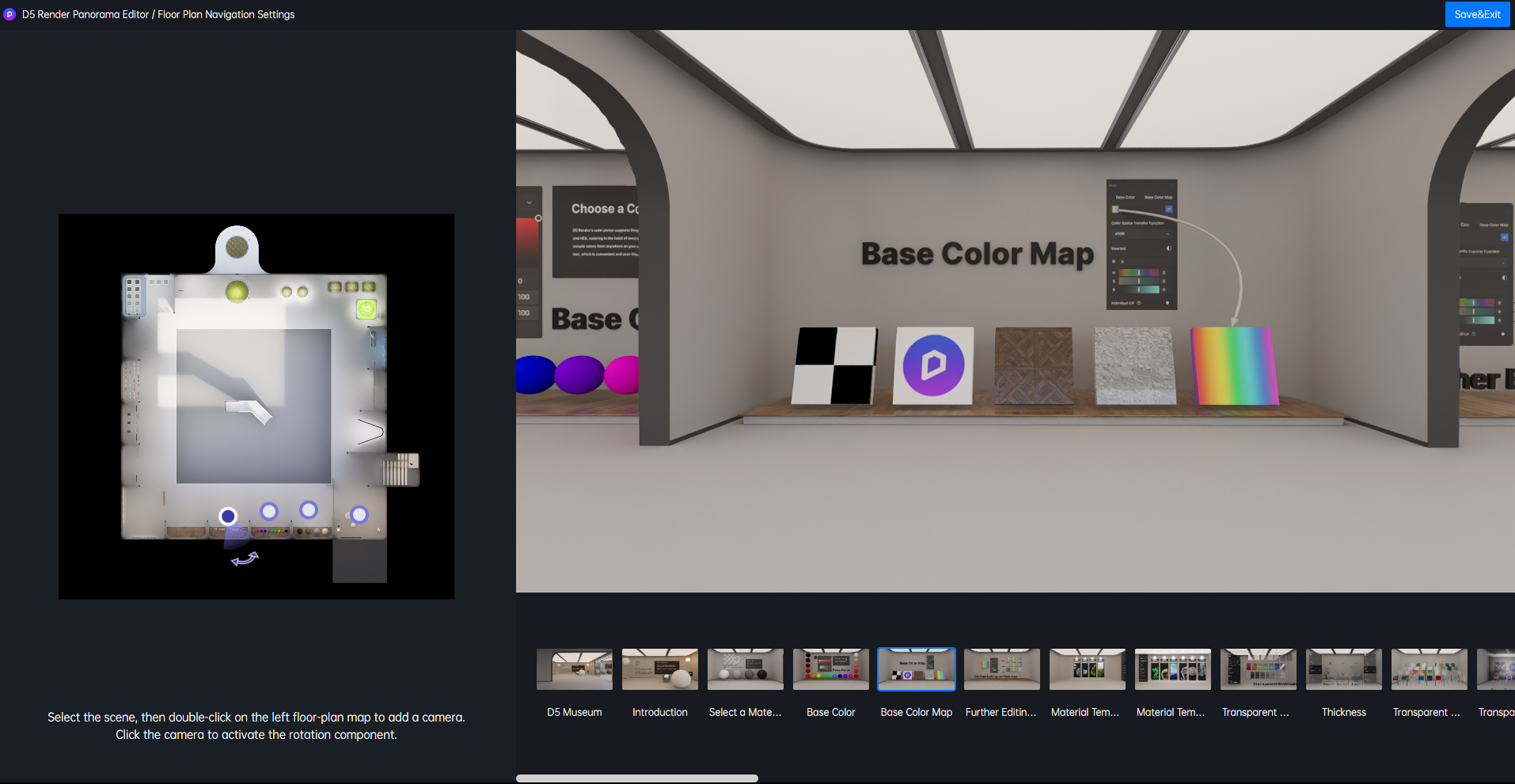
Want to jump to a specific area? Just click any spot on the map during preview mode for instant teleportation.
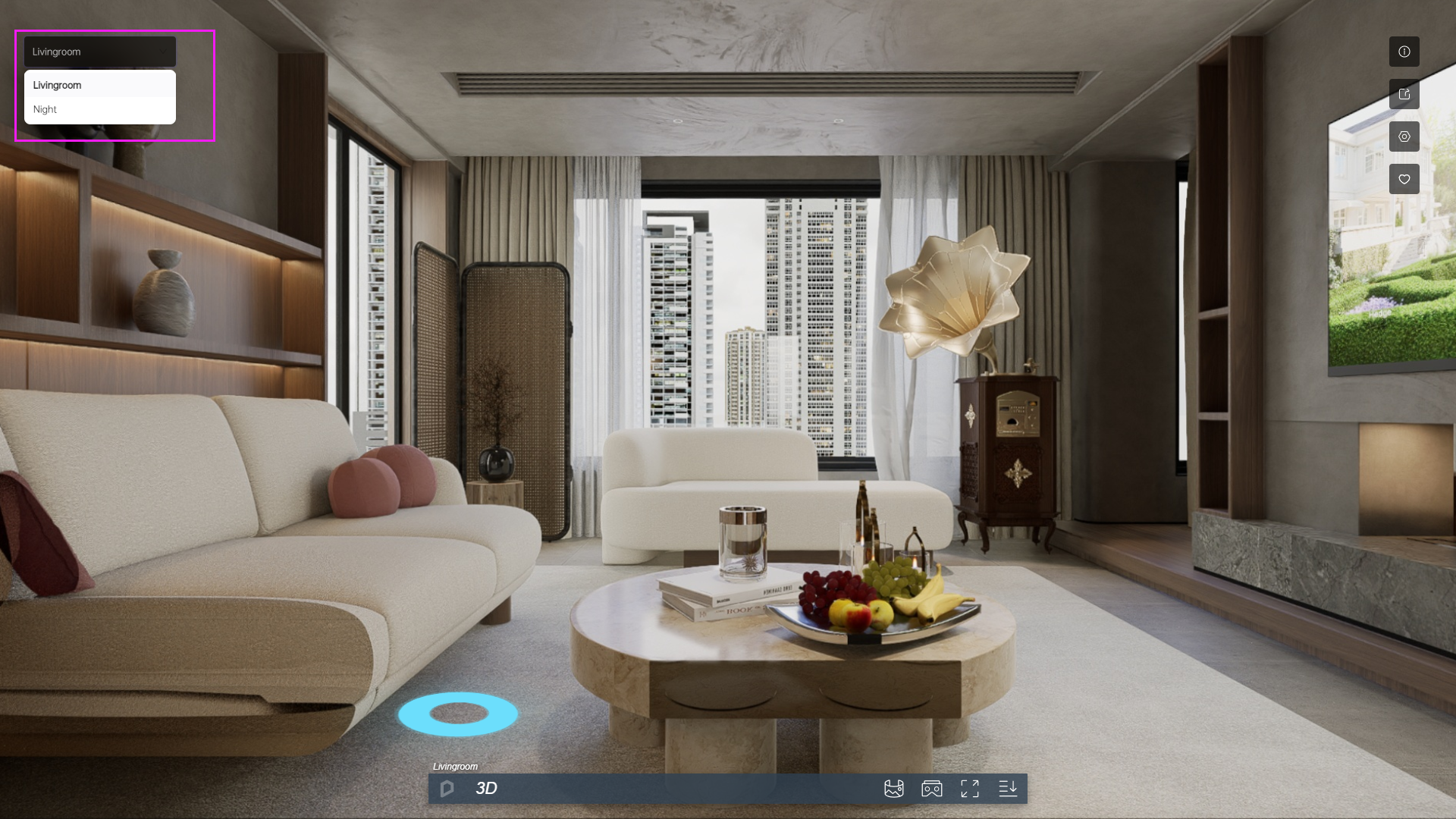
2.4 Multiple statuses switching
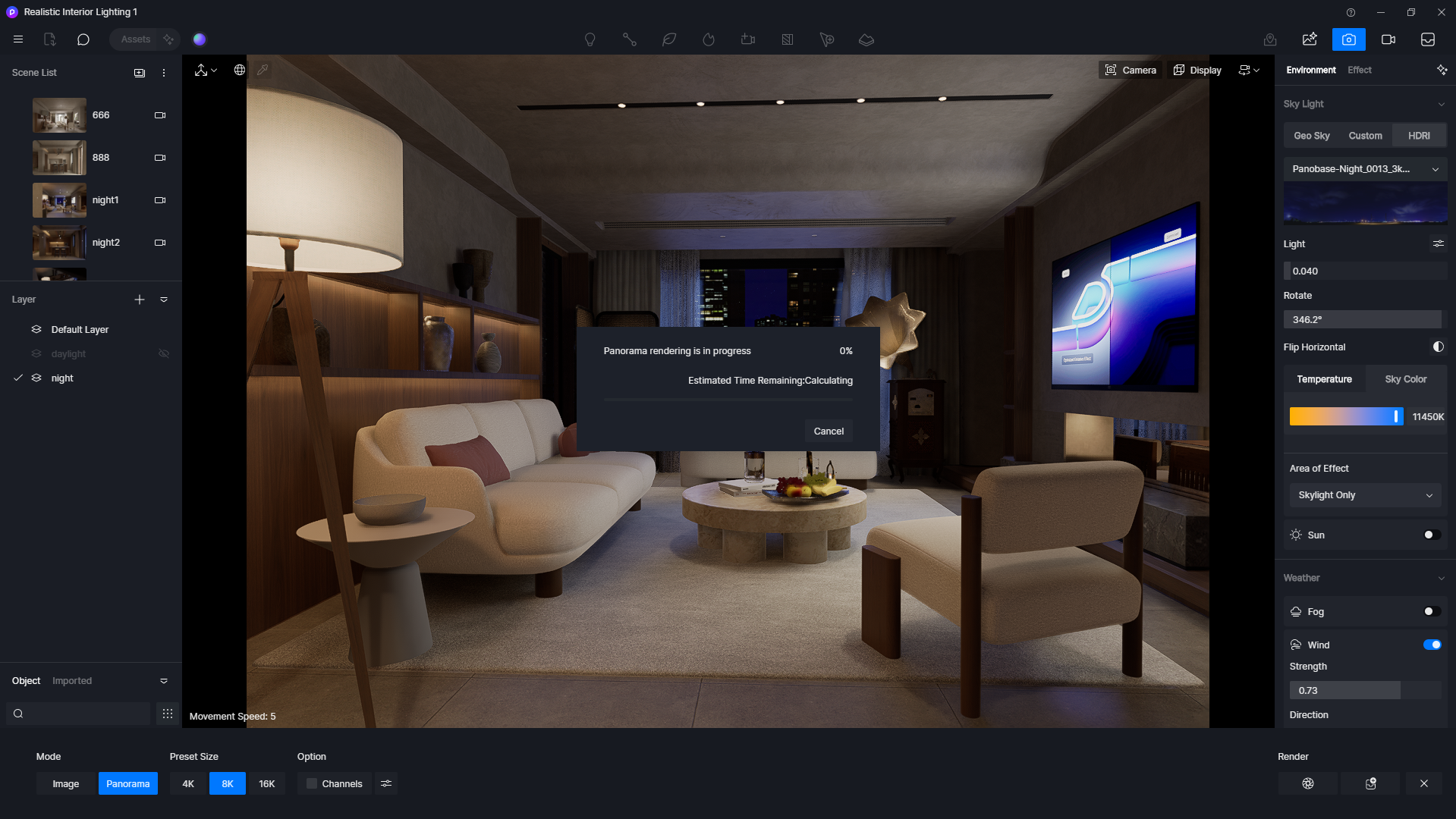
Need to showcase different versions of the same scene—like lighting variations, furniture arrangements, or material options? Use the Multi-State Editing feature to toggle between views instantly, eliminating the need for separate tours.
For scenes requiring multiple previews:
- Render several panoramas from the same camera position in D5 Render
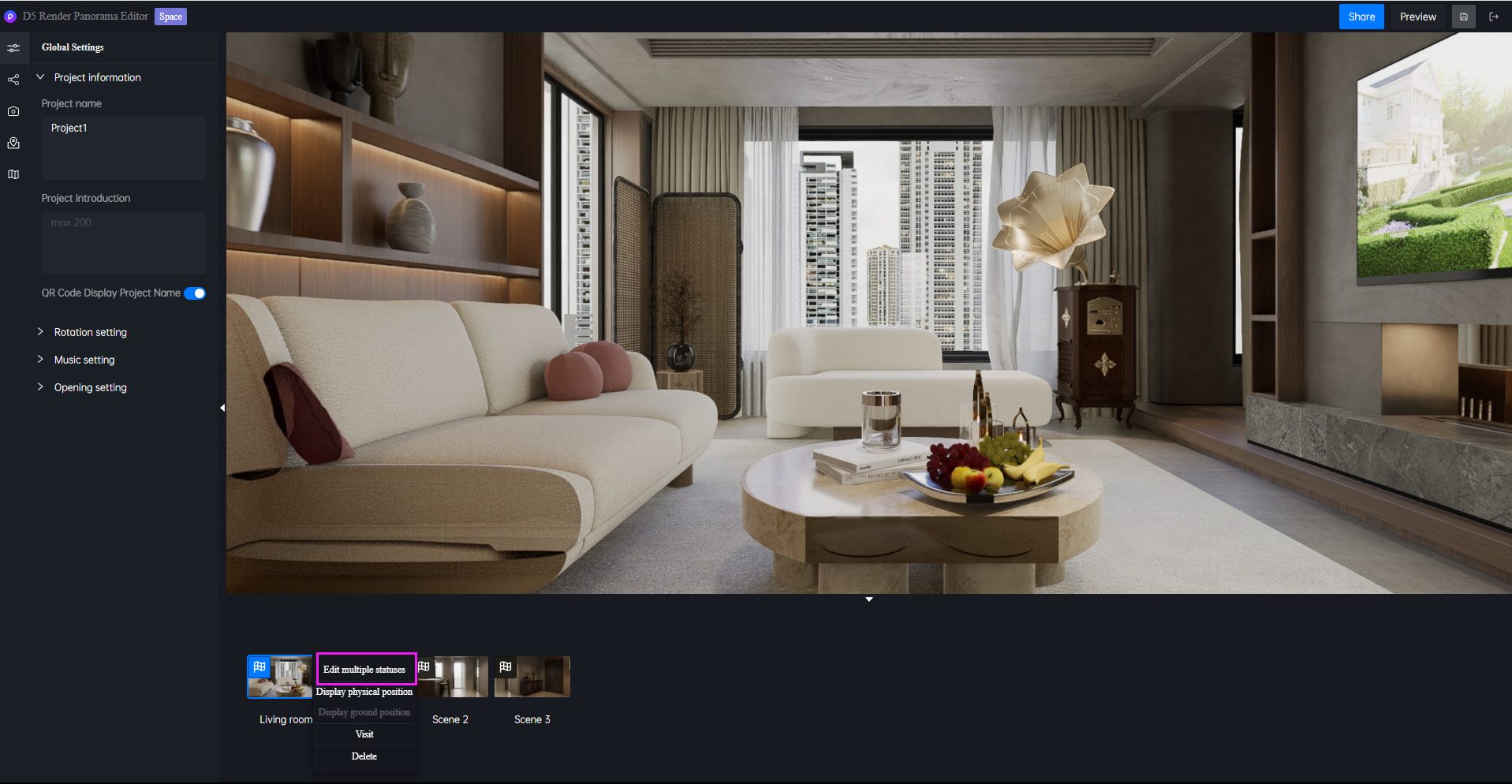
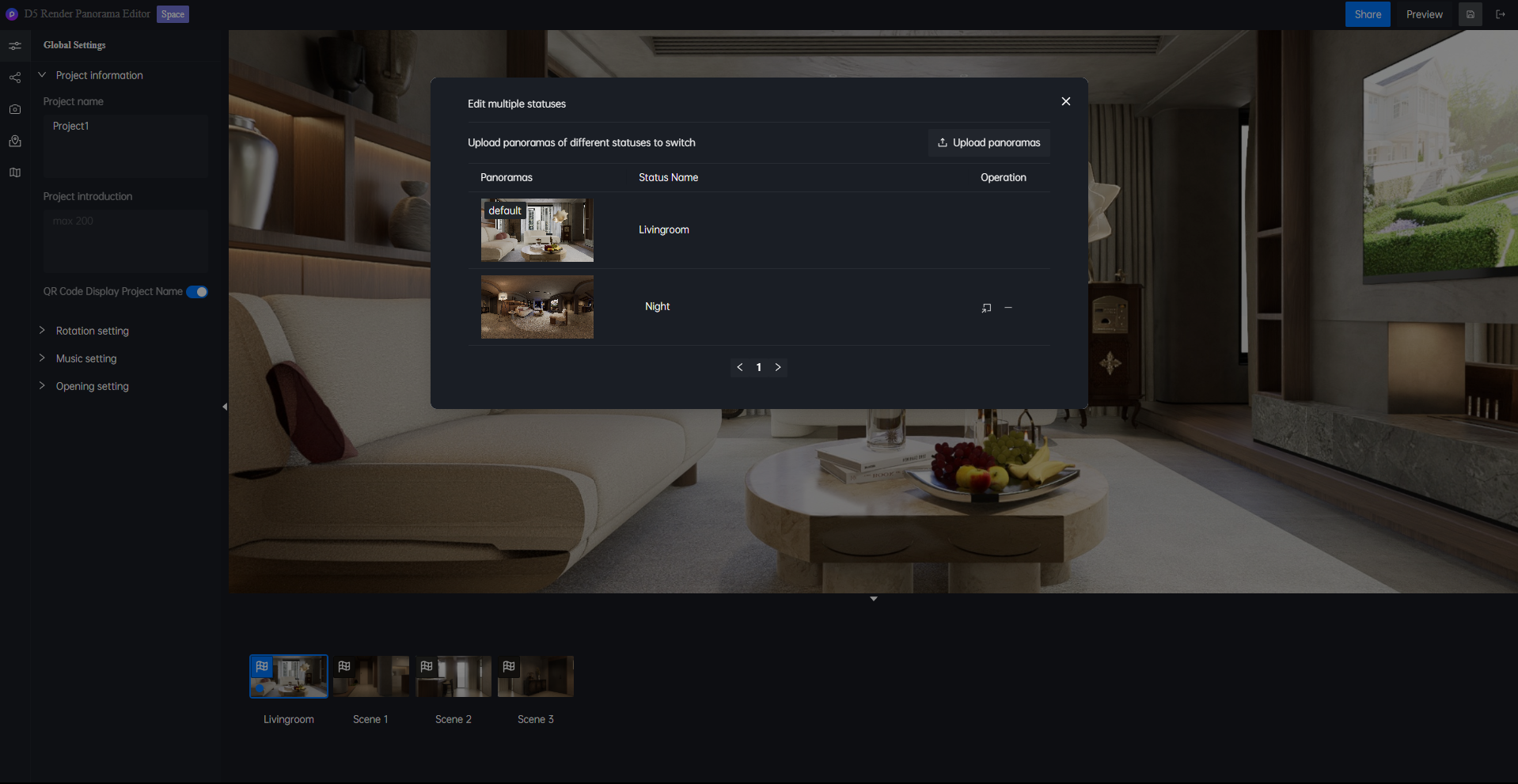
- Add them to the editor
- Seamlessly switch between states during preview
2.5 3D Dollhouse
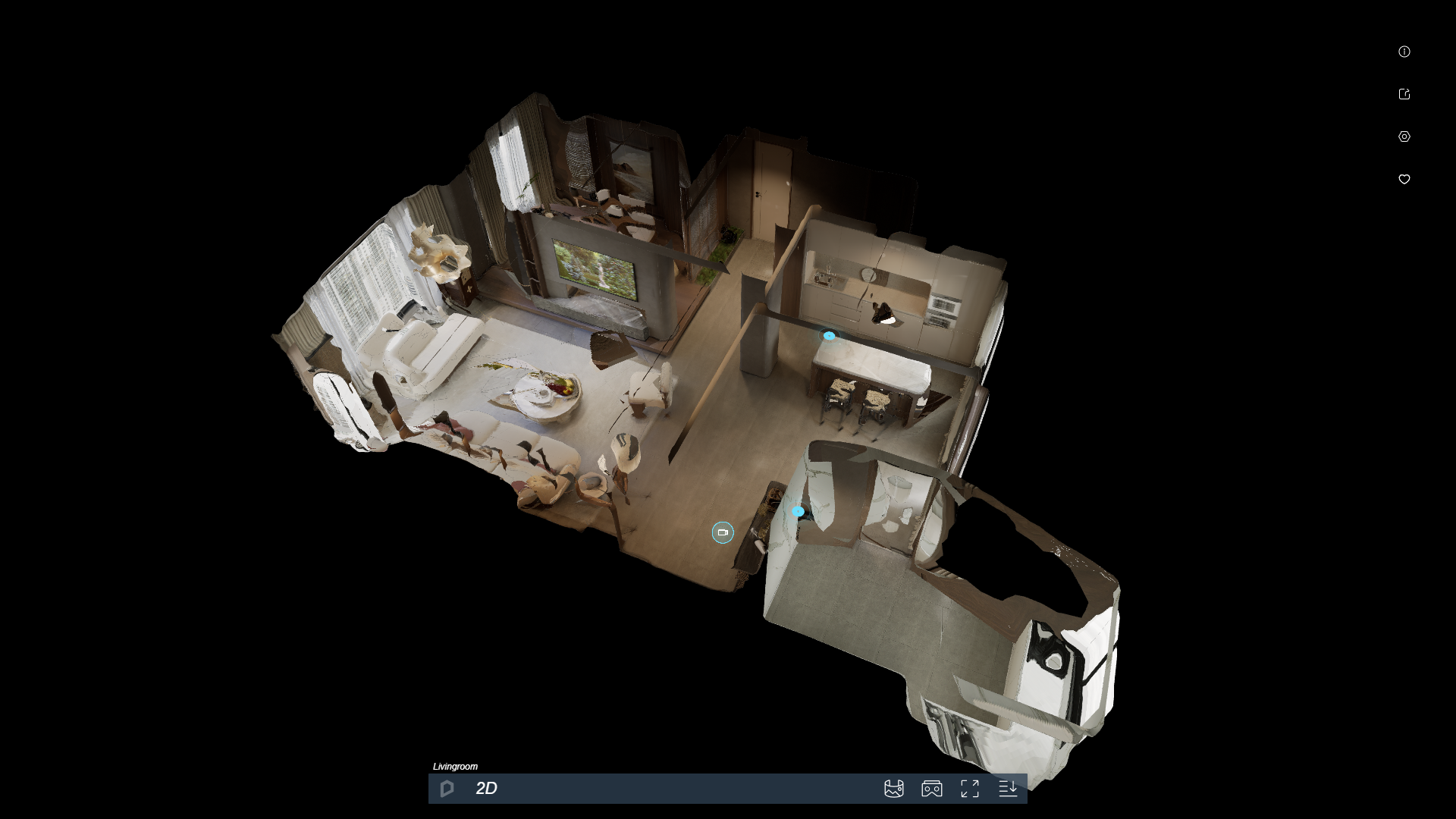
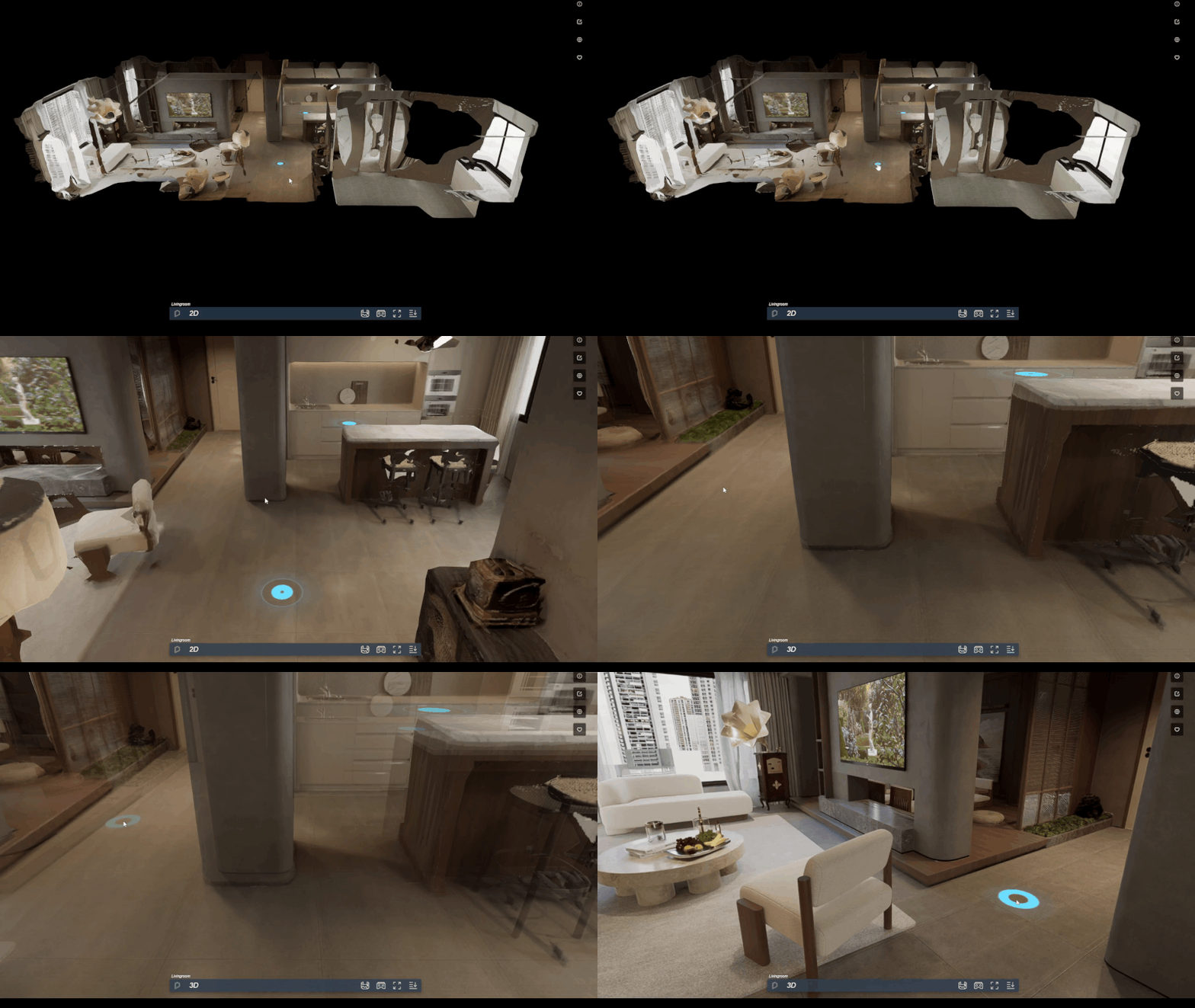
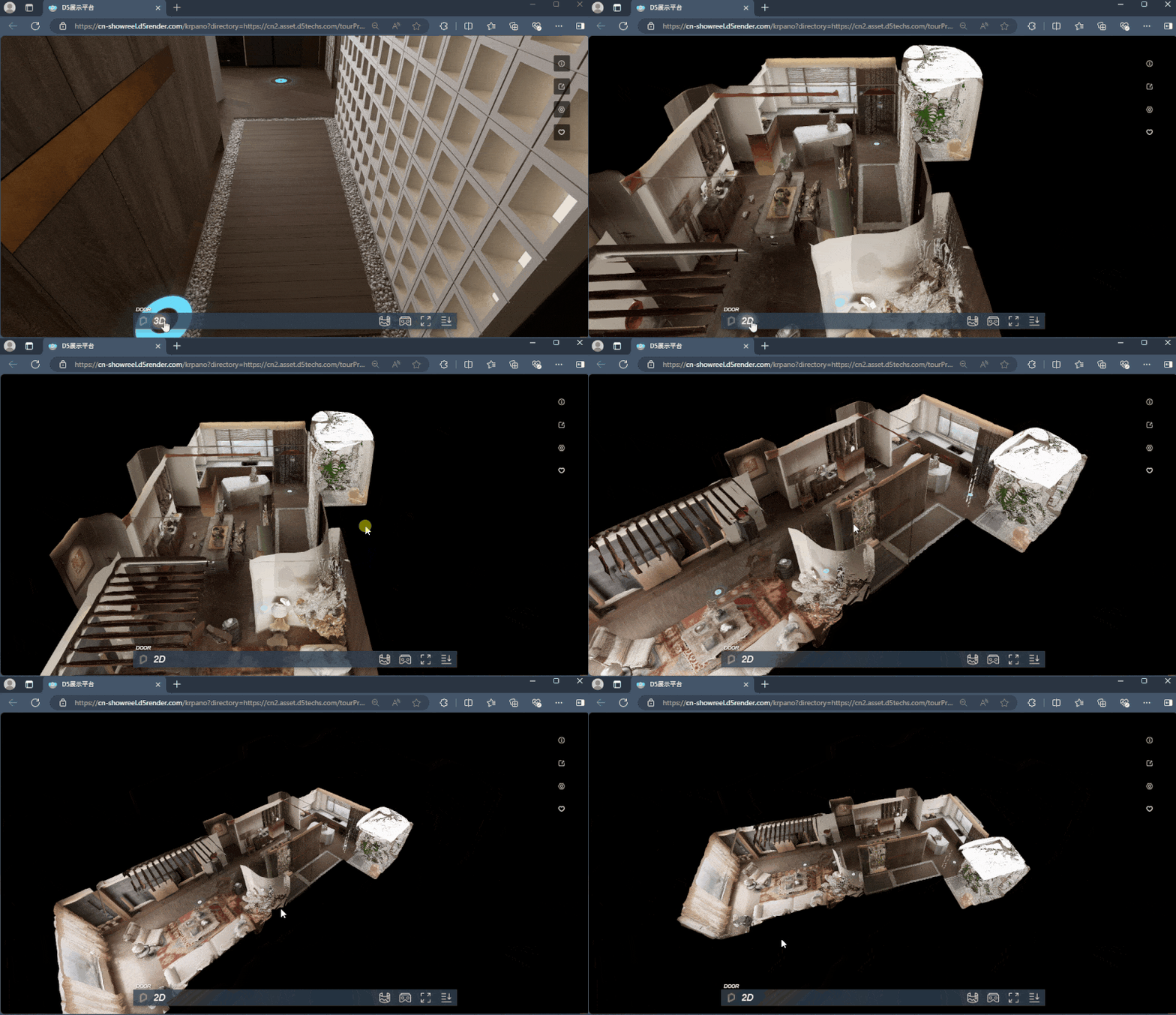
D5 Render’s latest version automatically creates a 3D Dollhouse view during rendering. Simply click the “3D” button in the navigation bar at the bottom to switch to this bird’s-eye perspective. For best results, use this feature in fully enclosed indoor spaces and set at least two tour points in each area for accurate reconstruction.
How to create 3D Dollhouse | User Manual >
3. How to share via D5 Showreel
D5 Showreel simplifies cloud-based virtual tour sharing through links or QR codes. Publish to D5 Cloud projects, which store multiple tours and preserve past versions, ensuring organized, accessible distribution to clients or social media.
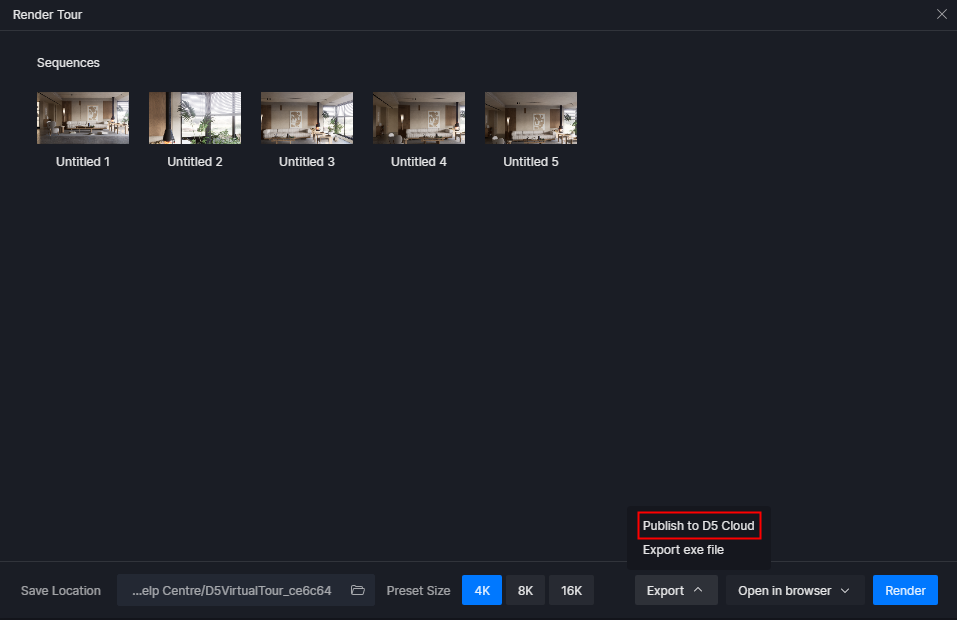
1️⃣ Navigate to the “Export” menu and select “Publish to D5 Cloud“.
2️⃣ You’ll be guided to associate your virtual tour with a cloud project. At this juncture, you can either link it to a new project or integrate it with one that’s already in progress.
La pregunta está vacía. Por favor, introduce un texto para traducirlo.
3️⃣ After uploading is completed, you can open the cloud project.
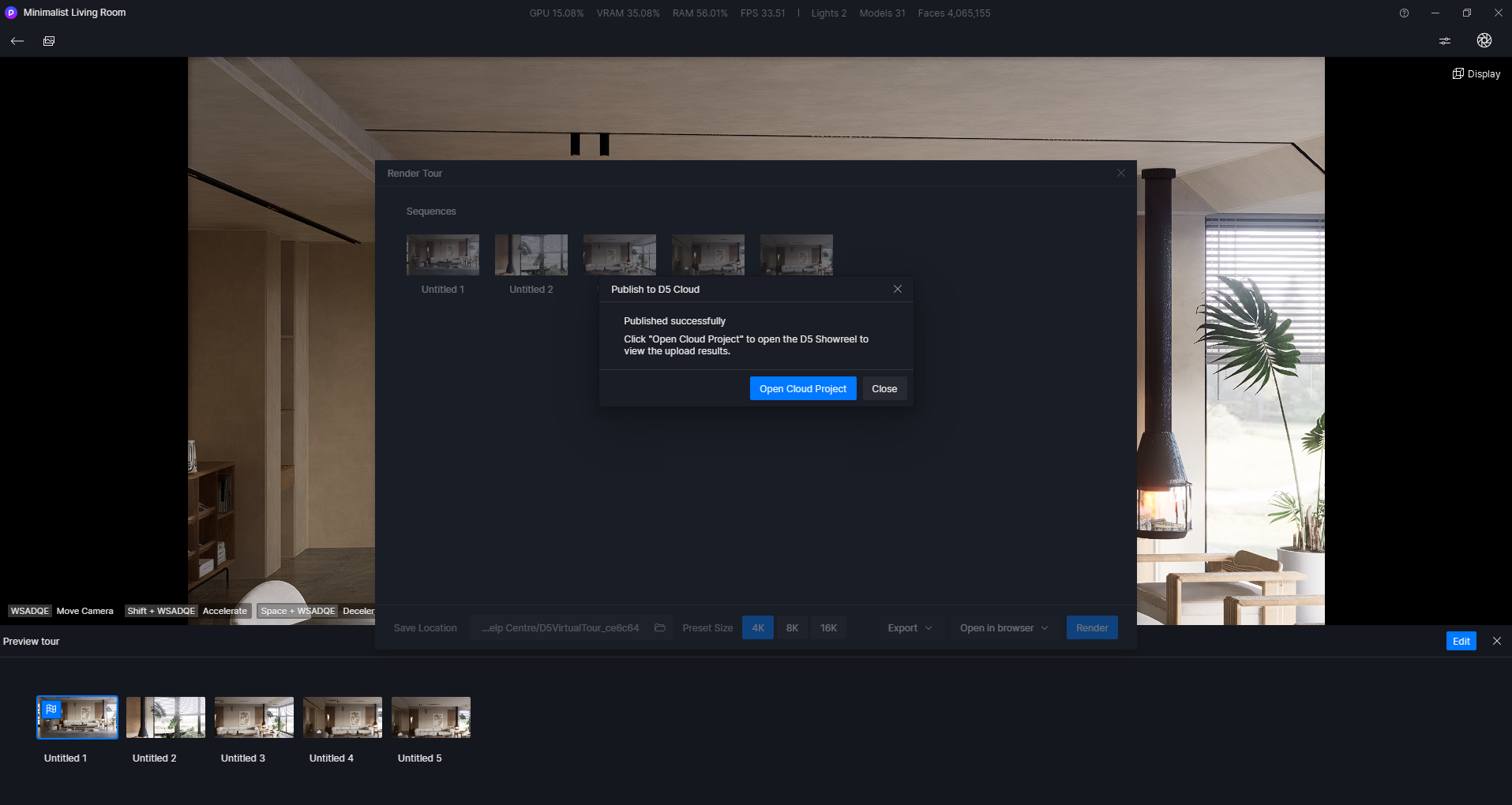
La pregunta está vacía. Por favor, introduce un texto para traducirlo.
4️⃣ On the D5 Showreel platform, you can find the uploaded virtual tour in the corresponding cloud project.
- A cloud project could contain multiple virtual tours.
- You can share virtual tours by link or QR code.
Each upload to a D5 Cloud project creates a new tour file, preserving your past work.
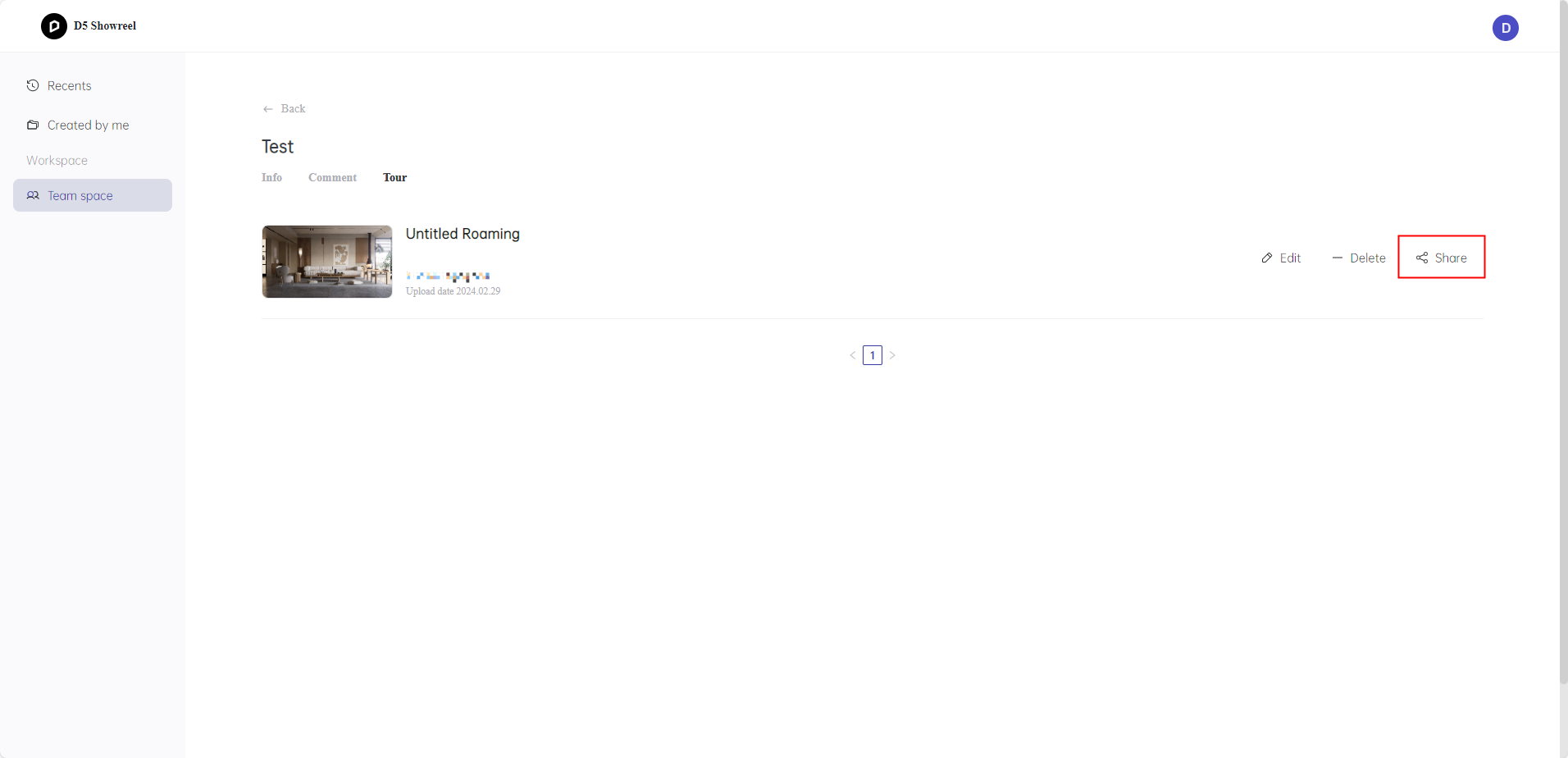
La pregunta está vacía. Por favor, introduce un texto para traducirlo.
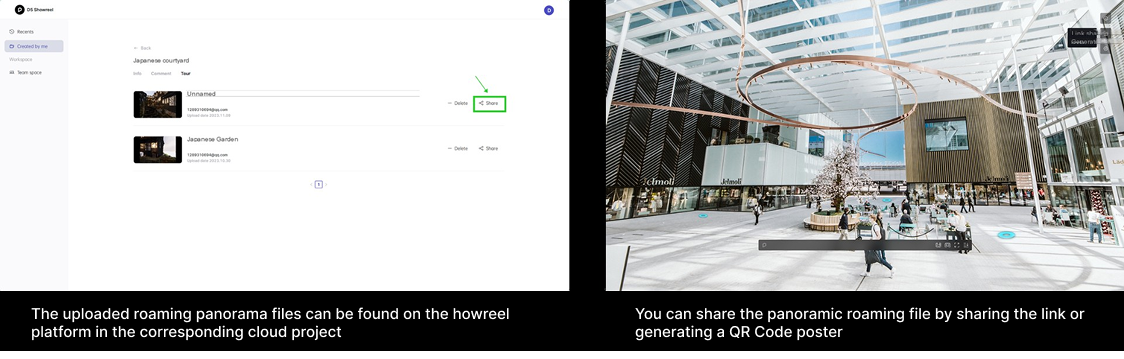
5️⃣ In the Showreel platform, you can find your uploaded roaming panorama files in the corresponding cloud project.
- Multiple roaming panorama files can be uploaded in one cloud project.
- Users can copy the sharing link or generate a QRCode poster to send to their clients or share on social media.
Nota: Every time the client publishes to the D5 Cloud, a new roaming file will be generated, without overwriting the previous one.
How to Create D5’s Virtual Tour? | User Manual >
How to use the D5 Showreel platform? | User Manual >
4. Why D5 Render + Showreel Outperforms Traditional Multi-Software Workflows
The integrated workflow of D5 Render + Showreel eliminates the inefficiencies of traditional multi-software pipelines. Unlike conventional setups that require exporting, converting, and uploading files across different platforms (e.g., rendering in one tool, hosting on third-party services), D5’s native ecosystem streamlines the entire process.
Con one-click cloud publishing from D5 Render to Showreel, projects are instantly shareable via link or QR code—no manual file transfers or compatibility issues. Real-time updates ensure clients always see the latest revisions, while interactive features (hotspots, 3D Dollhouse) remain fully functional.
For teams, the seamless version control and centralized cloud storage reduce collaboration friction. By unifying creation and distribution, D5’s workflow saves time, preserves quality, and enhances client engagement—all within a single, purpose-built platform.
5. Conclusion on Virtual Tour with D5 Render
D5 Render makes creating immersive virtual tours easier than ever, with powerful tools like interactive hotspots, 3D dollhouse views, and seamless cloud sharing. Whether showcasing real estate, architectural designs, or commercial spaces, these features help you craft engaging, professional experiences in one streamlined workflow. Ready to elevate your presentations? Start exploring with D5 Render today!
Continue to Explore More D5 Render’s Workflow Integration
The best free SketchUp rendering tool: D5 Render >
D5 Render: Rhino Rendering Software >
3ds Max Real-time Rendering Software >
Best Rendering Software for Revit Professionals >
Streamlined Workflow with D5 Render for Intuitive 3D Rendering >
Lumion vs D5 Render which is better for architects >
FAQs on Virtual Tour with D5 Render
1.Can I add Interactive lements to M D5 Virtual Tour?
Yes! D5 Render supports scene hotspots for viewpoint jumps and media hotspots (text, images, videos, links) via its Panorama Editor. No third-party tools are needed—customize interactivity directly in D5 for enhanced client engagement.
2.How do I start a Virtual Tour in D5 Showreel?
Click the “Virtual Tour” tab, set key camera points, and use the timeline to adjust transitions. Preview and render to finalize the path.
3.Can I Export Virtual Tours to Share with Clients?
Yes, export as MP4 video or generate a shareable web link via D5 Cloud for browser-based viewing without software installation.
4.Why does My Virtual Tour Lag During Real-Time Rendering?
Lower settings like shadow quality or resolution temporarily. Close background apps and ensure GPU drivers are updated for smoother performance.
5.Is Collaborative Editing Possible for D5 Virtual Tours?
Yes, save projects to D5 Cloud to invite team members. Edits sync in real time, but only one user can control the timeline simultaneously.


 English
 Español
 Français
 한국어
한국어 日本語
日本語