
솔직히 말해보자. 우리 모두 겪어본 일이다—클라이언트가 매싱(massing)에 최종 서명을 했고, 카메라 앵글도 고정되었다. 그런데 거의 후속 조치처럼 이런 요청이 들어온다: “로비 바닥에 미드나잇 블루 석재를 써볼 수 있을까요? 그리고 정오 대신 석양으로 해주시고, 똑같은 뷰를 유지할 수 있나요?”
만약 당신의 워크플로우가 여전히 일반적인 텍스트-투-이미지 AI 생성기를 사용한다면, 그 요청은 당신을 동일한 루프로 되돌려 보낸다: 프롬프트를 다시 작성하고, 재생성하고, 새로운 석재가 지오메트리를 뒤틀거나 조명을 혼란에 빠뜨리지 않길 바라는 것. 그것은 디자인이라기보다 주사위를 굴리는 것에 가깝다. 건축 시각화에서 AI의 핵심 목적은 당신의 씬(scene) 내부에서 작업하는 것이어야 하며, 그 위에 평평한 그림을 칠하는 것이 아니다. 이것이 바로 D5.
씬-네이티브 AI 제어에 관한 핵심 요점
- 일반적인 AI 도구는 평평한 이미지를 출력한다—지오메트리, 조명, 머티리얼을 프로젝트 파일 내에서 편집할 수 없다.
- D5의 씬-네이티브 AI 도구는 동기화된 씬 내에서 작동한다—결과 설정은 당신의 환경, 조명, 머티리얼 및 에셋에 계속 연결된다.
- 씬-네이티브 AI 제어는 하나의 빠른 AI 시작점을 제공한 다음, 환경 패널 또는 머티리얼 인스펙터에서 미세 조정하는 것을 의미한다—끝없는 프롬프트 재작성이 필요 없다.
- AI를 창의적인 파트너로 대하라: AI가 대부분의 작업을 수행하게 한 후, 렌더링 전에 환경, 효과 및 머티리얼을 조정하라. 최종 마무리는 당신이 책임진다.

일반적인 AI의 격차 건축가들이 계속 부딪히는 문제
Midjourney와 같은 프롬프트 우선 이미지 생성기는 탐색적 컨셉 아트에는 훌륭하다. 하지만 편집 가능성—단순히 예쁜 그림이 아닌—이 필요해지는 순간, 속도가 느려지기 시작한다. 문제는 간단하다: 그 출력물은 평평한 픽셀이지 씬이 아니다.
- 출력물은 이미지일 뿐, 프로젝트가 아니다. 디스크 라이트는 JPEG 이미지 내에 존재하지 않으며, 하나의 벽 패널에 대한 러프니스(Roughness)는 평평한 정지 이미지에서 조정할 수 있는 것이 아니다. 계획이 변경되면, 편집하는 것이 아니라 처음부터 다시 프롬프트를 작성해야 한다.
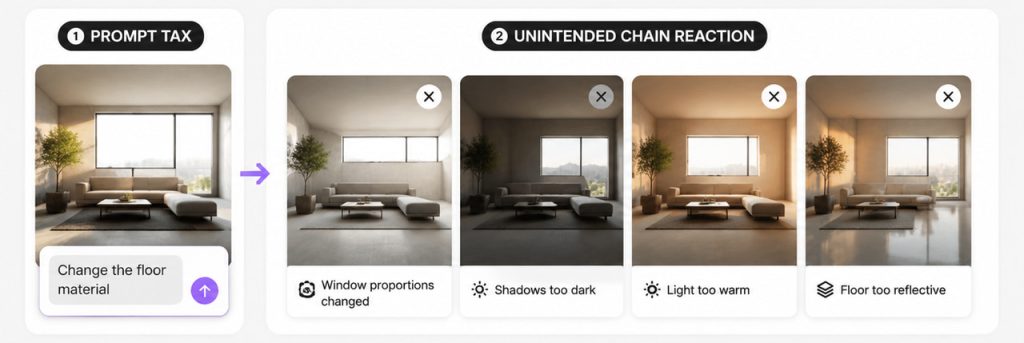
- 프롬프트 세금이 누적된다. 바닥 머티리얼을 변경하면 40분 동안 안정화시킨 창문 비율을 잃을 수 있다. 모든 조정—더 어두운 그림자, 더 따뜻한 빛, 더 반사적인 바닥—은 완전한 재시도를 의미할 수 있다. 한 단어만 잘못 써도 스타일이 완전히 바뀔 수 있다.
- 공간 정확도가 흔들릴 수 있다. 카메라 높이, 방의 깊이 및 그림자 정확도가 당신의 씬과 일치한다는 보장이 없다. 컨셉 아트에는 괜찮다. 특정 로비, 유닛 유형 또는 조명 조건에 대한 승인이 필요할 때는 위험하다.
이것은 어떤 도구가 “더 나은” 이미지를 만드는지에 관한 것이 아니다. 어떤 도구가 건축 시각화가 공간적 결정에 의존한다는 점을 존중하는지에 관한 것이다. 당신은 최종 이미지만이 아니라 검증, 수정 및 재렌더링할 수 있는 편집 가능한 씬이 필요하다.
D5 솔루션: 내부에서 작동하는 AI 당신의 D5 워크플로우
D5‘의 접근 방식은 간단하다: 지오메트리를 가져오거나 LiveSync하고, 조명을 설정하고 D5의 실시간 글로벌 일루미네이션(GI), 물리 기반 렌더링(PBR) 머티리얼을 적용한 다음, AI 도구가 해당 씬 내에서 사용 가능해진다—그 위에 덧씌워진 필터가 아니라, 당신이 조정할 수 있는 실제 매개변수이다.
그것이 핵심 차이점이다—당신은 씬을 넘겨주는 것이 아니다. 당신은 여전히 모든 조명, 모든 표면, 모든 그림자를 소유한다. AI는 단지 첫 번째 패스를 가속화할 뿐이다; 당신은 씬에 대한 제어권을 유지한다.
AI 패스 후에도 동일한 전체 툴킷이 여전히 존재한다: 내장 조명 유형, 환경 프리셋, 지오 스카이, 디스플레이스먼트 머티리얼, 날씨 도구 등—샷에 필요한 모든 것. 렌더 엔진은 물리적 일관성을 유지하며, 매치가 거의 맞지만 완벽하지 않은 경우 대기를 수동으로 미세 조정할 수 있다.
D5에서 씬-네이티브 AI 제어가 있는 곳 워크플로우
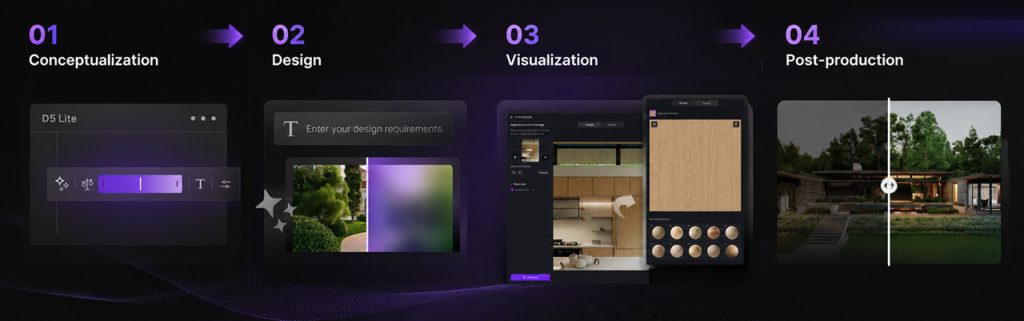
레이어로 생각하라—컨셉부터 최종 전달까지—각 단계에서 사용 가능한 AI를 통해, 마지막의 블랙 박스가 아닌.
① 컨셉 디자인 탐색
형태를 구상하는 단계에서는, D5 Lite 형태와 디자인 방향을 추진하기 위한 AI 기반 컨셉 생성 워크플로우를 포함한다. 씬 카테고리, 스타일 프리셋 및 구조 가중치 슬라이더를 제공하여 창의적 자유와 구조적 일관성 사이의 균형을 맞출 수 있다. 단어로 씬을 설명하거나 레퍼런스를 업로드하라. 여기서 몇 번의 빠른 생성으로 막다른 길에 도달하는 모델링을 피할 수 있다.
② 분위기 및 환경
AI 분위기 매치는 레퍼런스 사진 또는 이전에 D5 Lite에서 생성한 이미지에서 작동한다. AI 씬 매치(AI Scene Match) 는 텍스트 기반 탐색 및 실시간 클라이언트 리뷰에 적합하다. 입력 유형에 따라 열 항목을 결정하라. 이것은 분위기와 환경에 대한 더 빠른 시작점을 제공하며, 그 후에는 항상 그래왔던 방식—슬라이더, 조명 및 하늘 설정을 통해—으로 조정할 수 있으며, 모든 것이 여전히 당신의 통제 하에 있다.
③ 머티리얼
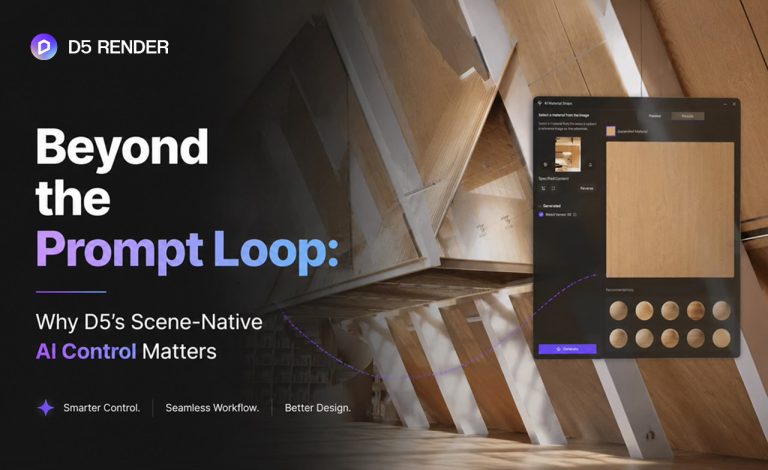
원하는 머티리얼의 레퍼런스 사진을 업로드하면, D5의 AI PBR Material Snap 이 이를 편집 가능한 PBR 머티리얼로 변환하여 표면에 직접 할당할 수 있다. 러프니스, UV 및 타일링 컨트롤은 머티리얼 인스펙터에서 계속 편집 가능하다. 다른 내장 AI 머티리얼 도구—AI 머티리얼 매치, AI 생성 텍스처 맵, AI Ultra HD Texture, AI 틈새 제거 (Make Seamless)—let you refine materials further while keeping everything within D5’s material workflow, instead of sending you on a Photoshop round-trip.
👉 Related read: Free ChatGPT Image Generator vs. D5 Render AI
④ Assets and Context
When neither the built-in Asset Library nor D5 Works has what you need, D5 Render’s AI Model Generation lets you create a custom 3D asset from text or an image, then place it in the scene. Scale it, relight it, or swap it out. AI 자산 추천 helps you find relevant entourage assets through text or image references. 스마트 플랜팅 (in the AI Agent) generates site-specific planting plans and supports Auto Scatter for further refinement.
Across all of these, the pattern is the same: AI proposes; you review and tweak. That’s scene-native AI control in practice.
Scene-Native AI Control in Two Real-World Scenarios
Scenario A: Atmosphere Without Prompt Roulette
Here is a classic headache: a client sends a reference still from a hotel they like. With a prompt-first image generator, you may spend significant time iterating on prompts, hoping to match that mood from your actual camera angle. Now you open AI Atmosphere Match in D5 Render, let it populate sky type, weather, and light temperature from the reference, then nudge sliders and add a touch of manual lighting for softer shadows. Same geometry. Same camera. One edit session.
In a 생존 건축 video, the creator faced a similar issue on a desert house project. AI-generated renders kept reading too cool and flat for the climate—harsh reflections, lighting that didn’t match the site. Instead of relying on more prompts, she used D5 Render’s AI Atmosphere Match with a desert golden-hour reference photo. Within seconds, the sky, weather, and light temperature snapped into place. A few slider tweaks later, the render matched the client’s intent—with every detail of the geometry intact. As she put it, “Now it feels like a desert.” The key point: the scene stayed editable, without another round of re-prompting.
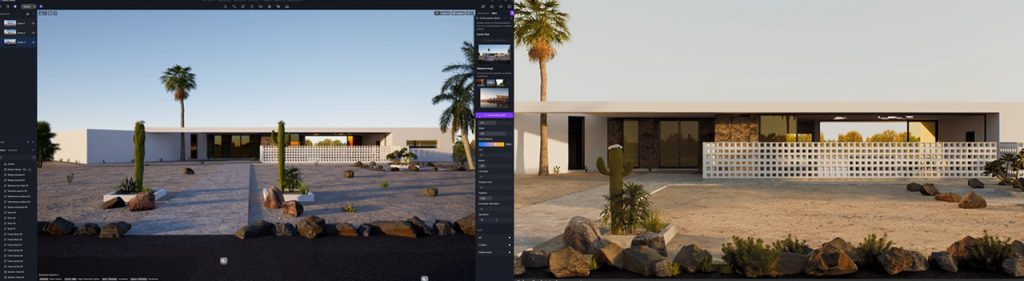
And it’s not just for solo creators. At global architecture firm KPF, atmosphere drafts used to take a week per round. After adopting AI Atmosphere Match, the team cut multi-draft production from a week to a single afternoon—reducing iteration time by up to 80% in some cases. The value is not just a better-looking output; it’s an editable environment setup that the team can revisit and refine.
Scenario B: Materials Without Leaving the PBR 워크플로우
Your client sends a photo of a rare Italian marble. With a generic tool, you’re basically throwing the scene and reference into a prompt and hoping the AI doesn’t make a mess—like getting the reflections wrong or applying the marble inconsistently across surfaces.
But with D5 Render’s AI PBR 머터리얼 스냅(AI PBR Material Snap), you upload the photo, generate the PBR set, and apply it to the surface. If the tiling direction looks off, open the Material Inspector, adjust UV, and tweak Roughness. D5 Render updates the result in real time—an editable material workflow, not another flat image you have to re-prompt. Client changes their mind? Switch to matte wood without rebuilding the shot.
A Practical Loop for Scene-Native AI Control in D5
When scene-native AI is the goal, this sequence works well across projects:
- Block out massing in D5 Lite—explore form, validate direction with the built-in AI generator.
- Sync your model to D5 Render so geometry, camera, and scale are fixed before any AI pass.
- Pick your atmosphere—reference still? AI Atmosphere Match. Words only or a live review? AI Scene Match in the AI Agent.
- Apply and refine—adjust Environment and Effects, then tune the lights manually if a certain zone still reads flat.
- Handle surfaces—run AI PBR Material Snap (or other built-in AI material tools) on key materials; finish in the Material Inspector.
- Render from the same project—no exporting screenshots, rebuilding materials, or recreating the atmosphere in external apps.
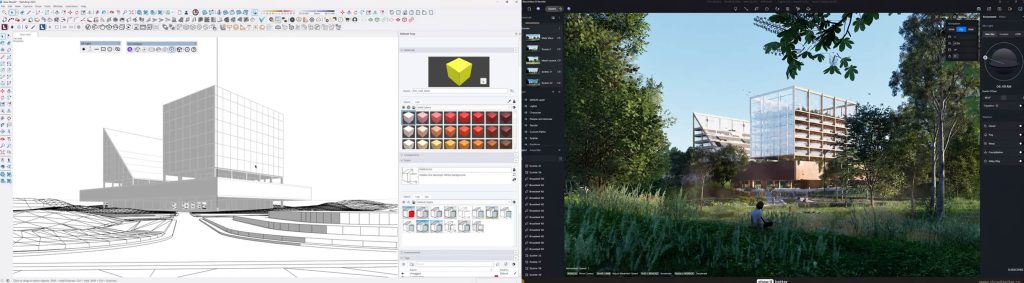
On the YouTube channel 더 잘 보여줘, Steven brought a school project from SketchUp into D5 and stayed in one file from start to finish. AI handled the first pass—surfaces, planting, sky. He walked the model, tuned sun and fog, adjusted materials where needed. The payoff? Not a one-off render, but a scene he could keep editing and re-rendering. No re-prompting, no round-tripping.
When Generic AI Tools Still Fit
That doesn’t mean generic generators have no place in your workflow. They excel at mood boards, pure concept art, and non-spatial marketing frames. Before you’ve started modeling, or when you need a direction that convinces a client to greenlight the design, a short prompt session can quickly rule out dead ends.
But the line is crossed when spatial design decisions are at stake. Model exploration, lighting studies, material approvals, client sign-offs on a specific room—these demand scene-native control.
The Bottom Line: AI Control Without the Loop
Scene-native AI control in D5 Render is not about prettier stills—it is about keeping geometry, camera, lighting, and materials inside one editable project. AI gets you close; the Environment panel, lights, and Material Inspector get you to client sign-off.
One of the clearest ways to see the difference is to put a project through this workflow yourself. D5 is free to download. No credit card required. See for yourself how it feels to have an AI partner that doesn’t fight your model—it works inside it.
Want more? Read our D5 AI Tips series for practical 워크플로 ideas
AI 3D 모델 생성기부터 D5 Render까지: 눈부신 비주얼을 위한 전문가 팁
D5 Render의 AI 텍스처 생성기: 속도 + 리얼리즘 부스트
AI 에이전트란 무엇인가? D5 Render는 조경 설계를 어떻게 자동화하는가?
건축가를 위한 AI 인핸서: AI 기반 정밀도로 렌더링 품질 향상하기
AI 스타일 전송으로 건축 렌더링 스타일을 쉽게 마스터하세요
무료 PBR 텍스처가 필요하신가요? D5에서 AI PBR 재질 스냅을 사용해 보세요!
FAQ: D5’s AI Control in Architectural Visualization Workflows
It means D5’s AI workflow changes scene settings—environment, lights, PBR materials, assets—inside your live project, not on a flat image. You get a fast first pass from the atmosphere tools, then edit with the Material Inspector and Environment panel you already use. It’s geared toward architects who need to revise, not re-roll.
Generic AI tools (e.g., Midjourney) generate a flat image from a prompt. D5의 내장 AI modifies scene parameters—environment, materials, lights—within your existing, real-time 3D scene. So when you need to adjust a disc light or tweak Roughness after the AI pass, you just do it—no need to rewrite the prompt and hope the layout stays intact. Your geometry, camera, lighting, and materials remain in the project file.
사용 D5 Render‘s AI Atmosphere Match when you have a reference image; you can access it from the Resource List in the right sidebar. Use AI Scene Match when you only have a text brief or need to explore mood in a live review from your current camera and geometry—it’s inside the AI Agent panel. Let the type of input you have decide which tool to reach for.
Absolutely. D5 Render’s AI PBR 머터리얼 스냅(AI PBR Material Snap) generates PBR maps you assign to surfaces, and then Roughness, Normal, UV, and template controls all remain in the Material Inspector. AI material tools supply the first pass; scene-native control comes from manual refinement under D5’s real-time GI.
Yes. D5 Render’s AI Atmosphere Match is a strong first pass—a baseline, not a lock. You can continue to use D5 Render’s Environment sliders and light controls to fine-tune the result—intensity, fog, sun direction—before final rendering. AI saves setup time but keeps decision-making in your hands.
Very much so. On many residential, interior, and boutique commercial jobs, one generalist can LiveSync the model, run an atmosphere AI pass, refine lights and materials, and render—no separate AI specialist or external image pipeline. Everything stays in the same D5 project file your team already uses.
No—and that’s not the goal. D5 AI atmosphere tools speed up the first pass and give you a useful baseline—but you still need to place and tune lights manually, and use Geo Sky or HDRI when the scene requires it. AI narrows the gap from “blank canvas” to “nearly there”; you shouldn’t stop there. Use it alongside D5 Render’s full toolset to refine the result for your project.
 English
 Español
 Français
 한국어
한국어 日本語
日本語