
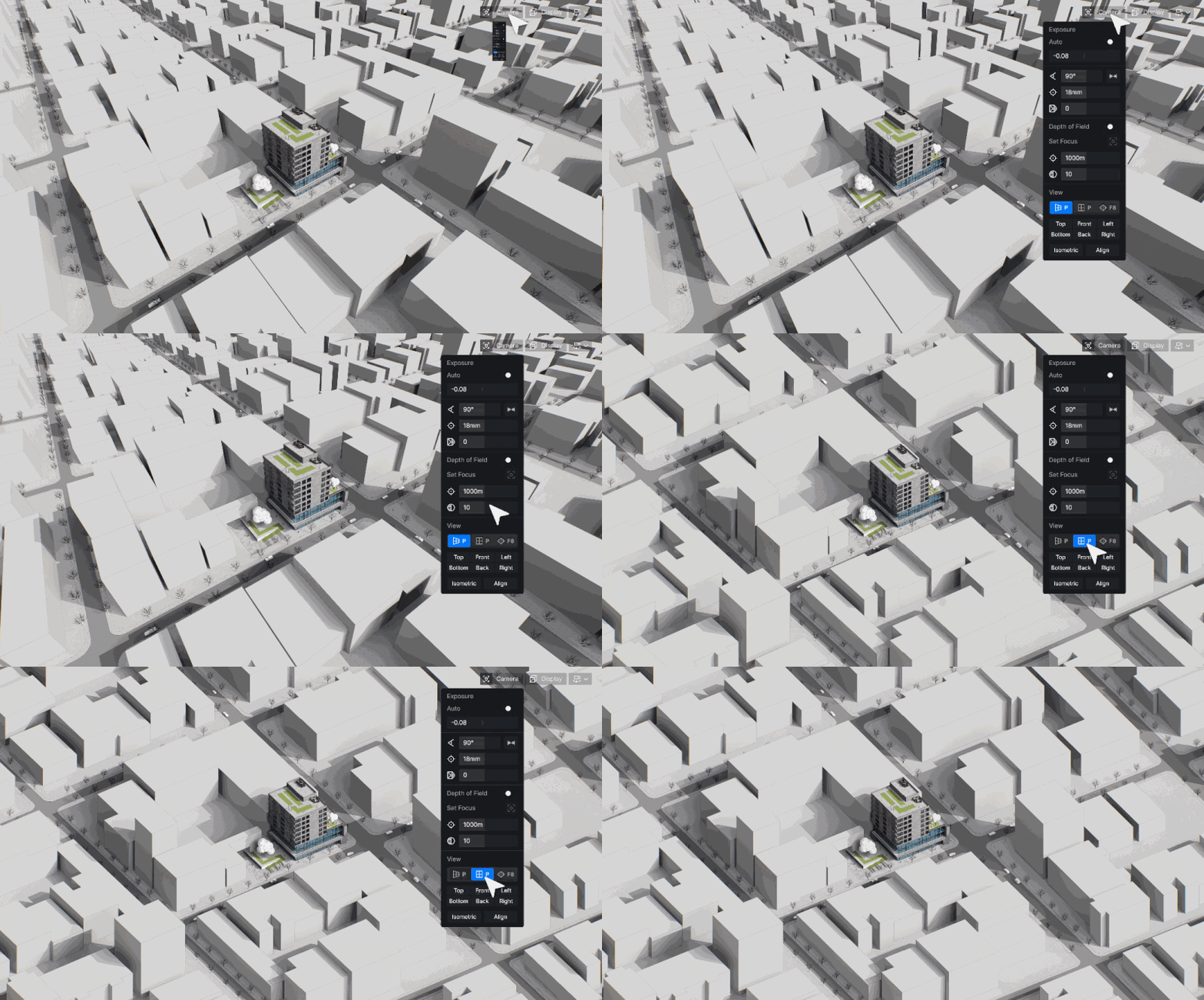
그려진 투시도에서 왜곡되는 건축 디자인으로 어려움을 겪은 적이 있습니까? 아름답지만 이러한 렌더링은 기울어진 치수로 눈을 속일 수 있습니다. 벽을 뒤틀고 중요한 세부 사항을 잘못 정렬합니다. 여기서 직교 보기가 빛을 발하며 제공합니다. 정확한 위치 추측 없이.
이 가이드에서는 다음을 알아보게 됩니다.
✅ 정사영 뷰는 왜 절대 양보할 수 없나요 기술 도면 및 건설 문서의 경우
✅ 어떻게 D5 Render‘새로운 평행 투영 번거로운 임시 해결책을 없애줍니다
✅ 교정 뷰 마스터를 위한 팁— 섹션부터 스타일화된 효과까지— 단일 워크플로우에서

1. 건축 시각화에서의 정확성 딜레마
건축 시각화에서 원근 보기(perspective view)는 시각적으로 역동적이지만 현실을 왜곡하는 경우가 많습니다. 벽이 가늘어 보이거나, 기둥이 불균형해 보이고, 중요한 치수가 신뢰할 수 없게 됩니다. 이는 건설에 있어 밀리미터 수준의 정확도가 중요한 기술 도면의 정밀도를 저하시킵니다.
직교 투영(평행 투영)은 원근 왜곡을 제거하여 평면도, 입면도 및 단면도의 실제와 같은 표현을 보장함으로써 이를 해결합니다. 그러나 대부분의 실시간 렌더링 소프트웨어는 아티스트에게 소프트웨어를 전환하거나 플러그인에 의존하도록 강요합니다. 이제 더 이상 그렇지 않습니다.
D5 Render 2.11: 네이티브 병렬 투영, 드디어 출시되었습니다!
D5 Render의 최신 업데이트는 네이티브 기능을 통해 판도를 바꿀 만한 솔루션을 제공합니다 병렬 프로젝션 서포트 – 번거로운 임시방편을 완전히 없애줍니다. 이 강력한 새로운 기능을 통해 출력 품질이나 워크플로 효율성을 희생하지 않고도 편집 기능을 그대로 유지하면서 투시도와 직교 보기 사이를 손쉽게 전환할 수 있습니다.
탁월한 기능으로 정밀함을 경험하세요:
- 원클릭 (P 단축키)으로 렌더링 모드를 손쉽게 전환하여 즉각적인 워크플로우 전환이 가능합니다.
- 그래픽 용 소프트웨어에 이상적인, 정형 시각을 자유롭게 회전하면서 완벽한 축척을 유지하십시오.
- 다이어그램에 윤곽선과 같은 예술적 효과를 추가하세요 AO 스타일 - 이제 정형 모드에서 사용할 수 있습니다.
- SketchUp, Blender 및 3ds Max 플랫폼 간 자동 동기화를 통해 원활한 워크플로를 유지하세요.
? D5 2.11 버전의 전체 업데이트 내용을 확인해 보세요!
2. D5 Render의 병렬 투영 기술이 워크플로를 최적화하는 방법
정사영은 기술 도면(평면도, 입면도), 건축 문서, 설계 검증에서 필수적이며, 투영법 찌그러짐은 정확성을 떨어뜨립니다. 이는 BIM 조정, 제작 세부 사항, 도식적 표현을 위해 축척이 완벽한 표현을 보장합니다.
전통적으로 이러한 작업에는 여러 가지 전문 도구가 필요했지만, D5 Render의 ‘Parallel Projection’ 기능을 고급 카메라 설정과 결합하면 강력한 통합 기능을 통해 워크플로우를 혁신적으로 변화시킵니다:
2.1 평행 투영 + 다중 뷰 정렬: 일관된 관점 보장
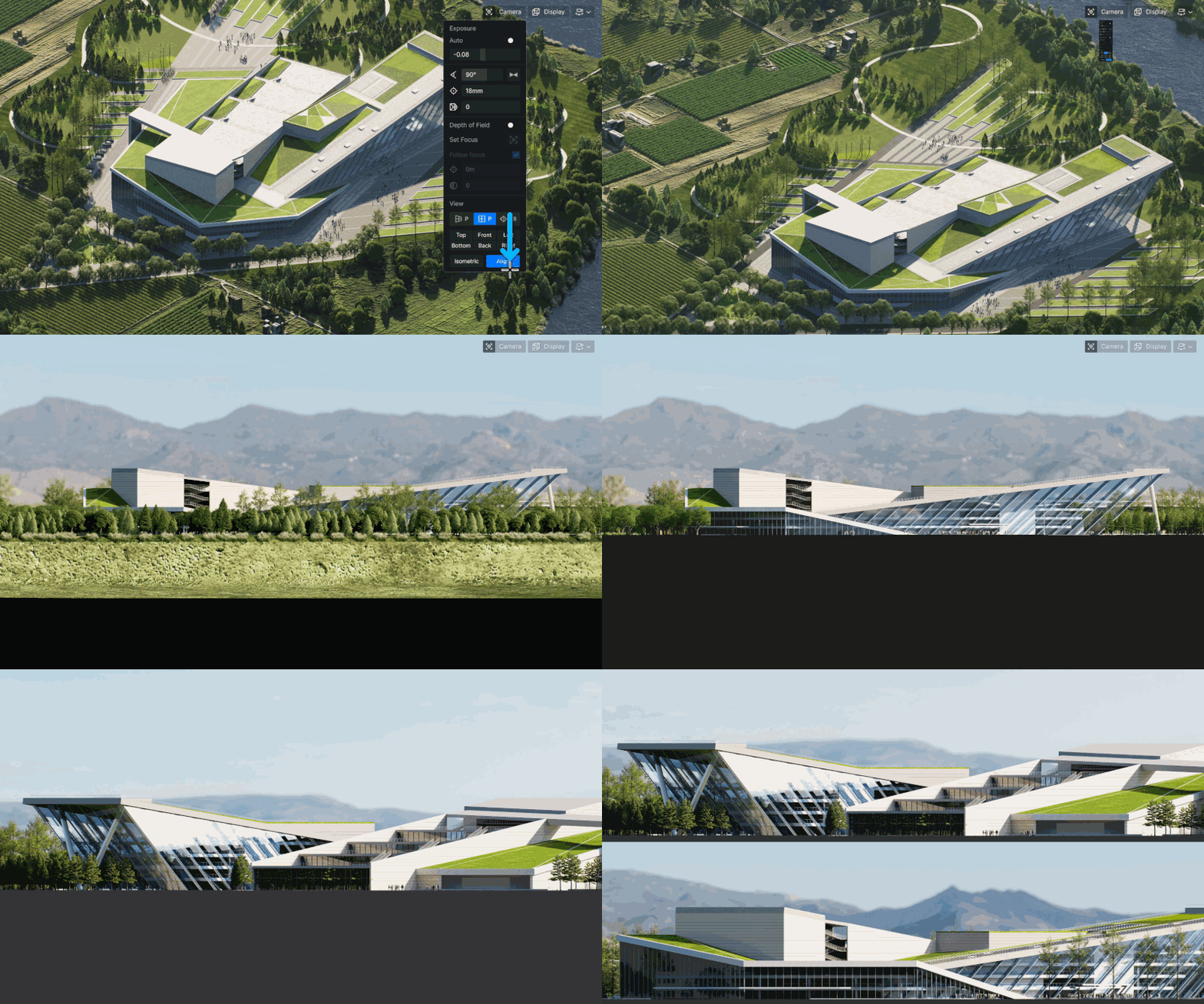
D5 Render의 ‘평행 투영’ 기능은 ‘다중 뷰 정렬’ 기능과 결합되어 건축 도면을 전례 없는 효율성으로 변환합니다. 평행 투영 모드를 벗어나지 않고도 등각 투영, 정렬된 투영법 및 6가지 사전 설정된 각도 사이를 즉시 전환할 수 있어, 수시간에 달하는 수동 카메라 조정 작업을 획기적으로 줄여줍니다.
단 한 번의 클릭으로:
• 완벽한 등각 및 정렬 뷰를 생성하여 도식 프레젠테이션에 활용
• 원근 왜곡 없이 표준 상단, 전면 및 측면 평면으로 스냅
• 모든 뷰에서 일관된 축척을 유지하여 정확한 기술 도면을 작성
2.2 평행 투영 + 단면 도구: 정확한 단면 뷰 생성
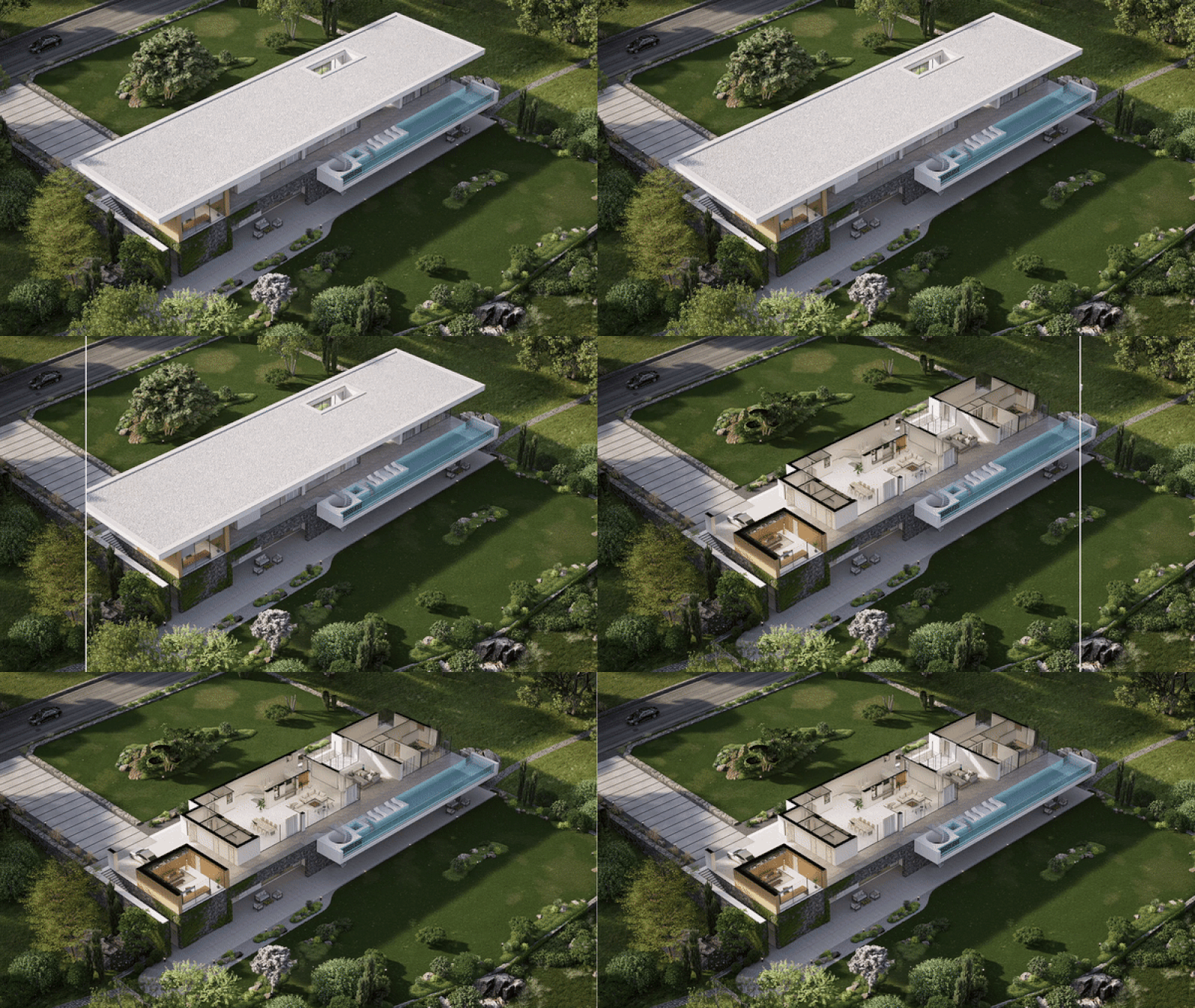
건축가와 디자이너에게 있어, D5 Render에 평행 투영 및 단면 도구가 통합됨으로써 기술 도면 작성 효율이 크게 향상됩니다. 평행 투영은 원근 왜곡을 제거하여 모든 단면도가 정확한 1:1 비율로 표현되도록 보장하므로, 왜곡된 도면으로 인해 흔히 발생하는 수정 작업을 줄여줍니다.
섹션 도구는 사용자가 구조적 연결 및 공간 시퀀스와 같은 복잡한 내부 관계를 세밀하게 파악할 수 있도록 상세한 제어를 제공합니다. 이러한 조합은 즉각적인 명확성과 치수 정확성을 저해하지 않으면서 섹션을 자유롭게 회전할 수 있는 유연성을 제공합니다.
이 워크플로의 진정한 장점은 고객이나 계약자에게 프레젠테이션을 할 때 분명해집니다. 모델링 및 드래프팅 소프트웨어 간에 번거롭게 전환해야 했던 작업을 이제 렌더링 내에서 실시간으로 수행할 수 있습니다.
2.3 평행 투영 + 스타일화된 효과: 기술 도면 향상
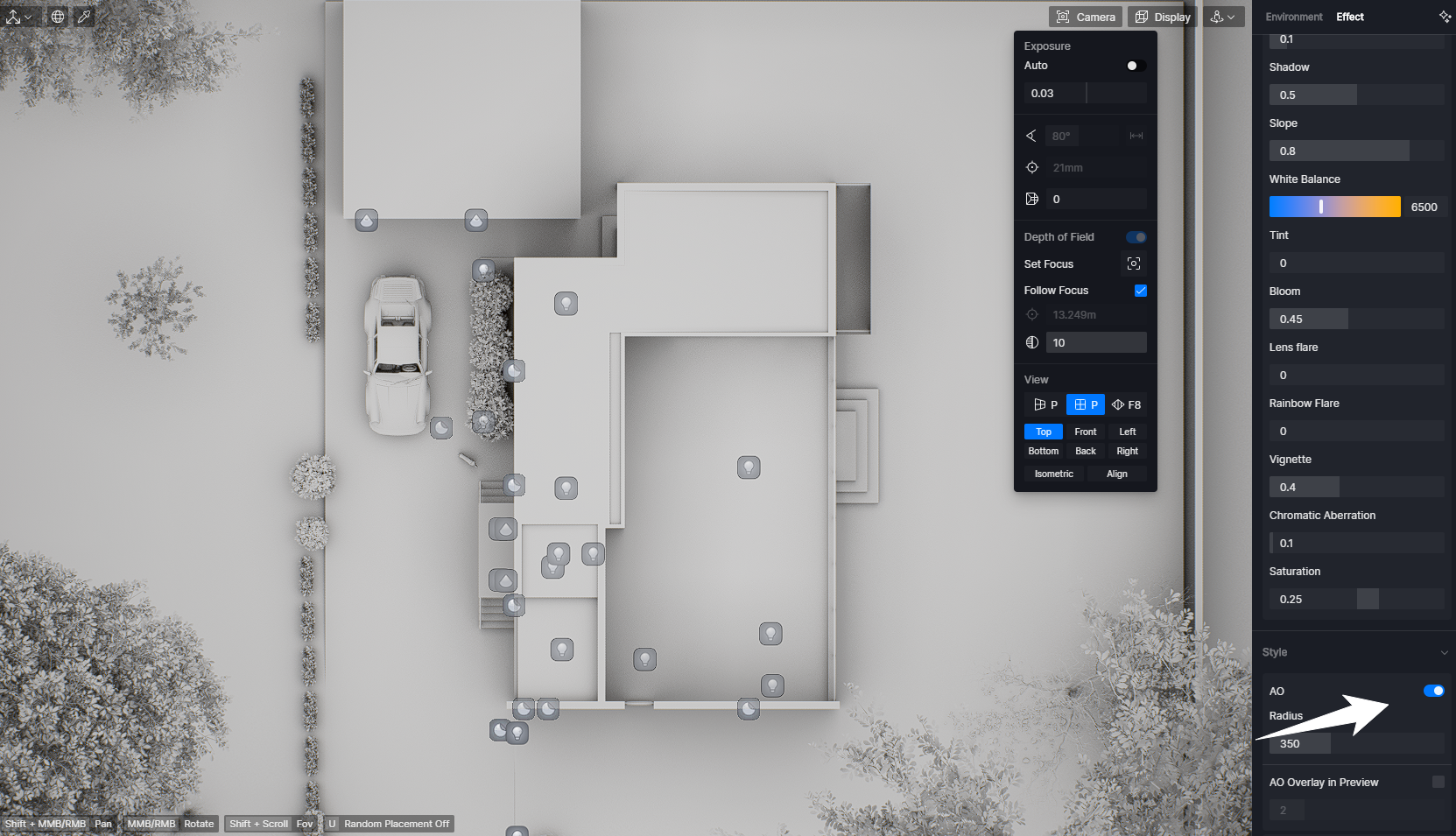
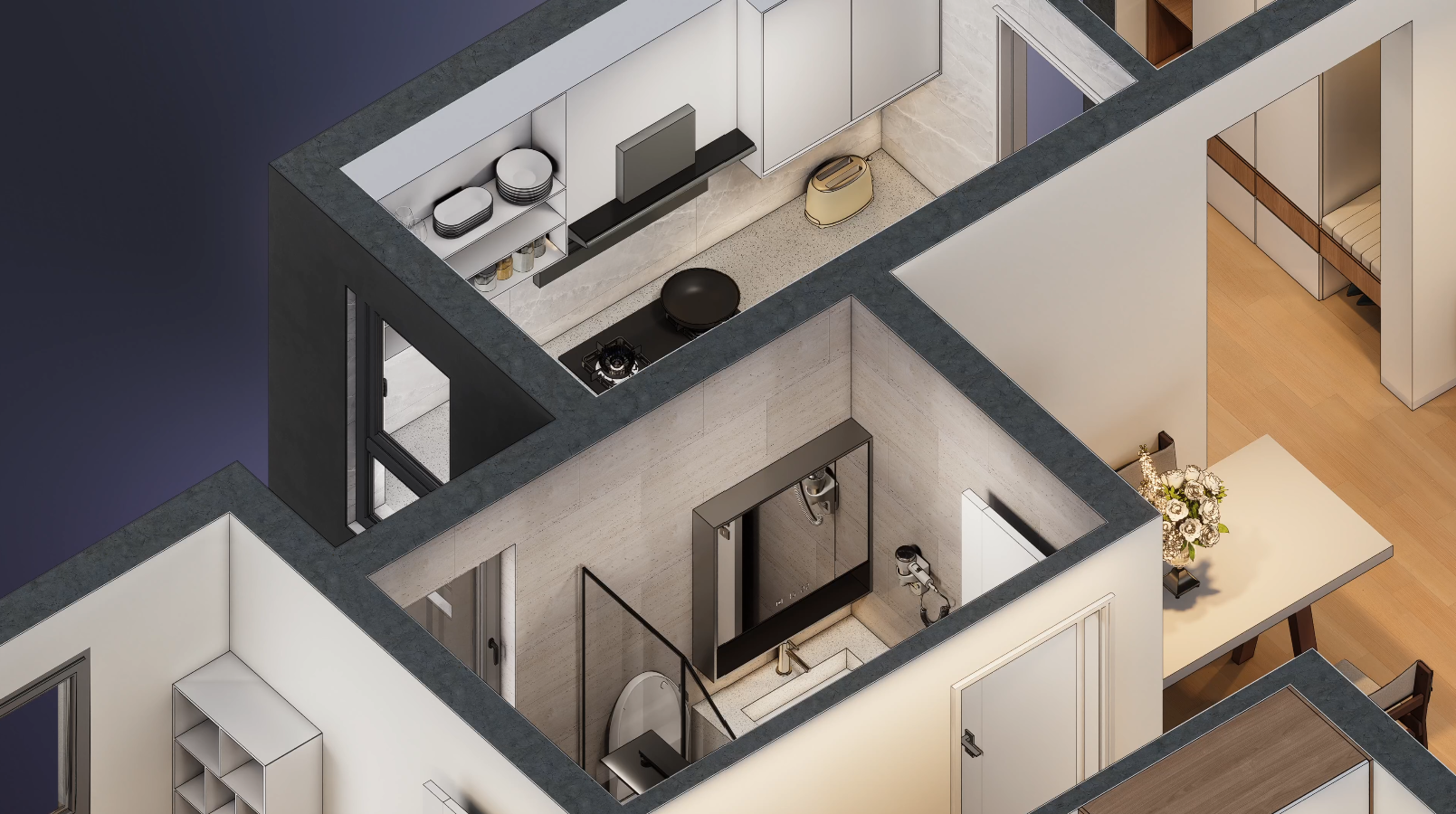
정밀한 도면 작업을 하는 건축가와 디자이너에게 D5 Render의 평행 투영 기능은 획기적인 선명함을 선사하며, 특히 스타일화된 시각화 도구와 결합할 때 그 진가를 발휘합니다. ‘윤곽선’ 스타일은 시공 도면과 주석이 달린 도표에 안성맞춤인 선명한 건축용 윤곽선을 제공합니다. 한편, 앰비언트 오클루전 (AO) 기술적 정확성을 위해 필수적인 1:1 스케일을 유지하면서 지능적으로 깊이 인식을 향상시킵니다. 이 강력한 조합은 팀이 디자인 의도를 전달하는 방식을 변화시킵니다. 더 이상 별도의 일러스트레이션 소프트웨어로 내보낼 필요가 없습니다. 이제 모든 단계에서 완벽한 치수 충실도를 유지하면서 3D 모델에서 직접 프레젠테이션 준비가 된 건축 도면 및 개략적인 연구를 생성할 수 있습니다.
3. D5 Render의 정사영도가 경쟁사 제품보다 뛰어난 이유는 무엇인가?
기존의 작업 흐름에서는 정확한 기술 도면을 얻기 위해 별도의 도면 작성 소프트웨어를 오가거나 신뢰할 수 없는 플러그인과 씨름해야 했습니다. 하지만 D5의 기본 제공 병렬 프로젝션 게임의 판도를 바꿉니다. 스크립트를 만지작거릴 필요도, 번거로운 내보내기 과정도 없습니다. 단 한 번의 클릭으로 즉시 모드를 전환할 수 있습니다.
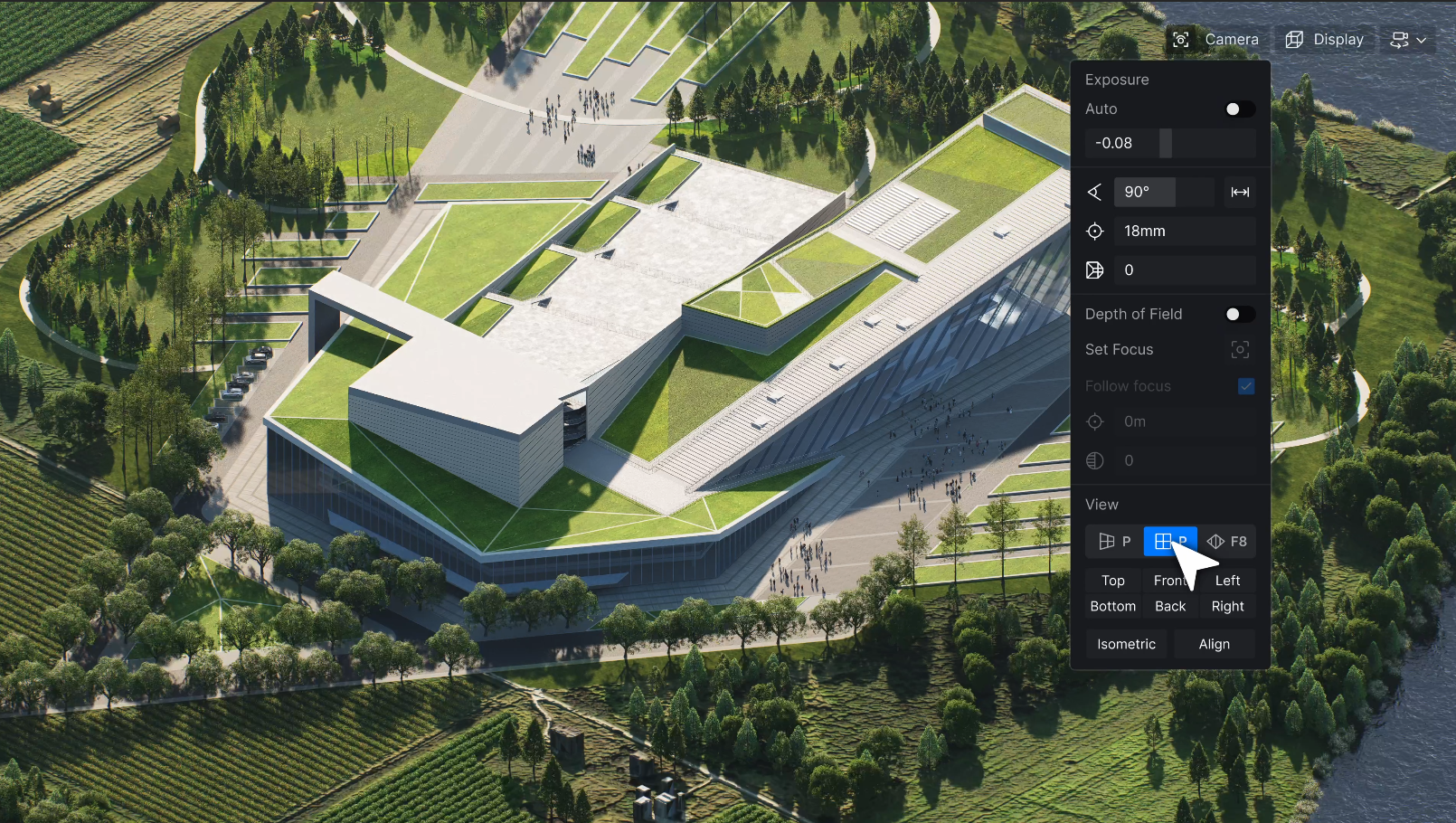
? 플러그인 더 이상, 문제도 더 이상
경쟁사 제품들은 정사영 렌더링을 위해 별도의 도구를 설치하도록 요구하지만, D5는 이 기능을 엔진에 직접 내장하고 있습니다. 누르세요 피, 그러면 쾅- 다이어그램, 단면 또는 입면에 완벽한 직교 투영 뷰를 얻게 됩니다.
? 실제로 동기화되는 도구 섹션
축척을 무시하는 클리핑 평면으로 인해 어려움을 겪은 적이 있으신가요? D5의 단면 도구는 평행 투영과 완벽하게 연동되어, 회전하거나 조정하더라도 절단면이 정확한 1:1 축척을 유지하도록 보장합니다. 이제 왜곡된 단면으로 인해 MEP 협업이 방해받는 일은 없을 것입니다.
? 두 가지 렌더, 추가 작업 없음
왜 렌더링을 두 번이나 하며 시간을 낭비하겠습니까? D5를 사용하면 동일한 파일 내에서 사실적인 원근법 샷과 픽셀 단위의 정밀한 기술 도면 사이를 자유롭게 전환할 수 있습니다. 이는 고객 프레젠테이션 시간을 단축하고, 시공 도면 작업을 원활하게 하며, 오해의 소지가 있는 원근법으로 인한 막판 수정 작업을 없애줍니다.
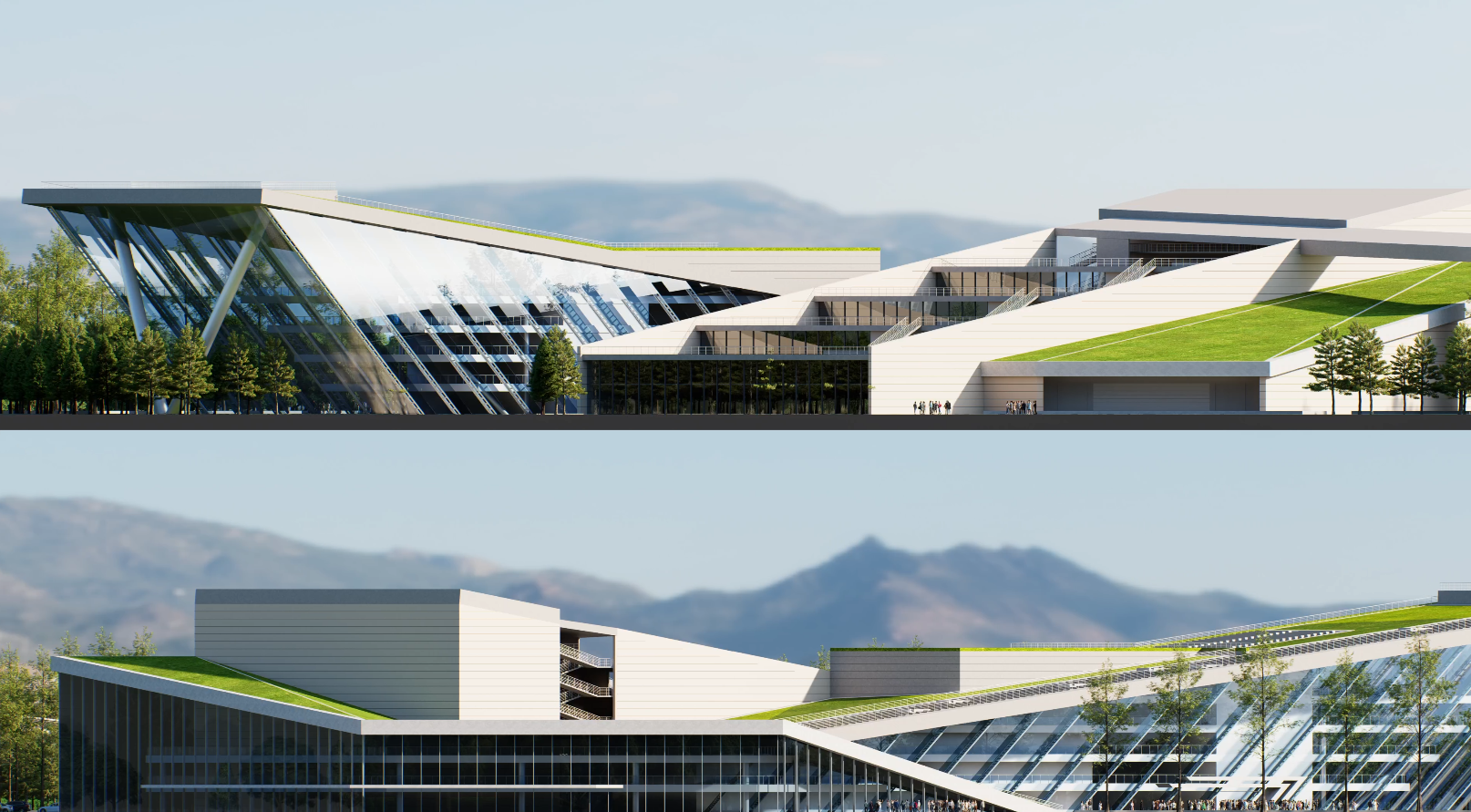
4. 단계별 가이드: D5 Render에서 정투영도 마스터하기
단계1: 반드시 D5 Render 2.11 이상 버전을 실행 중인지 확인하세요
2단계: D5 Render 2.11에서 평행 투영 활성화
미리 보기 화면 오른쪽 상단에서 ‘카메라’ → ‘보기’ 섹션으로 이동하여 ‘평행’ 버튼(단축키: P)을 클릭하십시오. 평행 투영 모드도 윤곽선 모드를 지원합니다. AO 다양한 그리기 요구 사항을 충족하는 스타일화된 렌더링 효과.
팁: D5 Render의 병렬 투영 기능이 이제 SketchUp, Blender 및 3ds Max용 LiveSync 플러그인을 통해 병렬 보기를 지원합니다.
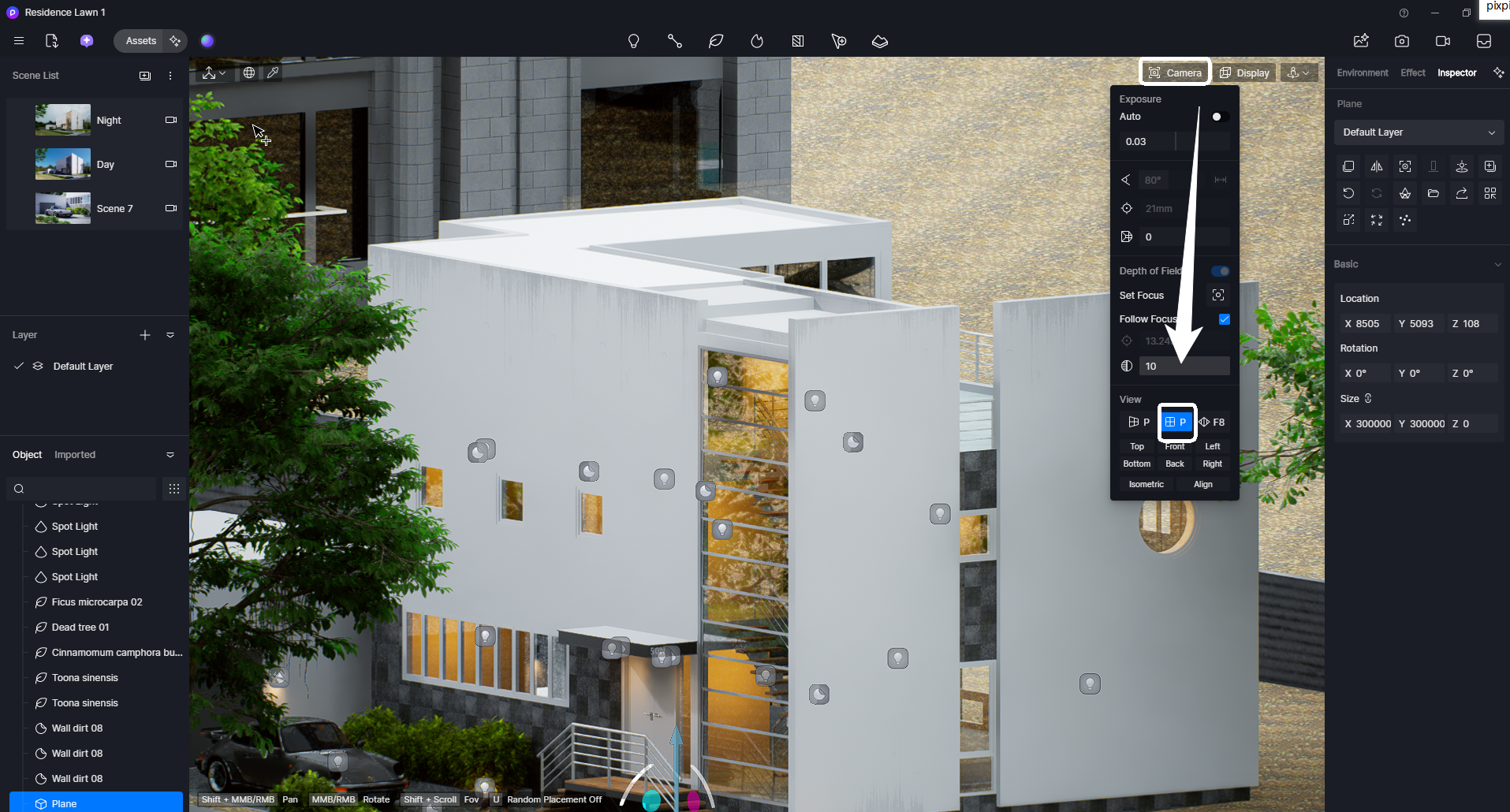
3단계: 강력한 워크플로 조합 (D5의 진가가 발휘되는 부분)
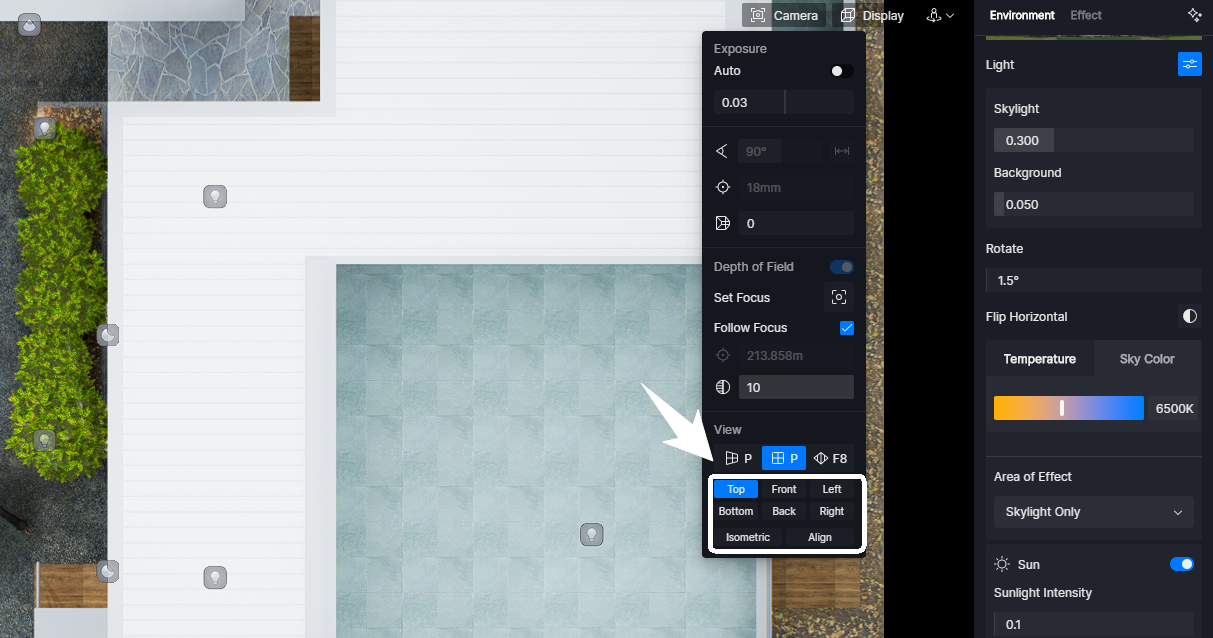
1️⃣ 정렬 및 등각 투영과 같은 다양한 보기 간에 전환하려면 ‘카메라’ → ‘보기’ 섹션으로 이동하여 하단에 있는 8가지 사전 설정 보기 중 하나를 클릭하면 클릭 한 번으로 즉시 원근감이 변경됩니다.
전문가 팁: D5 Render 2.11‘s 새로운 정렬 View 도구를 사용하면 카메라를 모든 표면에 수직으로 손쉽게 정렬할 수 있습니다. “정렬” 버튼을 클릭한 다음 뷰포트에서 면을 선택하면 카메라가 자동으로 조정되어 완벽하게 프레임이 맞춰진 뷰를 볼 수 있습니다.
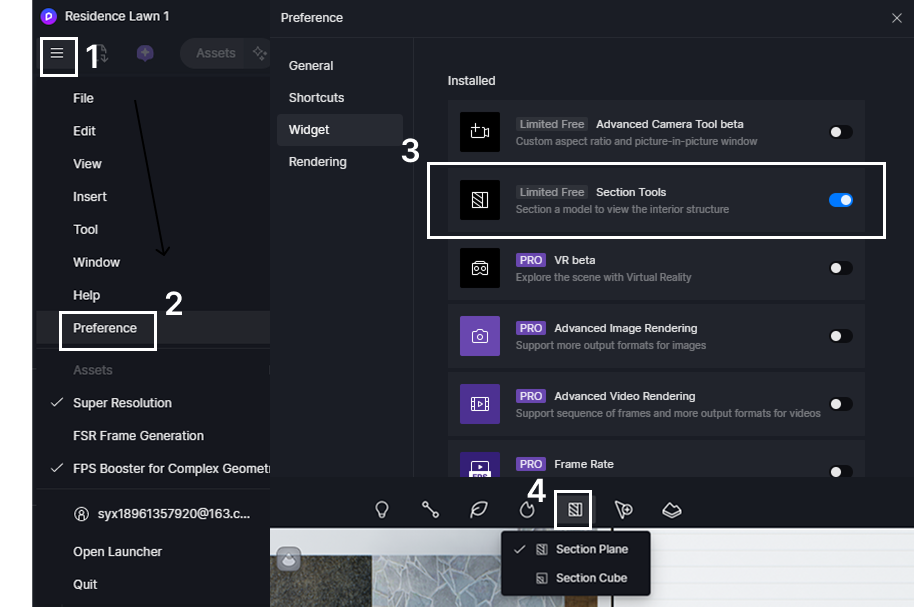
2️⃣ 평행 투영 모드 설정 후 섹션 도구(또는 섹션 뷰 렌더링)로 계속 작업하려면, 먼저 환경설정 > 위젯에서 “섹션 도구” 위젯을 활성화해야 합니다. 활성화된 후, 상단 툴바에서 섹션 평면 또는 섹션 상자를 추가하여 모델의 내부 구조를 정밀하게 검토할 수 있습니다. (자세한 단계는 아래 시각 자료를 참고하세요.)
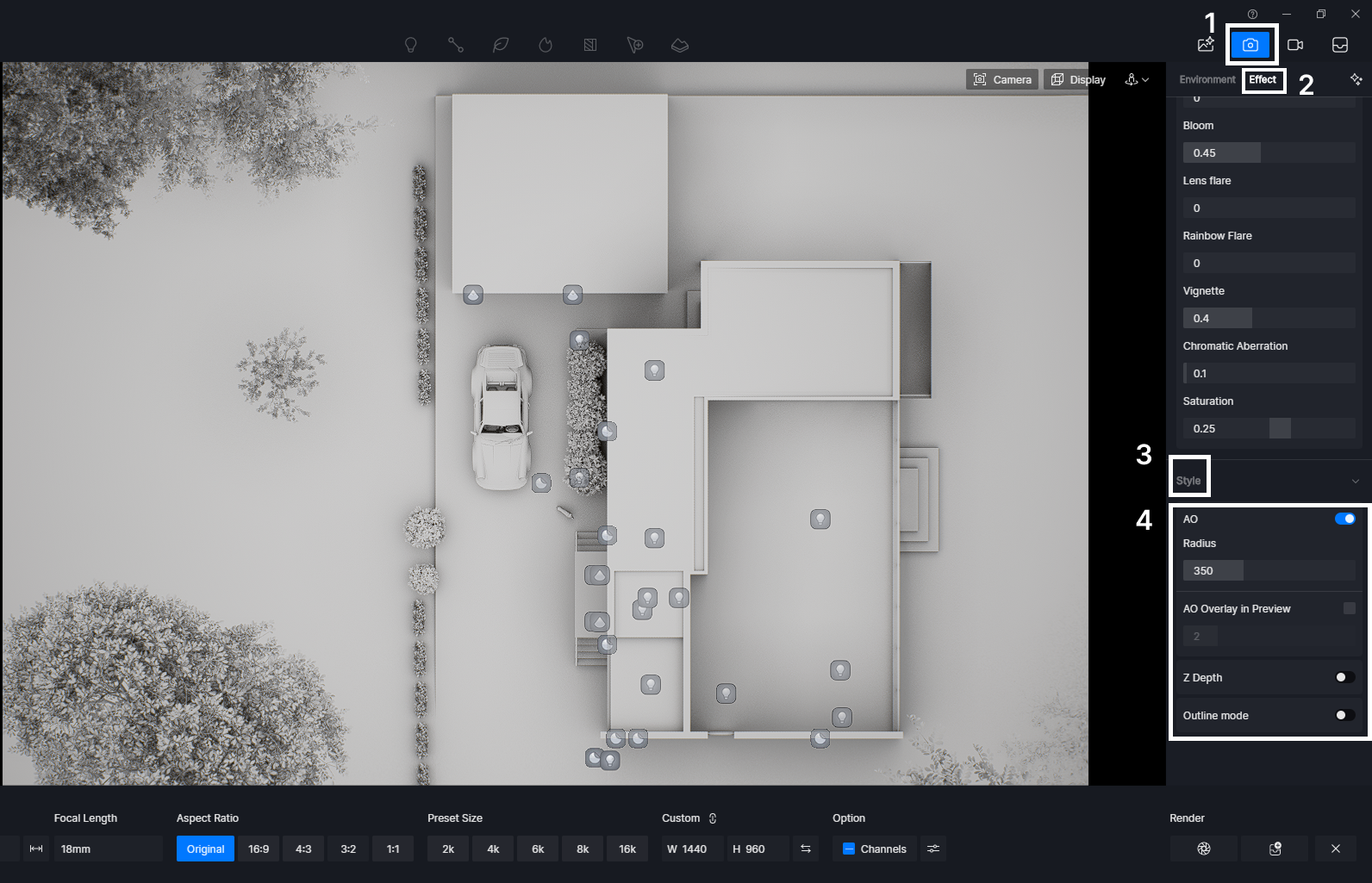
3️⃣ 스타일 효과를 적용하려면 AO Parallel Projection 뷰를 유지하면서, 오른쪽 상단에 있는 카메라 아이콘을 클릭하고 “Effect” 설정으로 이동한 다음, 아래로 스크롤하여 “Style” 옵션에서 AO를 클릭 한 번으로 켭니다. (자세한 단계는 아래 시각 가이드를 참조하세요?)
팁: AO 모드에서 직접 이미지를 출력하거나 AO 채널 맵을 내보낼 수 있습니다.
4단계: 스마트 내보내기 – 기술 및 프레젠테이션 시각화 모두 필요하신가요? 문제없습니다!
- 전체적인 보기를 위해 렌더링 모드를 사용하세요. 그런 다음 클라이언트 프레젠테이션을 위해 멋진 렌더를 내보낼 수 있습니다. 이 모든 과정은 작업하는 동안 실시간으로 업데이트됩니다.
- 기술적인 요구 사항을 위해 알파 채널을 사용하는 투명 PNG를 내보내세요. CAD 또는 Photoshop에서 완벽하게 오버레이하는 데 이상적입니다. 렌더링 설정에서 추가 채널을 쉽게 선택하여 마스크를 포함하고 후처리 기능을 향상시키세요.
이 원활한 워크플로우를 통해 강력한 도구 하나로 기술적인 정확성과 창의적인 표현을 모두 다룰 수 있습니다.
5. D5의 정사영에 대한 결론: 정밀도의 판도를 바꾸는 기술
정투영도는 건축 시각화 분야에서 숨은 주역이라 할 수 있습니다. 원근 투영도로는 도저히 따라올 수 없는, 정확하고 왜곡 없는 디자인을 구현해 주기 때문입니다. D5 Render의 기본 제공 기능인 평행 투영을 사용하면, 정확성을 위해 효율성을 희생할 필요가 없습니다. 완벽한 기술 도면부터 세련된 프레젠테이션까지, D5가 모든 과정을 매끄럽게 연결해 드립니다. 이제 워크플로우를 한 단계 업그레이드할 준비가 되셨나요? ?
D5의 최신 업데이트 기능에 대해 계속 읽어보세요
D5 Render 2.11: 새로운 AI 도구 + 초고속 워크플로 업그레이드!
D5 Render 업데이트로 워크플로 파워업: 새로운 기능 출시
AI 렌더링 혁명: D5 2.11의 디자이너를 위한 스마트 툴

 English
 Español
 Français
 한국어
한국어 日本語
日本語