
For architects, AI speed truly becomes an advantage only when it respects spatial logic and geometric integrity. Nano Banana 2 excels at rapid visual exploration—provided you use precise architectural language rather than vague descriptions.
We’ve distilled these six field-tested techniques from real-world testing and direct feedback from the ArchViz community. These approaches help you get reliable results with Nano Banana 2 while maintaining solid architectural logic. However, if you find yourself still spending too much time on complex prompts, D5 Render‘s integrated 3D AI tools often provide the more professional, spatially accurate shortcut professionals rely on.
Key Takeaways for Nano Banana Prompting
- Iterating on source sketches or renders helps preserve spatial logic, scale, and lighting consistency.
- Targeted checks on fixtures, edges, and contact points reduce common AI artifacts.
- D5 Render‘s integrated AI tools deliver the precision and reliability that pure 2D generative AI often lacks.
- Matching the right AI tool to each project phase dramatically improves workflow efficiency and reduces frustration.

Tip 1: Mood Board Direction in Your Nano Banana Prompt
For early-stage ideation, a proven technique with Nano Banana 2 is to feed it a mood board alongside an existing photo, sketch, or model screenshot. This is especially powerful for interior spaces.
You can upload your mood board or reference image along with the base sketch, then try a prompt such as: “Interpret the aesthetic of this mood board to refine this bathroom scene; prioritize warm oak textures, lime plaster walls, and soft ambient lighting. Focus on the material depth of the lime plaster.“
Pro Tips for Mood Boards with Nano Banana 2:
- Include “keep the same layout” to help maintain the original geometry. This simple addition serves as an effective guardrail, preventing the AI from distorting your structural footprint or core layout.
- Specify color directions like “warm tones” or “cool lighting” when relevant.
- Evaluate multiple seeds to identify the most accurate interpretation of the mood board’s lighting.
Although Nano Banana 2 delivers strong 2D inspiration, it can still struggle with perfect spatial consistency. For architects who need to protect structural walls and layout, D5 Lite—our AI-native plugin for SketchUp—offers a more spatially accurate alternative.
ArchViz professional Andy Christoforou showcases this approach in his recent workflow: instead of wrestling with unpredictable 2D prompts, he uses D5 Lite‘s Structure Weight slider directly within the 3D environment. This allows for fluid, real-time ideation—sliding toward “creative” to spark new forms, or “precise” to lock in the geometry—and seamlessly transitioning the final concept into D5 Render for production.
Explore D5 Lite for SketchUp >>

Tip 2: Precise Nano Banana Prompts for Scene Iteration
Rather than generating isolated objects, the most effective workflow is to iterate within the existing context of your composition. Upload your current sketch or render to Nano Banana 2 and use prompts for targeted additions that align with the established perspective, lighting, and style, while clearly specifying the subject’s placement in the frame.
For example: “Add a modern minimalist oak console table with a marble top in the foreground of this living room, matching the established lighting and scale; match the sun-drenched afternoon lighting and 4K oak grain textures.“
ArchViz creator altArch takes a smarter approach in his tutorials: he uploads specific reference cutouts (people, plants, etc.) alongside the base render. With simple follow-up prompts such as “add these and match the lighting,” he achieves noticeably better scale and integration.
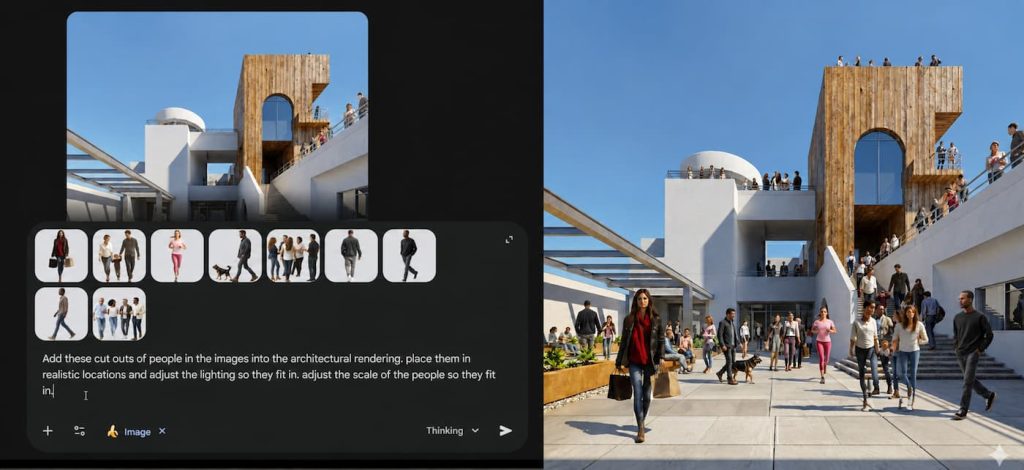
Pro Tips for Scene Iteration with Nano Banana 2:
- Reference the base image clearly and include “exact same camera angle, consistent lighting and shadows.”
- Specify scale and position: “foreground left, eye-level height, proportional to nearby sofa.”
- Explicitly note key materials and styles for better coherence.
- Generate 3-4 variations, then refine the strongest one.
- Always inspect edges, contact points, and shadows in the final result.
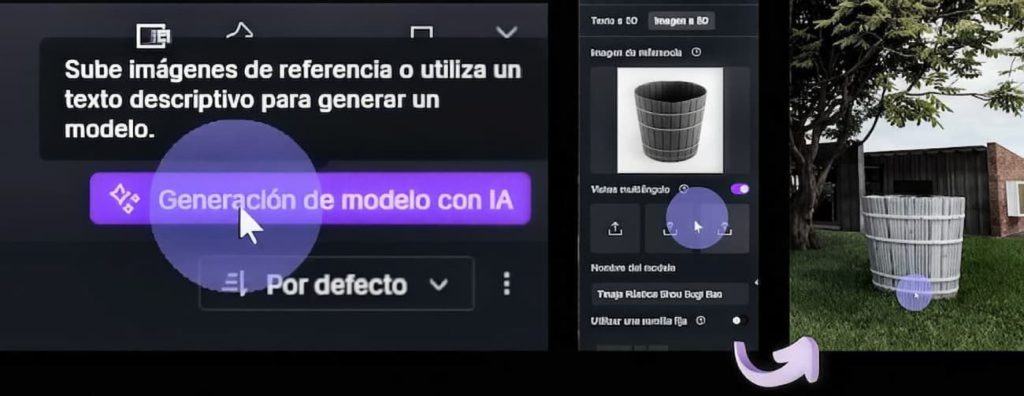
For projects where geometric accuracy is critical, D5 Render‘s AI Model Generation tools (text-to-3D and image-to-3D) deliver PBR-ready assets that honor your scene’s scale and lighting from the start. In arqMANES’s recent D5 Render 3.0 walkthrough, he demonstrates converting a simple wooden barrel photo into a production-ready 3D model that slots right into the scene. The geometry comes out remarkably clean—no warped edges or scale issues typical of generic image-to-3D tools—saving the usual manual cleanup and delivering assets that match your lighting and scale right away.
Tip 3: Material Exploration with Nano Banana Prompts
Nano Banana 2 works well for rapid material exploration on your base image. A sample prompt might be: ‘Replace the flooring with warm herringbone oak, the walls with textured lime plaster, and add brushed metal accents with realistic surface imperfections for a convincing final output.’
In our tests, full-room overrides often cause the AI to hallucinate material properties and break reflection logic, so we strongly recommend targeting one surface at a time.
Key Material Tactics for Nano Banana 2:
- List specific materials and finishes clearly.
- Use “consistent reflections”—otherwise, the AI may turn brushed metal into mirrors.
- Add “high detail textures and subtle weathering.”
- Carefully verify highlights, shadows, and realistic wear in the output.
Nano Banana 2 offers quick visual feedback on materials, but it frequently falls short on realistic light interaction, proper tiling, and true PBR behavior. In these cases, D5 Render‘s AI tools are far more reliable. The Capture du matériau PBR avec IA turns any reference photo into a full map stack (Normal, Roughness, etc.). Combined with Texture Ultra HD and the “Rendre sans faille” feature, you get professional-grade assets that fit perfectly into your scene. Because it’s all en temps réel, you can fine-tune grain size and reflection depth on the fly, ensuring the texture feels like a physical surface rather than just a flat overlay.
Tip 4: Refining Atmosphere via Nano Banana Prompting
Nano Banana 2 is excellent for both populating sparse scenes and quickly exploring mood or lighting shifts. For filling interiors or exteriors, upload your base scene and a reference image, then try a prompt such as: “Populate this modern living room with lush indoor plants, decorative cushions, books, and soft textiles; bathe the scene in diffused north-facing light while maintaining a clean architectural silhouette.”
For mood and lighting changes, upload a render and prompt something like: “Transform this interior to golden hour sunset with warm side lighting, dramatic shadows, and a cozy atmosphere.”
Key Atmosphere Techniques with Nano Banana 2:
- Always include “respect existing furniture layout.” We’ve found this phrase mandatory to prevent the AI from cluttering existing surfaces or generating disconnected, “floating” objects.
- Specify plant types or lighting quality (e.g., “tall fiddle leaf figs,” “soft warm glow, long shadows”).
- Include “preserve the primary structural silhouettes and camera orientation.”
- Iterate 2–4 times, combine the best elements, and always check contact points, shadows, and perspective.
While this 2D approach quickly adds life to a scene, you can still end up spending time fixing floating furniture or plants that don’t sit properly on the floor. This is where D5 Render’s built-in AI tools take over.
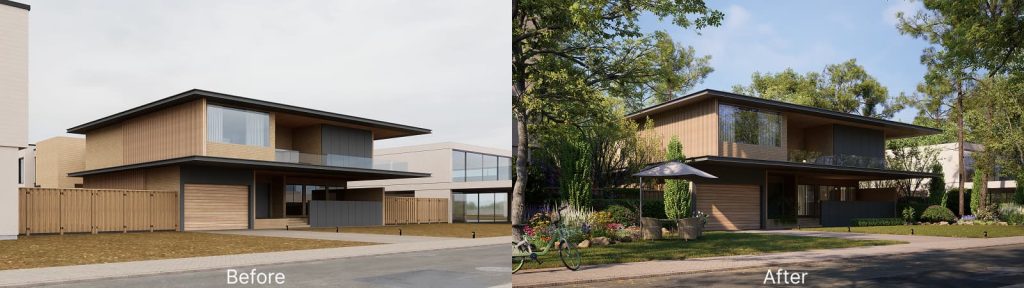
As ArchViz expert Show It Better demonstrates in his workflow, D5 Render’s SmartPlanting et Correspondance des scènes d'IA solve these spatial issues by analyzing your viewport and placing properly scaled assets that snap to geometry. The AI Atmosphere Match goes further, syncing IRHD, weather, and éclairage directly to your scene for predictable, en temps réel results.
Tip 5: Post-Production Fixes Using Nano Banana Prompts
Nano Banana 2 can also handle quick replacements like new skies or foreground elements through targeted inpainting. Try: “Replace only the sky with a dramatic cloudy sunset and update the grass to a lush green meadow while preserving the main building.“
Essential Post-Production Tips for Nano Banana 2:
- Include “seamless blending with existing elements, consistent lighting.”
- Use precise masking or strongly reference boundary areas.
- Specify the time of day and describe the atmosphere.
- Check horizon lines and reflections after generation.
- Use localized regeneration to clean up edge artifacts.
2D inpainting is fast, yet it sometimes breaks the light-shadow relationship between sky and architecture, leaving edges that feel off. In real projects, D5 Render’s AI Inpainting makes a noticeable difference because it actually reads 3D depth. You can swap skies, refresh ground planes, or change backgrounds while the tool preserves your architecture and keeps lighting consistent—no more fighting disconnected shadows or spending hours on fixes. It just feels right in the scene.
Tip 6: Style Transfers with Your Nano Banana Prompt
For final render variations, Nano Banana 2 can shift moods or styles faster than manual Photoshop work. Example prompt: “Convert this daytime render to a warm evening scene with interior lamps and city lights glowing, cozy atmosphere.“
Precision Style Transfers in Nano Banana 2:
- Emphasize “preserve architecture and proportions exactly.” Many in the ArchViz community have found that omitting this step often leads to warped proportions and details like window mullions.
- Describe lighting sources specifically.
- Add “photorealistic, cinematic color grading.”
- Use multiple iterations and composite the best elements manually if needed.
- Verify consistency in key details like windows and materials before output.
Heavy reliance on 2D style transfers carries risks: push the mood too far and proportions or fine details (like window mullions) can warp. D5 Render‘s Transfert de style AI et Amélioration de l'IA are far more reliable for real projects. You can flip a daytime render to a warm evening with glowing interior lamps and city lights, or shift seasons, in essentially one click—all while the underlying 3D model stays perfectly intact. The Enhancer then intelligently tightens lighting, materials, and vegetation so the final image feels polished instead of over-processed.
Bridging the Gap: From Concept to D5 Precision
Nano Banana 2 brings genuine speed and creative spark during the early sketch-to-render phase. But once you move into a 3D environment, D5 Render and its integrated AI tools provide the precision, editability, and reliability that professional projects demand.
Give these techniques a try on your next project. Télécharger D5 Render gratuitement and experience how its integrated AI tools can transform your 3D workflow.
Continue reading: Better Control of AI Tools
D5 Render's AI Texture Generator : Vitesse + Réalisme
AI Image-to-Image: D5 Render’s AI Transforms Design Workflow
AI Rendering in Action: 10 D5 Features That Transform Your Workflow
How AI Inpainting Supercharges 3D Visualization Workflows
From AI 3D Model Generator to D5 Render: Pro Tips for Stunning Visuals
Maîtrise de l'IA pour l'éclairage : D5 pour des visuels réalistes Archicad
FAQs: Mastering the Nano Banana Prompt
Nano Banana 2 excels at rapid architectural concepts when you start from sketches, renders, or mood boards. Always upload your base image and use precise prompts like “exact same camera angle, consistent lighting and shadows, maintain proportions and layout.” Specify positions, scale references, and materials to preserve perspective and spatial logic. Generate a few variations, then carefully inspect geometry, edges, and integration.
For even tighter control during early design exploration, many architects switch to D5 Lite—the AI-native real-time rendering plugin for SketchUp—where style presets and the Structure Weight slider let you iterate freely while locking in geometry.
Prompt more specifically with position cues (e.g., “foreground left, eye-level, proportional to the sofa”) and generate several variations. For production-grade results, import the full scene into D5 Render—its Correspondance des scènes d'IA intelligently suggests properly scaled assets that respect your existing layout, lighting, and shadows, saving significant cleanup time.
Nano Banana 2 provides excellent visual direction on materials like oak herringbone or lime plaster. That said, for accurate Cartes PBR, proper tiling, and reflections that render correctly, many architects turn to D5’s Capture du matériau PBR avec IA et Rendre sans faille tools to quickly create library-ready assets.
Include strong references like “maintain exact architecture and camera position, consistent shadows” in every prompt. For more reliable results on complex projects, many architects move to Outils IA de D5 Render, which understand 3D scene depth and camera parameters—making mood or time-of-day changes far more predictable and editable.
Nano Banana 2 is a powerful ideation tool, but D5 Render remains the production backbone for most professionals. When a client asks for a precise window mullion tweak, pure 2D tools often force a complete, unpredictable regeneration. The most effective approach we see in the industry is hybrid: let AI provide the initial spark, then use D5’s live 3D environment to deliver the geometric accuracy and physically correct lighting clients expect.
Nano Banana 2 works well for initial planting density concepts with plants and furniture. For more realistic and physically accurate results, D5 Render’s SmartPlanting (which accounts for climate and season) and Correspondance des scènes d'IA are much more reliable for this. These tools accurately place assets within your 3D viewport, ensuring proper scaling, placement on surfaces, and uniform shadows.

 English
 Español
 Français
 한국어
한국어 日本語
日本語