
正直に言いましょう。誰もが経験したことがあるはずです——クライアントがマッシングを承認したところです。カメラアングルも決まっています。そして、ほとんど後付けのように、「ロビーの床をミッドナイトブルーの石にできますか?そして、時間を正午から夕焼けに変更できますか?しかも、まったく同じビューを維持できますか?」と依頼されます。“
もしあなたのワークフローが、まだ一般的なテキストから画像を生成するAIジェネレーターに依存しているなら、そのリクエストはあなたを同じループに戻します:プロンプトを書き直し、再生成し、新しい石がジオメトリを歪めたり、照明を混乱させたりしないことを願うだけです。それはデザインというよりも、サイコロを振っているように感じられます。建築ビジュアライゼーションにおいて、AIの本来の目的は、シーンの中で機能することであり、その上に平面的な絵を描くことではありません。それが、以下の核となるアイデアです。 D5.
シーンネイティブAI制御に関する重要なポイント
- 一般的なAIツールは平面的な画像を出力します——ジオメトリ、照明、マテリアルはプロジェクトファイル内で編集できません。.
- D5のシーンネイティブAIツールは 同期されたシーン内で動作します——結果として得られる設定は、環境、照明、マテリアル、アセットに結びついたままです。.
- シーンネイティブAI制御とは、高速なAIによる初期設定を行い、その後、環境パネルやマテリアルインスペクターで微調整することを意味します——際限なくプロンプトを書き直す必要はありません。.
- AIをクリエイティブなパートナーとして扱いましょう:大部分をAIに任せ、レンダリング前に環境、エフェクト、マテリアルを微調整します。最終的な仕上げはあなたがコントロールします。.

一般的なAIの ギャップ 建築家が直面し続ける課題
Midjourneyのようなプロンプト優先の画像生成ツールは、探索的なコンセプトアートには最適です。しかし、編集可能性——単なるきれいな画像ではなく——が必要になった瞬間、それらはあなたの作業を遅らせ始めます。問題は単純です:それらの出力は平面的なピクセルであり、シーンではないのです。.
- 出力は画像であり、プロジェクトではありません。. ディスクライトはJPEG画像の中に存在せず、1つの壁パネルのラフネスを平面の静止画で調整することはできません。計画が変更された場合、編集するのではなく、最初からプロンプトを書き直すことになります。.
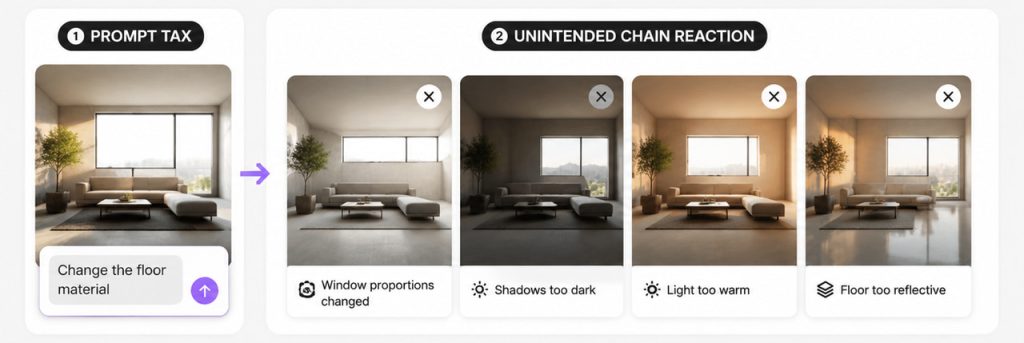
- プロンプト税は積み重なります。. 床のマテリアルを変更すると、40分かけて安定させた窓のプロポーションが失われる可能性があります。影を暗くする、光を暖かくする、床の反射率を高くするなど、すべての微調整が完全な再生成につながる可能性があります。1つの単語を間違えるだけで、スタイルが完全に変わってしまうことがあります。.
- 空間的な精度がずれる可能性があります。. カメラの高さ、部屋の奥行き、影の精度は、シーンと一致することが保証されていません。コンセプトアートには問題ありません。特定のロビー、ユニットタイプ、照明条件について承認を得る必要がある場合にはリスクが伴います。.
これは、どのツールが「より良い」画像を作成するかという問題ではありません。重要なのは、どのツールが建築ビジュアライゼーションが空間的な決定に依存していることを尊重しているかです。最終的な画像だけでなく、検証、修正、再レンダリングが可能な編集可能なシーンが必要です。.
D5のソリューション:内部で機能するAI あなたのD5 ワークフロー
D5‘のアプローチは直接的です:ジオメトリをインポートするかLiveSyncで読み込み、 D5のリアルタイムグローバルイルミネーション(GI), で照明を設定し、物理ベースレンダリング(PBR)マテリアルを適用します。その後、AIツールがそのシーン内で利用可能になります——上から貼り付けられたフィルターではなく、微調整可能な実際のパラメーターとして機能します。.
それが重要な違いです——シーンを手放すわけではありません。すべてのライト、すべてのサーフェス、すべてのシャドウを引き続きコントロールできます。AIは単に最初のパスを加速するだけであり、シーンのコントロールはあなたが保持します。.
AIパスの後も、同じ完全なツールキットが引き続き利用可能です: 内蔵ライトタイプ, 、環境プリセット、, ジオ・スカイ, ディスプレイスメントマテリアル, 、天候ツールなど、ショットに必要なものはすべて揃っています。レンダリングエンジンは物理的な一貫性を維持し、マッチングが近いが完全ではない場合、雰囲気を手動で微調整することができます。.
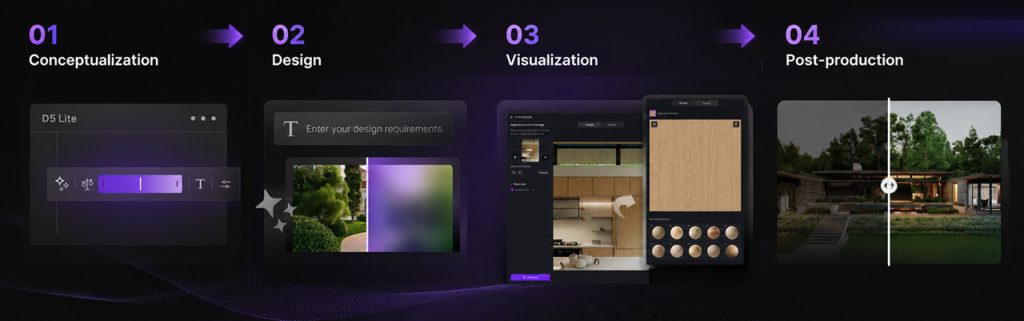
D5におけるシーンネイティブAI制御の場所 ワークフロー
これをレイヤーとして考えてみてください——コンセプトから最終納品まで——各段階で使用可能なAIがあり、最後にブラックボックスがあるわけではありません。.
① コンセプトデザインの探索
フォルムを模索している段階では、, D5 Lite には、フォルムとデザインの方向性を推し進めるためのAI搭載コンセプト生成ワークフローが含まれています。シーンカテゴリ、スタイルプリセット、および構造ウェイトスライダーを提供し、創造的な自由と構造的な一貫性のバランスを取ることができます。シーンを言葉で説明するか、リファレンスをアップロードします。ここでの数回の迅速な生成は、行き詰まりをモデリングする手間を省くことができます。.
② 雰囲気と 環境
AI Atmosphere Matchは、リファレンス写真、またはD5 Liteで以前に生成した画像から機能します。. AIシーンマッチ は、テキスト駆動の探索とライブクライアントレビューに最適です。入力タイプに応じて、どちらを開くかを決定します。これにより、ムードと環境のためのより迅速な出発点が得られ、その後はいつも通り——スライダー、ライト、空の設定を通じて——微調整できます。これらはすべて、あなたのコントロール下にあります。.
③ マテリアル
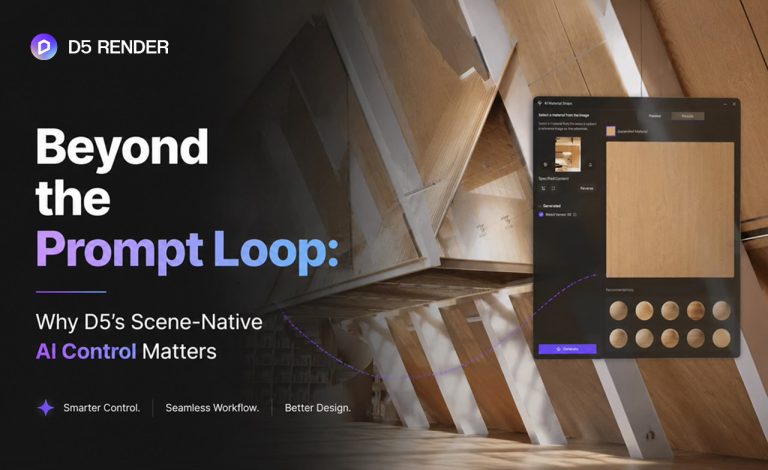
希望するマテリアルのリファレンス写真をアップロードすると、D5の AI PBRマテeリアルスナップ がそれを編集可能なPBRマテリアルに変換し、サーフェスに直接割り当てることができます。ラフネス、UV、タイリングコントロールは、マテリアルインスペクターで編集可能なままです。その他の内蔵AIマテリアルツール——AI Material Match、, AI生成テクスチャマップ, AI Ultra HD Texture, AIによるシームレス化—let you refine materials further while keeping everything within D5’s material workflow, instead of sending you on a Photoshop round-trip.
👉 Related read: Free ChatGPT Image Generator vs. D5 Render AI
④ Assets and Context
When neither the built-in Asset Library nor D5 Works has what you need, D5 Render’s AI Model Generation lets you create a custom 3D asset from text or an image, then place it in the scene. Scale it, relight it, or swap it out. AI Asset Recommendation helps you find relevant entourage assets through text or image references. スマートプランティング (in the AI Agent) generates site-specific planting plans and supports Auto Scatter for further refinement.
Across all of these, the pattern is the same: AI proposes; you review and tweak. That’s scene-native AI control in practice.
Scene-Native AI Control in Two Real-World Scenarios
Scenario A: Atmosphere Without Prompt Roulette
Here is a classic headache: a client sends a reference still from a hotel they like. With a prompt-first image generator, you may spend significant time iterating on prompts, hoping to match that mood from your actual camera angle. Now you open AI Atmosphere Match in D5 Render, let it populate sky type, weather, and light temperature from the reference, then nudge sliders and add a touch of manual lighting for softer shadows. Same geometry. Same camera. One edit session.
In a 生き残る建築 video, the creator faced a similar issue on a desert house project. AI-generated renders kept reading too cool and flat for the climate—harsh reflections, lighting that didn’t match the site. Instead of relying on more prompts, she used D5 Render’s AI Atmosphere Match with a desert golden-hour reference photo. Within seconds, the sky, weather, and light temperature snapped into place. A few slider tweaks later, the render matched the client’s intent—with every detail of the geometry intact. As she put it, “Now it feels like a desert.” The key point: the scene stayed editable, without another round of re-prompting.
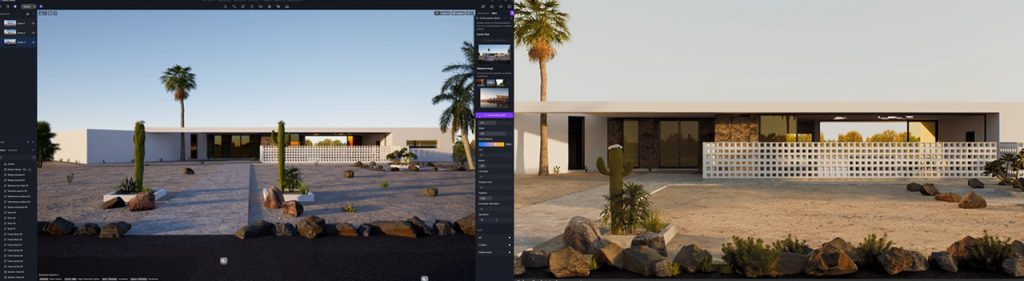
And it’s not just for solo creators. At global architecture firm KPF, atmosphere drafts used to take a week per round. After adopting AI Atmosphere Match, the team cut multi-draft production from a week to a single afternoon—reducing iteration time by up to 80% in some cases. The value is not just a better-looking output; it’s an editable environment setup that the team can revisit and refine.
Scenario B: Materials Without Leaving the PBR ワークフロー
Your client sends a photo of a rare Italian marble. With a generic tool, you’re basically throwing the scene and reference into a prompt and hoping the AI doesn’t make a mess—like getting the reflections wrong or applying the marble inconsistently across surfaces.
But with D5 Render’s AI PBR マテリアルスナップ, you upload the photo, generate the PBR set, and apply it to the surface. If the tiling direction looks off, open the Material Inspector, adjust UV, and tweak Roughness. D5 Render updates the result in real time—an editable material workflow, not another flat image you have to re-prompt. Client changes their mind? Switch to matte wood without rebuilding the shot.
A Practical Loop for Scene-Native AI Control in D5
When scene-native AI is the goal, this sequence works well across projects:
- Block out massing in D5 Lite—explore form, validate direction with the built-in AI generator.
- Sync your model to D5 Render so geometry, camera, and scale are fixed before any AI pass.
- Pick your atmosphere—reference still? AI Atmosphere Match. Words only or a live review? AI Scene Match in the AI Agent.
- Apply and refine—adjust Environment and Effects, then tune the lights manually if a certain zone still reads flat.
- Handle surfaces—run AI PBR Material Snap (or other built-in AI material tools) on key materials; finish in the Material Inspector.
- Render from the same project—no exporting screenshots, rebuilding materials, or recreating the atmosphere in external apps.
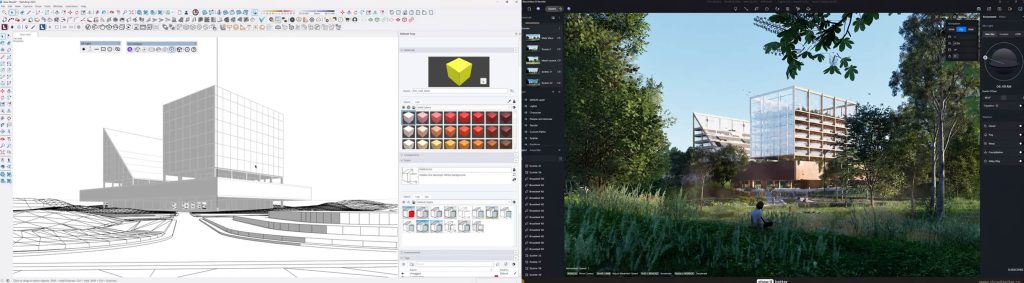
On the YouTube channel もっと見せて, Steven brought a school project from SketchUp into D5 and stayed in one file from start to finish. AI handled the first pass—surfaces, planting, sky. He walked the model, tuned sun and fog, adjusted materials where needed. The payoff? Not a one-off render, but a scene he could keep editing and re-rendering. No re-prompting, no round-tripping.
When Generic AI Tools Still Fit
That doesn’t mean generic generators have no place in your workflow. They excel at mood boards, pure concept art, and non-spatial marketing frames. Before you’ve started modeling, or when you need a direction that convinces a client to greenlight the design, a short prompt session can quickly rule out dead ends.
But the line is crossed when spatial design decisions are at stake. Model exploration, lighting studies, material approvals, client sign-offs on a specific room—these demand scene-native control.
The Bottom Line: AI Control Without the Loop
Scene-native AI control in D5 Render is not about prettier stills—it is about keeping geometry, camera, lighting, and materials inside one editable project. AI gets you close; the Environment panel, lights, and Material Inspector get you to client sign-off.
One of the clearest ways to see the difference is to put a project through this workflow yourself. D5 is free to download. No credit card required. See for yourself how it feels to have an AI partner that doesn’t fight your model—it works inside it.
Want more? Read our D5 AI Tips series for practical ワークフロー ideas
AI 3DモデルジェネレーターからD5 Renderへ:驚くようなビジュアルのためのプロのヒント
D5 RenderのAIテクスチャジェネレータ:スピードとリアリズムの向上
AIエージェントとは何ですか? D5 Renderランドスケープデザインを自動化する方法は?
建築家のためのAIエンハンサー:AIを駆使してレンダリング品質を向上
無料のPBRテクスチャが必要ですか?D5のAI PBRマテリアルスナップをお試しください!
FAQ: D5’s AI Control in Architectural Visualization Workflows
It means D5’s AI workflow changes scene settings—environment, lights, PBR materials, assets—inside your live project, not on a flat image. You get a fast first pass from the atmosphere tools, then edit with the Material Inspector and Environment panel you already use. It’s geared toward architects who need to revise, not re-roll.
Generic AI tools (e.g., Midjourney) generate a flat image from a prompt. D5に搭載されたAI modifies scene parameters—environment, materials, lights—within your existing, real-time 3D scene. So when you need to adjust a disc light or tweak Roughness after the AI pass, you just do it—no need to rewrite the prompt and hope the layout stays intact. Your geometry, camera, lighting, and materials remain in the project file.
用途 D5 Render‘s AI Atmosphere Match when you have a reference image; you can access it from the Resource List in the right sidebar. Use AI Scene Match when you only have a text brief or need to explore mood in a live review from your current camera and geometry—it’s inside the AI Agent panel. Let the type of input you have decide which tool to reach for.
Absolutely. D5 Render’s AI PBR マテリアルスナップ generates PBR maps you assign to surfaces, and then Roughness, Normal, UV, and template controls all remain in the Material Inspector. AI material tools supply the first pass; scene-native control comes from manual refinement under D5’s real-time GI.
Yes. D5 Render’s AI Atmosphere Match is a strong first pass—a baseline, not a lock. You can continue to use D5 Render’s Environment sliders and light controls to fine-tune the result—intensity, fog, sun direction—before final rendering. AI saves setup time but keeps decision-making in your hands.
Very much so. On many residential, interior, and boutique commercial jobs, one generalist can LiveSync the model, run an atmosphere AI pass, refine lights and materials, and render—no separate AI specialist or external image pipeline. Everything stays in the same D5 project file your team already uses.
No—and that’s not the goal. D5 AI atmosphere tools speed up the first pass and give you a useful baseline—but you still need to place and tune lights manually, and use Geo Sky or エッチディーアールアイ when the scene requires it. AI narrows the gap from “blank canvas” to “nearly there”; you shouldn’t stop there. Use it alongside D5 Render’s full toolset to refine the result for your project.
 English
 Español
 Français
 한국어
한국어 日本語
日本語