
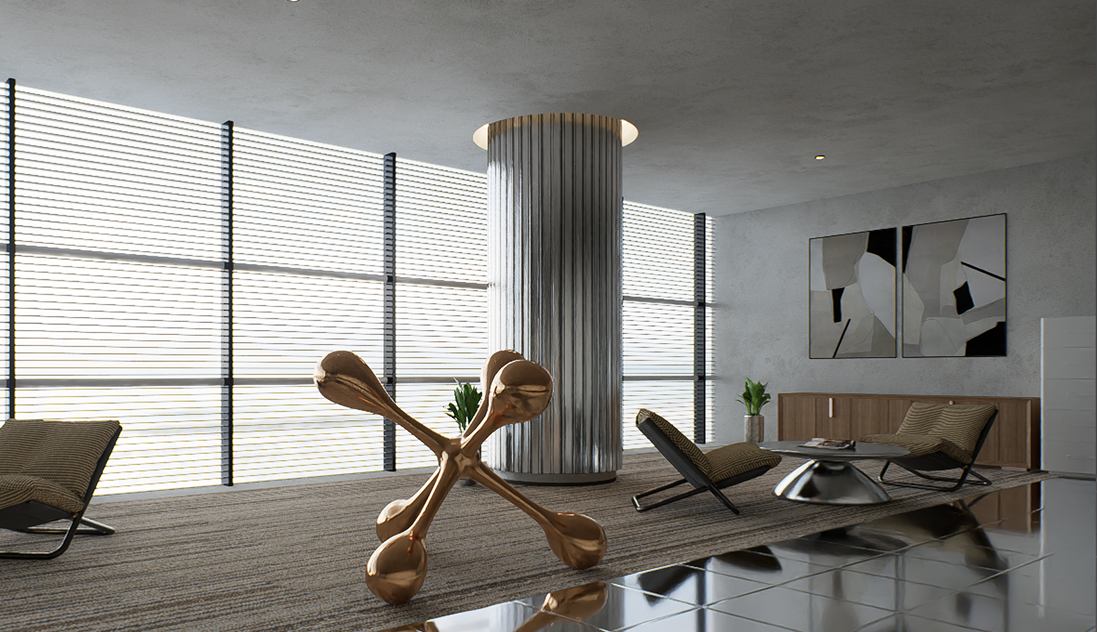
La création de textures métalliques ultra-réalistes en 3D exige de la précision : il faut trouver le juste équilibre entre la réflectivité, la rugosité et les détails fins, comme les rayures. Avec D5 Render, les artistes peuvent créer de superbes surfaces métalliques plus rapidement que jamais, grâce à son flux de travail PBR en temps réel, , et complet. Qu'il s'agisse de métal poli, d'acier patiné ou de bronze brossé, D5 optimise le processus tout en préservant l'authenticité. Découvrons comment ses fonctionnalités de pointe relèvent les défis traditionnels du rendu et permettent d'obtenir des textures métalliques impeccables avec une efficacité inégalée.
Points clés à retenir sur les textures métalliques ultra-réalistes dans D5 Render
- Le système PBR en temps réel de D5 Render offre un retour visuel instantané lors de la mise au point de textures métalliques telles que le métal brossé ou le métal poli.
- Lancez vos projets grâce aux préréglages de matériaux métalliques intégrés à D5, puis personnalisez-les à l'aide de curseurs intuitifs et Améliorateur IA importations de textures.
- La technologie de débruitage IA accélérée par RTX de D5 Render permet d'obtenir plus rapidement des surfaces métalliques sans bruit, tout en conservant les détails tels que les rayures et les reflets.

1. Comprendre les textures métalliques dans le rendu 3D
Les textures métalliques sont essentielles pour obtenir un réalisme saisissant dans le rendu 3D, en particulier dans des domaines tels que architecture, design d'intérieur, et la visualisation de produit. Contrairement à d'autres matériaux, les métaux se distinguent par leur grande réflectivité, leur interaction unique avec la lumière et les imperfections de surface telles que les rayures, l'oxydation ou l'usure.
En rendu basé sur la physique (PBR), qui est la norme de l'industrie pour le rendu réaliste, les métaux sont principalement définis par deux propriétés clés :
- Valeur métalliqueCela détermine à quel point un matériau se comporte comme un métal. Les métaux purs comme l'or ou l'aluminium ont des valeurs métalliques élevées, reflétant presque toute la lumière, tandis que les alliages ou les métaux usés peuvent diffuser la lumière davantage en raison de valeurs plus faibles.
- RuheCela contrôle la clarté des reflets : une faible rugosité produit des reflets nets et miroitants (comme on le voit sur le chrome poli), tandis qu'une rugosité plus élevée crée des reflets plus diffus et flous (courants sur les métaux brossés ou rugueux).
Des détails subtils tels que les empreintes digitales, les motifs de grain ou les reflets directionnels sur les métaux brossés ajoutent une touche supplémentaire de réalisme. Dans D5 Render, ces effets sont obtenus grâce à des cartes de texture telles que les cartes de normales et les cartes de rugosité. Le logiciel exploite les techniques PBR pour simuler ces caractéristiques avec précision, garantissant ainsi que les métaux réagissent de manière authentique aux différentes conditions d'éclairage et aux différents environnements.
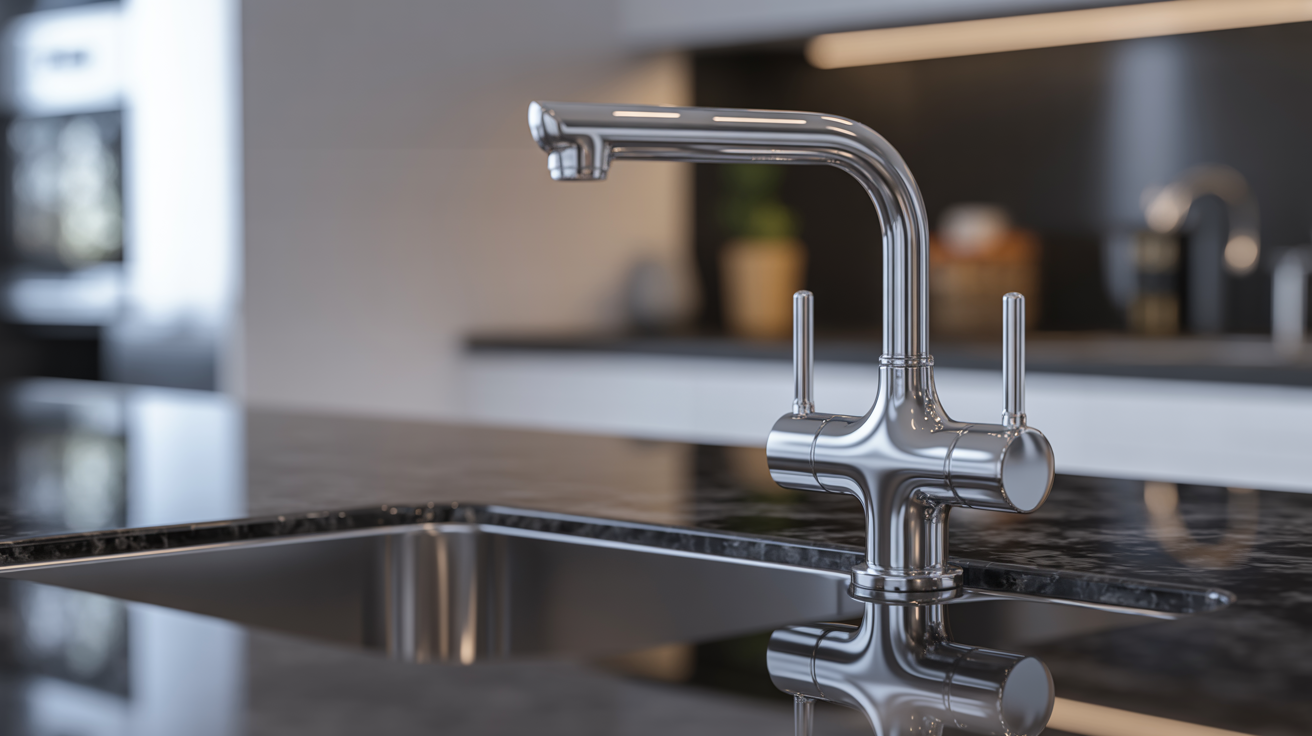
2. Pourquoi le D5 Render excelle-t-il dans le rendu des textures métalliques ?
Système de matériaux physiquement précis – Fini les suppositions
Dans le rendu traditionnel, les artistes sont souvent confrontés à de longs temps d'attente lors de l'ajustement des matériaux métalliques. Même un petit ajustement de la réflectivité, de la rugosité ou de l'anisotropie peut nécessiter des minutes ou des heures de rendu de test, rendant le processus d'obtention de surfaces métalliques précises fastidieux et inefficace.
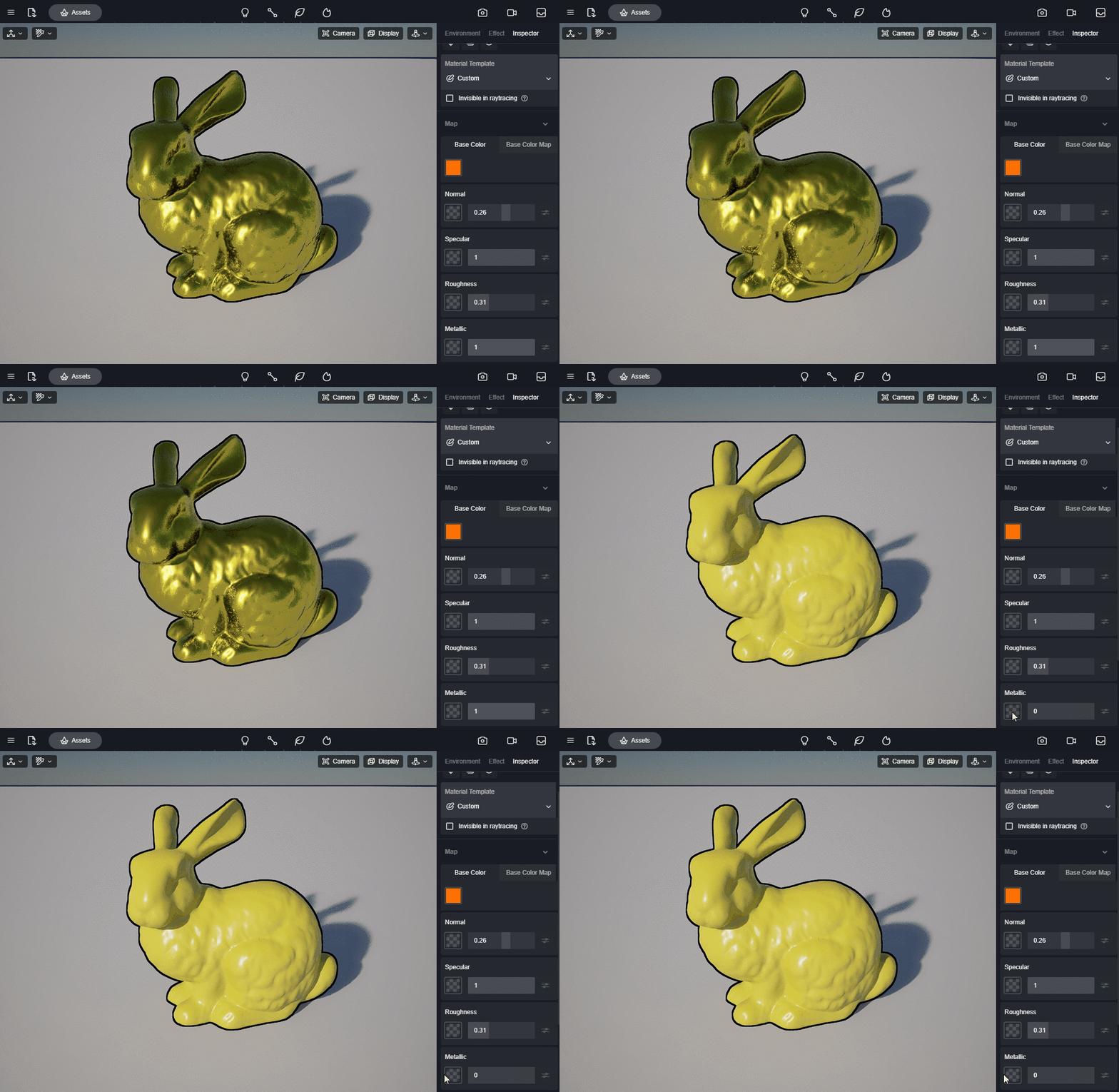
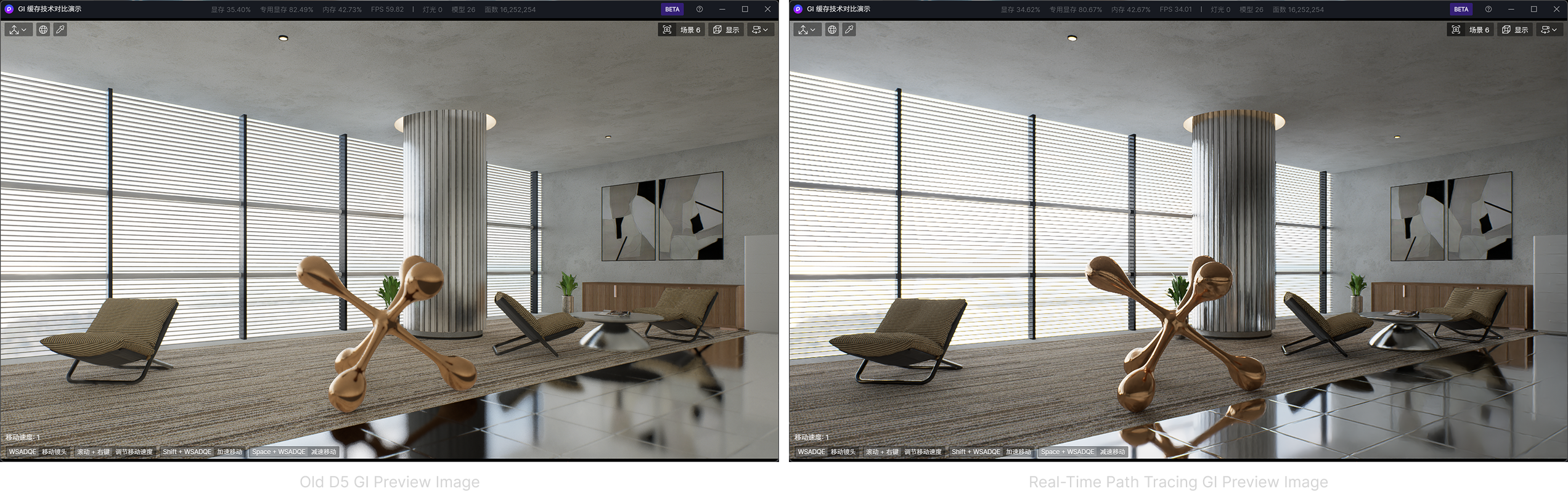
✅D5 Render transforme cette expérience avec son système PBR en temps réel. Ajustez un curseur de rugosité et voyez instantanément le métal poli se transformer en métal brossé, ou ajustez l'anisotropie pour obtenir des motifs de grain directionnels parfaits, le tout avec un retour visuel immédiat. Cela élimine les tâtonnements, permettant aux artistes d'effectuer des ajustements de matériaux précis de manière interactive et à des vitesses fulgurantes.
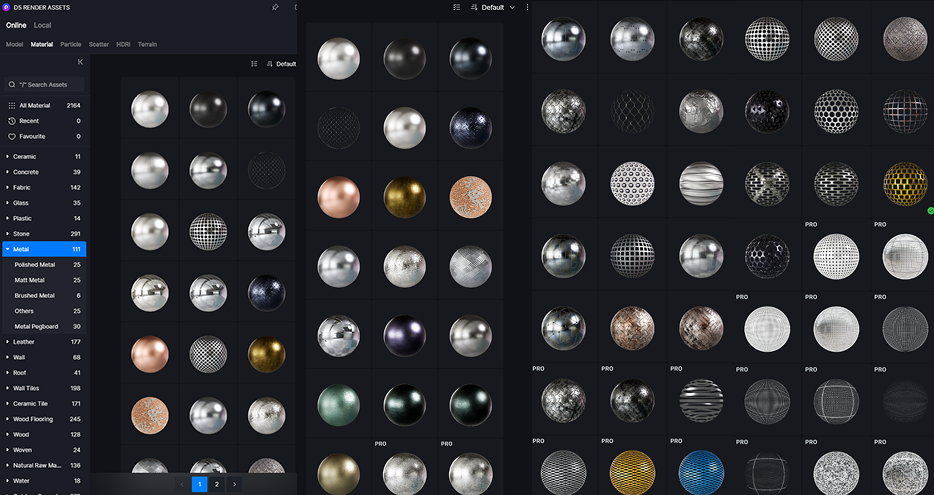
② Bibliothèque de matériaux intégrée – Éliminez la configuration fastidieuse
Le rendu métallique traditionnel nécessite une configuration manuelle fastidieuse – téléchargement de packs de textures externes, ajustement de valeurs PBR complexes et exécution d'une infinité de rendus de test juste pour obtenir une précision matérielle de base.
✅ D5 Render simplifie ce processus grâce à sa vaste bibliothèque intégrée d'actifs de matériaux, y compris des préréglages physiquement précis pour les métaux comme le métal poli, le métal brossé, et plus encore. Les artistes peuvent rapidement appliquer ces matériaux de base optimisés, puis les affiner à l'aide de curseurs intuitifs ou en important des textures personnalisées. Cette approche permet d'éviter des heures de configuration fastidieuse tout en préservant un contrôle créatif total, permettant aux artistes de se concentrer sur le perfectionnement de leur vision plutôt que sur la lutte avec les détails techniques.
③ Outils alimentés par l'IA – Corrigez le bruit sans perdre de détails
Le rendu des surfaces métalliques sans défauts est notoirement difficile en raison du bruit path-tracé, qui introduit des artefacts granuleux. Les débruiteurs traditionnels floutent souvent des détails cruciaux tels que les rayures.
✅ D5 Renderaborde cela avec ses outils alimentés par l'IA: son Réducteur de bruit IA accéléré par RTX gère à la fois les aperçus en temps réel et les exportations finales tout en préservant les bords nets et les imperfections matérielles. De plus, tels que Amélioration de l'IA, affinez davantage les résultats en améliorant intelligemment la clarté et le contraste des textures, essentiels pour des textures métalliques réalistes. Ces fonctionnalités d'IA réglables permettent aux artistes de trouver le juste équilibre entre la réduction du bruit et la préservation des détails.
④ Ray Tracing en Temps Réel – Reflets Précis, Zéro Latence
Les moteurs de rendu traditionnels forcent les artistes à attendre des heures traçage de rayons juste pour voir des reflets métalliques précis. Chaque éraflure, source de lumière et détail environnemental doit être méticuleusement vérifié grâce à des rendus lents et itératifs.
✅ D5 Render change la donne avec Traçage de rayons accéléré par GPU qui met à jour les réflexions instantanément. Faites pivoter votre modèle, réglez l'éclairage ou modifiez la rugosité : la surface métallique réagit en temps réel, affichant immédiatement des reflets parfaits. Cela élimine les incertitudes des flux de travail traditionnels, où les artistes perdent souvent du temps à attendre les rendus pour vérifier de simples ajustements de matériaux. Avec D5, obtenir un rendu photoréaliste de chrome, d'acier brossé ou de cuivre vieilli devient un processus interactif plutôt qu'une longue attente.
3. Guide étape par étape pour créer des textures métalliques réalistes dans D5 Render
❶ Étape 1 : Choisir le bon matériau de base
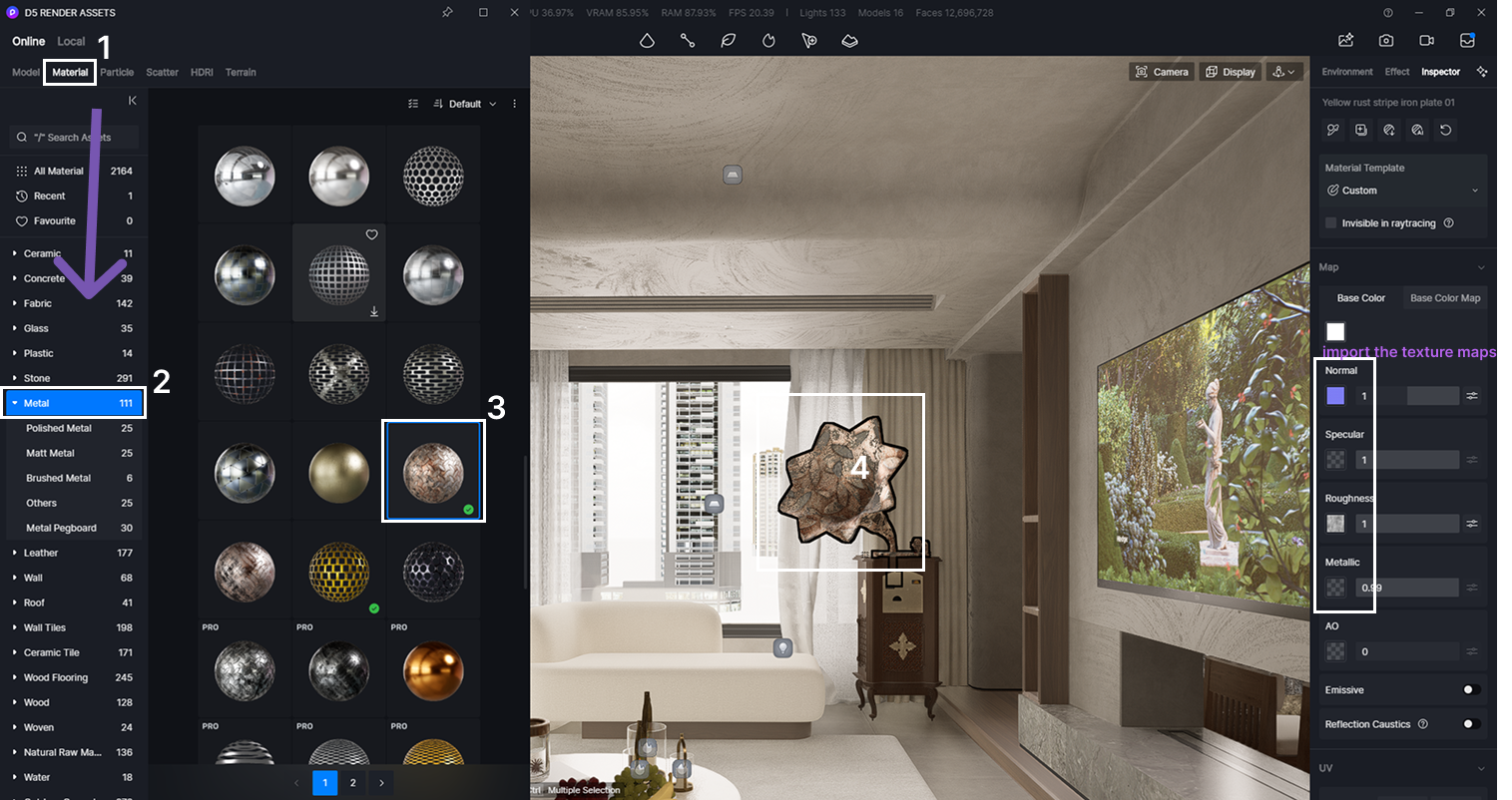
- La méthode la plus simple consiste à commencer par le Matériaux métalliques PBR grâce aux préréglages intégrés de D5 Render, qui proposent des réglages prédéfinis pour l'acier inoxydable, l'aluminium, le laiton et d'autres métaux courants. Il vous suffit de choisir un matériau de base correspondant à la finition souhaitée, que vous recherchiez un effet métal poli, métal brossé ou cuivre.
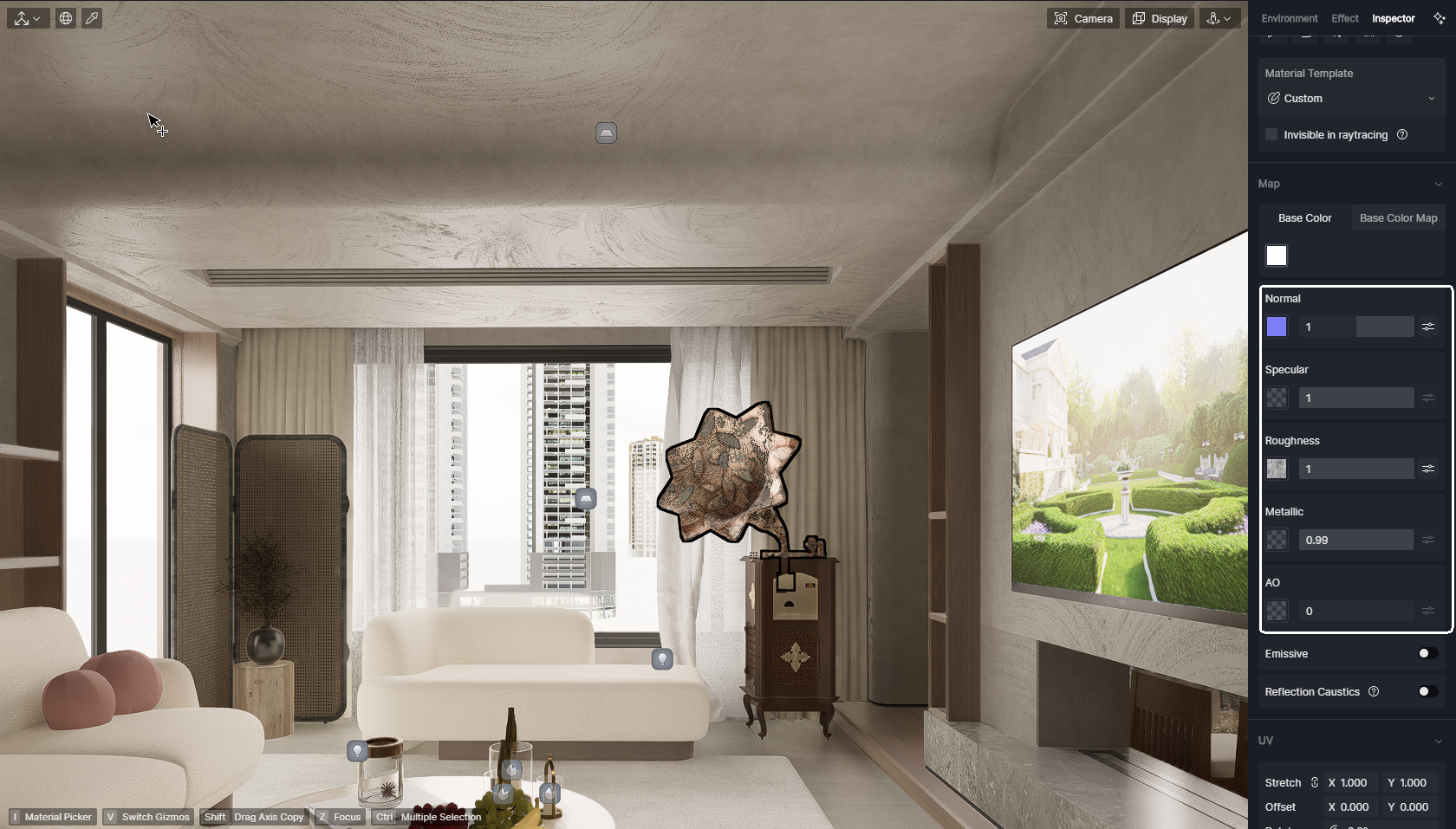
- Pour des aspects métalliques personnalisés, importez les cartes de textures (normal, spéculaire, rugosité, métallique) pour obtenir des qualités de surface parfaites.
- Vous pouvez également importer vos propres cartes de couleurs de base et utiliser celles de D5 Render Cartes de textures matérielles générées par l'IAfonctionnalité pour améliorer automatiquement le réalisme et peaufiner les reflets. Pour des instructions étape par étape sur ce flux de travail avancé, consultez ce guide détaillé.
Générateur de textures IA de D5 Render : un gain de vitesse et de réalisme >
Générateur de textures sans couture : optimisez les graphismes de D5 Render >
❷ Étape 2 : Affiner la réflectivité et la rugosité
Pour obtenir l'aspect métallique parfait, réglez le curseur métallique sur 1,0 pour les métaux purs et ajustez le curseur de rugosité pour contrôler l'éclat et les détails de surface. Utilisez une rugosité plus faible (0,1-0,3) pour le chrome poli, et des valeurs plus élevées (0,6+) pour les métaux mats ou corrodés. Avec La fenêtre d'affichage en temps réel de D5 Render, vous verrez instantanément comment la lumière interagit avec votre matériau.
❸ Étape 3 : Optimiser l'éclairage et l'environnement
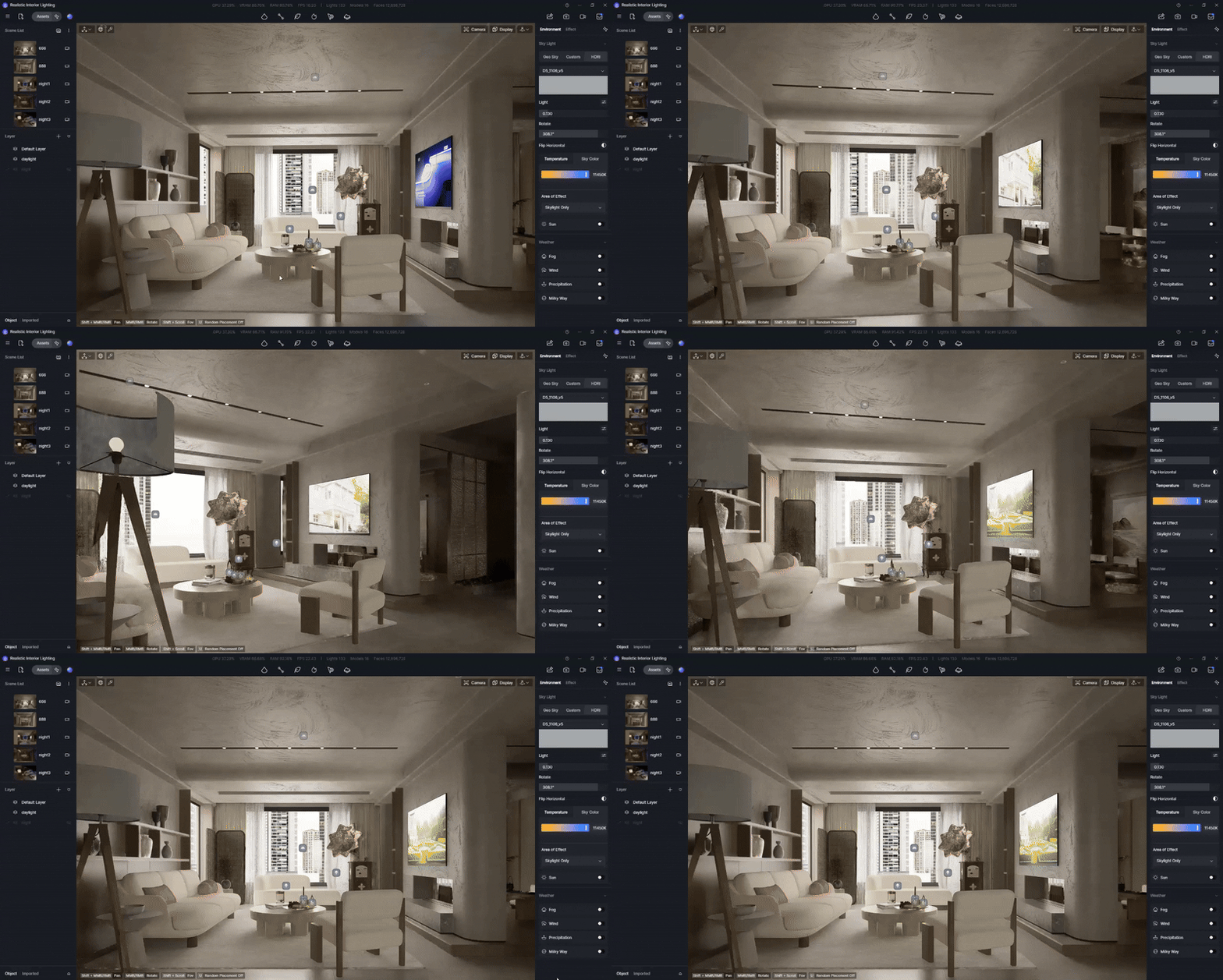
Pour obtenir des textures métalliques réalistes, il est essentiel de reproduire fidèlement les reflets. Dans D5 Render, utilisez l'éclairage d'environnement HDRI pour observer le comportement de votre matériau dans différentes scènes. Pour créer des effets visuels à fort contraste, comme dans le cas d'un décor métallique en intérieur, ajoutez des lumières directionnelles afin de mettre en valeur les reflets et les ombres.
❹ Étape 4 : Rendu et post-traitement par l'IA
Après avoir configuré votre scène, effectuez un rendu pour obtenir la sortie initiale. Appliquez ensuite L'optimiseur IA de D5 Render lors du post-traitement pour réduire le bruit et affiner la clarté de l'image, ce qui est particulièrement utile pour créer des finitions métalliques impeccables et brillantes. Utilisez le curseur d'intensité pour ajuster le niveau d'amélioration et maintenir l'équilibre des détails.
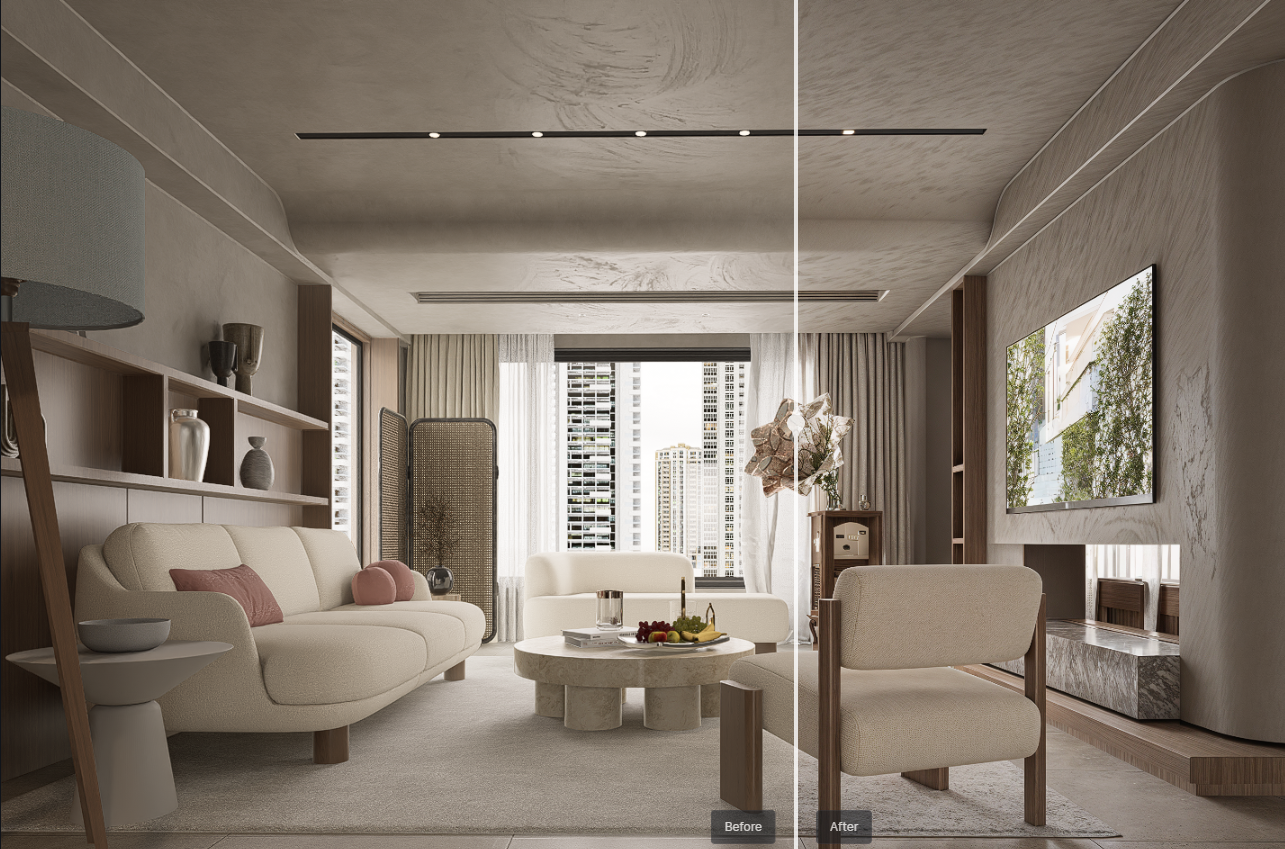
4. Conclusion sur les textures métalliques ultra-réalistes dans D5 Render
La création de textures métalliques ultra-réalistes ne nécessite plus d'innombrables essais et erreurs. Grâce à D5 Render’s Système de matériaux PBR, , , et traçage de rayons en temps réel, vous pouvez obtenir de superbes finitions métalliques plus rapidement que jamais. Que vous souhaitiez créer un métal poli, du laiton patiné ou de l'acier brossé, le flux de travail intuitif de D5 vous permet de vous concentrer sur votre créativité, sans vous soucier des aspects techniques. Prêt à transformer vos projets 3D ? Essayez ces techniques dès aujourd'hui dans D5 Render et constatez la différence par vous-même !
Continuez à lire pour en savoir plus sur la bibliothèque d'actifs de D5
Meilleures textures texte gratuites de haute qualité SketchUp en 2025 >
Comment créer une brève d'herbe parfaite avec D5 Render? >
Top 10 des matériaux de construction durables | D5 Render Guide >
Qu'est-ce que le PBR : Votre guide du rendu réaliste
Rendu en temps réel de la diffusion sous-surfacique et pourquoi vous en avez besoin
Comment rendre les matériaux en verre
FAQ sur l'utilisation de la bibliothèque d'actifs de D5 Render
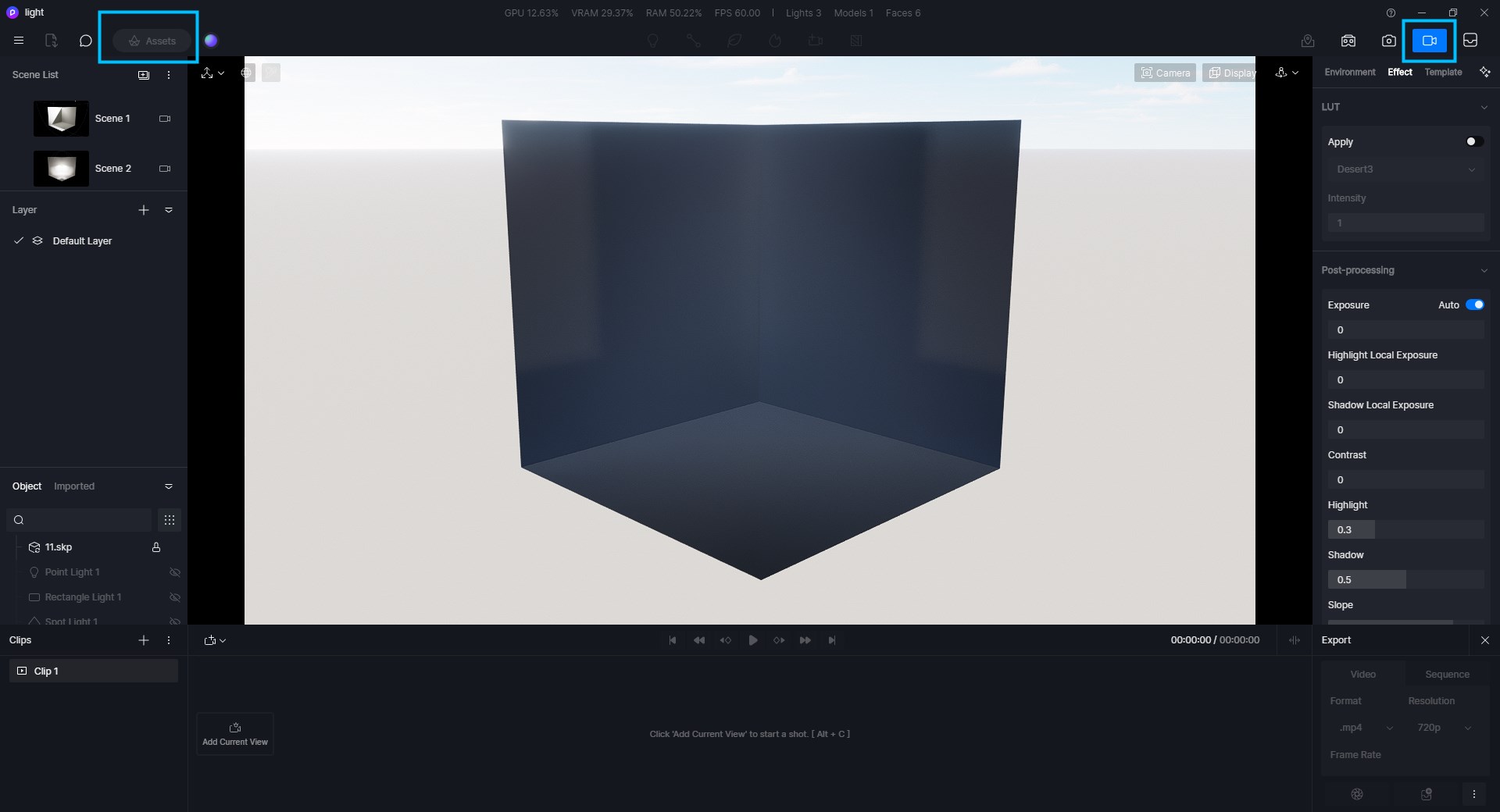
Pourquoi le bouton des actifs est-il grisé et non cliquable ?
Il n'est pas pris en charge d'ajouter des modèles en mode rendu (image/vidéo). Quittez simplement le mode rendu.
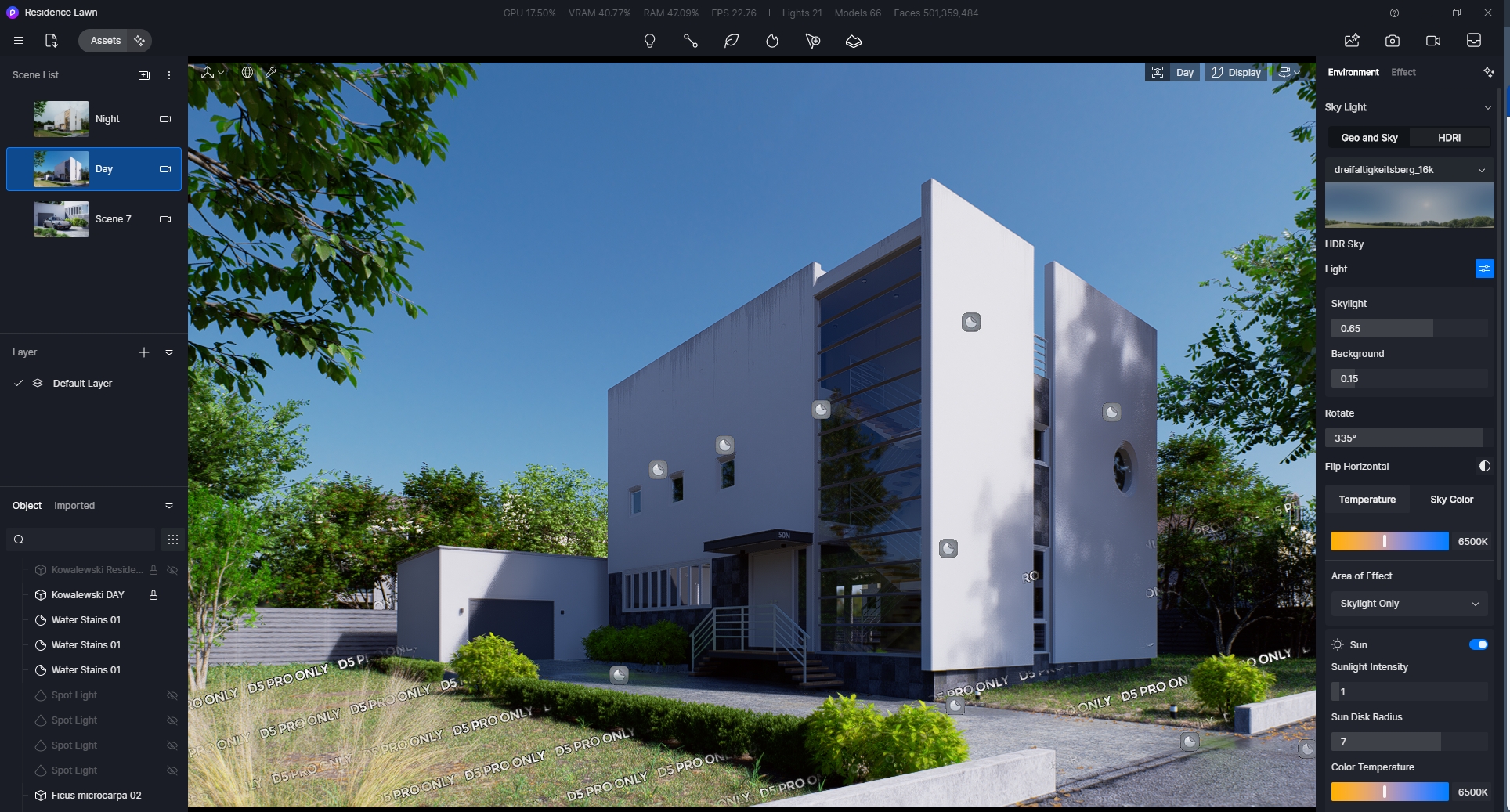
② Pourquoi y a-t-il des filigranes/affiche-t-il D5 PRO ONLY sur les ressources de la scène ?
Les ressources filigranées sont réservées à la version D5 Pro.
Connectez-vous simplement à votre compte Pro/Edu/Teams pour masquer les filigranes sur les ressources.
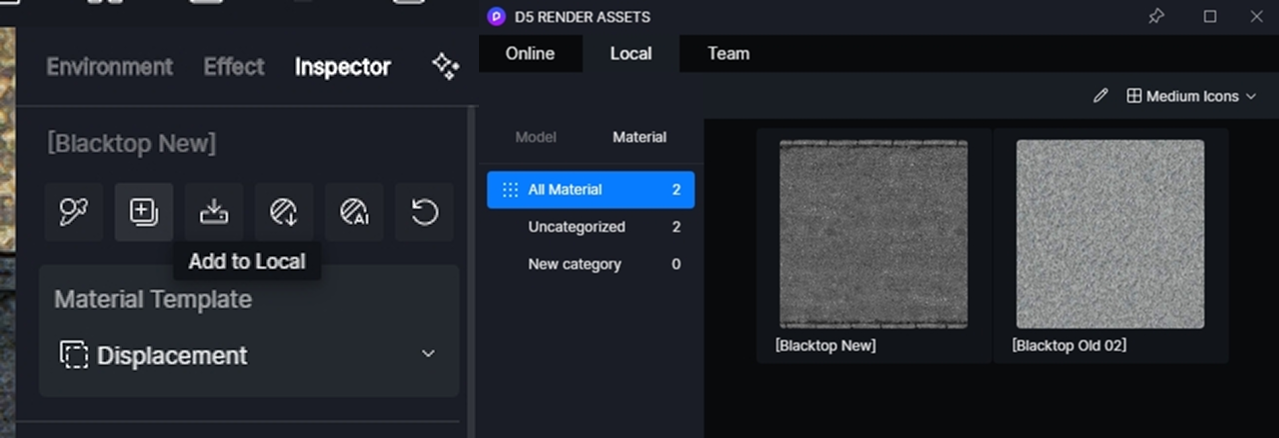
③ Comment ajouter des matériaux en local ?
Après avoir sélectionné un matériau, vous pouvez l'ajouter à « Local » dans le panneau de l'inspecteur de matériaux, sous le nom du matériau.
Vous pouvez trouver le matériel sauvegardé dans le menu déroulant “Matériel” de l'onglet “Actifs” > “Local” de la barre de navigation.
 English
 Español
 Français
 한국어
한국어 日本語
日本語