
Getting the light right is what transforms a 3D model into a believable space. It’s the soul of your interior visualization. The good news? You don’t need to be a lighting technician to achieve it. With D5 Render, you have what feels like a smart lighting system built specifically for creators.
Think of it as having intuitive control over every aspect of your scene’s atmosphere. The three core modes—Geo Sky, Custom, and HDRI—are designed to match your workflow, whether you’re blocking out concepts or adding the final photorealistic touches. Let’s walk through each one, so you can spend less time juggling settings and more time bringing your vision to life.
🚀Key Takeaways: D5 Render’s Smart Lighting System
- D5 Render‘s smart lighting system spans Geo Sky, Custom, and HDRI from look-dev to final.
- Use Geo Sky for instant daylight to spot scale issues and iterate fast.
- Switch to Custom for precise control—sun intensity, Sundisk Radius, and easy night scenes.
- Choose HDRI for photoreal reflections and balanced windows; pair with Custom to place the sun.
- Try AI Atmosphere Match in D5 Render: upload a reference, and it builds the mood in one click.

1) Geo Sky: Your Go-To for Instant, Intuitive Daylight
We all know that moment: you’ve just imported your model, and you’re staring at a dark shell. The first burst of light is crucial—it brings the space to life and guides your entire design process. This is where D5 Render‘s Geo Sky mode truly shines as the most responsive part of your smart lighting system.
Think of Geo Sky as your project’s “instant daylight” button. It’s dynamic and incredibly straightforward. With just a few clicks—adjusting the North Offset to spin the sun or playing with cloud density and speed—you can flood your interior with believable light in seconds. Suddenly, you can see how sunlight streams across your floorboards or highlights the shape of a staircase. It’s about fast, functional feedback without getting tangled in complex exposure settings.
So, when should you use Geo Sky?
Geo Sky is your best friend during the early concept and look-dev phase. Use it to:
- Sweep through different times of day to see how light and shadow transform the space.
- Spot any modeling or scale issues under clear, bright light.
In essence, treat Geo Sky as the “auto” mode within the D5 Render smart lighting system. It provides dependable illumination so you can focus on the big-picture design first. While it might not be your final, polished look, it’s the fastest way to get from a dark model to an inspired start.
2) Custom Mode: Take Control for Intentional, Consistent Lighting
Once your initial layout is set, you’ll naturally want more precision—that’s where the Custom mode in D5 Render really comes into its own. Think of this as moving from automatic to manual mode in a professional smart lighting system. Here, you’re no longer just adding light; you’re sculpting it.
This is where you gain direct control over the essential qualities of light. Adjust the Sunlight Intensity to set the overall brightness, dial in the Sundisk Radius to control shadow softness (a setting of 5-6 works wonders for natural-looking results), and precisely position the sun using Altitude and Azimuth. This level of control is what transforms a flat scene into a crafted interior that feels both intentional and authentic.
So, when is Custom your best choice?
- Perfect for Material Studies: Need to compare different wood finishes or fabric options? Custom lets you lock the lighting conditions, ensuring a perfectly fair, apples-to-apples comparison.
- Achieve Natural Softness: Avoid harsh, “CGI-looking” shadows. The Sundisk Radius control lets you create the soft, diffused light typical of a real-world sky.
- Create Ambiance with Night Mode: Easily switch to nighttime settings to design compelling evening scenes for bedrooms, lounges, or high-end lobbies, complete with adjustable moonlight.
👉 How to Create Stunning Night Renders in D5 Render for Realistic Night Scenes
The beauty of D5 Render‘s Custom mode is that it offers this deep control while remaining dynamic and fast. It strikes the perfect balance, giving you the tools to refine your interior lighting with confidence, ensuring every material is shown in its best light.
3) HDRI: The Secret to Hyper-Realistic Final Renders
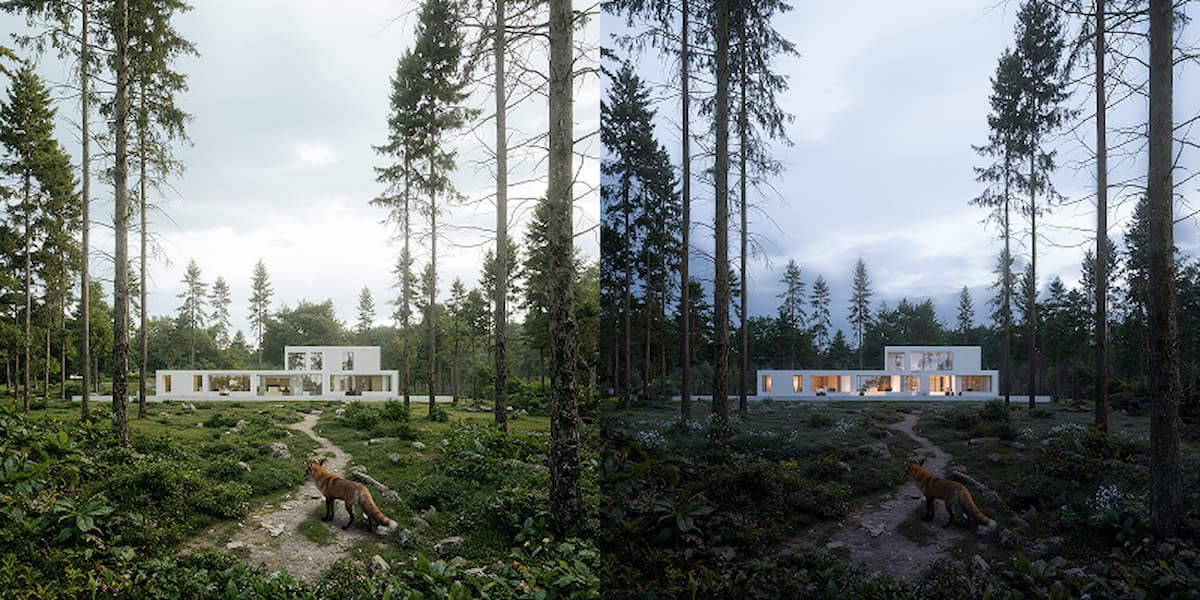
When it comes to creating final interiors that truly wow clients, HDRI lighting is where the magic happens. Think of it as the final polishing step in your D5 Render smart lighting system – the one that transforms good renders into photorealistic masterpieces.
What makes HDRI so special? It’s all about capturing real-world lighting data. A 360° HDR environment does more than just provide light – it fills your scene with authentic color nuances and subtle reflections that are nearly impossible to fake. Watch how white walls gently pick up the sky’s blue tones, or how metallic surfaces mirror believable surroundings. In D5 Render, you have intuitive controls like Skylight (adjusting ambient bounce), Background (managing window brightness), and Rotation (positioning the light source) to fine-tune every aspect.
So, when is HDRI your best choice?
- Needing window views that maintain detail without blowing out
- Having your own HDRI library and wanting a wider range of environments to choose from in D5 Render.
Here’s a pro tip from daily practice: While HDRIs capture static “moments,” you’re not locked into them. Use D5 Render’s HDRI+Custom hybrid mode to decouple the sun – keeping the beautiful environment lighting while placing the sun exactly where you need it. This perfect balance of authentic ambiance and artistic control is what makes D5 Render feel like a truly intelligent partner in visualization.
4) Need a Creative Jumpstart? Let AI Set the Mood
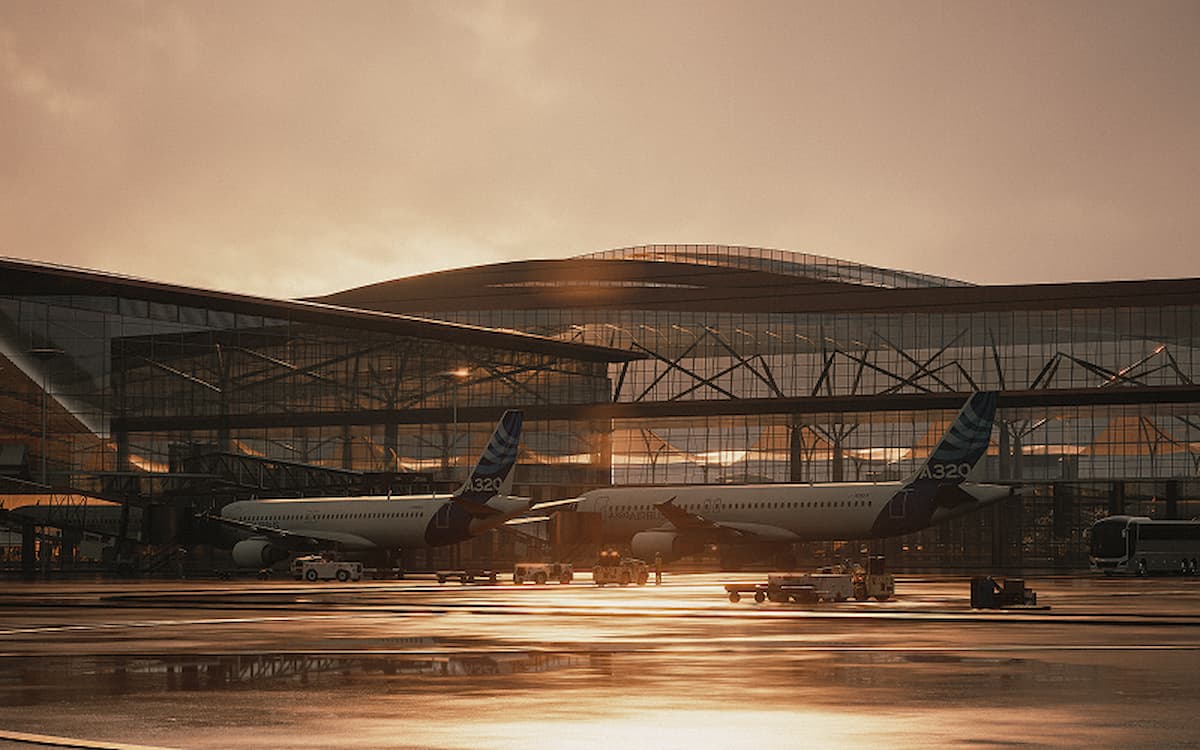
Still unsure where to start? Here’s a friendly insider tip: try the AI Atmosphere Match tool in D5 Render. Just upload a reference image—like a golden-hour site photo, an overcast street scene, or a stormy-night skyline—and it intelligently builds a harmonious lighting environment for you—in one click.
Think of it as your creative co-pilot. Once it lays the foundation, step in and make it your own. Fine-tune the Skylight for atmosphere, adjust the Background for balance, and dial in the Sundisk Radius for those just-right shadows. This is what makes D5 Render feel like a truly smart lighting system: it handles the heavy lifting, so you can focus on adding your personal touch and refining every detail.
Conclusion: Your Smart Lighting System, Simplified
So there you have it. Lighting isn’t a puzzle anymore—it’s a clear path. From the instant daylight of Geo Sky to the precise control of Custom mode, and the hyper-realism of HDRI, D5‘s smart lighting system is designed to grow with your creative vision. Stop struggling with complicated settings.
Fire up D5 Render now and turn your next project into your most stunning visualization yet. Your perfect lighting is just a few clicks away.
Discover More Pro-Level Lighting Secrets
How to Light Dark Rooms: Interior Lighting with D5 Render
Best practices of interior lighting for SketchUp
AI Lighting Mastery: D5 for Realistic Archicad Visuals
How to Use Emissive Material in D5 for Better Lighting?
D5 GI | What’s Global Illumination and Why We Need It?
Advanced D5 GI with enhanced shadows, reflections, and light bounces
FAQ: Fixing “Why does my lighting feel off?”
Q. My interior renders look flat. What simple steps actually work?
Start with an “instant daylight” pass to reveal form, then sculpt.
In D5 Render, Geo Sky gives quick, believable daylight; switch to Custom to lock Sunlight Intensity and set a Sundisk Radius around 5–6 for soft, natural shadows. Finish with HDRI for nuanced reflections and color bleed. This smart lighting workflow moves from fast feedback to photoreal polish—quickly.
Q. How do I stop blown-out windows but keep view detail?
Use HDRI for realistic exterior luminance. In D5 Render, lower Background to control window brightness while increasing Skylight for interior bounce. Rotate the HDRI so the brightest patch isn’t facing camera. If you need precise highlight direction, use HDRI+Custom to keep the environment realism but place the sun exactly where you want it. Balanced windows, rich interiors—no heavy post.
Q. I don’t know where to start with mood. Is there a one-click option?
Certainly! AI Atmosphere Match in D5 Render—upload a reference (golden-hour site photo, overcast street, stormy skyline) and it builds a coherent lighting base in one click. Then fine-tune: Skylight for atmosphere, Background for window balance, Sundisk Radius for soft penumbras. It’s a smart lighting jumpstart from blank scene to on-brief mood—fast.
Q. How can I keep lighting consistent for material tests and A/B shots?
Use D5 Render‘s Custom mode and lock variables: Altitude/Azimuth, Sunlight Intensity, Sundisk Radius, and exposure. Keep Skylight/Background fixed across shots. This creates an apples-to-apples baseline so woods, fabrics, metals, and glass read accurately.
D5’s smart controls make repeatability easy—change the material, not the light—so comparisons are trustworthy and client-ready.
Q. My shadows look harsh and “CGI.” How do I get soft, natural light?
Increase the Sundisk Radius (about 5–6 is a reliable starting point) and add ambient fill with Skylight in D5 Render. If the scene still looks brittle, try a slightly cloudier sky or swap to an HDRI for rich, real-world softness.
D5’s Smart Lighting System lets you dial softness without complex node trees—just intuitive sliders and immediate feedback.
Q. I love HDRI realism but need to aim the sun. Can I do both?
Yes—use HDRI+Custom in D5 Render. Keep the HDRI for authentic reflections and color bleed, then decouple and place the sun for hero highlights and guided shadows. This hybrid approach is the best of both worlds: the credibility of captured environments with the artistic control of a studio light, all inside D5’s smart, unified workflow.
Q. What tools help me iterate lighting faster without being a TD?
Leverage D5 Render‘s Smart Lighting System—Geo Sky for instant daylight, Custom for precise, repeatable setups, HDRI for final realism, and AI Atmosphere Match for one-click mood from a photo. Real-time feedback, intuitive controls, and hybrid options mean less guesswork, more creative decisions—and client-ready interiors in minutes, not hours.
 English
 Español
 Français
 한국어
한국어 日本語
日本語