
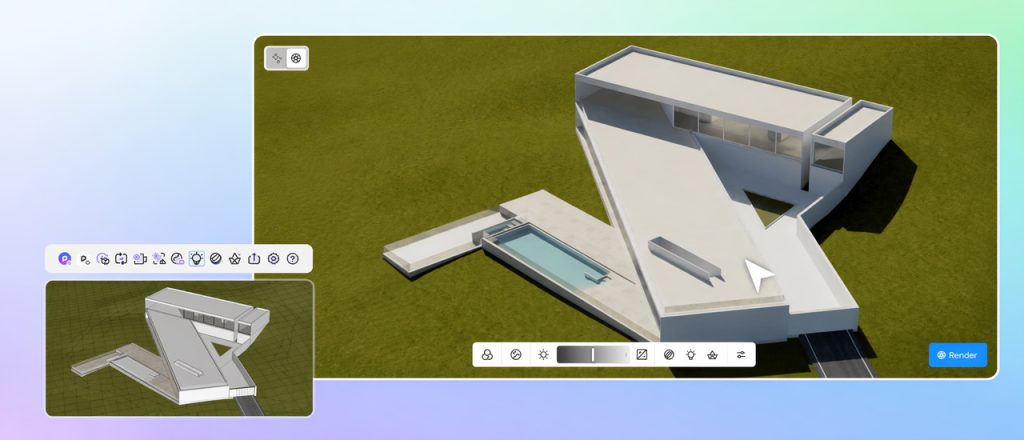
You just moved a wall, adjusted a ceiling height, and swapped three material finishes. Now you want to see if it actually looks right. So you export, wait, open another piece of software, wait again, and finally get a view that's already out of date because you've already made two more changes.
That gap—between making a decision and seeing the result—is where many Revit rendering workflows lose momentum. Not because the tools aren't capable—but because they sit on the other side of an export.
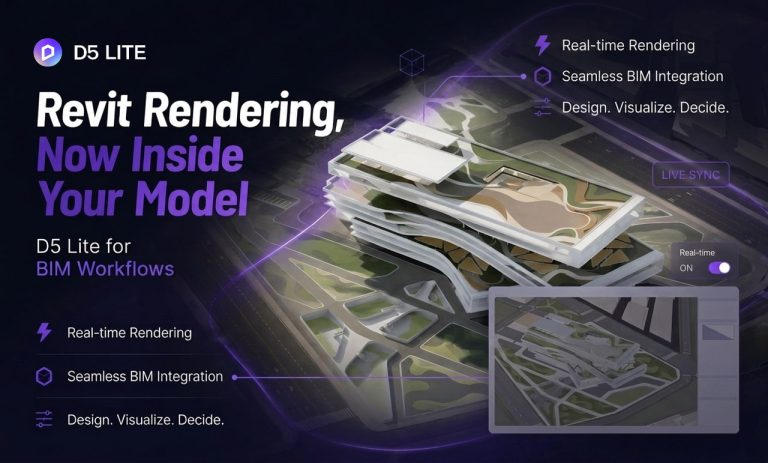
D5 Lite for Revit (beta) is built to solve that problem at the source: it keeps real-time path tracing and AI-powered image generation inside your modeling environment. No export. No separate scene file. Materials and lighting settings are saved directly in the .rvt file, while geometry updates in real time as the Revit model changes.
Here's what that looks like in practice, and why "Revit rendering" doesn't have to mean "late-stage output" anymore.
Key Takeaways: Revit Rendering with D5 Lite
- Revit rendering doesn't have to be a post-modeling step. D5 Lite lets you visualize and iterate during design, inside Revit itself.
- Two distinct modes serve different phases. AI Mode explores style and direction; Render Mode lets you validate physically accurate lighting and materials in real time.
- No export, no broken flow. Parameters stay in the .rvt file. Geometry syncs live as you model.
- Lite handles design-stage static renders; D5 Render takes over for final production deliverables without rebuilding the scene.

Why Revit Rendering Shouldn't Wait Until the Model Is Finished
This feedback lag in traditional workflows doesn't just slow you down—it actively dictates when you choose to visualize. During schematic design or design development, when teams are constantly testing massing, orientation, and material palettes, stopping to export is rarely practical.
The core problem isn't the final image quality—it's the friction of getting there. Most traditional pipelines force you to leave your BIM environment entirely, managing disconnected scene files and manual syncs. When you're iterating rapidly on room layouts or daylight studies, this overhead kills design momentum. Rendering has historically been treated as an isolated "final step" simply because the tools demanded it.
D5 Lite for Revit breaks that habit by putting visualization exactly where design happens: inside your active model.
What D5 Lite for Revit (beta) Changes in the Modeling Environment
So what is D5 Lite, exactly, and how does it relate to D5 Render?
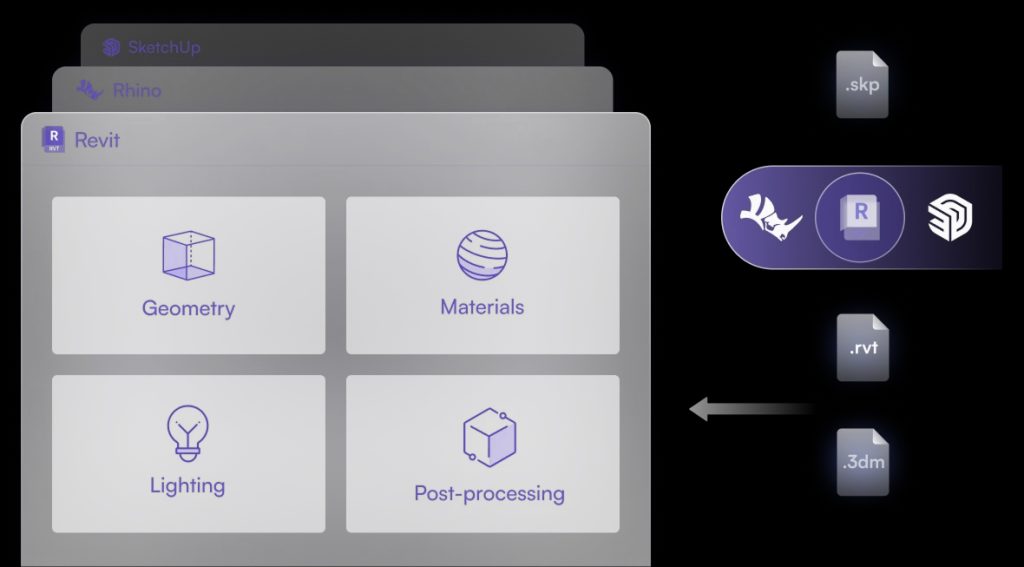
D5 Lite is an AI-native visualization plugin that lives inside your modeling software. It was initially released with SketchUp support, and the 3.1 release added D5 Lite for Revit (beta) and D5 Lite for Rhino (beta). It's not a separate export pipeline. It's a Revit tab. You click it, and the D5 engine opens as a floating window connected to your current model.
Crucially, D5 Lite is built for design-stage iteration. It's not a stripped-down version of D5 Render—it's a different tool for a different phase. Lite handles real-time path tracing, material and lighting feedback, and AI-assisted style exploration—all within the context of the active Revit project. When you need production-ready marketing assets, full video animations, or interactive client presentations, the same scene opens in D5 Render without rebuilding.
Because parameters remain natively bound to the Revit project, you're no longer managing parallel, disconnected scenes. You're simply choosing when to visualize.
Changes to model geometry sync automatically. Adjust a wall in Revit, and Lite updates in real time. That's the core loop: model, check, adjust, check again.

Explore with AI Mode, Verify with Render Mode
At the top left of the D5 Lite interface, a toggle lets you switch between two modes.
AI Mode is for early design exploration. You're sketching massing, trying color palettes, or testing how a facade reads in different contexts. AI Mode generates concept images and design variations from your current Revit view—up to four variations at once. You can guide the output using a text prompt, a reference image, or the Structure Weight control, which determines how closely the result follows your model geometry. Style Presets provide ready-made directions across architecture, landscape, and interior design scenarios, while prompts and reference images help refine the mood and material language.
AI Mode does not produce physically based final visualization—it generates design possibilities. If you need to show a client a precise material finish or validate actual light behavior, that's what Render Mode handles.
Render Mode is designed for physically grounded visual validation. It uses D5's real-time path tracing engine with physically based materials and lights. The sun positions, the reflections, the material roughness—those are rendered accurately, not approximated. You set up your Revit model, apply materials in Lite, adjust the environment (sky, sun, HDRI), and see the result in real time.
Think of it this way: AI Mode helps you decide what to build. Render Mode helps you verify how it looks.
Both modes keep you inside the design loop. You don't stop modeling to render. You render while you model.
How to Install and Open D5 Lite for Revit Rendering
The install path is straightforward, but a quick walkthrough helps.
Everything goes through the D5 Launcher. There's no separate installer for D5 Lite. Open the D5 Launcher, go to the Workflow tab, select D5 Lite, choose Revit, and click Install. The Launcher automatically downloads and installs the plugin. If Revit is already open, the Launcher will ask you to close it before continuing.
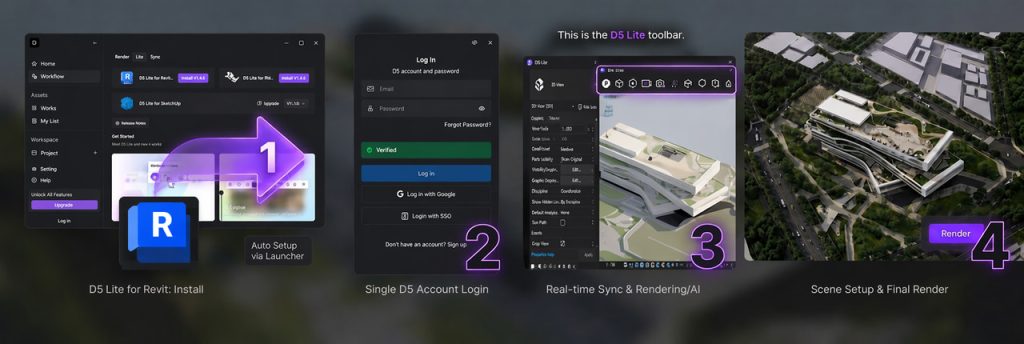
You'll need a D5 account and an internet connection, and your system should meet the basics:
- Operating system: Windows 10 (20H2 or later)
- GPU: NVIDIA RTX 20-series or later
- GPU driver: 528.33 or later
- Host application: Revit 2019–2027
Pro tip: D5 Lite currently supports Windows only, with macOS support under consideration for a future release. Intel and AMD GPUs are not supported.
Once installed, open Revit, switch to the D5 Lite tab, and click the D5 Lite button. The D5 engine opens as a separate window linked to your current Revit view. From there, your first rendering steps are: set the environment (sky, sun, or HDRI), adjust materials and lights in the Lite panel, and then render.
→ For full installation details, the Getting Started guide covers everything step by step
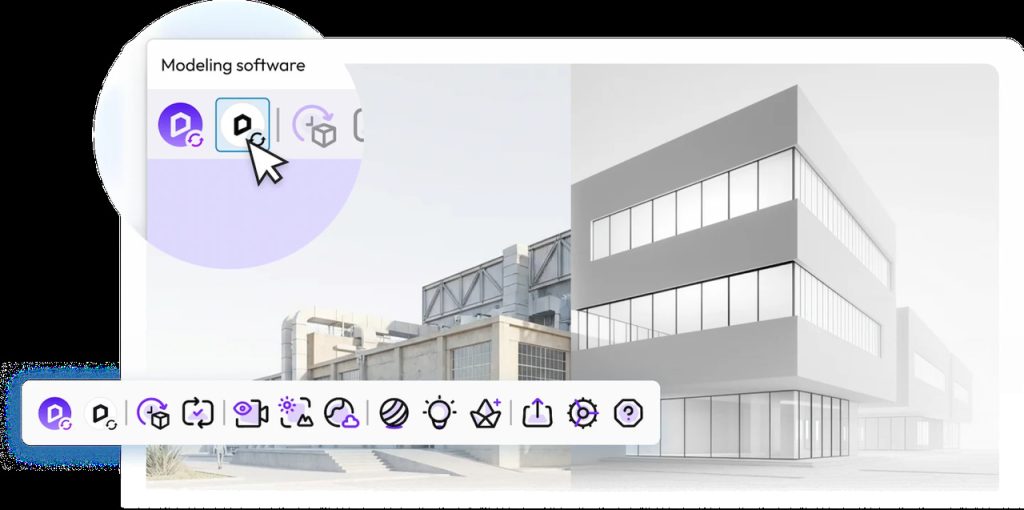
A Practical Revit Rendering Workflow: Model → Lite → Render
Here's one way this fits into a real project flow.
- Phase 1: Model in Revit. You're working on the model as usual—floor plans, sections, massing. No change to your existing BIM process.
- Phase 2: Explore direction with AI Mode. Early in schematic design, run quick style iterations during team brainstorms. Test broad color concepts or facade options to get internal alignment before spending time on detailed material setup.
- Phase 3: Validate details with Render Mode. As key design decisions become more defined, switch to Render Mode. Evaluate how natural sunlight enters a curtain wall, or assess material finishes in real time, making live adjustments during client reviews.
- Phase 4: Send the project to D5 Render for final deliverables. When the project progresses to final production—whether that means high-res commercial stills or immersive walkthroughs—sync your scene from D5 Lite to D5 Render. Materials, lighting, and supported proxy models carry over seamlessly into D5 Render for final stage refinement, eliminating the need to rebuild scenes from scratch.
That's the long arc: model → explore → verify → polish. But the point is that you never leave Revit for the first three steps.
Who Should Try This Revit Rendering Workflow First
D5 Lite for Revit (beta) makes the most sense for certain roles and project phases right now.
- Revit-first architects and architectural designers who spend most of their day inside Revit and want faster visual feedback during design development.
- BIM coordinators and designers who need to communicate design intent to non-technical stakeholders without juggling multiple export-import cycles.
- Firms already using D5 Sync for Revit can adopt D5 Lite as an integrated design-stage workflow. D5 Lite includes Revit LiveSync capabilities while adding in-model AI exploration and real-time rendering.
- Teams that rely on early-stage design reviews and want to show realistic lighting and materials—not just massing models—at schematic milestones.
If your workflow already involves frequent exports to a separate rendering tool, or if you find yourself skipping visualization because "the model isn't ready yet," D5 Lite for Revit is worth trying on your next project. The beta is still evolving, but its core model → visualize → adjust workflow is ready for design-stage use.
Keep Revit Rendering in the Design Loop
D5 Lite moves visualization closer to the moment design decisions are made. Instead of waiting for a separate rendering stage, Revit users can explore ideas with AI Mode, validate materials and lighting in Render Mode, and carry approved work into D5 Render when the project requires more advanced deliverables.
If that sounds like a workflow worth testing, download D5 Lite for Revit (beta) through the D5 Launcher. Existing D5 users can update the Launcher and find Lite ready to install. For teams already using D5 Render, D5 Lite extends the familiar D5 engine into the design phase, reducing the need to learn an entirely separate visualization workflow.
FAQ: Revit Rendering with D5 Lite
D5 Lite for Revit (beta) is a plugin that brings rendering directly into Revit. It uses real-time path tracing and AI image generation, so you don't need to export or maintain a separate scene. Materials and lighting settings are saved directly in the .rvt file, while the visualization remains connected to the active Revit geometry.
D5 Lite is built for early design iteration—exploring ideas, checking materials, and verifying lighting inside Revit. D5 Render is the full tool for high-end stills, animations, VR walkthroughs, and interactive presentations. Both share the same engine, so you can start in D5 Lite and continue in D5 Render without rebuilding.
Absolutely. There is zero lost work. D5 Lite data is natively readable by D5 Render. All the materials, lighting setups, and environment adjustments you create in Lite transfer directly into D5 Render the moment you are ready to produce final deliverables.
Yes. Because all lighting and material configurations are saved natively into your Revit project file, any structural or layout adjustments you make in Revit trigger instant, live updates in the Lite viewport.
D5 Lite requires a Windows PC with an NVIDIA RTX series GPU and an active internet connection. It currently supports Revit versions 2019 through 2027. For the exact OS and driver specifications, please refer to the detailed requirements in the installation section above or the official Getting Started guide.
Continue Reading: D5 3.1 Core Features
D5 3.1 Release: Design Presentation
D5 Lite for Rhino (beta): Rendering Inside Your Modeling Environment
D5 Lite for SketchUp: Real-Time Rendering and AI Exploration
How to Use D5 Render for Architectural Walkthroughs
Design Presentation in D5: From Model to Client-Ready Visuals
Real-Time Rendering in Revit: What's New with D5 Lite
AI in Architectural Design: How D5 Lite Changes Early-Stage Visualization
 English
 Español
 Français
 한국어
한국어 日本語
日本語