
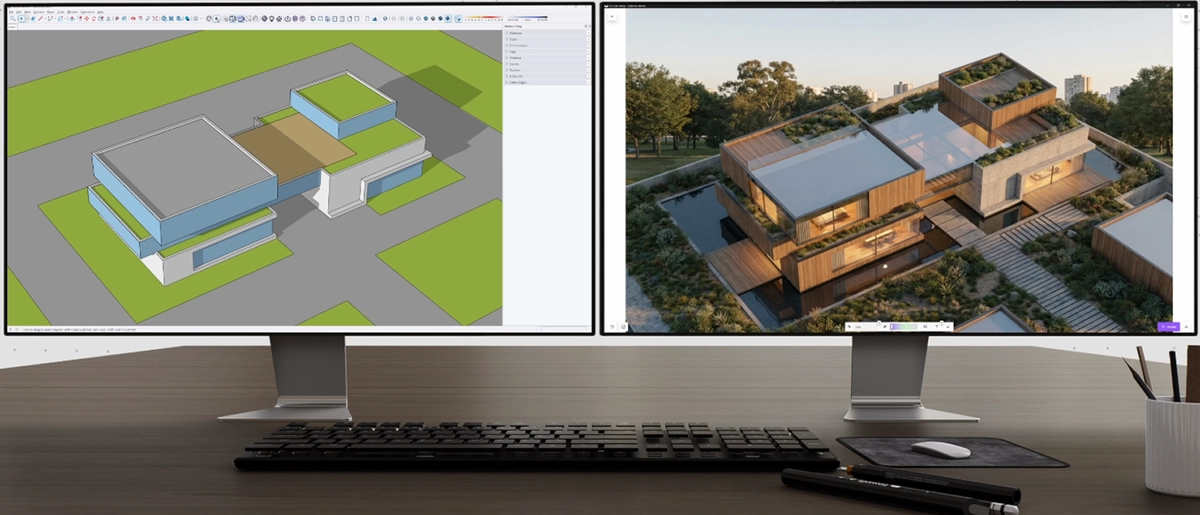
As someone who has spent the past 12 years helping architecture firms deliver high-quality visualizations under tight deadlines, I’ve watched the right tools quietly reshape how we work. In 2026, AI-powered SketchUp plugins have moved well beyond “nice-to-have.” For most practices, they’ve become a practical necessity if you want to keep pace with faster iteration and higher client expectations.
Before diving into the list, let’s quickly clarify what we mean by an AI-powered SketchUp plugin. These are extensions that run natively inside SketchUp and use AI to handle tasks like generative rendering, real-time visualization, smart geometry-based ideation, or automated refinements — all without exporting your model or jumping between different programs. They keep you inside your familiar viewport, working directly with your existing geometry while significantly speeding up the journey from early concepts to presentation-ready images.
Over the past year, I’ve put dozens of these extensions through their paces on actual client projects — ranging from residential schemes to large-scale commercial interiors. Below are the eight AI-powered SketchUp plugins that have proven most valuable in 2026. For each one, I’ll cover what it does, where it shines, typical pricing, and the practical limitations you should be aware of.
Key Takeaways on Choosing AI-Powered SketchUp Plugins in 2026
- Workflow continuity is key. Plugins that let you stay inside SketchUp — without constant exporting or app-switching — tend to earn the most repeat use in real projects.
- AI helps with speed, but integration and control matter more for daily work. Tools that respect your existing geometry and fit naturally into the modeling viewport usually deliver better long-term value.
- Real-time feedback is quickly becoming standard for early-stage work. Being able to see lighting and material changes instantly can noticeably improve iteration, especially for solo practitioners and small teams.
- Start simple and test what actually fits your setup. Free or low-commitment options aligned with your current habits often reveal the biggest practical gains.

1. SketchUp AI Render (Official Generative AI)
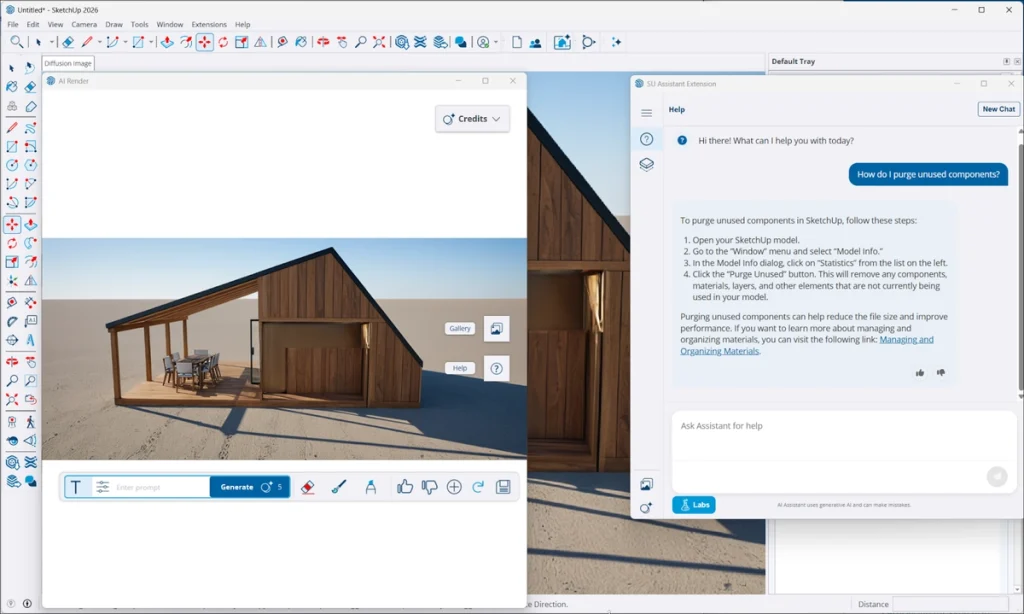
SketchUp AI Render — previously known as Diffusion — is Trimble’s own generative AI tool, integrated directly into the core SketchUp environment.
✅ Advantages: It’s impressively quick when you’re exploring early concepts. The interface offers both ready-made presets and the option to write your own prompts. What I particularly like is the “respect model geometry” slider, which lets you control how closely the AI sticks to your existing design. This makes it very handy for generating quick mood-board variations right in front of a client.
⚠️ Limitations: At the moment, the results tend to lean more stylized than fully photorealistic, and material accuracy can still vary. It’s excellent for early-stage ideation and client feedback loops, but I usually treat it as a starting point rather than a final deliverable.
2. D5 Lite: Real-Time Visualization with AI Concept Tools
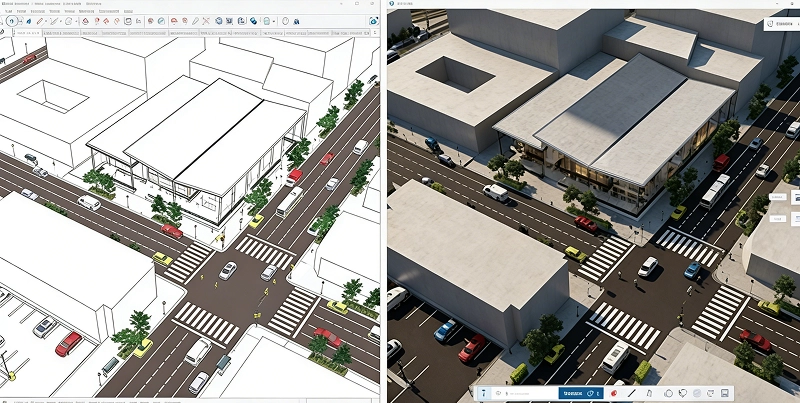
D5 Lite is an AI-powered real-time visualization plugin that runs directly inside SketchUp. In the projects I’ve supported over the past year — especially with freelancers and smaller studios working to tight deadlines — it has proven to be a highly practical option for moving quickly from early sketches to more developed concepts without leaving the modeling environment.
✅ Advantages:
- The real-time rendering uses the D5 engine directly inside the SketchUp viewport. Lighting, materials, environment, and atmosphere respond as you model, tweak objects, or orbit the view — without needing to export or wait for processing.
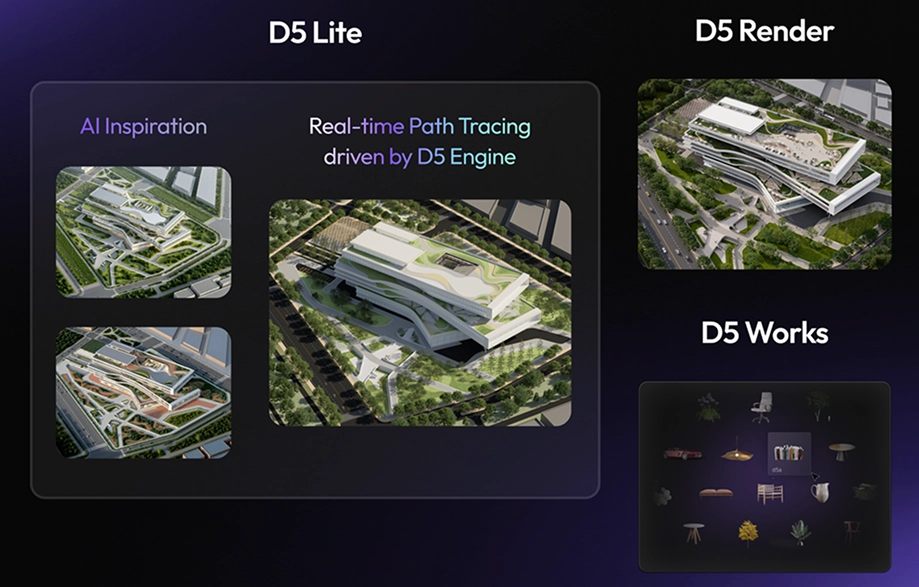
- AI Concept Generation lets you describe the mood or direction you’re after, generating several styled variations based on your current geometry. These appear as reference images in the D5 Lite interface while you continue working on the actual model — editing geometry, adjusting lights, materials, and viewpoints. I’ve found it particularly helpful for quick brainstorming during early design reviews.
- Integration with D5 Render makes it straightforward to send the full scene for animation, VR, or more polished production output with a single click. For most day-to-day needs, the real-time renders inside SketchUp already feel solid.
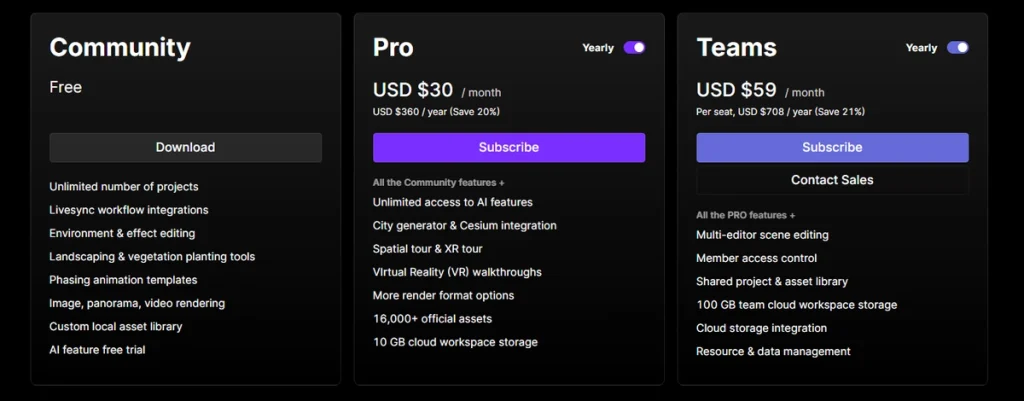
- Flexible and accessible pricing that truly supports the full workflow. Core real-time visualization in D5 Lite is completely free, and new users get 50 AI credits to test concept generation. When you need more, the D5 Pro subscription ($38/month or $360/year) unlocks unlimited AI generations in D5 Lite, advanced production tools in D5 Render, and full access to the AEC asset library with exclusive discounts in D5 Works.
💡D5 Lite is currently optimized for SketchUp 2021–2026, with support for additional platforms (Rhino, Revit, 3ds Max, and others) planned for the future. A Mac version with full AI capabilities is also on the way.
⚠️ Limitations: D5 Lite currently focuses primarily on still visualization and concept exploration — full animation and advanced post-production features live in the companion D5 Render application.
🌟One aspect I appreciate is how the D5 ecosystem can work together in practice. The D5 approach brings together the Lite plugin for early exploration and immediate visual feedback inside your modeling software, D5 Render for higher-end deliverables, and D5 Works for a well-curated library of architecture-focused assets and materials. It helps keep the creative process more continuous — particularly useful for freelancers and mid-sized practices that don’t have large dedicated rendering teams.
🚀Pressed for time? Jump straight to our 2026 Comparison Table to see which AI plugin fits your SketchUp workflow best.
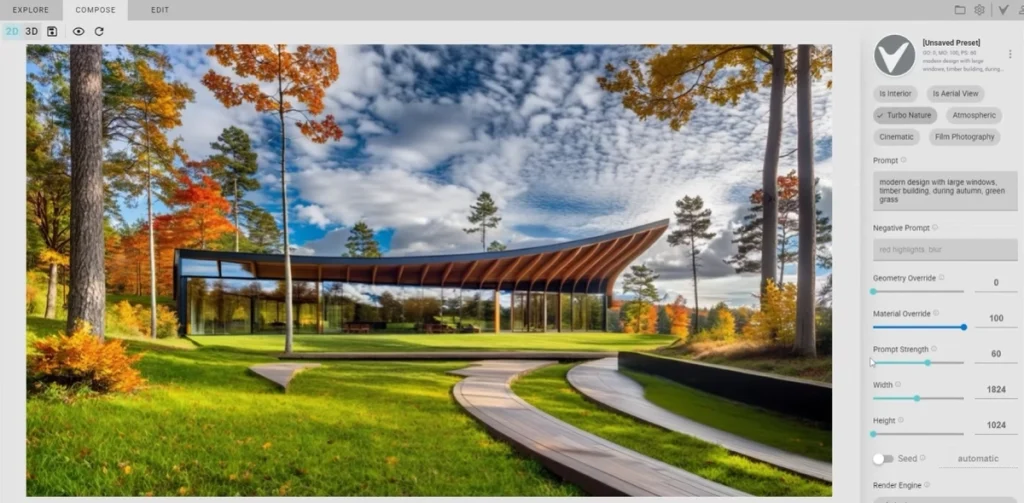
3. Veras by Chaos
Veras is an AI rendering plugin from the Chaos family that puts strong emphasis on staying true to your original geometry and materials. It integrates tightly with SketchUp.
✅ Advantages: Where Veras really stands out is the level of control it gives you over geometry and material overrides. You can fine-tune exactly how much the AI is allowed to reinterpret your model. The prompting feels intuitive in an architectural context, and tools like render region selection and negative prompts let you work with good precision. I’ve found it especially useful during mid-stage concept refinement.
⚠️ Limitations: Like most AI tools, it rewards a bit of practice with prompting to get the most out of it. I usually do a quick manual review afterward to make sure the architectural details and material intent are exactly where I want them.
4. Arko AI
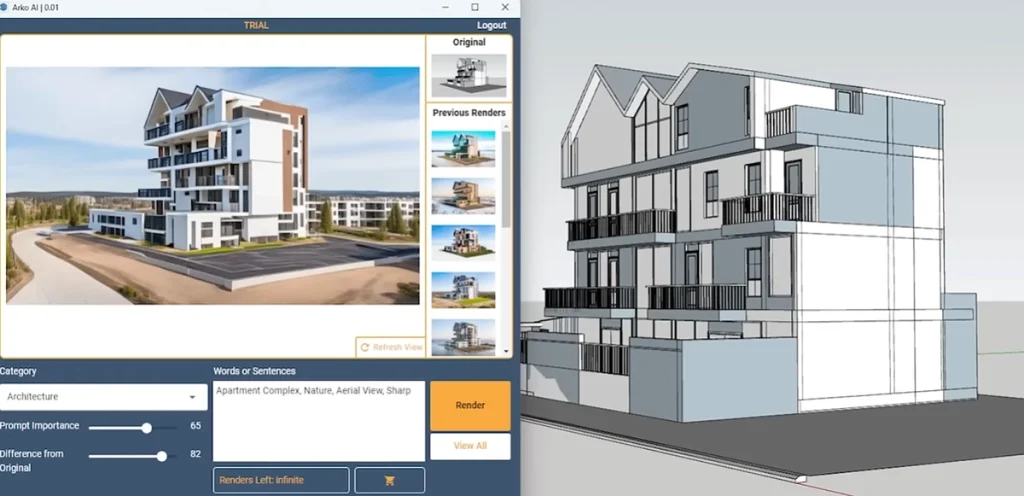
Arko AI is one of the earlier AI rendering plugins developed for SketchUp. It focuses on keeping the process straightforward.
✅ Advantages: You simply aim at a viewport area, add a text prompt (or negative prompt), pick a style, and generate results quickly. It works with SketchUp, Rhino, and Revit, which makes it convenient for freelancers who move between different modeling platforms. The straightforward interface helps when you need fast mood-board ideas.
⚠️ Limitations: Photorealism and deeper customization options remain fairly basic. It works well for quick ideation, though the outputs often benefit from some additional refinement if you need more polished results.
5. LookX AI
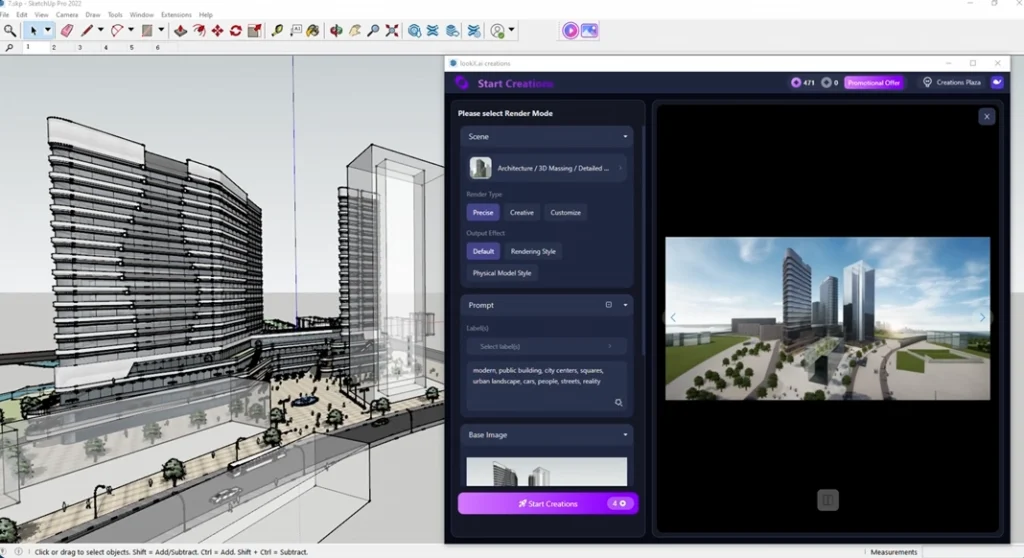
LookX AI brings together real-time rendering, AI video generation, and the ability to train custom models.
✅ Advantages: In addition to still images, it can generate short fly-through videos or apply style transfers based on client reference images. The community repository called Creations Plaza offers a range of shared ideas for inspiration, and the option to train your own model provides extra flexibility for specific project needs.
⚠️ Limitations: The interface has quite a few features, so it can feel a bit overwhelming when you first start using it. It requires a little more initial setup compared with simpler tools, but it can be useful when you need to produce dynamic outputs such as video.
6. SketchUp AI Assistant + AI 3D (Modeling Acceleration Duo)
Although they are not primarily rendering tools, SketchUp’s official AI Assistant and AI 3D features are worth mentioning here. Faster modeling often leaves more time for the visualization side of the work.
✅ Advantages: The AI Assistant provides contextual help and can auto-generate certain objects, while AI 3D lets you create importable furniture and props from text descriptions or images. Used together, they can noticeably reduce the time spent on modeling tasks.
⚠️ Limitations: These tools focus mainly on modeling and object creation rather than visualization itself, so you’ll typically pair them with a dedicated real-time renderer to produce final images or presentations.
7. MyArchitectAI (Cloud-Powered SketchUp Companion)
MyArchitectAI is a browser-based AI renderer designed to work with models exported from SketchUp.
✅ Advantages: It can produce good photorealistic results, including style transfer and text-based edits. There’s no installation needed — it runs in any browser and typically delivers renders quite quickly, which some teams find convenient for final refinements.
⚠️ Limitations: Since it works through model uploads rather than as a native plugin, it does require stepping outside your SketchUp viewport. This can feel less fluid compared with tools that stay fully embedded in the modeling environment.
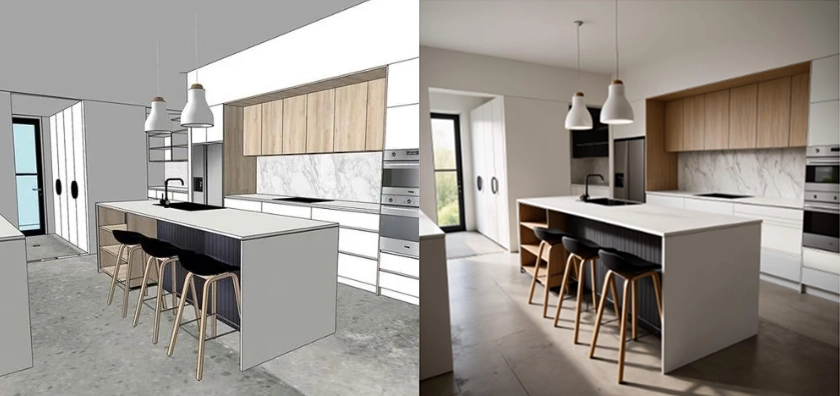
8. RenderAI / AI Render Studio
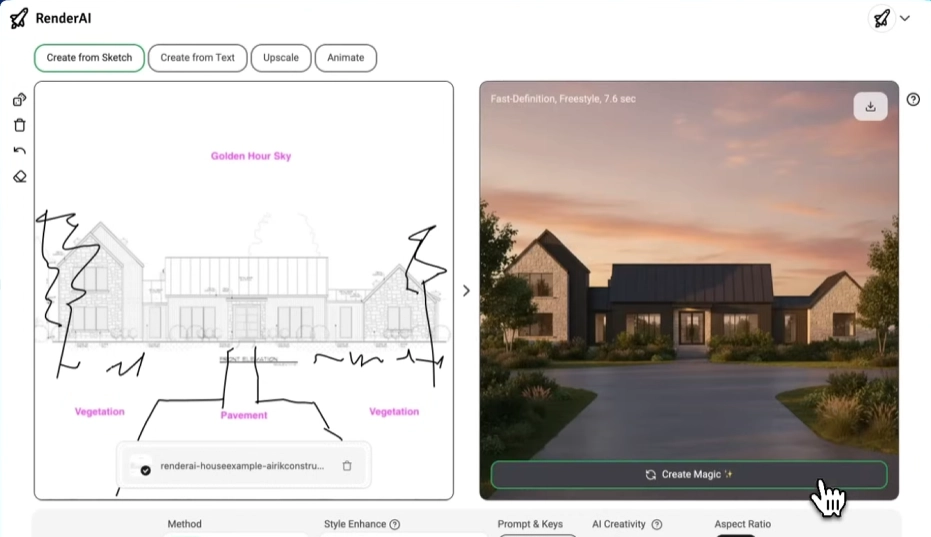
RenderAI and similar budget AI renderers are lightweight, lower-cost options that have been getting some attention recently.
✅ Advantages: These tools focus on simplicity and speed. They offer quick one-click renders that many architects find sufficient for early-stage concepts or basic upscaling, making them a practical choice when you need fast results without heavy customization.
⚠️ Limitations: Customization options tend to be fairly basic, and they generally don’t offer the same level of integration with other design tools as higher-end solutions.
The Verdict: Side-by-Side Comparison of 2026’s Top SketchUp Plugins
| Plugin | Starting Price | Best For | Integration | Key Strength |
|---|---|---|---|---|
| SketchUp AI Render | Included in Pro | Quick design options during initial client calls | Native Viewport | Official Diffusion running natively inside SketchUp viewport |
| D5 Lite | Free / $38/mo | Rapid AI ideation, spatial composition, and live interactive presentations | Live Link (Native) | AI-native visualization plugin living inside SketchUp — seamless progression from first sketch to refined concept without breaking flow |
| Veras | $29/mo+ | Precision iterations requiring exact geometry control | In-App Plugin | Advanced geometry control that preserves design intent without full re-renders |
| LookX AI | $20/mo+ | Stylized videos matching studio visual identity | Web / Plugin | One-click custom firm-style model training from your past renders |
| Arko AI | $29/mo+ | Fast mood boards from text prompts in early ideation | In-App Plugin | Straightforward text-to-render delivering focused results in seconds |
| AI Assistant + 3D | Included in Pro | Accelerating modeling with automatic object generation | Native Tools | Seamless native object auto-generation inside SketchUp tools |
| MyArchitectAI | $29/mo+ | Browser-based polishing without local hardware | Web-Based | No-install cloud rendering accessible from any device |
| RenderAI | $20/mo+ | Low-budget conceptual renders and quick visualizations for beginners & small teams | Cloud Upload | Affordable cloud AI for text-to-render & animation via SketchUp design uploads |
What Architects Are Saying on Forums and Review Sites
When browsing communities like r/archviz and r/Sketchup, a recurring theme in recent AI-powered plugin discussions is how much architects appreciate tools that keep the rendering engine right inside the modeling window, rather than forcing you into a separate application.
The comments that tend to get the most upvotes usually focus less on flashy features and more on practical workflow — for instance, being able to check real-time lighting and materials while you’re still modeling, without constant exports or switching contexts. One Trustpilot reviewer put it nicely: “Being able to see changes in real time as I move an object in SketchUp really opens up the creative process.”
In the end, that kind of feedback highlights what many practitioners are really after: tools that simply fit into the way they already work.
Why These Plugins Matter — and Which One to Start With
These tools each solve a different part of the visualization process. Some are built for fast ideation, others for precision concept work, and a few for specific outputs like video or cloud-based rendering. None of them does everything.
What I’ve found over the past year is that the tools architects return to consistently are the ones that reduce friction rather than add it — tools that fit inside an existing workflow rather than requiring you to build a new one around them.
For most freelancers and smaller teams, D5 Lite sits in a useful position in that regard. It’s free to start, it works directly inside SketchUp, and it connects naturally to a broader production pipeline when you need it. If you haven’t tried it yet, it’s worth installing on your next project and seeing how it fits.
Continue Reading: SketchUp Visualization Tips
Essential SketchUp Interior Rendering Tips You Need!
How to Render in SketchUp Tips 101: From Beginner to Pro in Stunning Visuals
The Best Free SketchUp Rendering Tool: D5 Render
Want to Use SketchUp 2025 With D5? Here’s What You Need to Know
How SketchUp landscape design benefits from real-time rendering
SketchUp Free + D5 Pro: Get Pro Renders Effortlessly
FAQs on AI-powered SketchUp Plugins
In 2026, the most useful AI-powered SketchUp plugins tend to balance real-time feedback, good geometry respect, and smooth integration with your existing workflow. For many practices, D5 Lite offers a practical choice: it runs the D5 engine directly inside the SketchUp viewport, providing immediate lighting and material updates as you model, along with AI-generated concept variations based on your current geometry.
One straightforward way is with D5 Lite. In render mode, the D5 engine gives physically based real-time rendering feedback on lighting, materials, and atmosphere directly in your SketchUp viewport as you model or orbit.
Many architects find D5 Lite especially useful here. In AI mode, it lets you describe the desired mood or direction, then instantly generates several styled variations based on your current geometry. These appear as helpful references while you stay in the modeling viewport, continuing to adjust lighting and materials.
A good starting point for many freelancers is D5 Lite. The core real-time visualization features are available at no cost inside SketchUp 2021–2026. For unlimited generations or higher-end outputs, D5 Pro is available at $38/month or $360/year, covering the main parts of the workflow.
One option many find useful is D5 Lite. When the scene is ready, you can send it to D5 Render with a single click for higher-end images, animations, or VR. The same D5 Pro subscription also gives access to D5 Works, a library of render-ready assets and materials.
For many small practices, the D5 workflow is worth trying first. D5 Lite lets you stay in the modeling viewport with free real-time rendering. When you need more polished outputs, you can send the scene to D5 Render, and use D5 Works for render-ready assets.

 English
 Español
 Français
 한국어
한국어 日本語
日本語