
Executive Summary
To build a convincing environment, D5 Render's integrated toolset—Cesium, City Generator, Terrain, and Ocean—offers a highly efficient way to create site context. By automating the technical work involved in site creation, it enables you to bypass hours of manual modeling while keeping the focus firmly on your architectural design.

Compelling architectural visualization depends as much on the surrounding environment as on the building itself. A project's design narrative is deeply tied to its surroundings—how light interacts with neighboring facades, and how the topography meets the foundation.
However, creating accurate site context has traditionally been a necessary but time-consuming task. Modeling urban massing or complex terrain is a repetitive bottleneck that steals time better spent on creative refinement. D5 Render changes this dynamic by shifting the focus from asset construction to scene orchestration, providing built-in systems that generate surrounding context effortlessly.
Why Automated Site Context is Essential for Modern ArchViz
Efficiency in architectural visualization is more than just saving time; it frees up your mental bandwidth. By automating the environment, teams can focus on what truly defines a project: material fidelity, lighting nuances, and the spatial narrative.
The table below compares a traditional manual workflow with D5 Render's streamlined approach:
| Task Category | Traditional Manual Workflow | D5 Render Automated Workflow |
| Topography and Terrain | Manual sculpting or mesh imports from external tools | Terrain presets + sculpting brushes |
| Urban Context Massing | Drawing footprints and extruding buildings | City Generator (OSM-based) |
| Geographic Context | Finding maps and manually aligning data | Cesium integration |
| Water Features | Static water planes with custom materials | Ocean System |
Leveraging Real-World Data with D5 Render's Cesium Integration
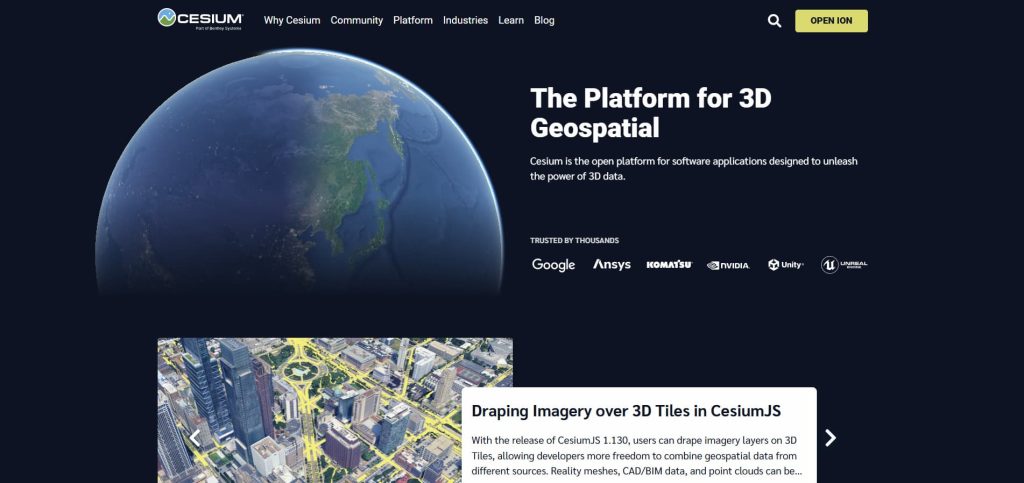
For projects requiring high geographic accuracy, D5 Render's Cesium integration is a powerful solution. It imports real-world terrain, satellite imagery, and surrounding buildings directly into your scene—ideal for urban planning, location-specific studies, and large-scale presentations.
How to Set It Up:
- Create a Cesium token: Sign in to your Cesium ion account and generate a new access token. While the default token works for testing, we recommend a dedicated token for production or team projects.
- Connect Cesium to D5: In D5 Render, go to Terrain > Cesium and click Add Token, or log into D5 MySpace, navigate to Settings > Workspace > Cesium, and paste your access token. (For team accounts, a team admin must configure it first.)
- Locate the project site: Inside D5 Render, open the Site tab, select Cesium, and enter your project coordinates or use the built-in map search tool.
Tip: Using a personal token helps avoid common rate-limit errors.
How to Use Cesium in D5 Render for 3D Mapping (3 Steps) >>
Note: One of the most frequent issues occurs when the imported BIM or CAD model does not align properly with the terrain. A best practice is to align your project origin in Revit, SketchUp, or Rhino to match real-world coordinates before importing. Once in D5 Render, use the Sync Coordinates feature to snap your model into the Cesium context quickly.
This small step can save considerable cleanup time later.
Automating Urban Site Context with D5 Render's City Generator
When a project needs surrounding buildings for scale, density, and street character, modeling that context manually is rarely the best use of time. D5 Render's City Generator solves this in just a few clicks by pulling OpenStreetMap data to generate contextual buildings.
It goes beyond basic white-box massing by generating visually coherent buildings with rich, stylized facades via Procedural Buildings.
- Built-in Styles: Choose from styles such as European, Glass Box, or General to ensure surrounding buildings remain legible and blend seamlessly with the scene.
- Randomization: Use the Random option to vary textures and reduce repetition across the block.
- Per-building adjustments: Fine-tune properties such as height, commercial ratio, and roof form to better match the surrounding urban fabric.
How to Streamline Site Planning in D5 Render >>
Note: In some locations, especially rapidly developing regions, OSM data may be incomplete. In such cases, you can keep the generated context where the data is reliable, then manually fill the most noticeable gaps with simple placeholder forms or assets. This maintains visual continuity without over-detailing.
Environment Design: Sculpting Natural Landscapes with D5 Render's Terrain Tools
For landscape-focused or non-urban projects, the terrain itself often becomes the visual foundation of the entire scene. Yet importing heavy meshes from external tools can hurt performance and slow your design iterations.
D5 Render's Terrain System offers a lighter, more editable alternative. Whether you're designing a hillside home, a desert retreat, or a mountain project, it gives you a practical way to build believable landforms right inside the scene.
- Terrain Presets and Heightmaps: Start with one of the many preset heightmap resources or terrain templates—mountains, plains, deserts, or full scene presets—for instant realistic landforms.
- Sculpting and Painting: Use the sculpting brushes (Upward, Downward, Smooth, Flatten, and more) to refine the shape, then layer in material painting and D5 Scatter tools to bring the landscape to life.
- Material Blending: Use layered textures and smart brush painting to break up uniformity—for example, letting rock show through on steeper slopes while grass settles on gentler areas.
3D Landscape Scatter Tools in D5 Render You Must Know >>
Note: A building can easily feel disconnected from the site if the terrain clips into its base or leaves a visible gap around the foundation. Flattening the terrain slightly beneath the building footprint usually resolves this. After that, adding rocks, shrubs, or low planting along the edges helps blend the structure naturally into the ground.
Refining Waterfront Site Context with D5 Render's Ocean System
For waterfront or coastal projects, water often plays a major role in the mood of the image. A static plane may be enough for a placeholder, but it often looks unconvincing in a polished presentation view.
D5 Render's Ocean System gives you more control over waves, shoreline color, and foam, which helps waterfront scenes look more natural in final renders.
Pro Tips for More Convincing Water:
- Lower the wave scale for calmer residential or resort-style views.
- Adjust shallow-water color so the shoreline transitions more naturally.
- Refine foam settings to avoid an overly harsh or artificial shoreline edge.
How to Render Realistic Ocean Waves with D5 Render in 5 Minutes >>
Note: Sometimes the horizon line feels too sharp, which makes the water surface look artificial. In those cases, a light haze or fog in the Weather settings usually helps blend the distance more naturally and adds atmospheric depth to the view.
Workflow Spotlight: Early-Stage Design with Real-World Context
A standout example is CetraRuddy, a New York-based architecture and design firm. Visualization was once reserved for the final stages of a project. With D5, it now happens much earlier.
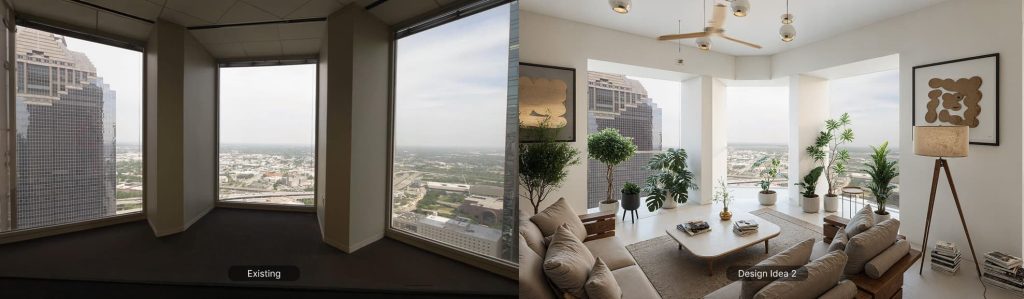
During a rooftop addition study in Manhattan, the CetraRuddy team brought the model into real-world context using Cesium—capturing surrounding buildings, skyline conditions, and key view relationships. This shifted the conversation from technical constraints to meaningful design possibilities. Instead of rebuilding context models, relying on post-production, or gathering drone footage, the team could explore the proposal in its actual urban fabric while the design was still evolving.

As Principal Paul-Arthur Heller put it, "D5 is not just the end of the line—it's part of the design itself." This captures the real value of a faster site-context workflow: it doesn't simply speed up rendering—it helps teams better understand scale, test ideas, and communicate intent much earlier.
This approach isn't limited to large firms. In recent D5 webinars and community conversations, there has been growing interest in workflows that bring real-world context into the scene from the very beginning. Whether it's a solo architect using City Generator to quickly block out a suburban neighborhood or a team using the Ocean System to ground a coastal resort, this reflects a broader industry shift toward using visualization earlier in the design process. The goal is to spend less time building site context and more time designing the architecture within it.
A Practical Environment Populating Workflow for Your Next Project
If you're looking to apply these techniques to your next project, here is a repeatable workflow to structure your scene setup:
- Sync & Locate: Bring your model into D5 Render and use the Cesium integration to load real-world terrain and surrounding geographic context.
- Fill the Gaps: Use City Generator to populate missing blocks. For surrounding context that shouldn't compete with your hero building, use the Glass Box style so the context recedes visually and keeps the focus on your design.
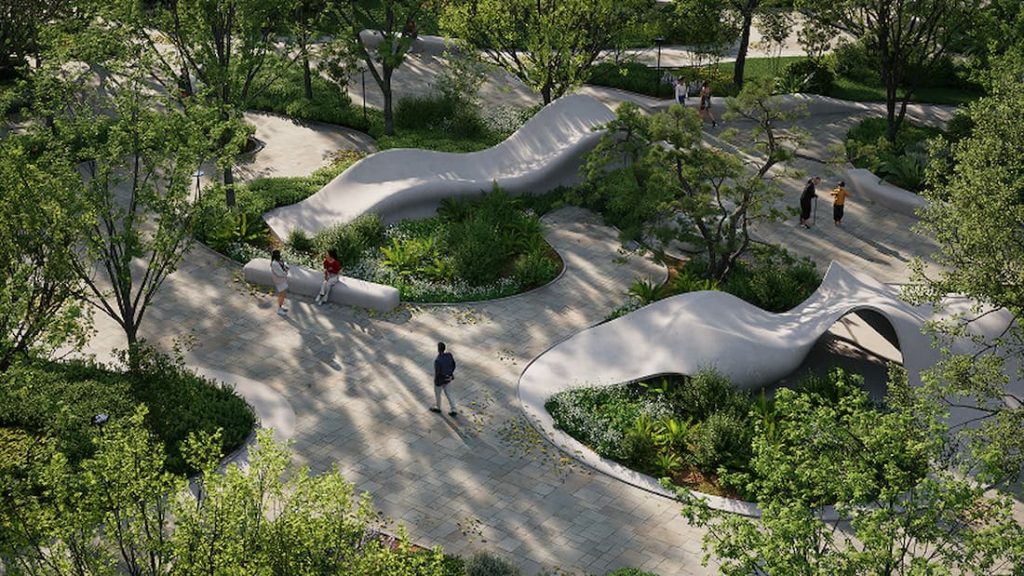
- Soft Transitions: Use Terrain brushes and nature assets to blend the base of your building into the ground—this is where many renders look artificial.
- Atmospheric Depth: Add a touch of haze or fog from the Weather panel to naturally fade the distant context, which helps the eye focus on your project while still feeling the scale of the city.
Conclusion: Shifting Focus from Setup to Architecture
Manually building site context from scratch still consumes too much time in many visualization workflows. In most cases, that time is better spent refining the design, materials, lighting, and composition.
What makes D5 useful here is not just speed. It's the ability to build context quickly enough to support the design instead of slowing the whole process down.
Ready to try this workflow? Download the free version of D5 Render and test the tools on your next project.
Explore More: Pro Tips for Advanced Environment Design
Best 3D Exterior Rendering Software in 2026: A Professional Guide for Architects
How to Create Realistic Outdoor Design in D5 Render (in 30 mins)
Want Better Exterior Renderings? Try These 3 Steps in D5 Render
4 Best Tips for Realistic Environmental Lighting for Architecture
Mastering Architectural Landscaping with D5 Render Terrain Tool
D5 Render for Interior vs. Exterior Architecture: Key Rendering Techniques and Distinct Approaches
Designing Immersive 3D Environments with D5 Render: A Deep Dive into the Latest Innovations
FAQ: Solving Common Site Context Challenges
Spending hours manually modeling terrain and surrounding buildings is a major drain on project resources. A more efficient workflow is to use D5 Render's geospatial integrations. By utilizing Cesium for topography and City Generator for urban massing, you can assemble a credible site context much faster than modeling it manually, giving you more time to refine materials and lighting.
Alignment issues usually stem from mismatched coordinate origins. For the best results, ensure your project origin in Revit, SketchUp, or Rhino matches the actual site coordinates. Once imported, using Sync Coordinates in D5 Render helps restore the model to its original coordinates and align it more reliably with the site context, drastically reducing the need for tedious manual repositioning.
Yes. D5 Render lets you import real-world terrain via Cesium and generate surrounding urban massing with City Generator. This not only saves significant setup time but also provides a credible, data-driven backdrop that enhances the overall persuasiveness of your presentation.
The "disconnected" look often results from insufficient environmental integration. Avoid using flat image planes or generic placeholder boxes. By using D5 Render's Terrain and City Generator systems, you create a cohesive 3D environment that shares the same light and shadows as your building. Adding subtle atmospheric effects like haze or fog can further blend the distant context, making the scene feel grounded and intentional.
Absolutely. Modern ArchViz tools have bridged the gap between GIS and rendering. D5 Render handles the technical heavy lifting of data retrieval and placement through its Cesium integration. You don't need to be a GIS expert; you simply pick your location, and the software populates the scene with accurate terrain and satellite imagery, letting you stay in a creative mindset.
Static water planes often look artificial because they lack depth and motion. D5 Render's Ocean System provides a more dynamic solution with adjustable wave scales, foam, and shoreline transitions. For high-end residential visuals, try lowering the wave scale and refining the shallow-water color. This level of control ensures the water complements your design rather than distracting from it.
OSM data can vary in detail depending on the region. To maintain a professional look, use D5 Render's City Generator to populate areas where data is available, then fill any remaining gaps with stylized assets or simple "Glass Box" massing. This approach maintains the urban density and rhythm without requiring you to manually model every missing structure.
Leading teams use visualization as an iterative design tool. By bringing your model into its real-world context early in the process—using D5 Render's site tools—you can immediately assess sun angles, view corridors, and neighborhood impact. This shifts the role of rendering from a final marketing task to a fundamental part of the design and problem-solving process.
 English
 Español
 Français
 한국어
한국어 日本語
日本語