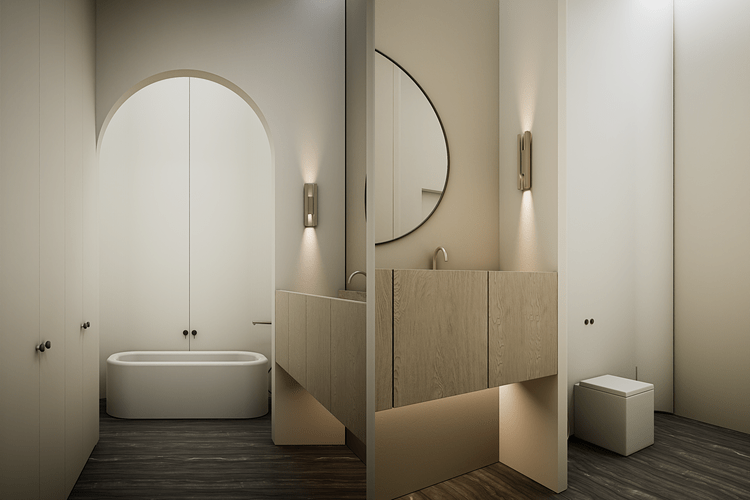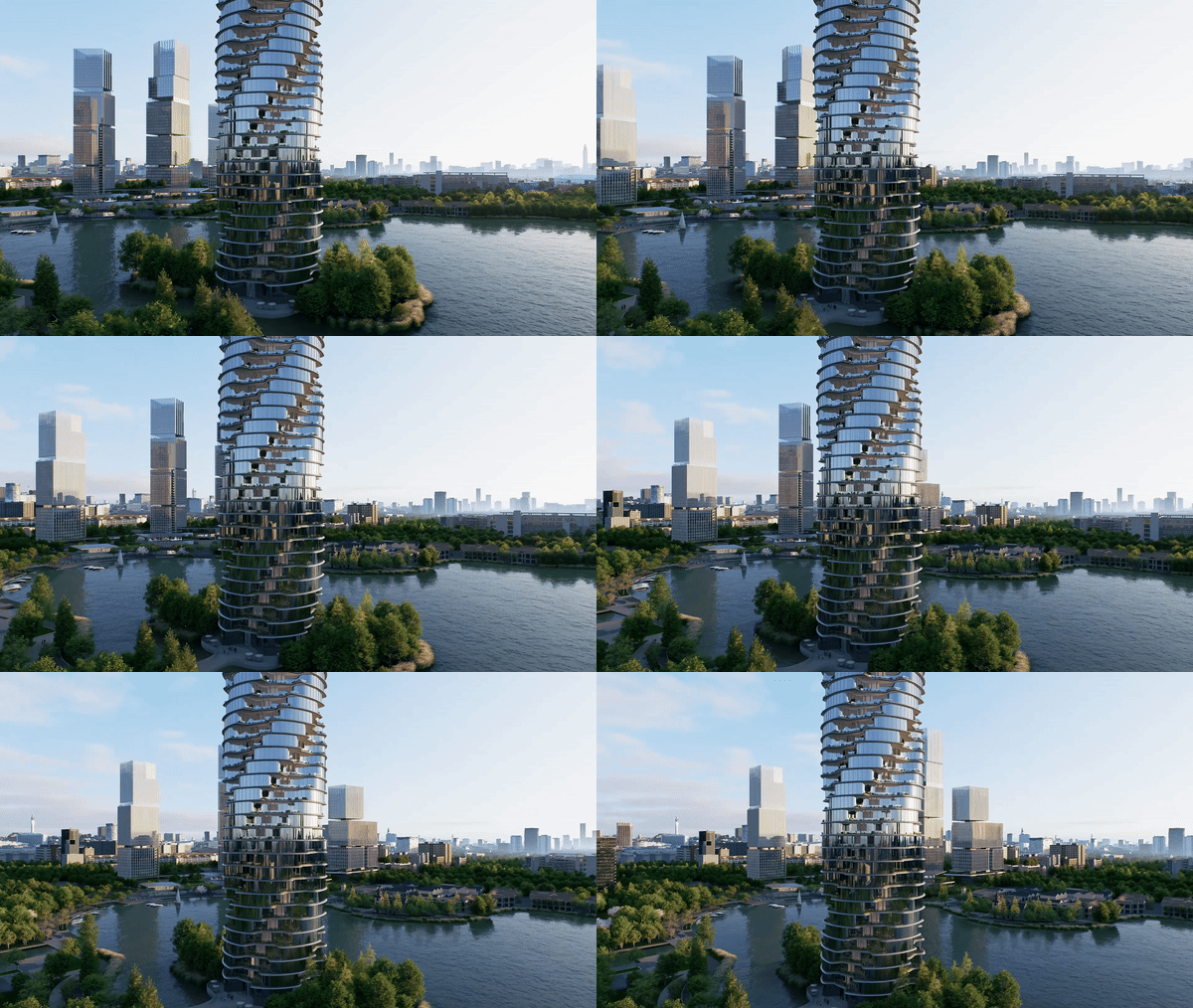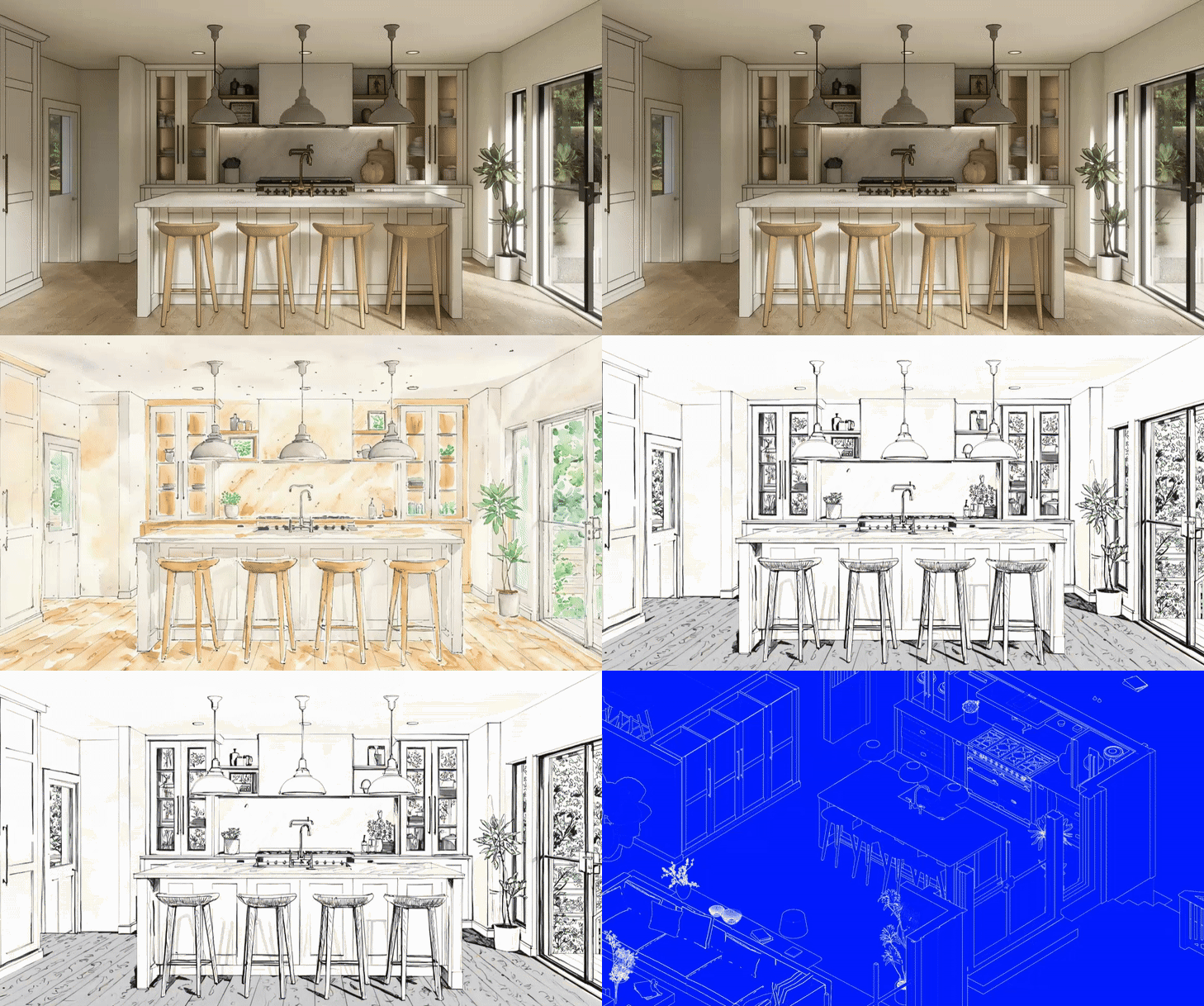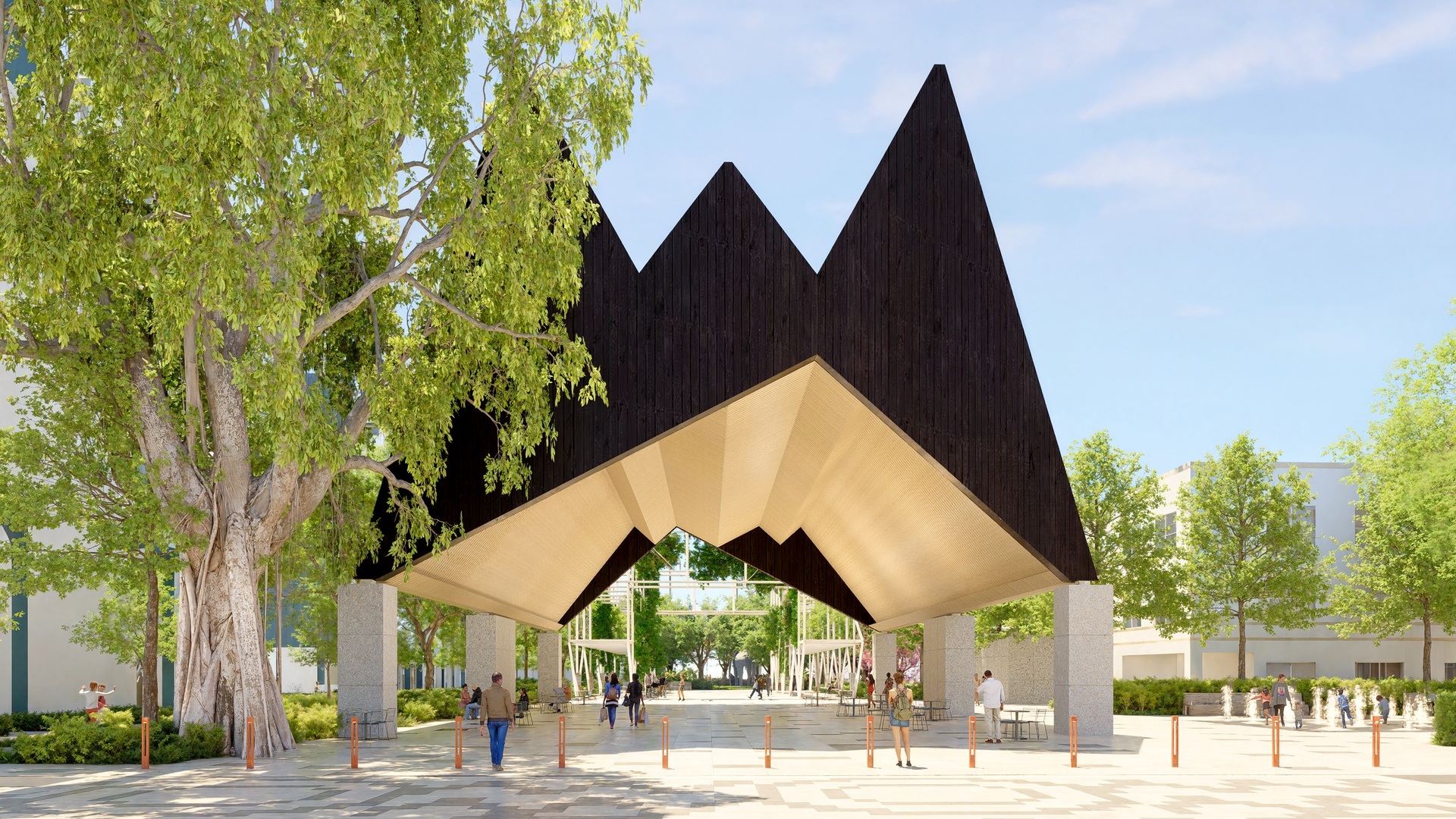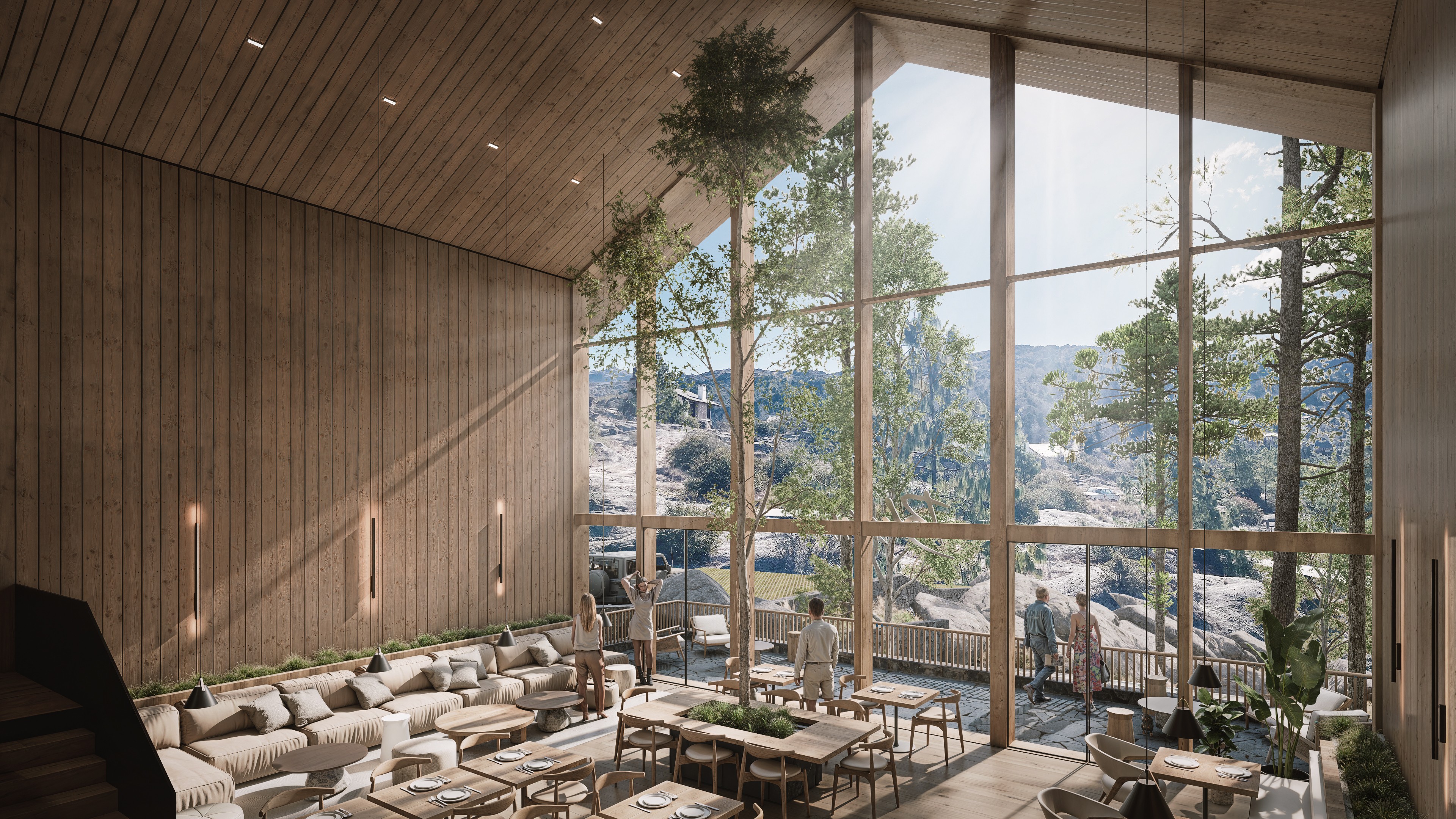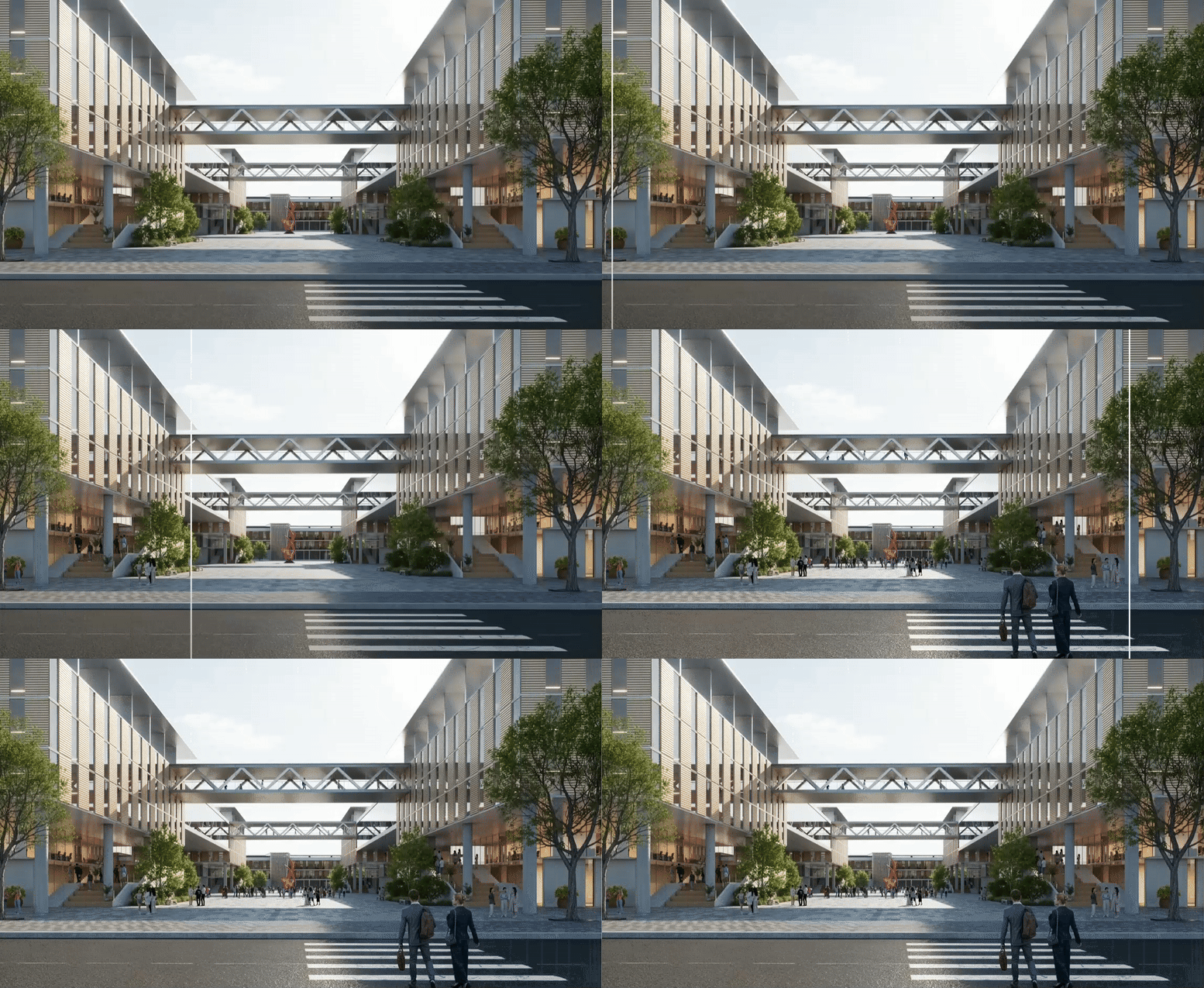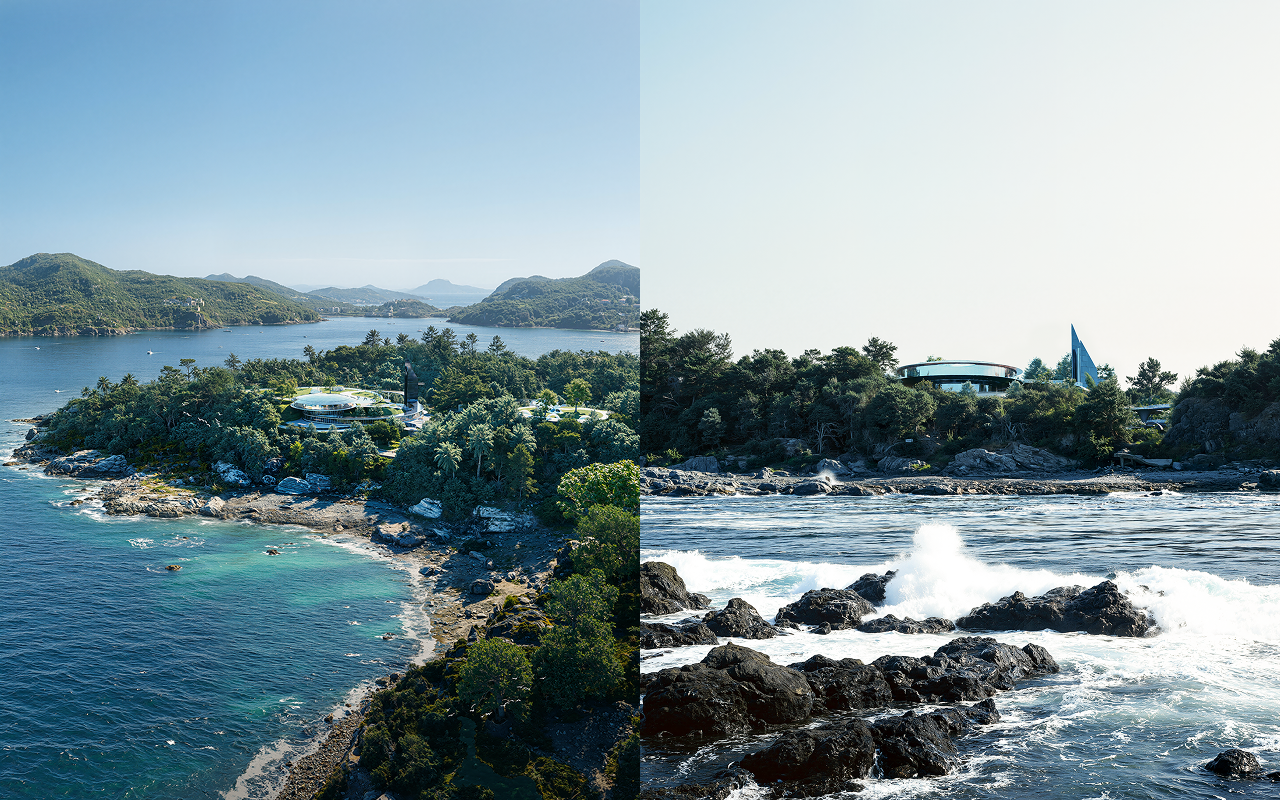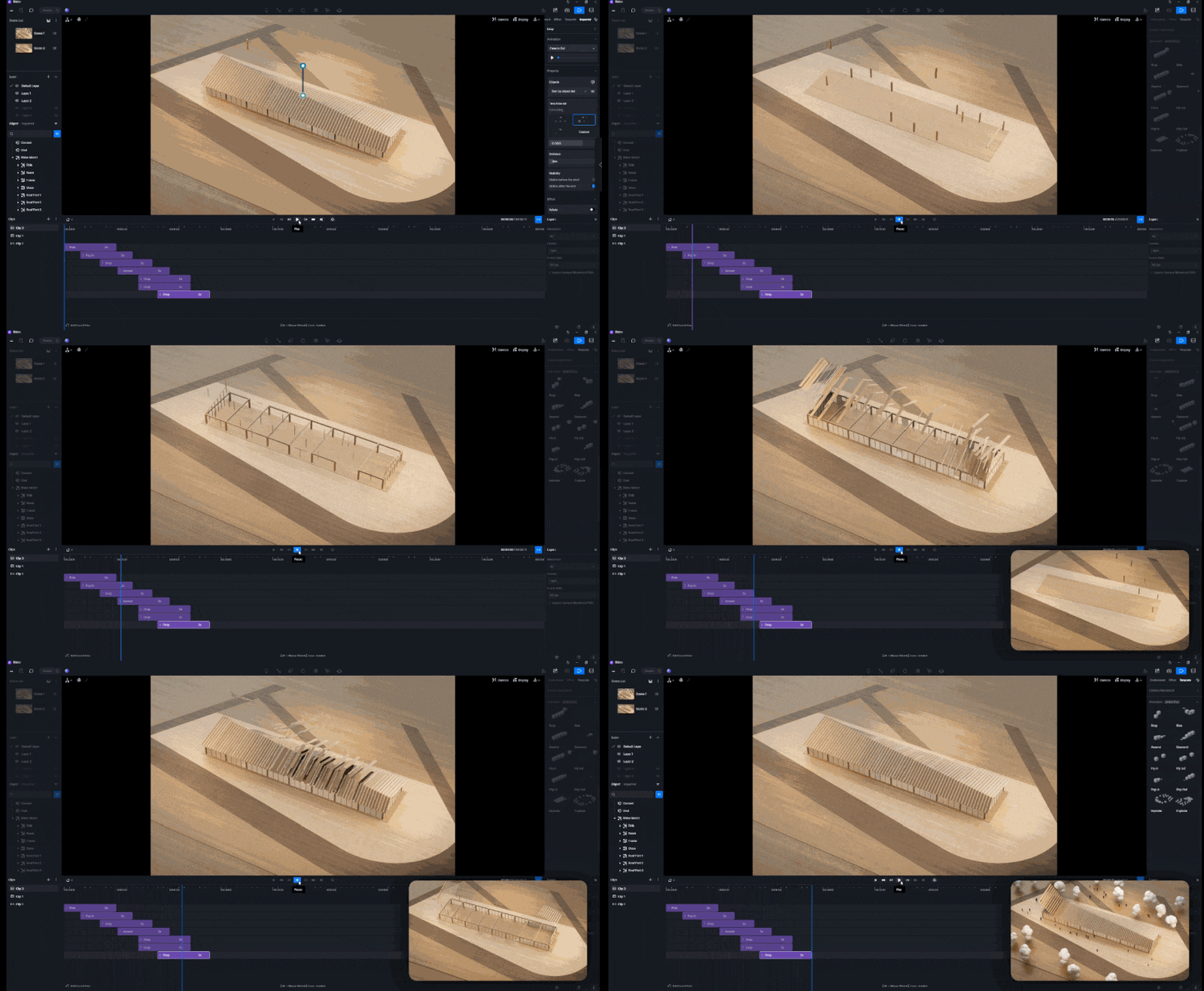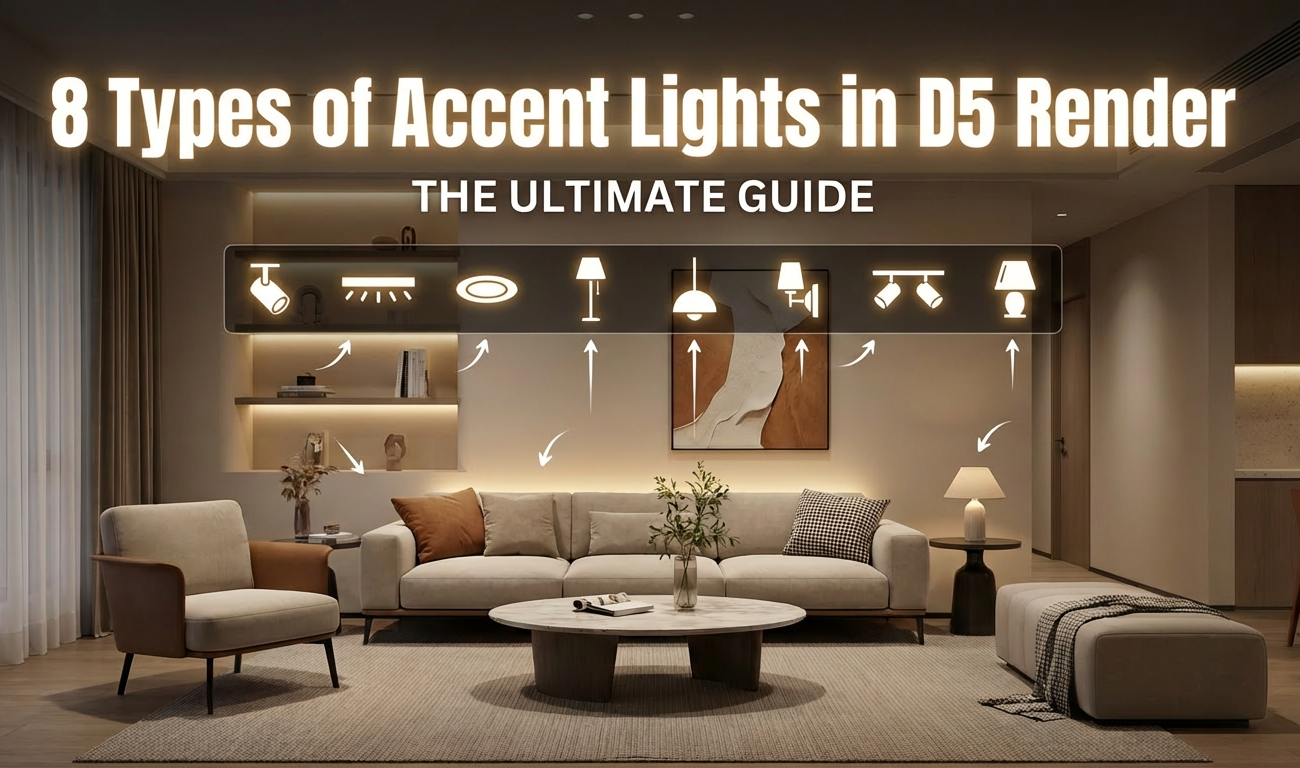


As designers, we know that realism is just the starting point. The true craft lies in atmosphere—creating a visceral sense of place. While ambient lighting sets the context, it is the strategic use of accent lights that directs the narrative.
D5 Render is engineered to facilitate this artistic intent, providing a purpose-built toolkit to visualize and sculpt light. In this guide, we break down 8 distinct light sources to help you master the full spectrum of illumination**—from** the foundational precision of Point and Spot lights to the atmospheric power of Stage Lights, the narrative capabilities of Projectors, and the pro-level hybrid workflow for Emissive Materials.
🚀 Key Takeaways: Mastering D5 Accent Lights
- Define Visual Hierarchy: Don't just rely on global illumination; use D5 Render's accent lights to sculpt depth and direct the viewer's eye through the narrative.
- Optimize Scene Efficiency: Bypass heavy high-poly models by using the Projector widget to cast complex, organic tree shadows with zero geometry cost.
- Perfect the Hybrid Workflow: Ensure physical realism for neon elements by layering emissive materials with hidden strip lights for aaccent lightsccurate light bounce and definition.

1. Point Light (Shortcut: 1)
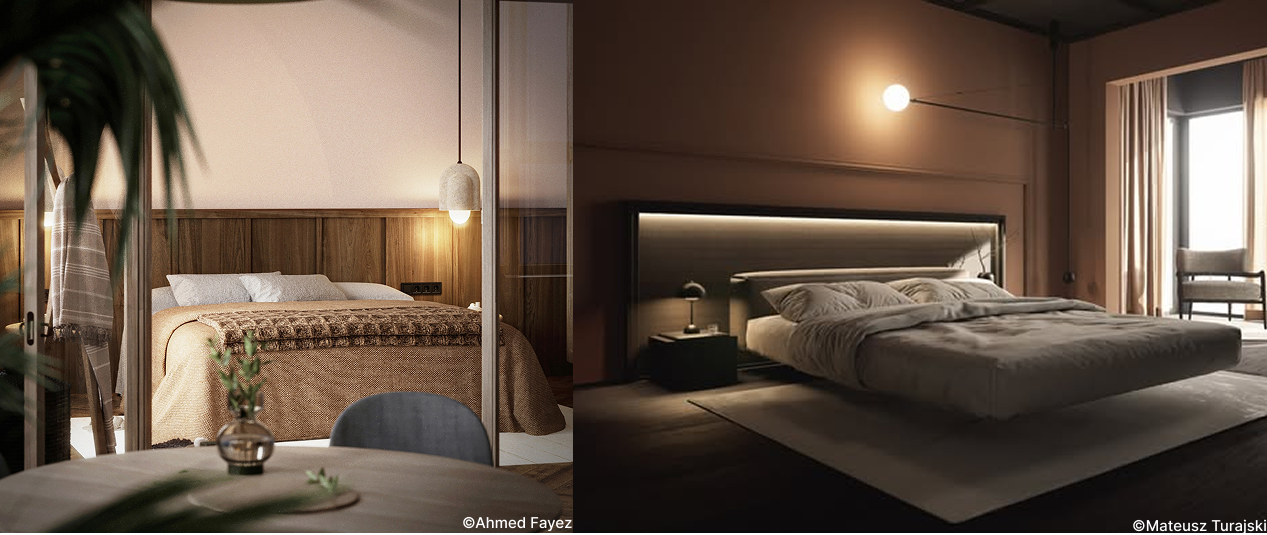
Functioning as a digital bulb, the Point Light emits illumination uniformly in all directions. It is essential for fixtures like spherical pendants or table lamps requiring a soft, radial glow.
In D5 Render, control comes from the Attenuation Radius. When placing a Point Light inside a bedside lamp, a radius that is too large will wash out the room and flatten the image depth. By reducing the radius, you confine the illumination to the lampshade and the immediate nightstand. This creates a cozy, localized pocket of light that draws the eye without overpowering the global exposure.
2. Spotlight (Shortcut: 2)
The Spotlight is your primary tool for establishing visual hierarchy. Beyond simple illumination, it sculpts space.
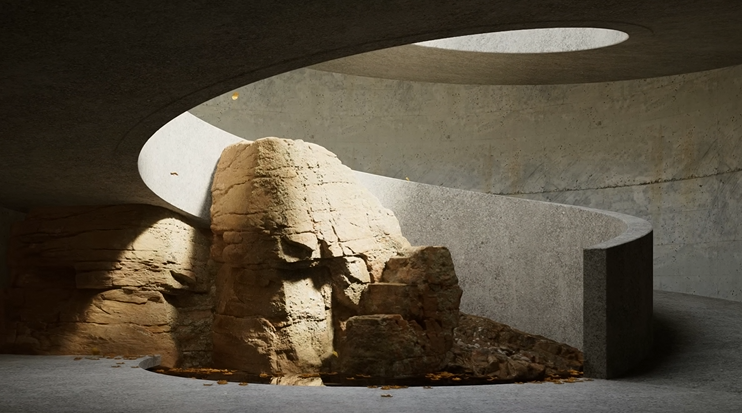
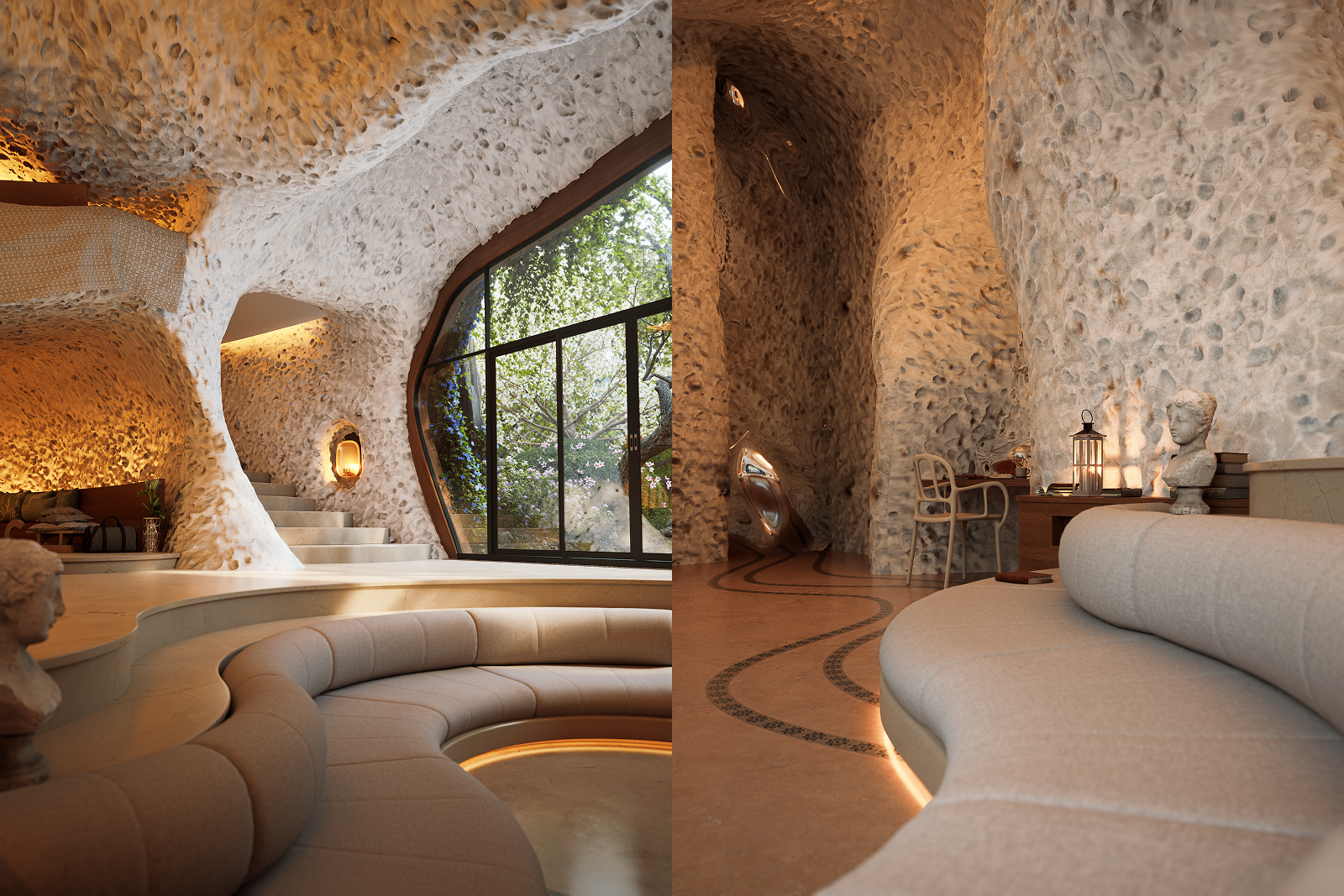
The "Gallery Wall" Approach: To highlight a textured stone wall, placing a spotlight close to the surface is standard practice, but the magic lies in the distribution. Leverage one of the 6 built-in IES profiles or upload your own manufacturers' photometric data via "+ Customize IES." This replaces the default artificial cone with a realistic shape, instantly emphasizing the material's relief through shadow and contrast.
Precision Control: If you adjust the Cone Angle while an IES is active, D5 will clamp any lighting outside that range. Use this to your advantage when you need the texture of an IES but require a tighter, more focused beam without spill.
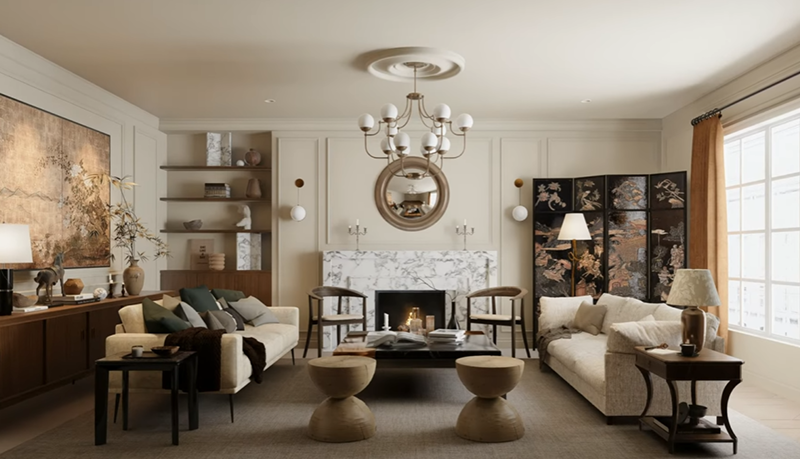
Creating Intimacy: For living spaces, such as a reading nook, the goal is warmth rather than intensity. Lower the Temperature to 3000K for an inviting golden tone. Crucially, increase the Light Source Radius in the inspector. This softens the shadow falloff, ensuring your accent lights cast a luxurious, diffuse glow that feels organic rather than mathematically sharp.
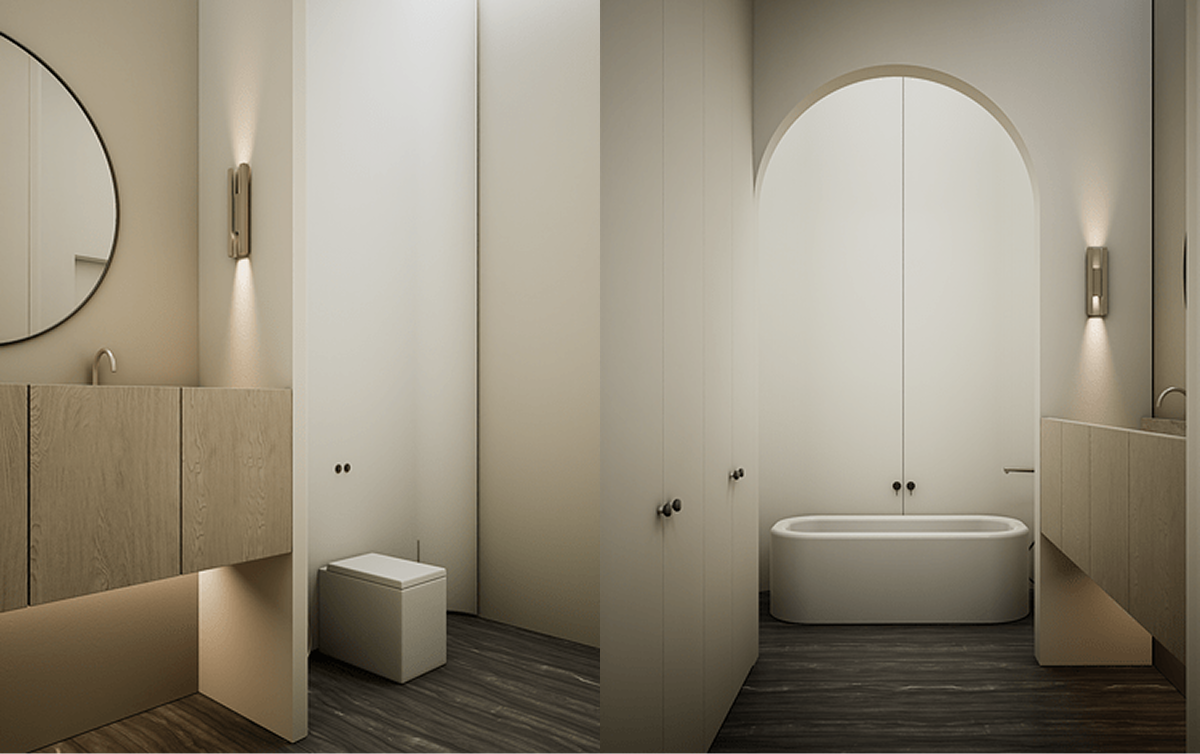
👆 Download the D5 Render Project File (Free)
3. Strip Light (Shortcut: 3)
Technically, the Strip Light is a variation of the rectangular light source, optimized for linear architectural details where directionality is key. It creates a modern aesthetic where illumination feels integral to the structure, rather than applied as an afterthought.
The "Floating Kitchen" Setup: Tuck a Strip Light under cabinetry to wash light across a textured backsplash. A key refinement for realism: If your tiles are glossy, toggle off "Visible in Reflection" in the inspector. This preserves the beautiful illumination while hiding the artificial white reflection of the light source itself.

Cove Lighting Application: Alternatively, utilize this tool for ceiling coves. Aim the light upwards with a warm temperature ($2700\text{K}$), allowing D5's real-time GI to bounce a soft, ambient glow throughout the room. To ensure precision, use the Barn Door parameters to act as physical blinders, focusing the beam strictly where needed and preventing unrealistic light leakage through thin joinery.
4. Rect Light (Shortcut: 4)
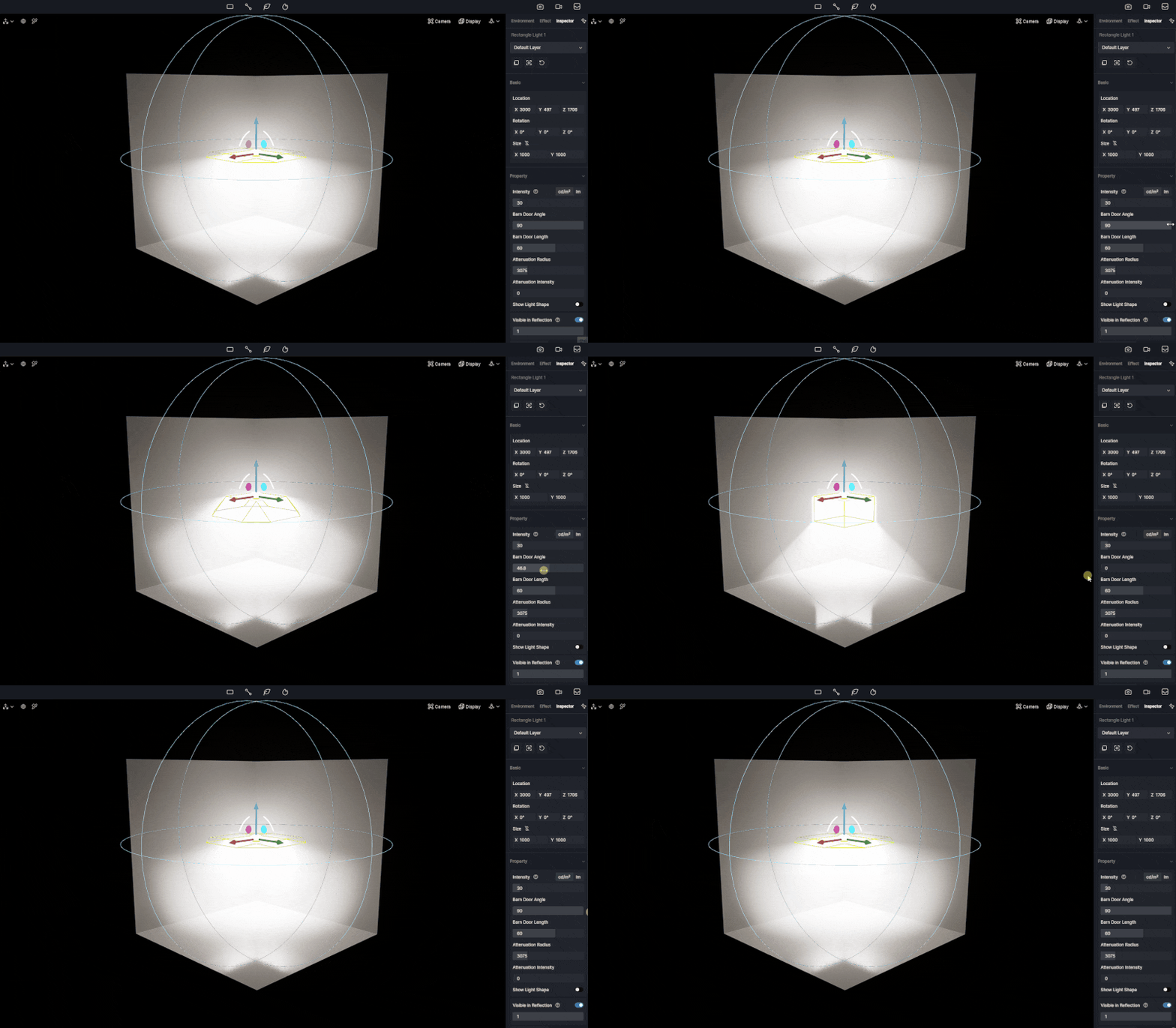
While the Strip Light handles linear accent lights, the Rect Light is your powerhouse for broad, diffused illumination. Essentially a planar source with a default Barn Door Length of 0, it functions like a photographer's softbox, providing a consistent, even wash.
This tool is ideal for simulating overhead office panels or supplementing natural daylight entering a window without blowing out the exterior view.
Don't overlook the "Barn Door" Angle. By default, this light floods the scene, but adjusting the angle allows you to constrain the beam. This transforms the softbox into a focused highlight—perfect for emphasizing specific furniture without spilling light onto unrelated areas, keeping your scene's hierarchy purposeful.
5. Disc Light (Shortcut: 5)
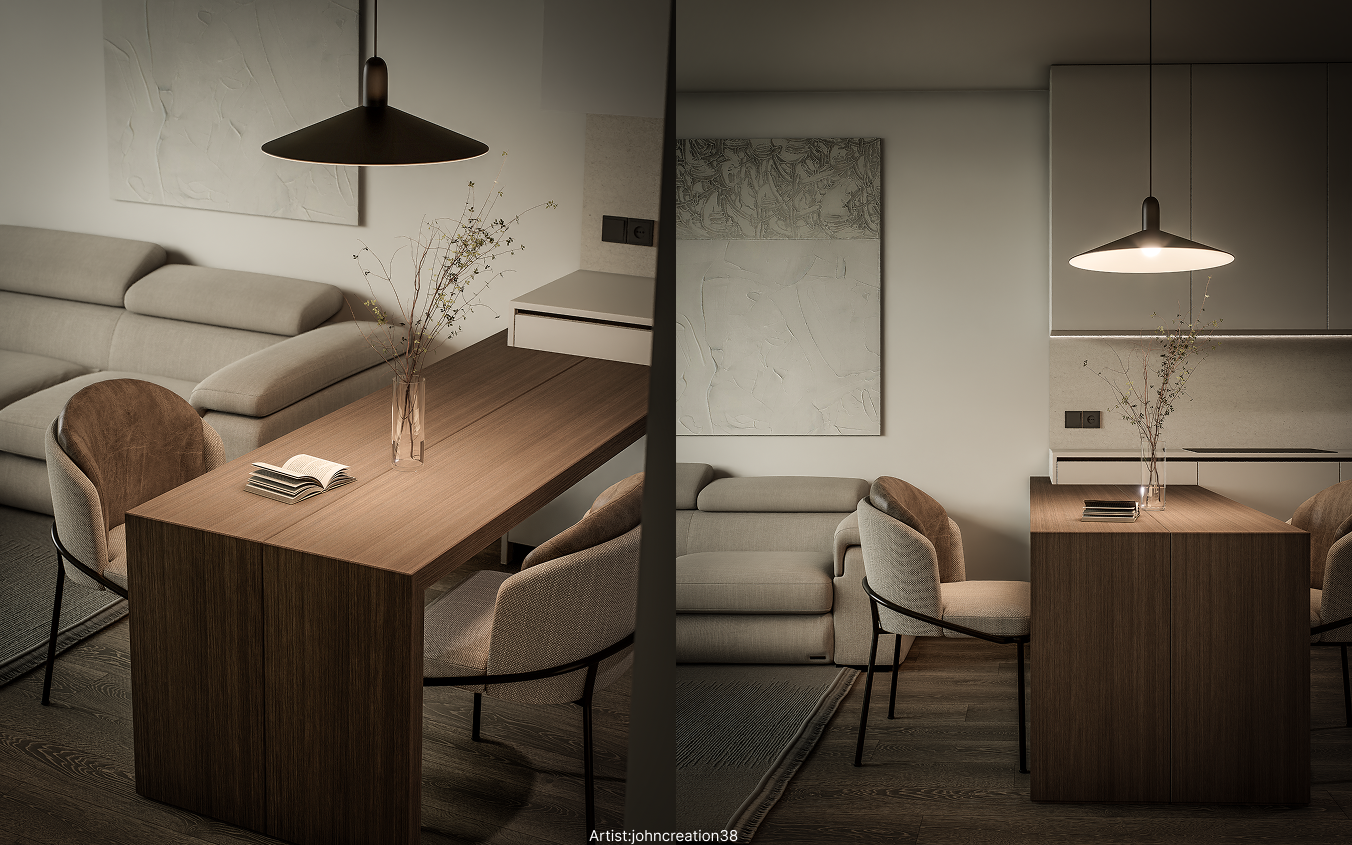
The distinction between a Disc Light and a Rect Light comes down to reflections. In scenes with glossy surfaces—like a marble coffee table or polished concrete—a square reflection from a round ceiling fixture breaks immersion instantly.
Opt for the Disc Light for circular ceiling spots or pendant fixtures to ensure specular highlights on your materials remain perfectly round. By adjusting the Light Source Radius, you can soften the shadow edges, mimicking the high-end, diffused look found in luxury hospitality design.
6. Stage Light
Note: Activate via Menu > Preference > Widget > Stage Light.
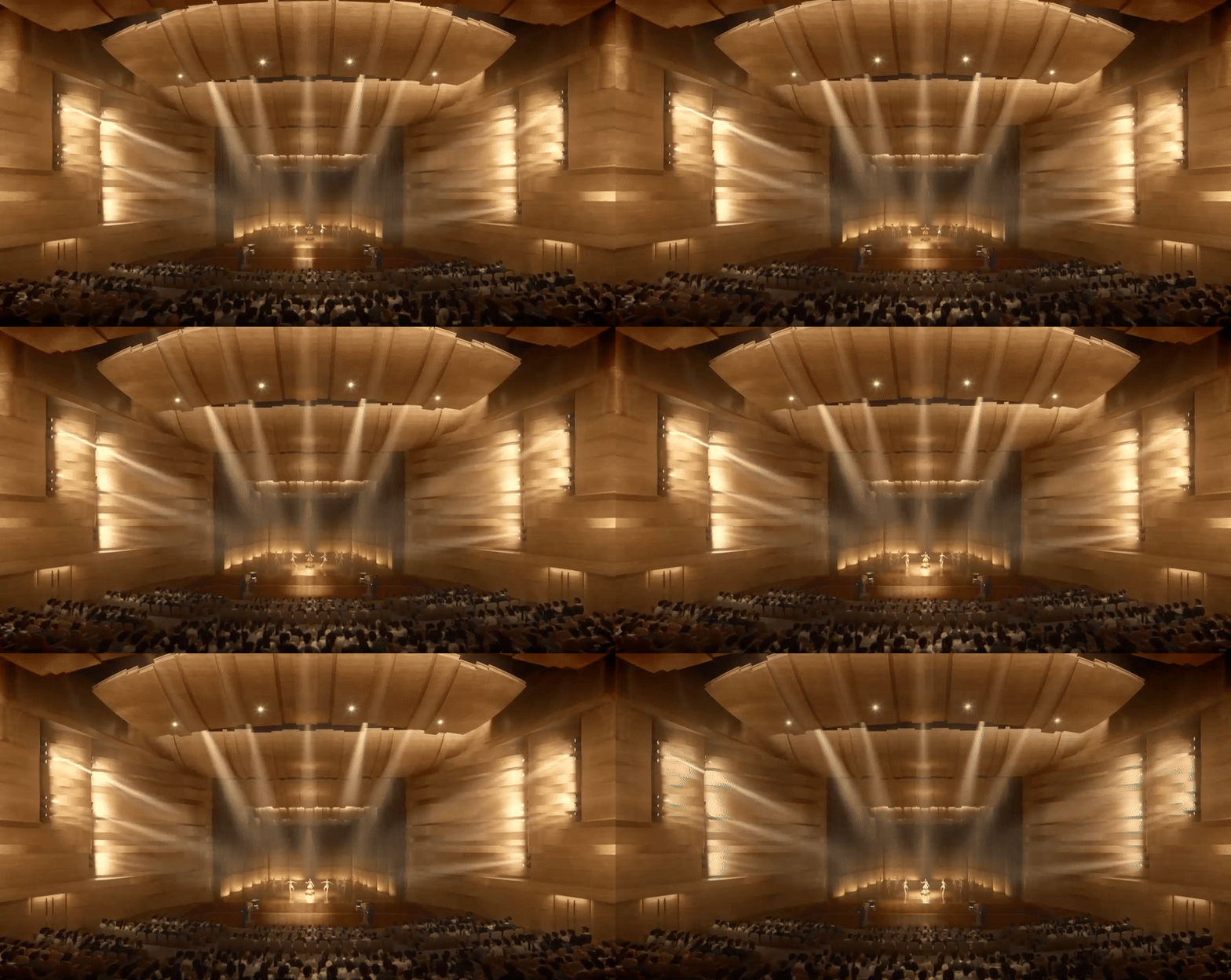
For moments requiring high-drama, the Stage Light is unique. Unlike other accent lights that focus on illuminating a surface, the Stage Light prioritizes the visibility of the beam itself.
This is perfect for automotive showrooms, concert stages, or creating a Tyndall effect (visible sunbeams) in atmospheric interiors. In D5 Render, this light cuts through the air with volumetric intensity. Use it to highlight a hero object, such as a sports car; the sharp, defined beam separates the subject from the background, creating an immediate visual hierarchy that standard spotlights cannot achieve.
7. Projector
Note: Activate via Menu > Preference > Widget > Projector.
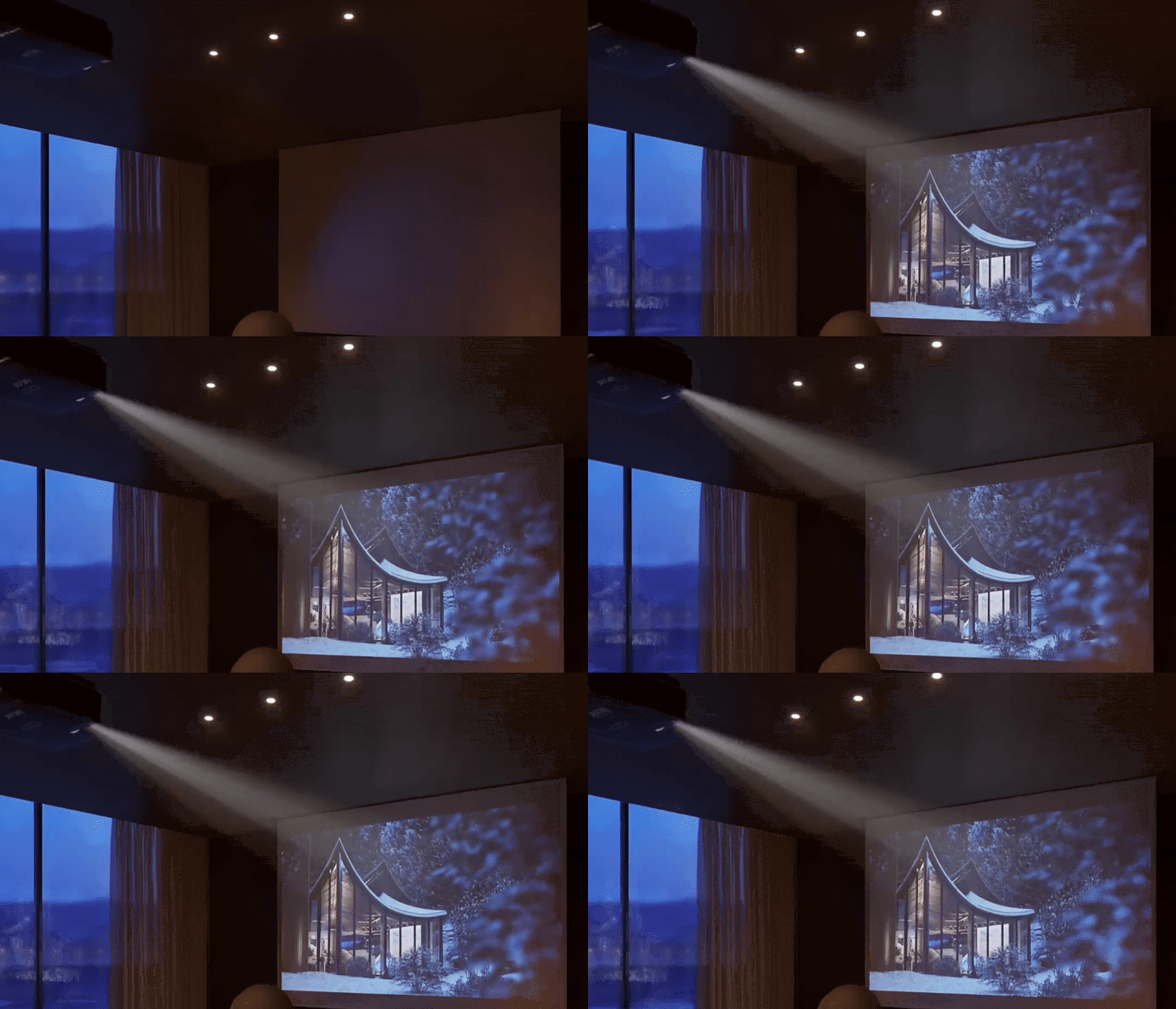
The Projector is a powerful asset for architectural storytelling, allowing you to cast an image or video file as light. It turns a simple wall into a dynamic canvas.
The Efficiency Hack——Simulating complex environmental shadows. Instead of placing a high-poly tree model outside a window (which increases scene heaviness), load a black-and-white image of tree branches into the Projector. Aim it through the window to cast complex, organic shadows onto the floor. This implies a rich exterior environment without the heavy computational cost, keeping your workflow fast and fluid.
8. Bonus: Emissive Material
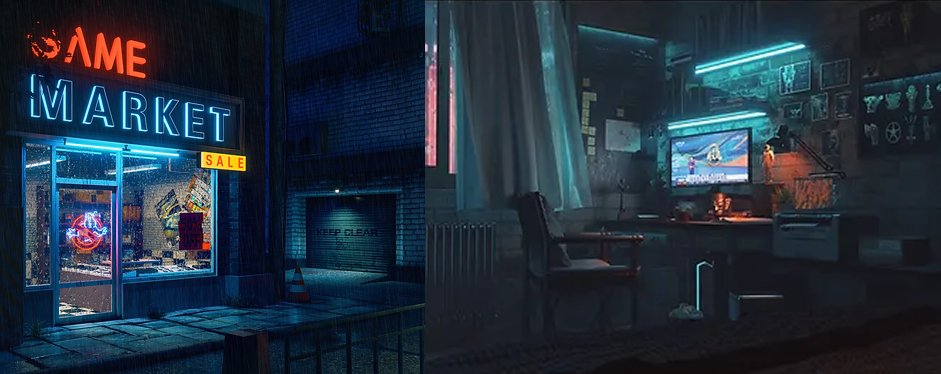
While technically a material parameter, Emissive settings are crucial for visible light sources like neon signs, LED strips, or screens.
However, relying solely on emissives to light a room often results in a lack of shadow definition. The Pro Workflow in D5 Render is a hybrid approach: Apply an Emissive material to your LED geometry so it appears to glow, then place a hidden Strip Light directly on top of it to cast the actual illumination. This ensures your accent lights look physically correct while maintaining the necessary lighting power.
👉 How to Use Emissive Material in D5 for Better Lighting?
Conclusion: Elevate Your Scenes with Accent Lights
Mastering these accent lights is more than just a technical skill—it's about commanding the visual narrative of your space. Whether you're softening a reading nook with a localized glow or using the Projector to simulate complex environmental shadows, strategic illumination is what separates a good render from a cinematic one.
We designed D5 Render to make these advanced techniques accessible, so go ahead and push past the default settings. Experiment with the temperature tweaks and volumetric effects we covered to define your unique style. Ready to see the difference? Apply that hybrid emissive workflow in your next project—we can't wait to see the atmosphere you create.
Further Reading: Pro-Level Lighting Tips
Lighting Feels Off? Master D5's Smart Lighting System in Minutes
How to Light Dark Rooms: Interior Lighting with D5 Render
Best practices of interior lighting for SketchUp
AI Lighting Mastery: D5 for Realistic Archicad Visuals
How to Use Emissive Material in D5 for Better Lighting?
D5 GI | What's Global Illumination and Why We Need It?
Advanced D5 GI with enhanced shadows, reflections, and light bounces
FAQ: Mastering Accent Lights in D5 Render
Q1. What is the best way to make interior renders look more cinematic and less "flat"?
Flat renders are often the result of uniform, overly balanced lighting. To create depth, you need to establish a visual hierarchy using accent lights rather than relying solely on global illumination. D5 Render excels here because our real-time Ray Tracing allows you to "sculpt" light instantly. By using Spotlights with IES profiles, you create realistic contrast and shadow falloff, guiding the viewer's eye and adding the narrative drama that standard ambient light lacks.
Q2. How can I create realistic "god rays" or volumetric lighting without long render times?
Traditionally, volumetric lighting is computationally expensive and slow to render. However, D5 Render solves this with specialized widgets designed for speed. The Stage Light tool allows you to generate sharp, visible light beams (the Tyndall effect) instantly. It is the perfect solution for automotive showrooms or atmospheric interiors, letting you achieve high-drama volumetric effects in milliseconds rather than hours of post-processing.
Q3. My neon signs and LED strips look bright but don't light up the room. How do I fix this?
This is a common issue where emissive materials provide the visual "glow" but fail to cast sufficient bounce light or defined shadows. The pro workflow we recommend is a hybrid approach: apply an Emissive material to your geometry for the visible bloom, but overlay a hidden Strip Light to cast the actual illumination. D5's accurate GI (Global Illumination) ensures this invisible source bounces naturally, giving you both the look of neon and the physics of real light.
Q4. How do I add complex environmental shadows (like trees) without making my scene heavy?
Importing high-poly tree models just to cast a shadow on a floor is inefficient and will slow down your viewport. A smarter alternative is the "gobo" technique using D5's Projector. Simply load a black-and-white image of tree branches into the Projector widget to cast light through a window. This simulates a rich, organic exterior environment and complex shadow play without adding a single polygon to your scene, keeping your workflow fluid.
Q5. What is the easiest way to get soft, realistic shadows from artificial lights?
In the real world, light sources have physical size, which creates soft shadows; in 3D, default "point" lights are often infinitely small, resulting in fake, razor-sharp edges. To fix this, use the Light Source Radius parameter in the D5 inspector. Increasing the radius of a Point or Disc light immediately softens the shadow penumbra. This mimics the diffusion of high-end fixtures, making the space feel organic and comfortable rather than mathematically sharp.
Q6. Which rendering software is best for quickly testing different lighting setups?
Speed is crucial for design iteration. D5 Render is built specifically for this phase because of its Real-Time Ray Tracing technology. Unlike offline renderers where you wait minutes to see a change, D5 shows you the immediate impact of color temperature, intensity, and IES profiles directly in the viewport. Combined with shortcuts (like 1-5 for quick placement), it allows you to experiment with complex setups—like cove or accent lighting—rapidly.
Q7. How can I make my architectural visualization workflow more efficient?
Efficiency comes from reducing the friction between "idea" and "image." D5 Render streamlines this by integrating a massive built-in asset library—including manufacturer-standard IES profiles—directly into the interface. Instead of hunting for external files or tweaking settings for hours, you can drag-and-drop assets like Spotlights or Projectors and see the results immediately. This "What You See Is What You Get" approach significantly reduces the time from concept to final export.



.jpg)

.png)
.png)



.jpg)



.png)
1%20(2).png)






%20(1).png)
.png)
.png)