
Nothing kills a high-end render’s realism faster than a flat, static sky. Sometimes you perfect every texture and light bounce, only to find the background feeling like a “sticker” that lacks depth. For years, sky replacement was a game of compromise—you either spent hours hunting for the perfect HDRI that aligns with your camera angle or ended up fixing inconsistencies in Photoshop.
In D5 Render 3.0, the sky is an active, dynamic component of your scene with our new Volumetric Clouds.
Curious about what else is new in D5 Render 3.0?
Key Takeaways: Mastering the Atmosphere
- D5 Render streamlines your workflow with nine physically based presets that instantly establish a realistic, professional tone.
- New Skyline and Direction modes allow you to “steer” Volumetric Clouds to frame your building’s silhouette and create intentional leading lines.
- These Volumetric Clouds now fully integrate with the D5 weather system—including rain, wind, fog and more—ensuring your entire environment feels like one unified, living world.

Instant Atmosphere: The 9 New Cloud Presets
Efficiency is the backbone of a professional studio, but it shouldn’t come at the expense of realism. Instead of building every sky from scratch, D5 Render 3.0 offers nine physically based presets to set the right tone in seconds. These clouds respond dynamically to your sun’s position, ensuring your lighting remains consistent from ground to zenith.
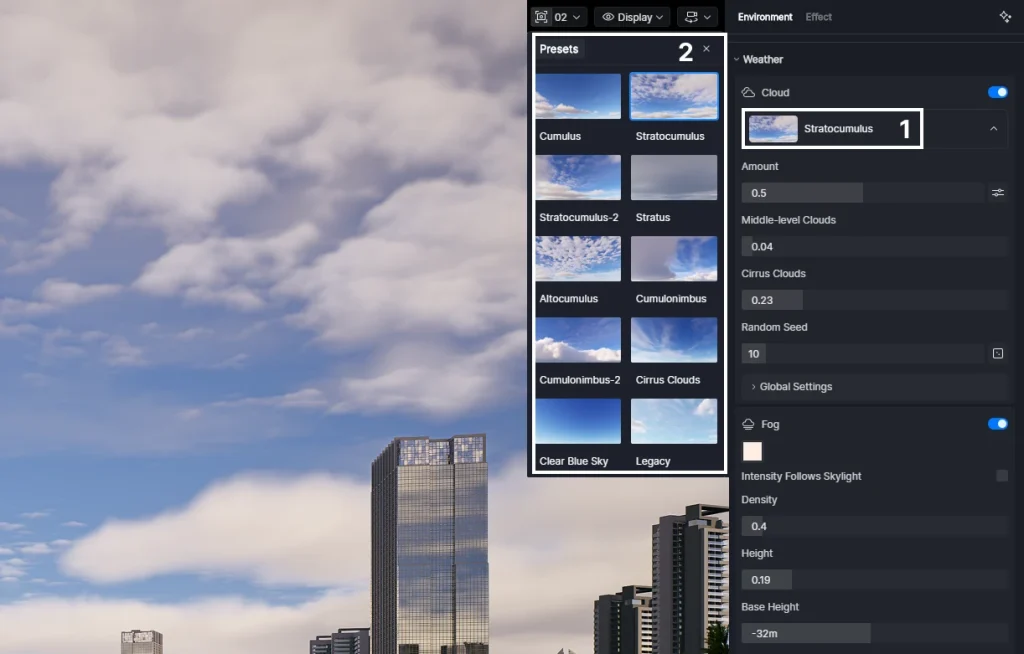
Preset Gallery: 9 Real-World Styles
| Cloud Preset | Visual Character & Best For |
|---|---|
| Cumulus & Stratocumulus | Fluffy, classic formations. Perfect for bright, airy residential projects. |
| Stratus & Altocumulus | High-texture layers; adds depth and a sense of scale to mid-day shots. |
| Cumulonimbus | Heavy and dramatic. Ideal for cinematic, moody narratives. |
| Cirrus Clouds | Elegant, high-altitude wisps. The secret ingredient for a high-end Golden Hour. |
| Clear Blue Sky | Clean and minimal. Essential for site plans and retail visualizations. |
| Legacy | Ensures a smooth transition for your existing scenes into the 3.0 engine. |

Creative Control: Skyline & Coverage Modes
A common frustration in arch-viz is “visual clutter”—when a cloud accidentally masks a skyscraper’s spire or a clean roofline. D5 Render 3.0 gives you back control. Within the Volumetric Clouds panel, three intelligent modes allow you to dictate exactly how the sky populates:
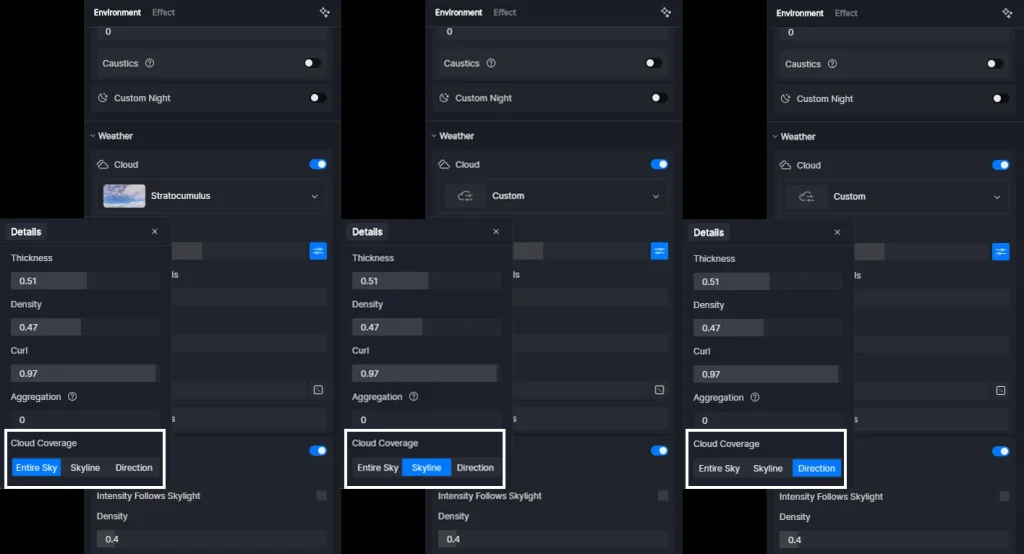
① Entire Sky (Default): Natural Randomness
Ideal for general scenes, this mode generates clouds across the entire expanse. As you increase coverage, the sky fills in randomly, providing an organic atmosphere that feels authentic and unscripted.
② Skyline Mode: The “Clean Zenith” Secret
If you want the atmosphere to frame—rather than distract from—your architecture, this is your go-to. Clouds emerge at the horizon and evolve toward the zenith, keeping the upper frame clear so your building’s silhouette can “breathe.”
③ Direction Mode: Visual Storytelling & Leading Lines
Direction Mode allows you to “steer” formations along a specific vector. By populating clouds from a designated direction, you can use them as leading lines to point toward your architectural focal point. Whether you are crafting a “split-sky” narrative—half clear and half gathering storm—this mode gives you total authority over the weather’s flow and coverage.
Step-by-Step: Crafting Your Perfect Environment
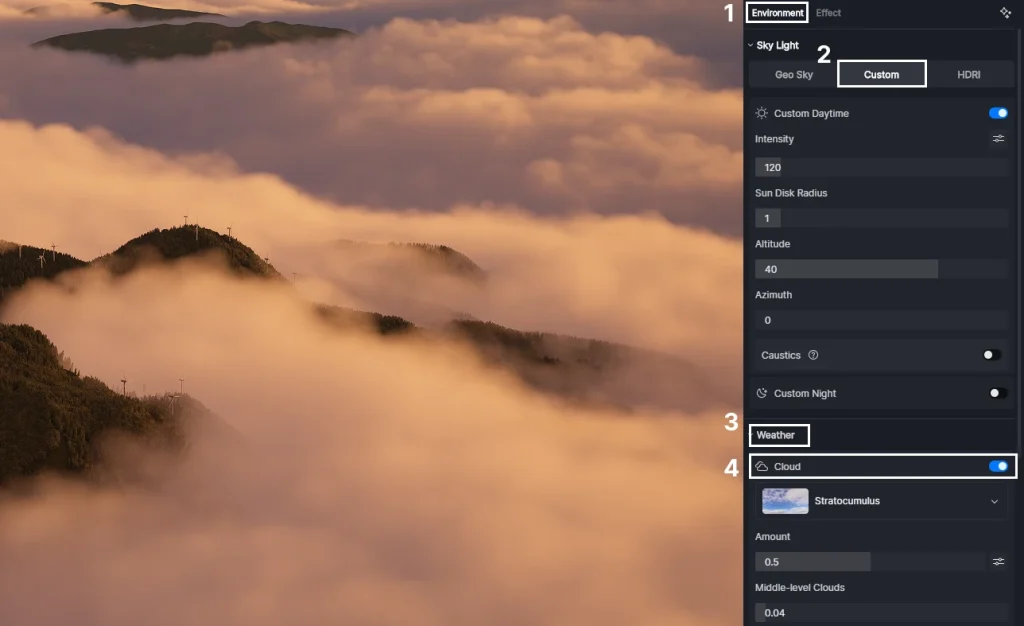
Step 1 | Activate the Volumetric System
Open the Environment > Custom >Weather panel and toggle on Volumetric Clouds. This replaces the basic sky with a physical 3D environment.
Step 2 | Set Your Cloud Presets
Browse the thumbnail library and select a preset. If you need to maintain consistency with your existing projects, clicking Legacy allows you to switch back to the older version of the sky system instantly.
Step 3 | Sculpting the Sky: Amount & Advanced Settings
Cloud Layer Control
Located just beneath the Presets, the Cloud Layer Control introduces a new system inspired by real-world meteorology. By dividing the atmosphere into three independent tiers—Low, Middle, and Cirrus—it allows you to construct a sophisticated, professional-grade sky. You can now fine-tune each altitude layer individually to perfectly align with the mood and scale of your project.
Cloud Amount & Advanced Settings
The Amount slider provides instant control over cloud volume and coverage, while the adjacent button unlocks Advanced Settings for deeper customization. Here, you can truly sculpt the atmosphere via five essential volumetric parameters, and ground your D5 Render scene in high-end realism.
Cloud Coverage: Select the coverage mode that best fits your composition. For high-rise projects, we recommend switching to Skyline Mode to keep your building’s silhouette sharp and uncluttered against the horizon. From there, you can dial in the overall volume with the Amount slider.
Step 4 | Global Settings
To truly ground your project in its environment, the Global settings in D5 Render give you the tools to fine-tune how your atmosphere behaves. From adjusting cloud altitude to animating movement and enabling realistic shadows, these controls ensure the sky feels like a natural, integrated part of your architectural narrative.
A Unified Atmosphere: Integrating Clouds with Weather
Weather in D5 Render 3.0 now functions as a truly unified system. Rather than a collection of isolated effects, Volumetric Clouds adapt intuitively to atmospheric changes, automatically shifting the scene toward cohesive, overcast lighting during rain or snow.
Pulling the entire environment together, the optimized Volumetric Fog creates a seamless, natural transition that blurs the line between the sky and the ground:
- Intensity Follows Skylight: A new toggle that syncs fog brightness with the sun. As the sun sets, the fog darkens naturally, maintaining lighting consistency without manual tweaks.
- Color & Density Separation: Customize the hue of your mist (e.g., a golden morning haze) independently from its thickness for professional-grade effects.
- Stable Base Height: Pin fog to a specific elevation. No more fog “popping” during vertical camera moves—it stays exactly where you placed it.
This level of integration moves beyond simple effects, turning your weather into a cohesive, breathing ecosystem where every element works in perfect concert.
Conclusion: Level Up Your Renders with Volumetric Clouds
You shouldn’t have to settle for flat, static backgrounds that distract from your design. With Volumetric Clouds in D5 Render 3.0, you finally have the tools to create a sky that’s as intentional and detailed as your architecture—no tedious post-production required.
Ready to see the difference? Download the D5 3.0 update today and start bringing your atmosphere to life. We can’t wait to see your new renders!
FAQ: Volumetric Clouds & Sky Realism
Often, the issue lies in a static, 2D sky that acts more like a “sticker” than a physical environment. To add depth, you need a system where the clouds are part of the lighting. Shifting to Volumetric Clouds—a core part of D5 Render 3.0—allows the sky to catch light and cast shadows realistically. This creates a natural, “grounded” feel between your building and its surroundings that a flat image simply can’t replicate.
The most efficient approach is to handle the sky directly within your 3D workspace. By using D5 Render‘s Volumetric Clouds, you can refine the atmosphere in real-time, which handles the color matching and edge blending for you. This moves the workflow from tedious Photoshop layers into the rendering stage, saving you from having to fix lighting inconsistencies later in post-production.
It’s a common struggle to balance a beautiful sky with a clean silhouette. We designed Skyline Mode in D5 Render 3.0 specifically for this. It lets you keep the “Zenith” (the top of the frame) clear while populating clouds along the horizon. This gives your architecture room to “breathe” while still maintaining a professional, layered background.
A “CG look” usually happens when the sky feels disconnected from the rest of the scene. In D5 Render 3.0, the clouds are synced with global environmental settings. When you enable ‘Dynamic’ mode, the cloud drift matches your vegetation’s wind response. This unified logic ensures your entire animation feels like one singular, breathing world rather than a collection of separate effects.
Instead of manually layering multiple filters, you can use dedicated volumetric presets. In D5 Render 3.0, swapping to a Cumulonimbus preset instantly sets a heavy, dramatic tone. Because these are true 3D volumes, they interact with the sun to create moody shadows, helping you craft a fast-moving storm narrative without complex setup.
Achieving those organic, moving light patterns requires a sky that interacts physically with your light source. Within D5 Render 3.0‘s Volumetric Clouds panel, you can simply enable the Cast Shadow toggle. This allows the sun to filter through the 3D cloud layers as it would in reality, casting soft, dappled light across your site and facades. It’s one of those subtle details that really grounds a project and makes a professional portfolio stand out.
This usually happens when the fog and sky aren’t sharing the same lighting information. D5 Render 3.0 addresses this with a feature that syncs fog intensity with the skylight. As the sun sets, the fog darkens naturally to match the clouds. This synchronization “integrates” the atmosphere together, ensuring the ground and sky feel cohesive.
Let’s be honest—hunting for the right HDRI is a huge time-sink. That is why many designers are shifting to the Volumetric Clouds in D5 Render 3.0 for the creative freedom they offer. Instead of being locked into a static image, D5 Render allows you “steer” the sky in real-time to match your specific camera angle. This ensures your lighting remains consistent with your sun position, no matter how much the design changes during the process.

 English
 Español
 Français
 한국어
한국어 日本語
日本語