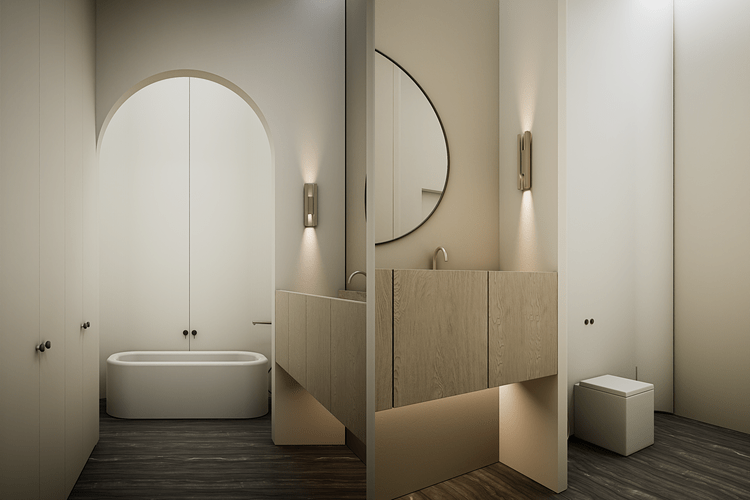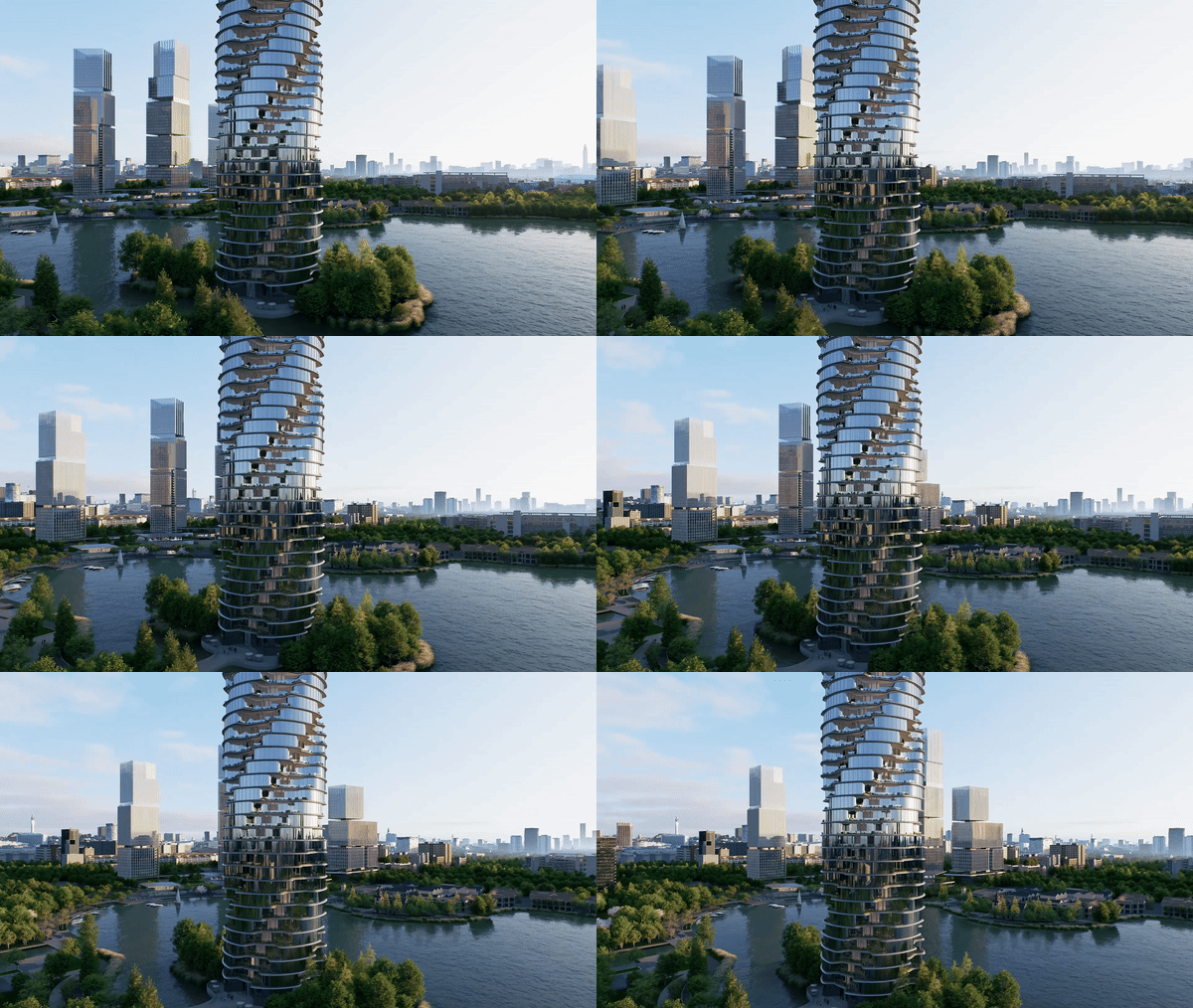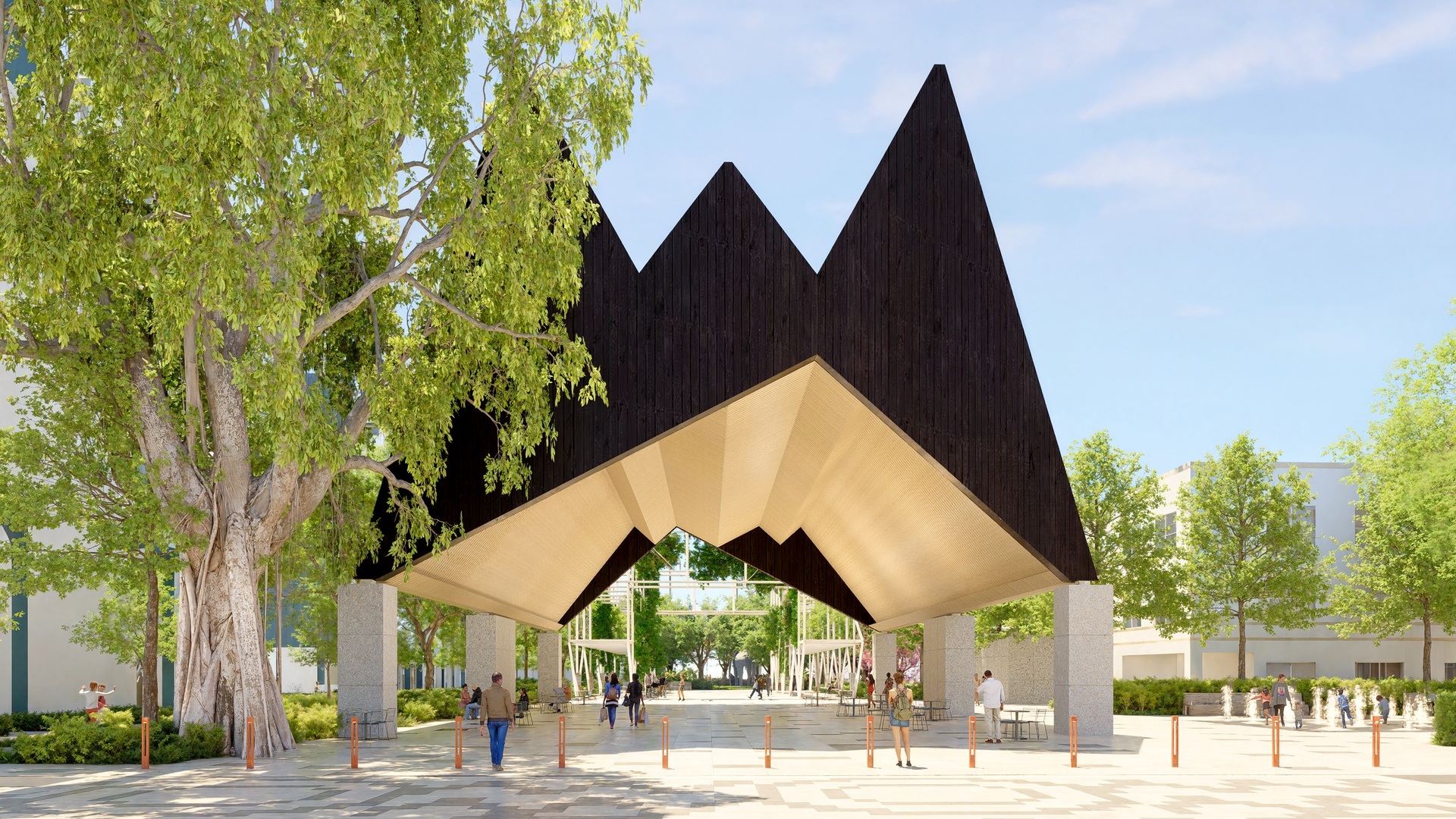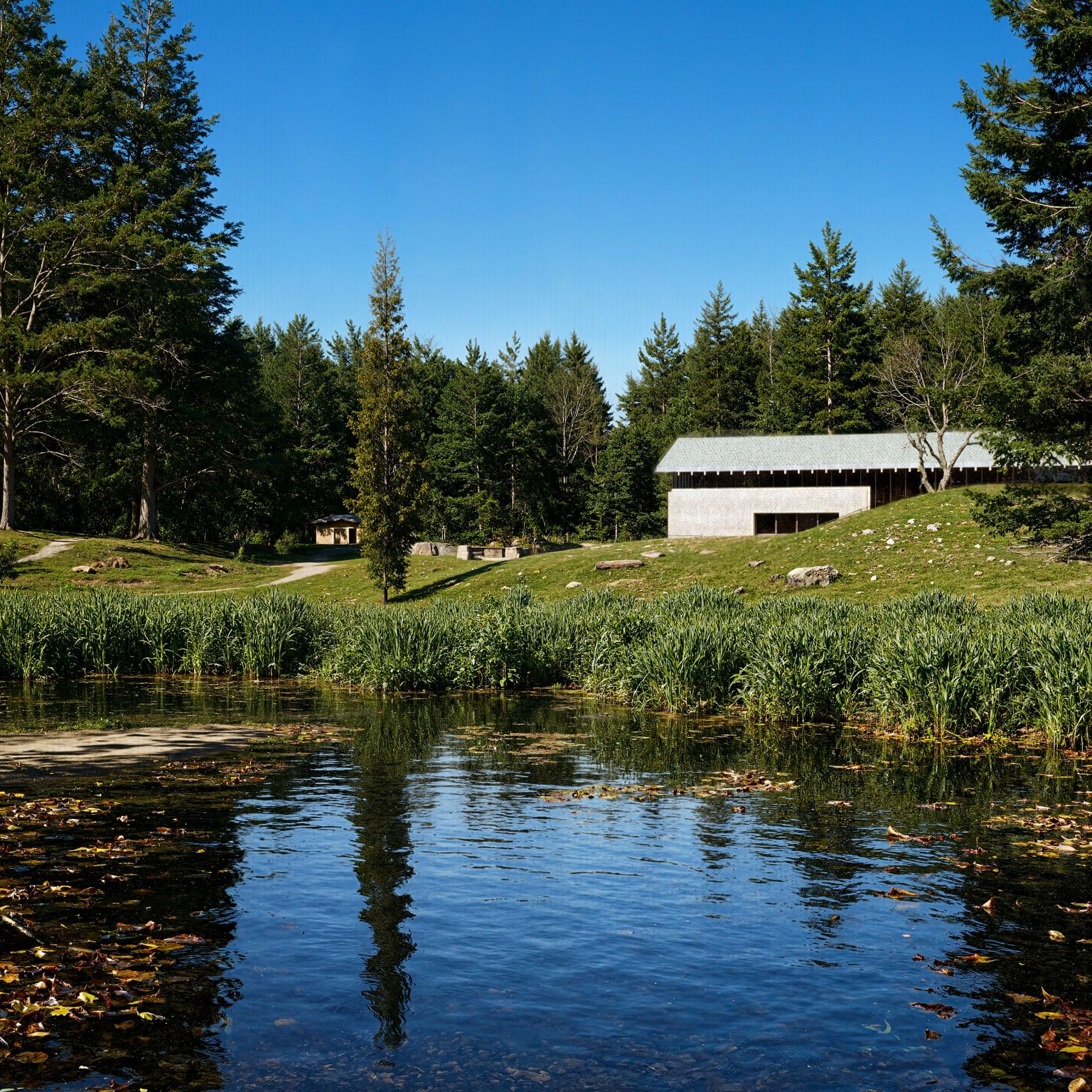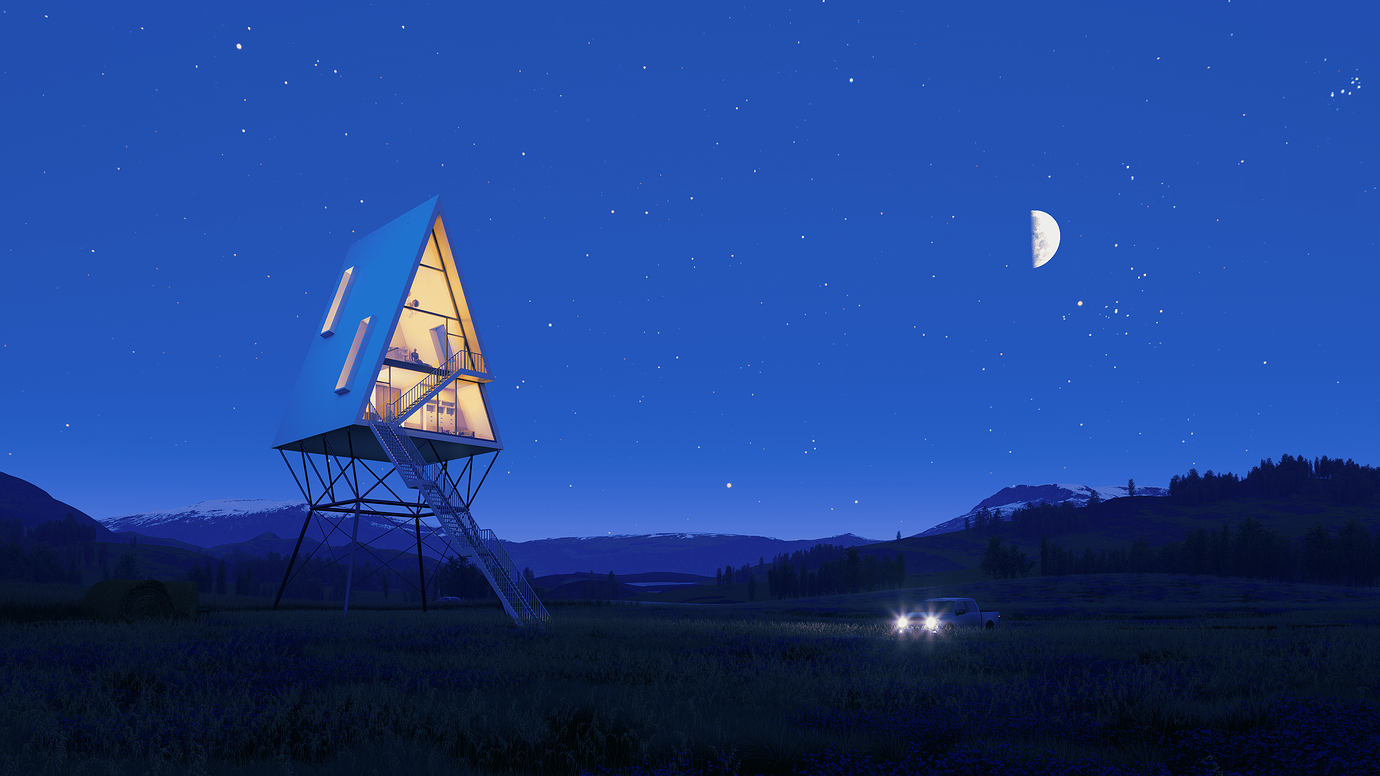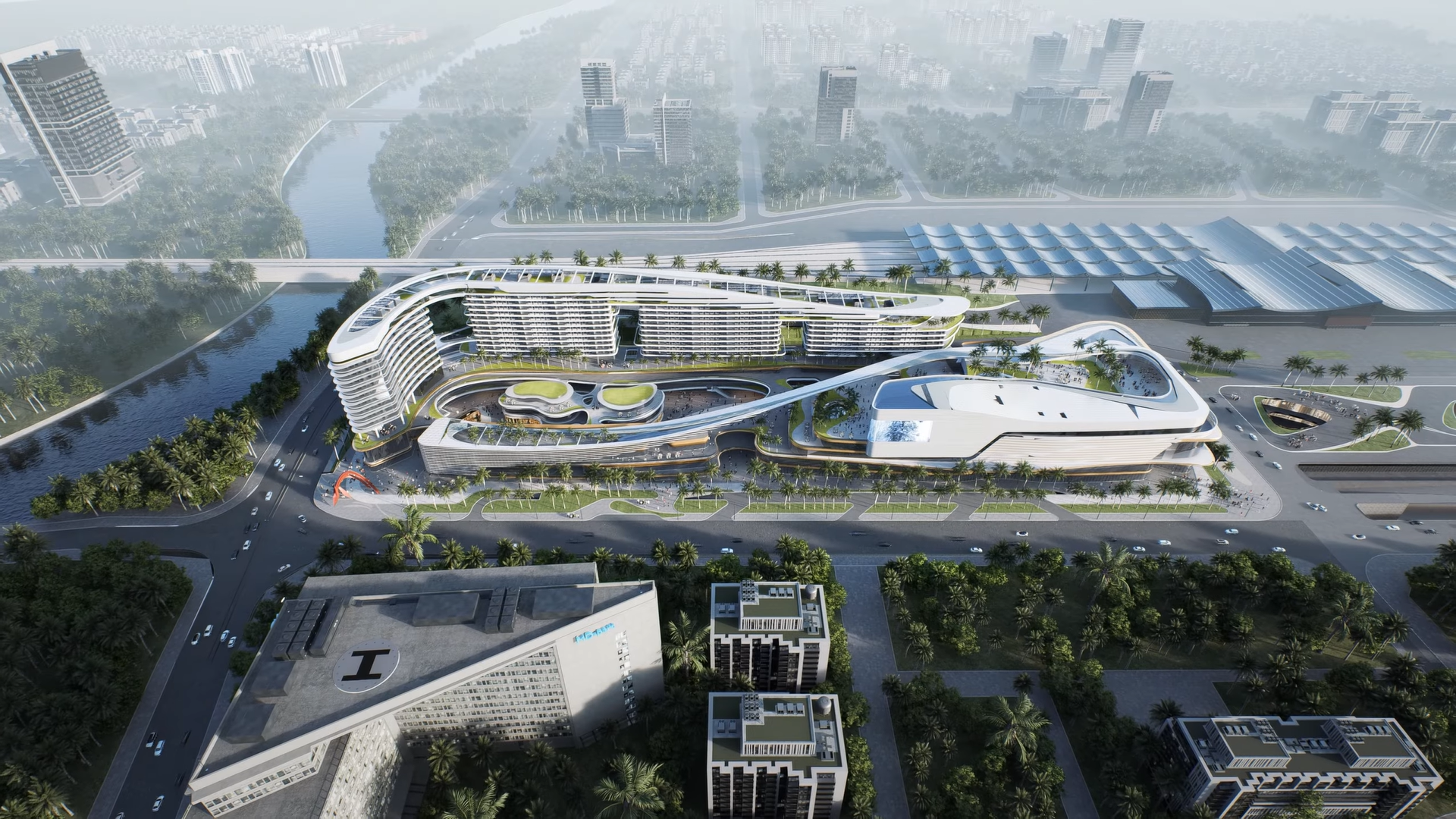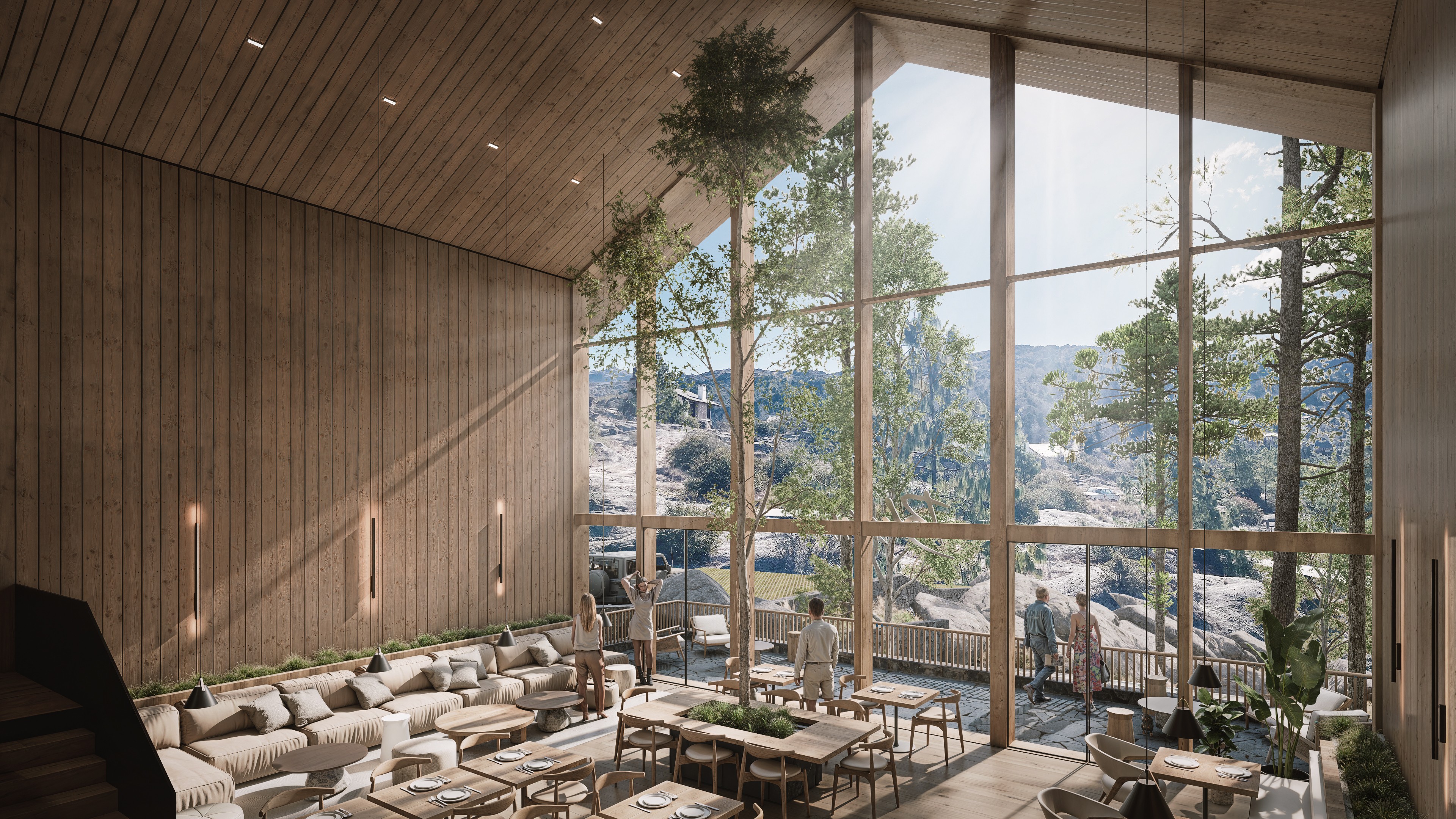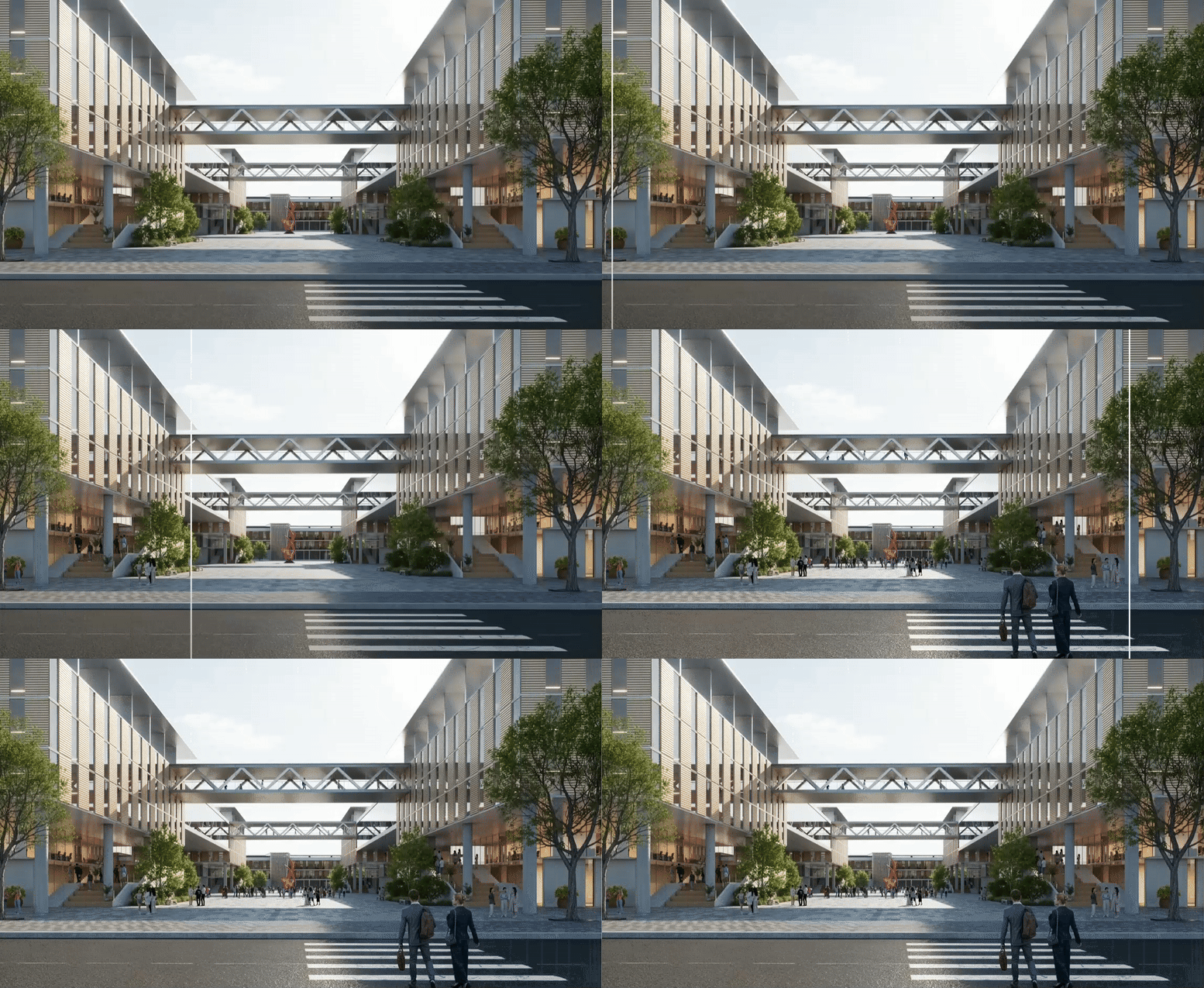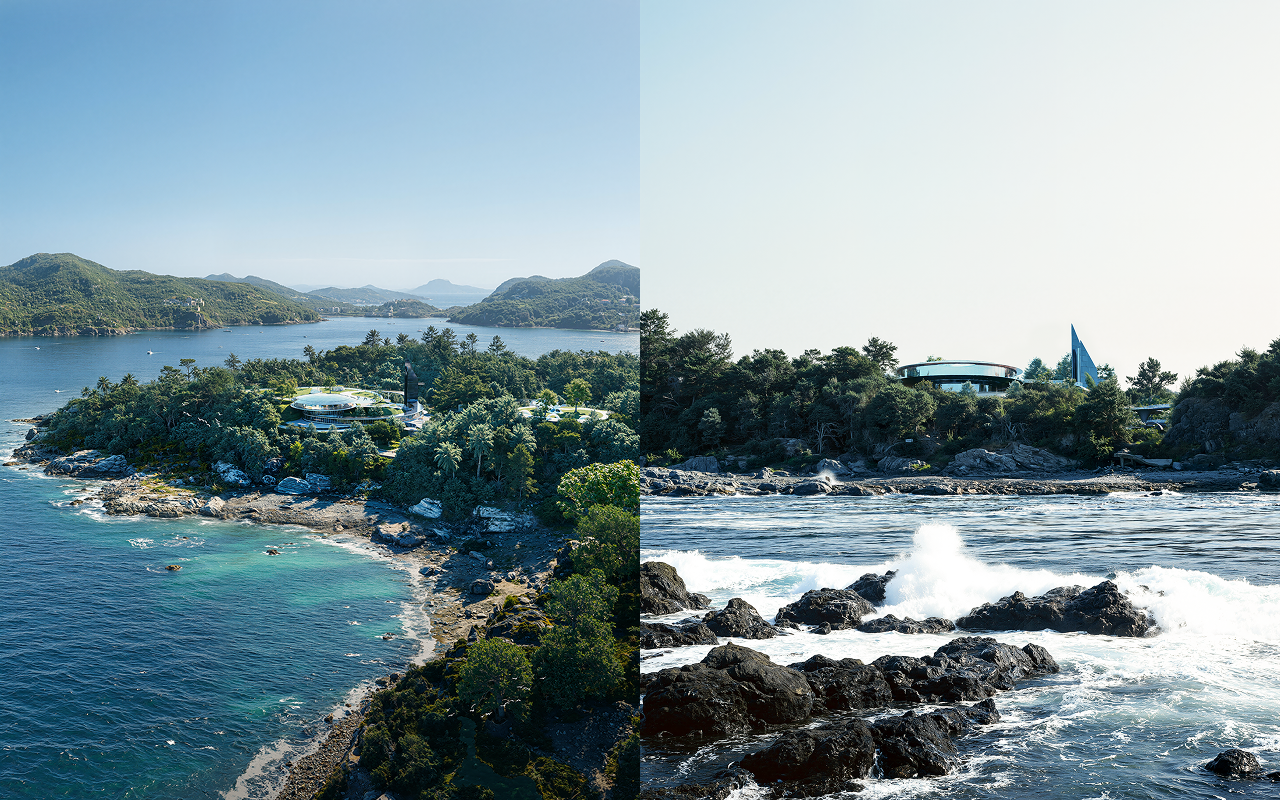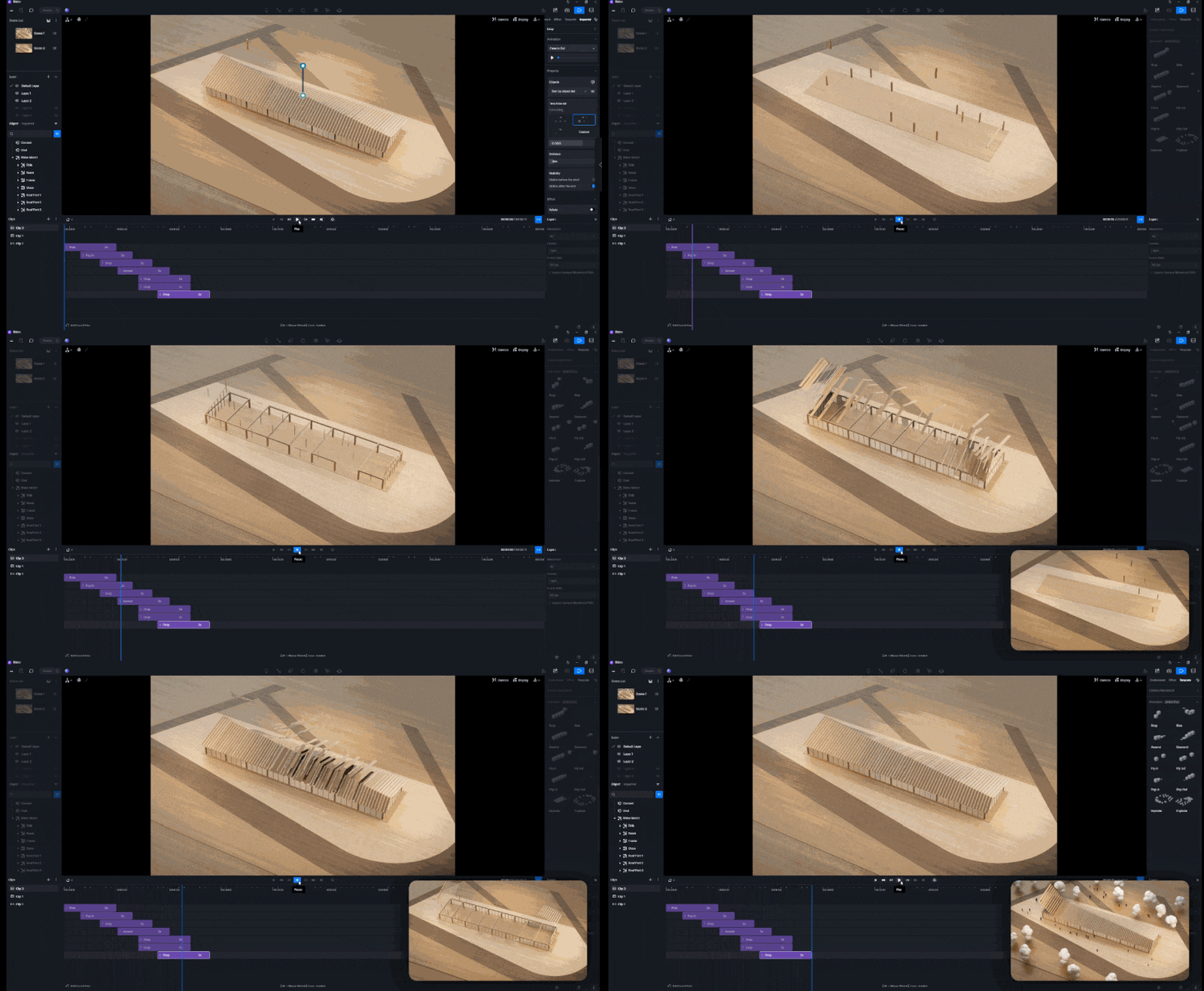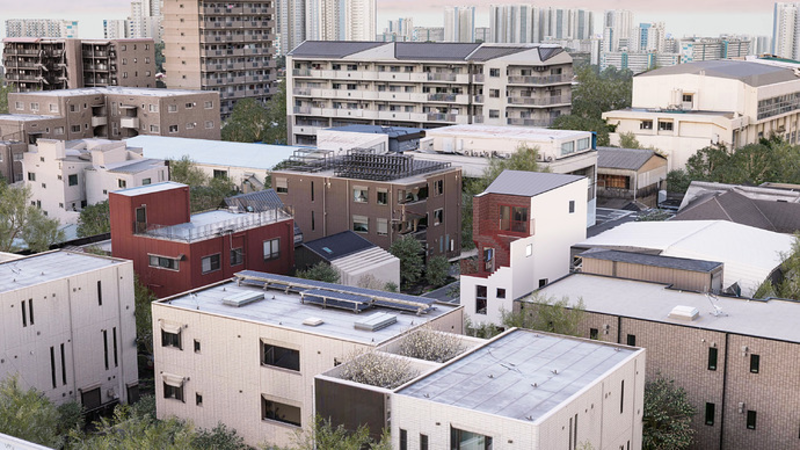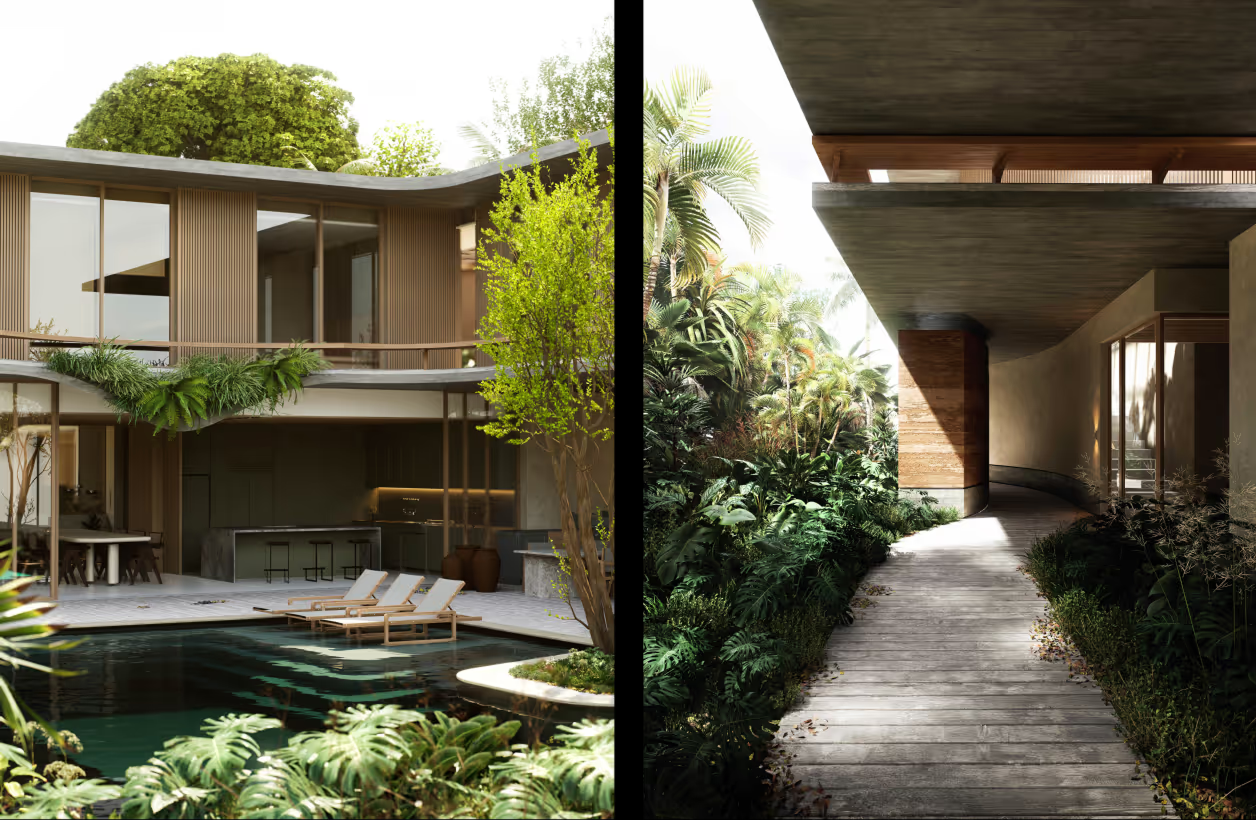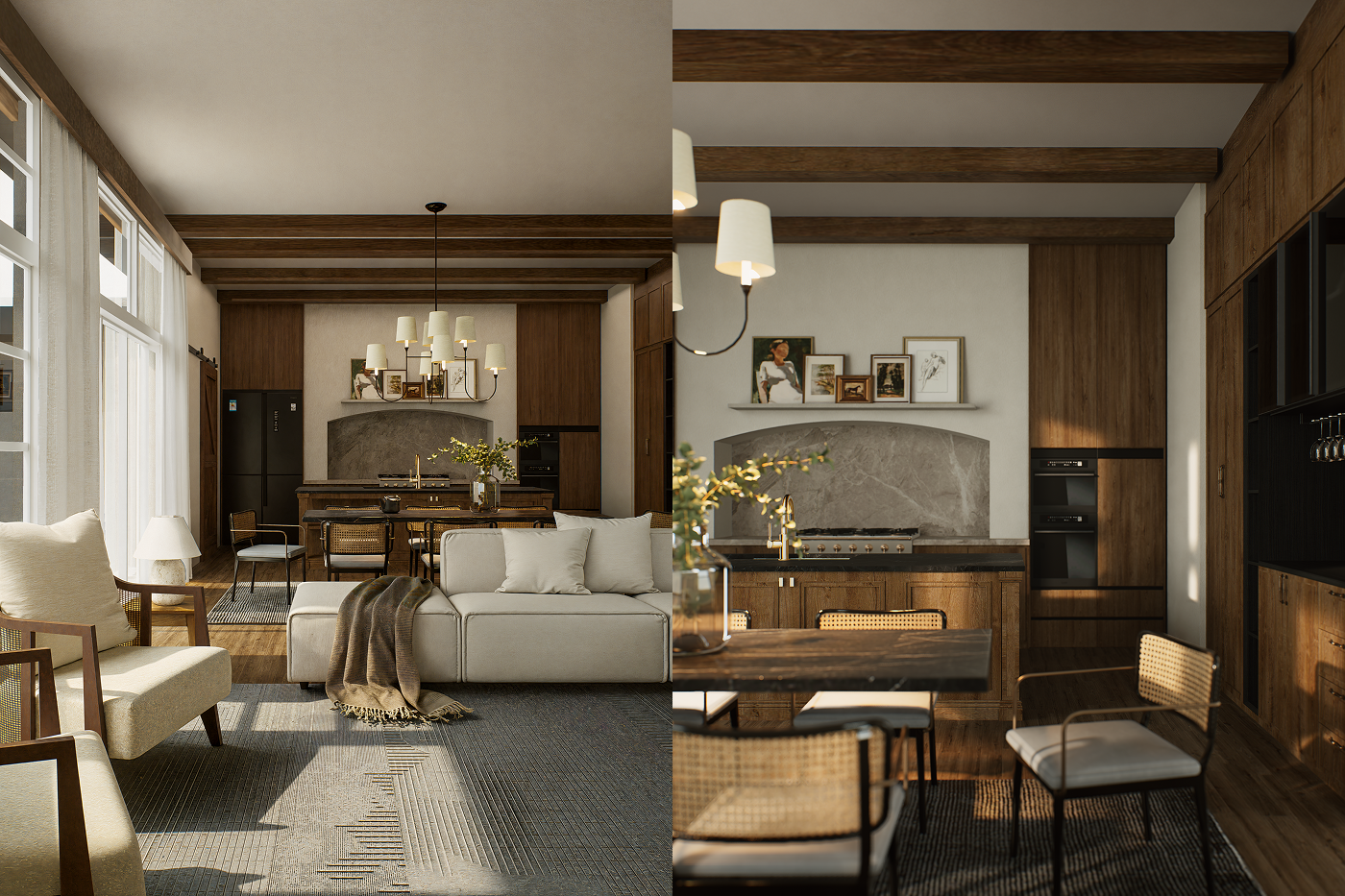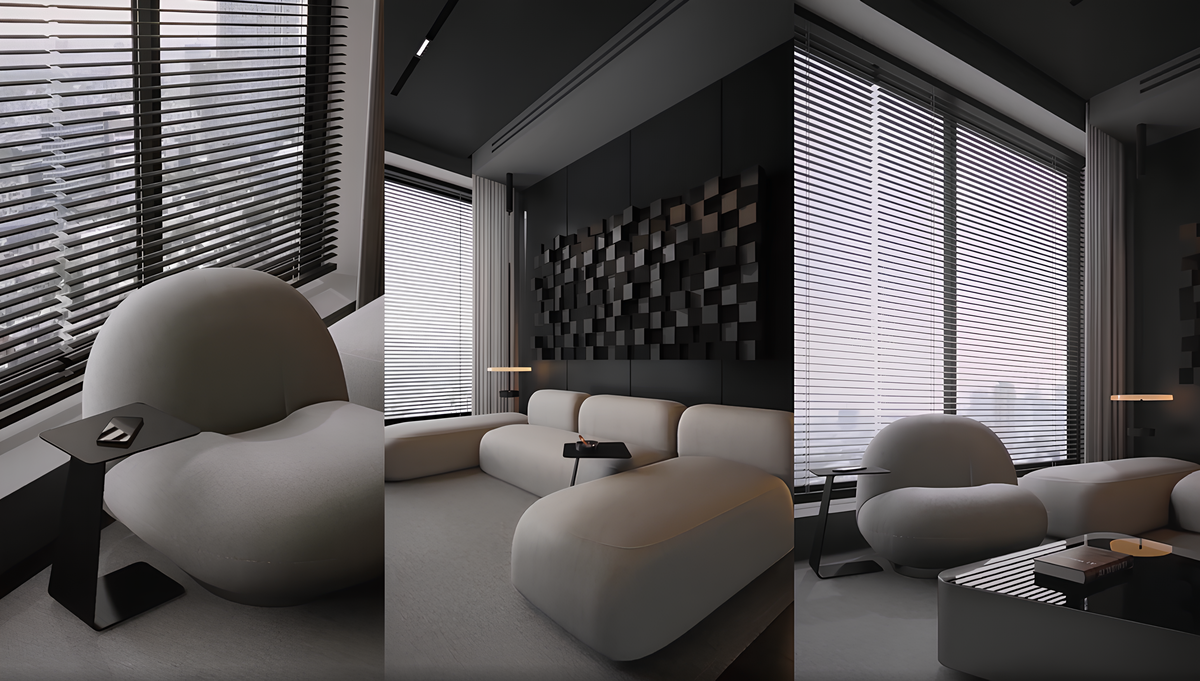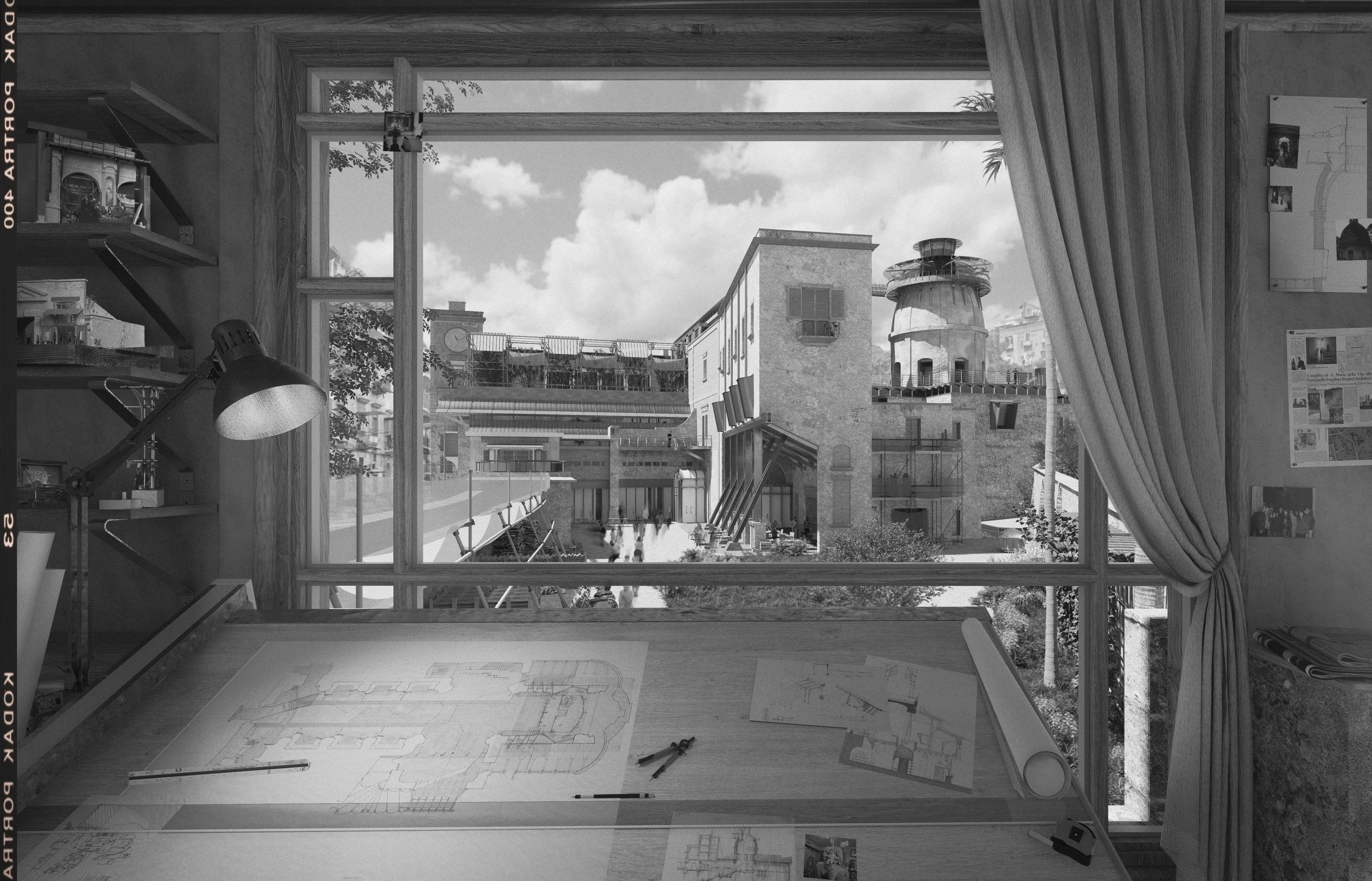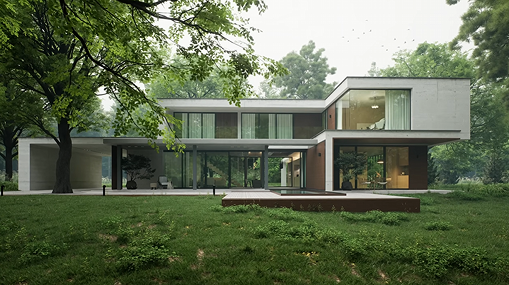


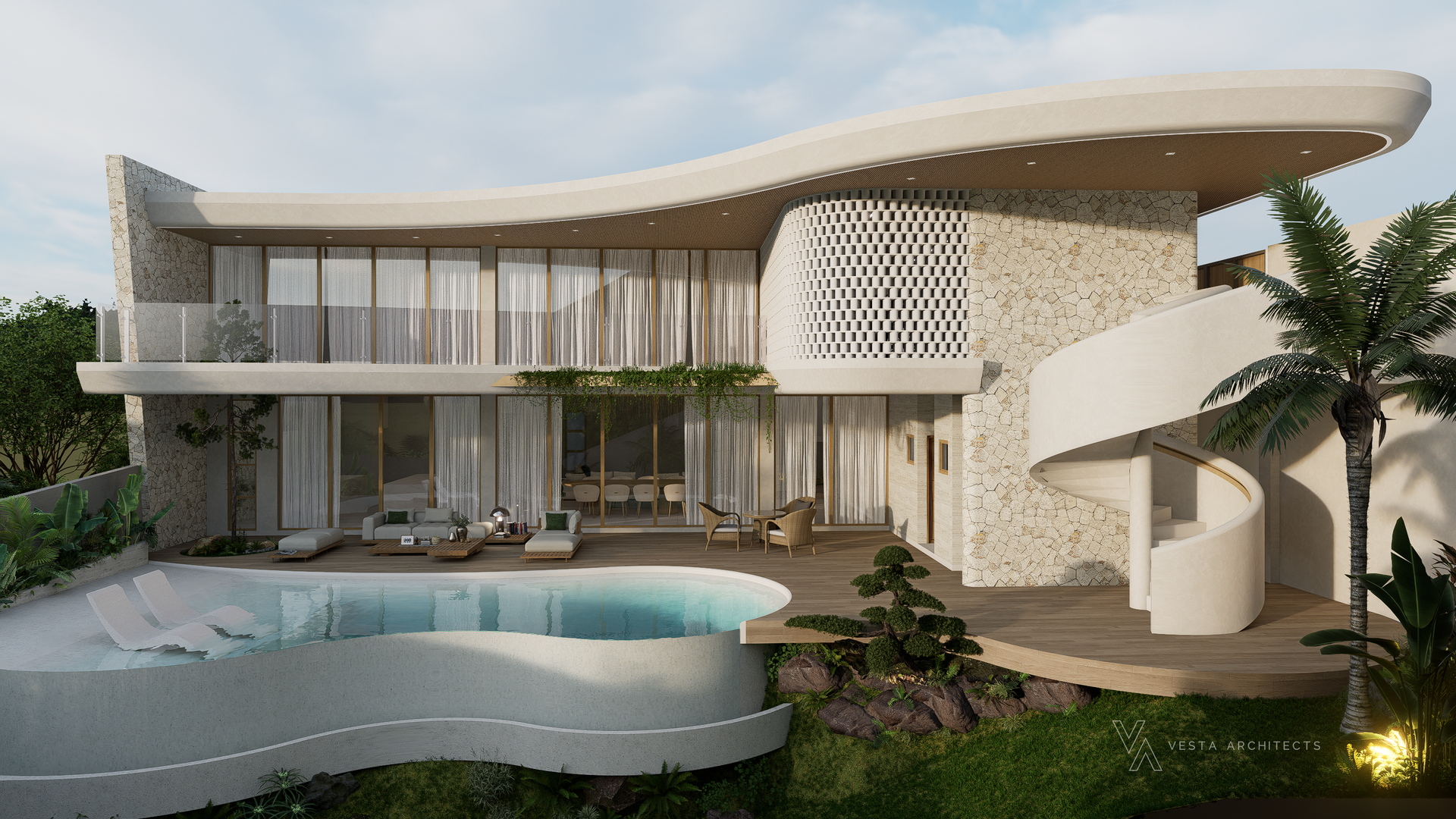
Creating a polished architecture render used to mean long hours of iteration — wrestling with materials, dialing in lights, and running render after render just to get close to what you envisioned.
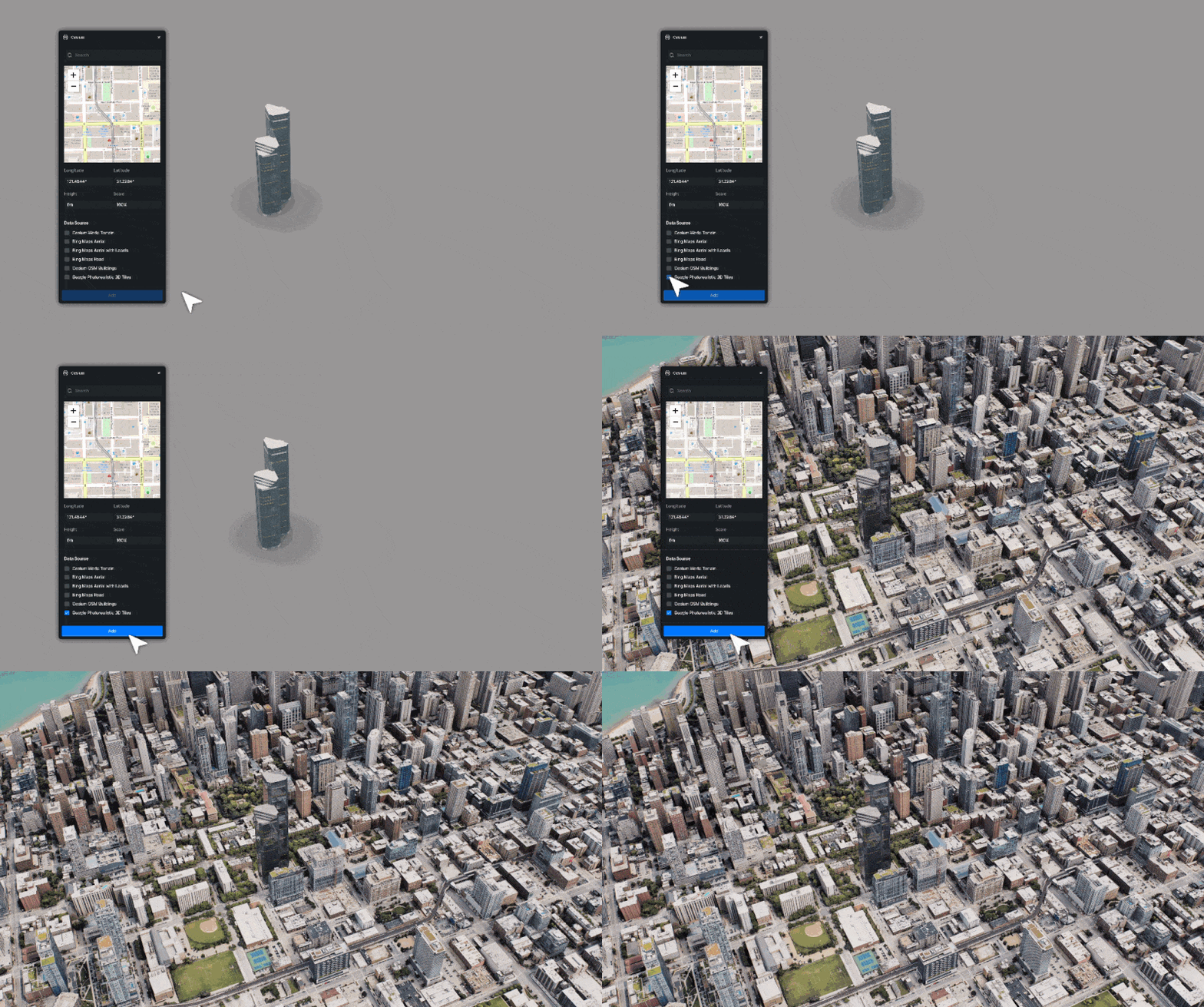
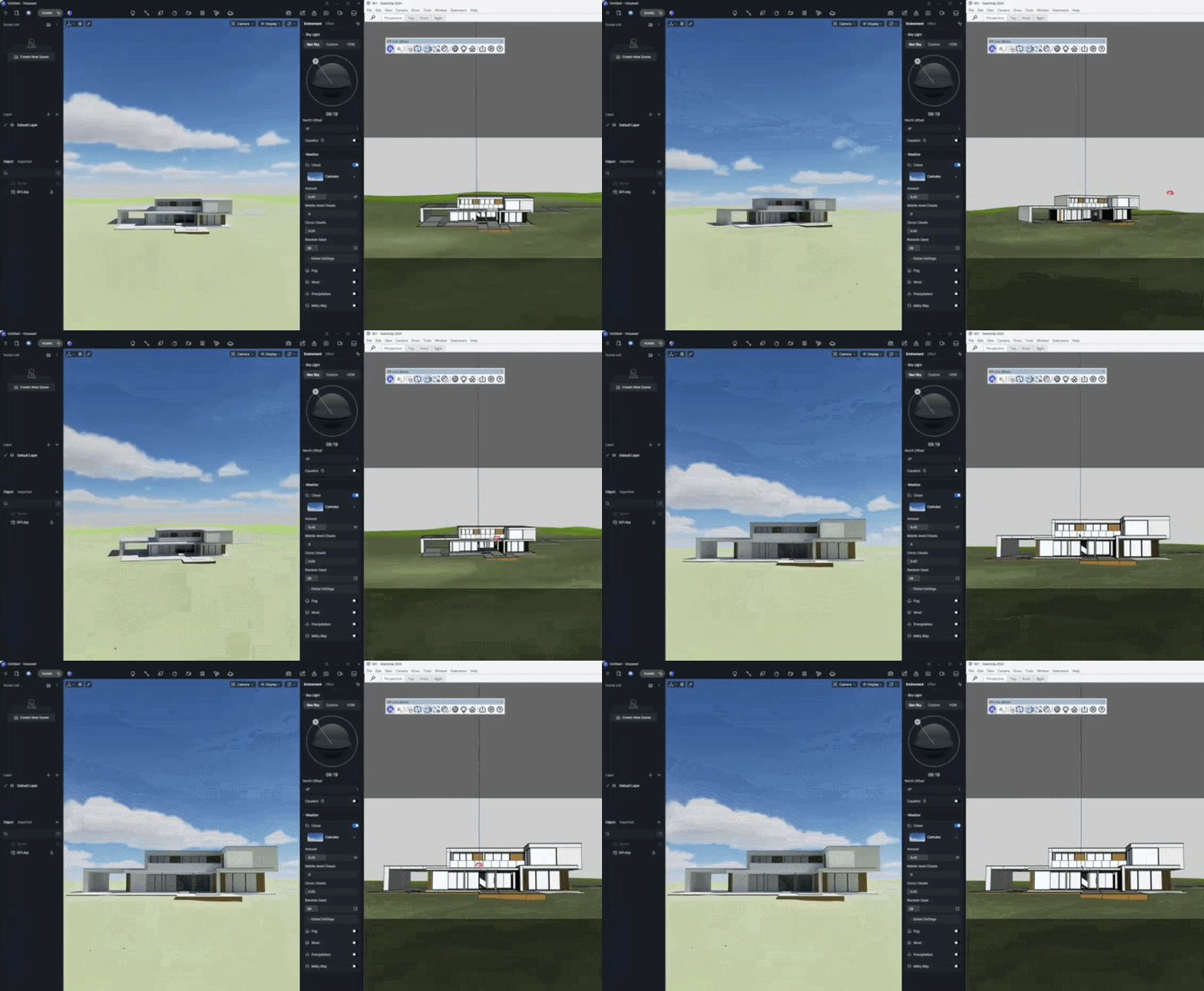
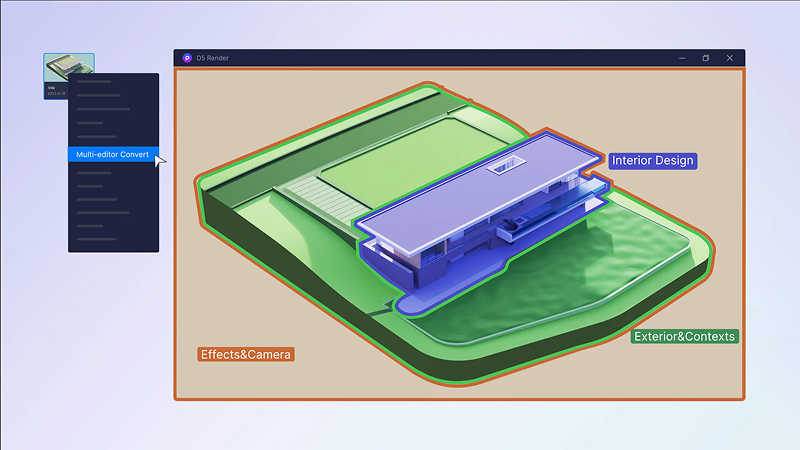
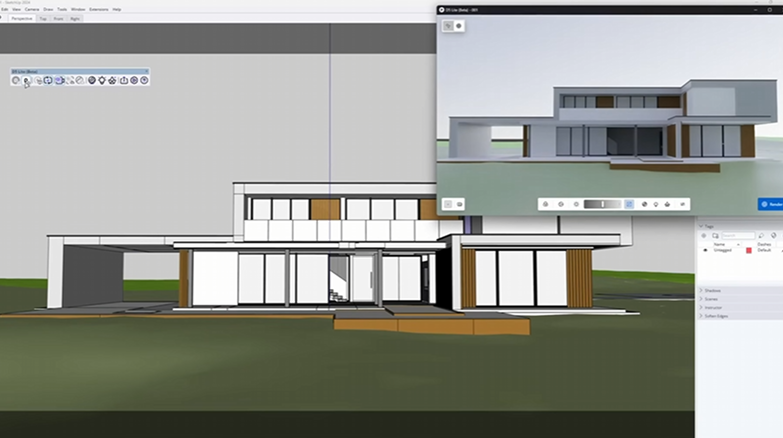
That process is changing fast. With D5 Render's latest release, the entire visualization workflow — from initial model import to final post-production — now lives in one place. D5 Lite handles the early-stage, real-time modeling preview, while D5 Render takes over when you're ready to push the quality further.
In this tutorial, we'll walk you through the full workflow step by step: AI-assisted materials, environment and lighting setup, scene population, and post-production. From start to finish, the whole process takes about 15 minutes. Let's get into it.
💡 Key Takeaways: Mastering the 15-Min Architecture Rendering
- Let AI automate the tedious parts like material mapping and lighting adjustments while you maintain full creative control.
- Populate realistic scenes in seconds using smart asset tools and a massive library of over 14,000 animated and static models.
- Deliver professional results with built-in AI post-processing and interactive virtual tours that are ready to share immediately.

1. Importing Your Model & Setting Up Your Workspace
Start by downloading D5 Render from d5render.com. We recommend installing it on a drive with at least 40 GB of free space — this gives you room for assets, materials, and project files as your library grows.
D5 Render supports three ways to get your architectural model in:
- Direct File Import – Open files in common 3D formats including SKP, FBX, OBJ, and more.
- Live Sync – Connect in real time with SketchUp, Revit, Rhino, and other modeling tools using our dedicated plugins. Changes in your modeling software update instantly in D5 Render.
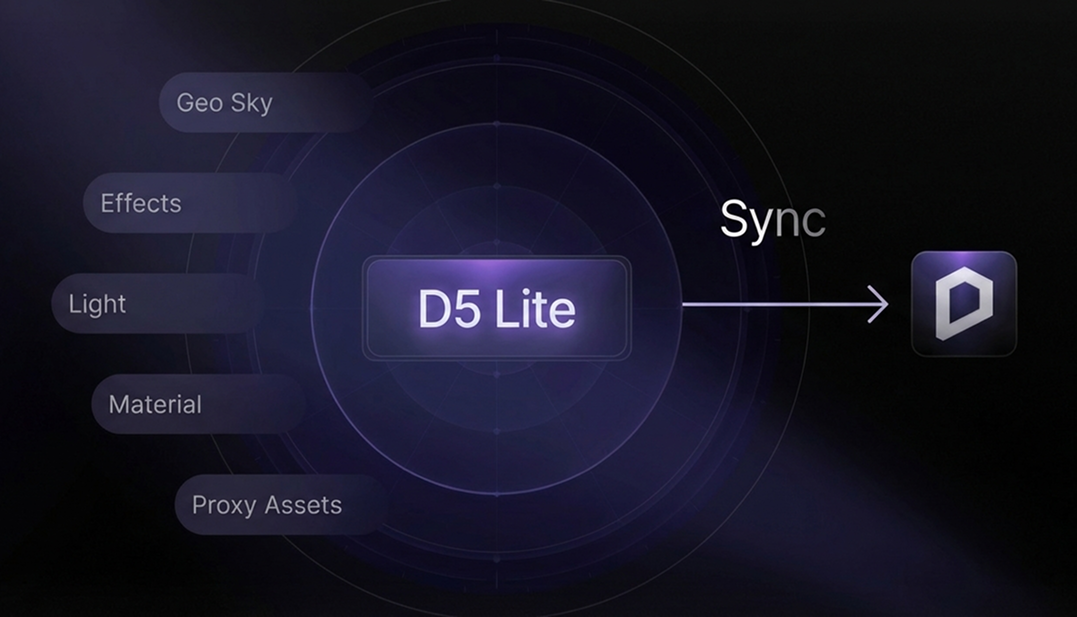
- D5 Lite Sync – If you've been working in D5 Lite, open your project directly — no re-importing needed.
Pro Tip: If you're used to navigation controls from SketchUp or another tool, go to menu and switch to the layout that matches your workflow. It takes about 30 seconds and makes the whole interface feel familiar from the start.
2. PBR Materials in D5 Render: Manual Control & AI Generation
D5 Render uses a physically based rendering PBR material system, with built-in templates and a library of ready-to-use materials to get you started quickly. Understanding the core texture maps will give you much more control over your results:
- Roughness – Controls how smooth or rough a surface appears. Dark values (toward black) produce smoother, more reflective surfaces; lighter values produce rougher, more diffuse ones.
- Specular – Determines reflectivity. If a dark specular map is making your material look flat, try increasing the Specular Strength value slightly to restore balance.
- AO (Ambient Occlusion) – Adds soft contact shadows in corners and crevices. It's especially effective on floors and walls for grounding materials visually.
.png)
.png)
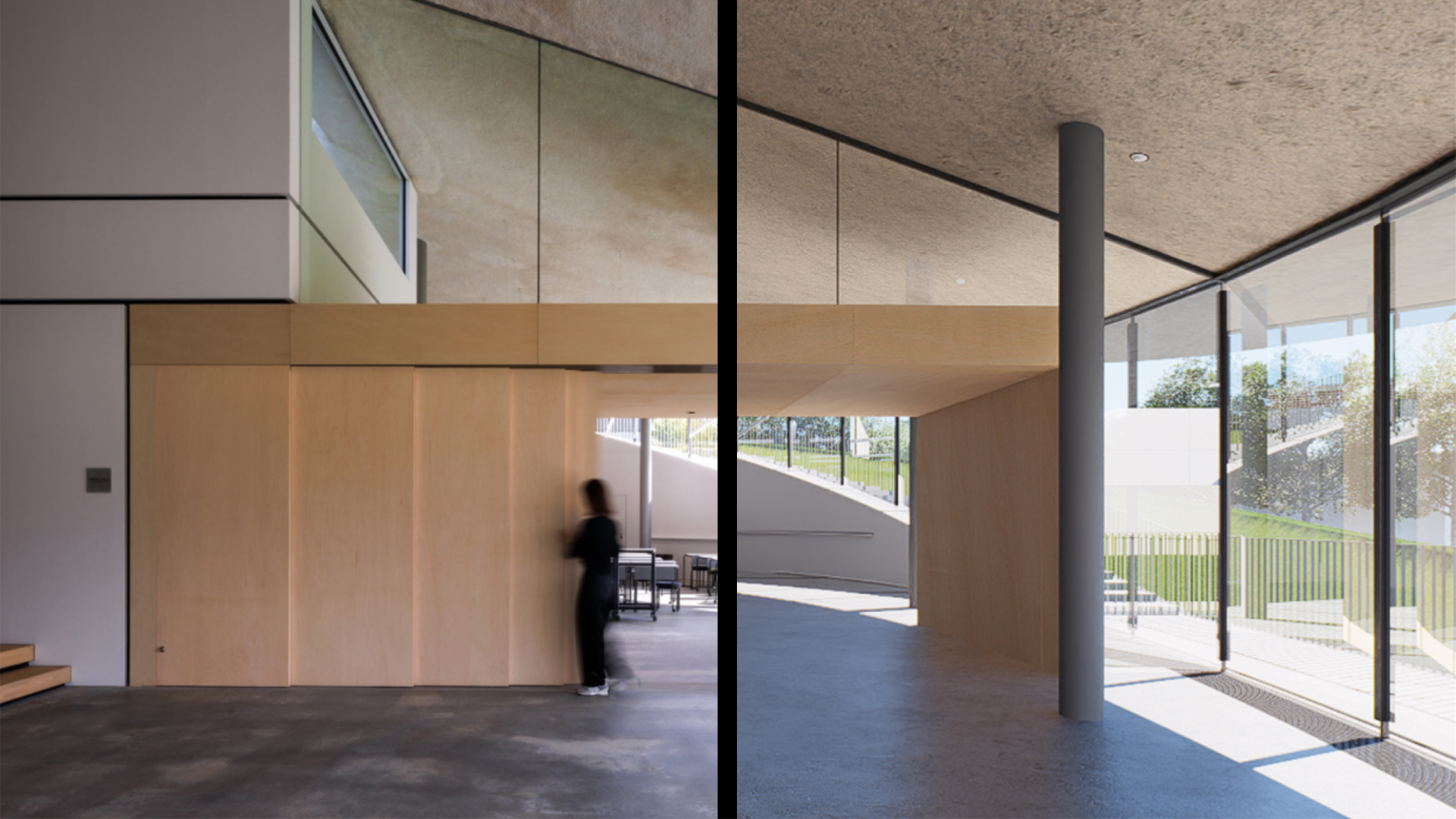
Slide to compare: PBR Materiality in D5 Render
Once you've set up a material you're happy with, use the material picker to sample it, then press 'O' to apply it to another surface — handy for repeating finishes across multiple elements without rebuilding from scratch.
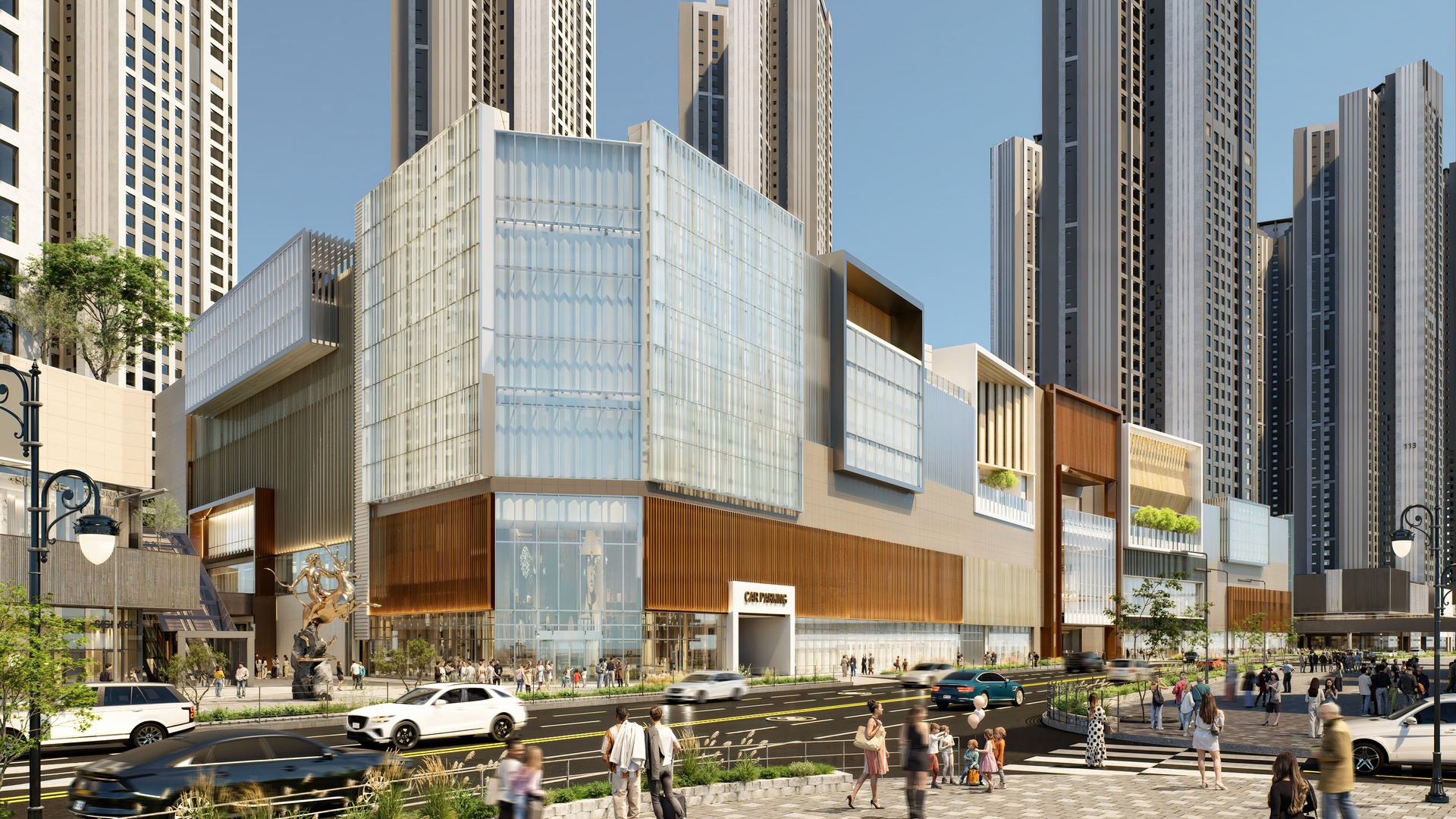
To simulate water stains on exterior walls, grab a decal from the D5 asset library. Drop it onto your surface, adjust the size and opacity, and duplicate it as needed to break up the clean, CG look. For glass, switch to a Transparent material template. Since glass material is exceptionally smooth and highly reflective, drop your Roughness value near zero and push the Specular strength up to get crisp, realistic reflections.
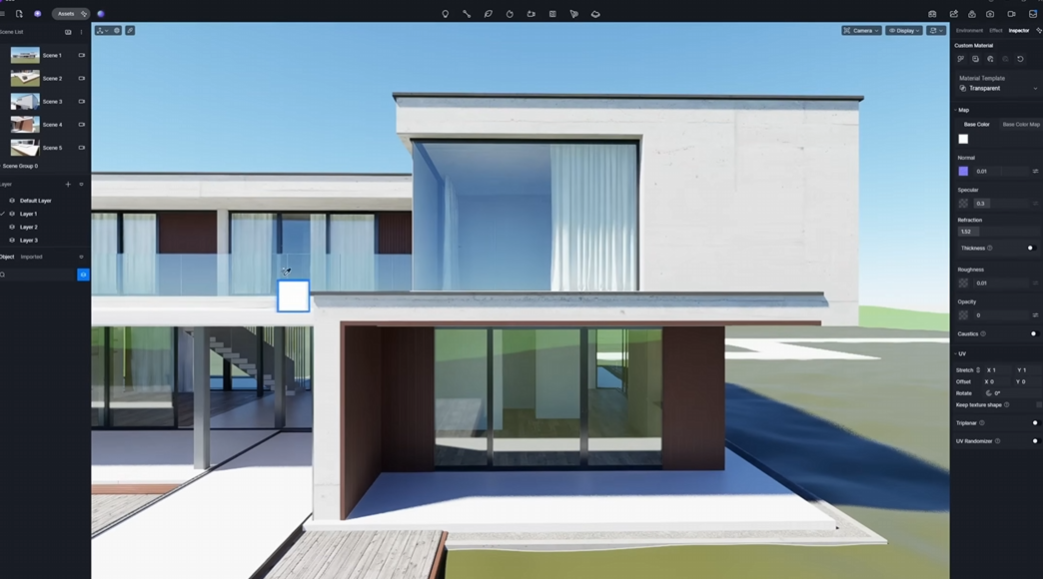
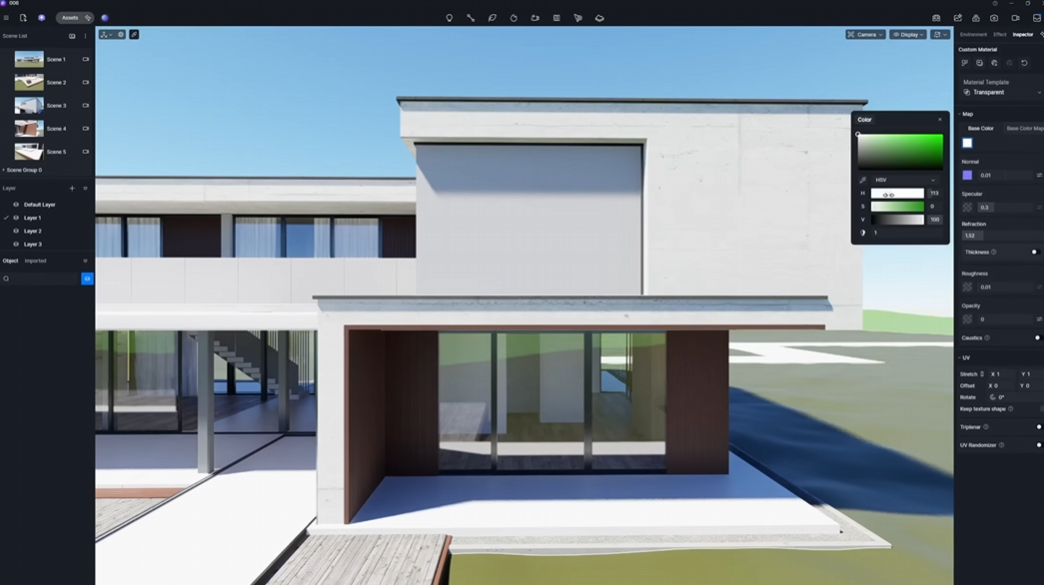
Slide to compare: Glass Materiality in D5 Render
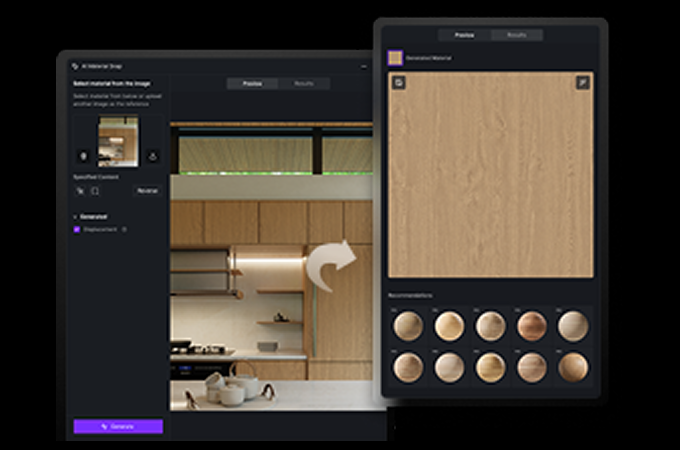
For quick material creation from reference images, try the AI PBR Material Snap tool: upload a photo of the surface you want to replicate, and D5 will generate a mapped PBR material automatically.

3. Populating Your Scene with D5 Built-in Assets & Tools
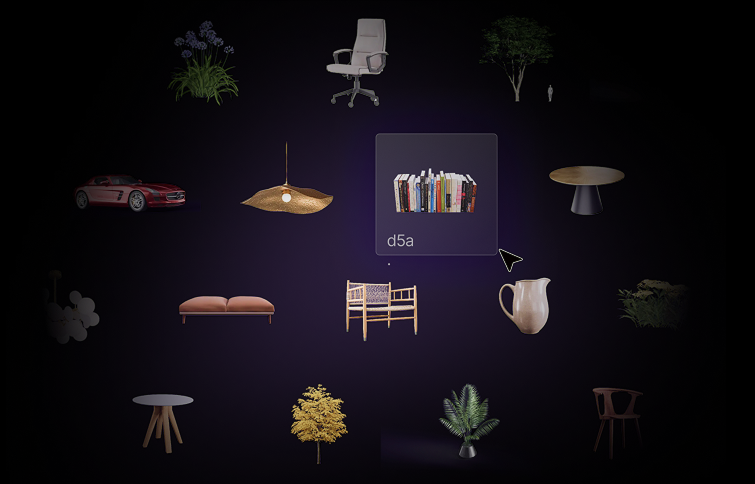
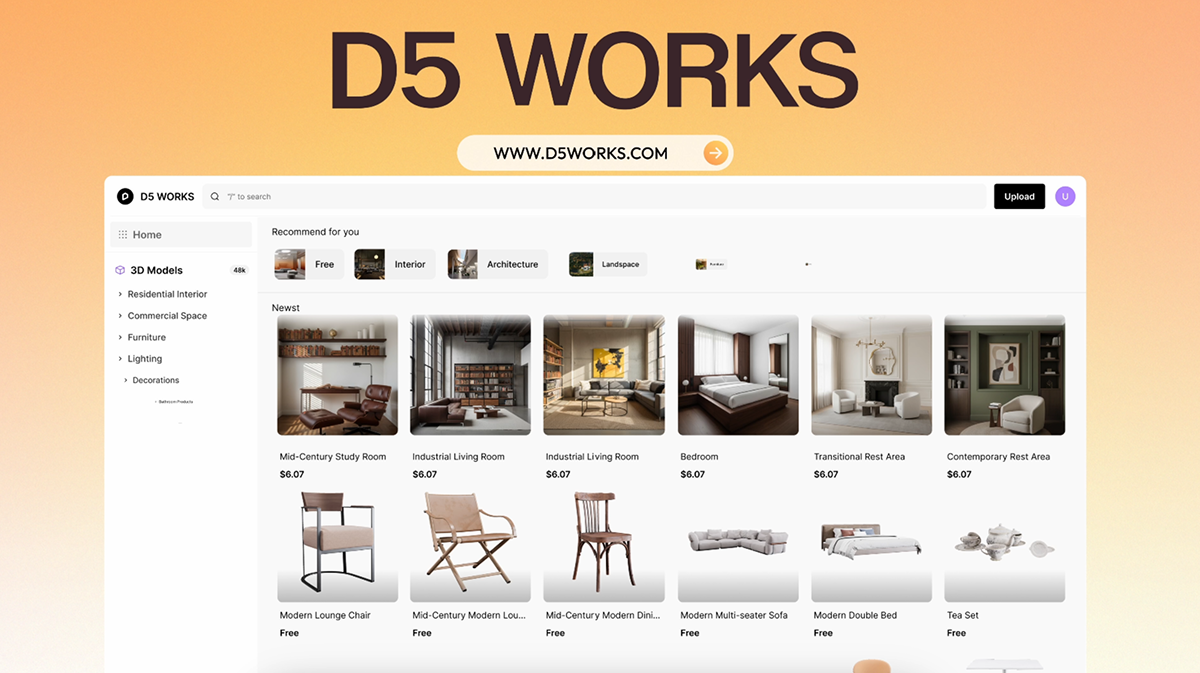
D5 Render includes a built-in asset library with over 14,000 static and animated models, covering furniture, vegetation, people, vehicles, and more. For AEC-specific content, D5 Works gives you access to community-contributed models directly within the D5 Launcher.
For exterior scenes, two tools handle most of the heavy lifting:
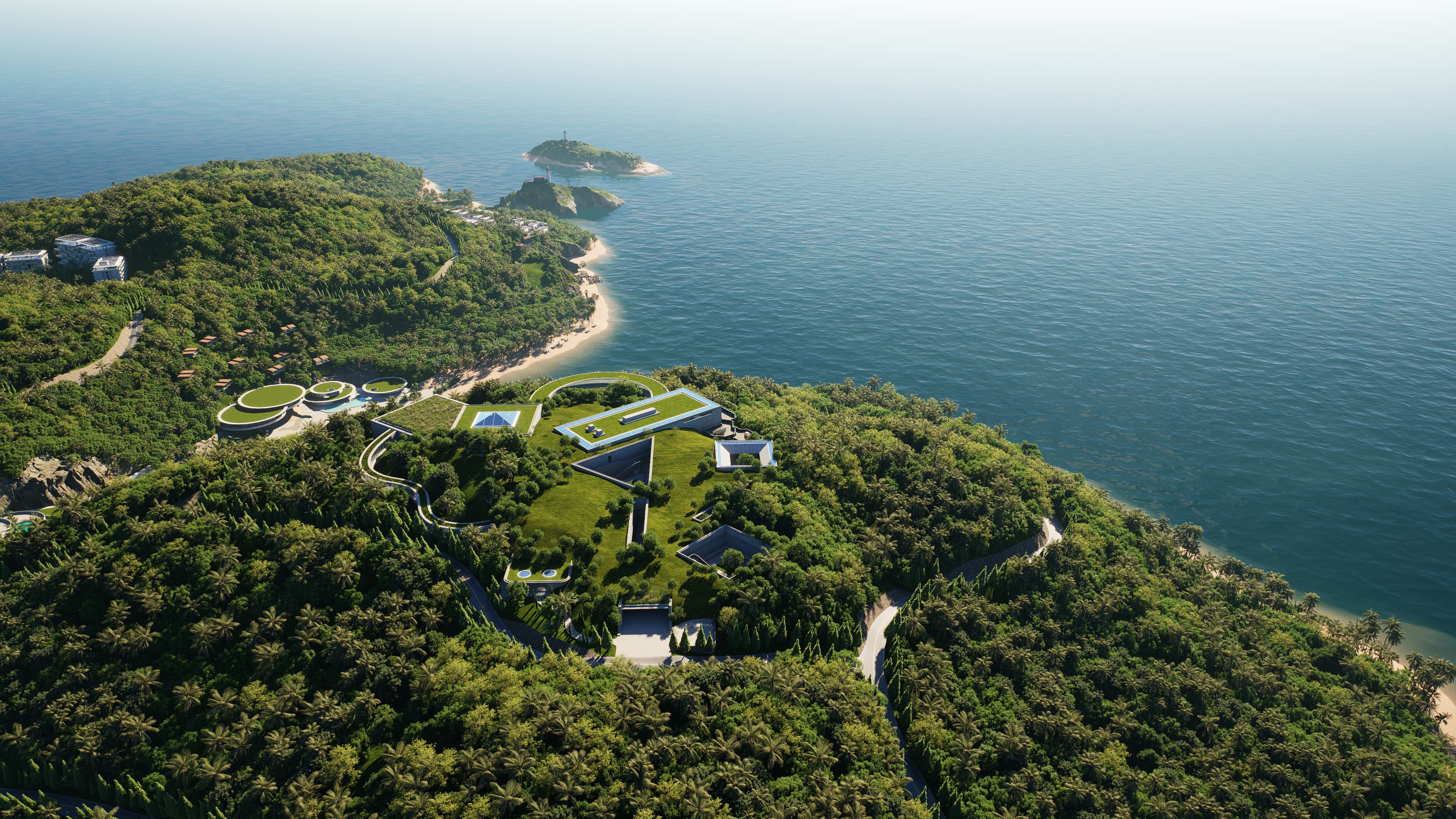
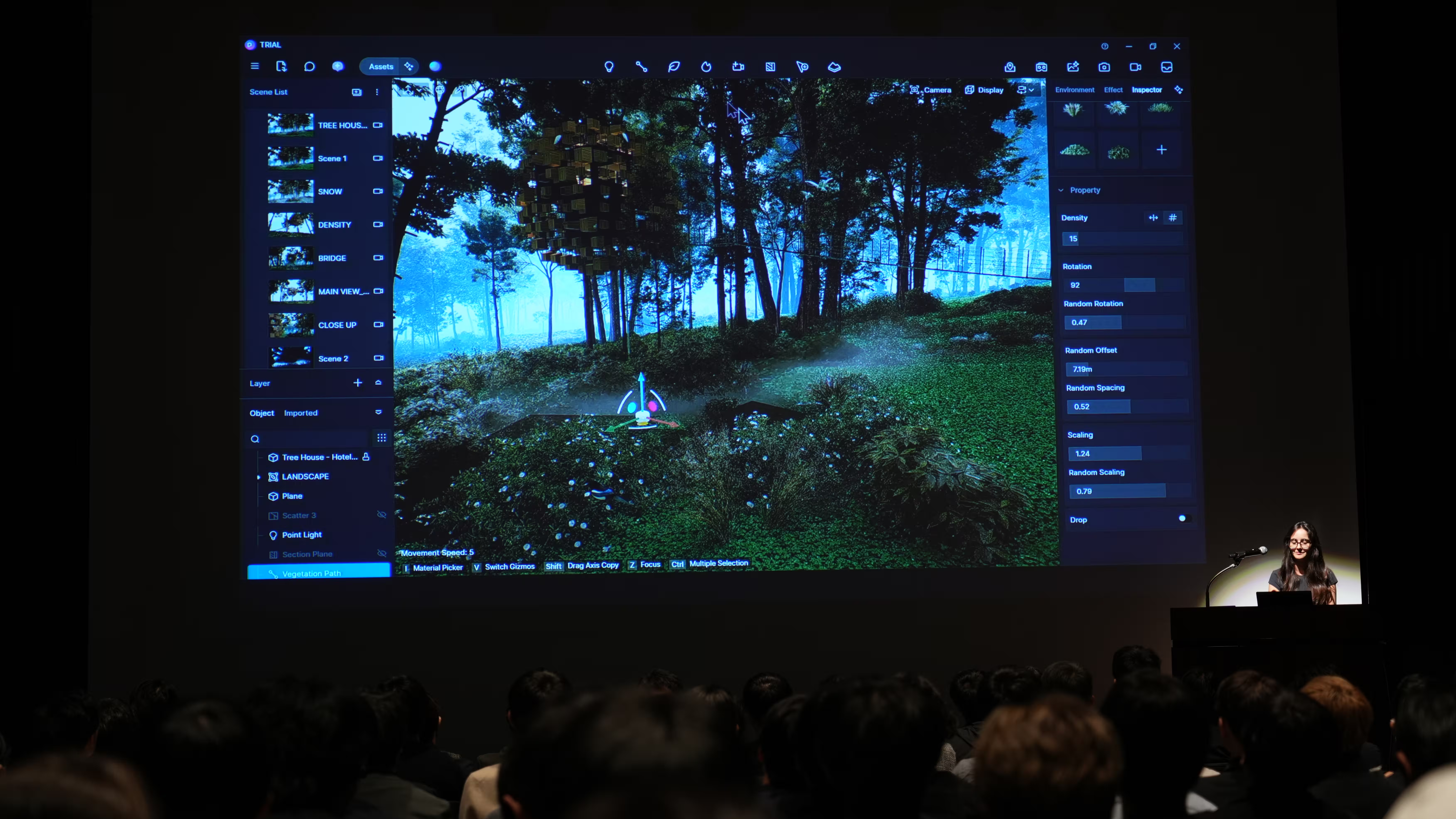
- D5 Scatter – Select a grass or ground cover preset and scatter it across your terrain in seconds. You can adjust the mix of plant species to suit the site's context or match a specific climate zone.
- Brush & Path Tools – Paint trees and shrubs around your building freehand, or trace a path to distribute plants, people, or vehicles along a route automatically. Density and randomization controls keep the result from looking too uniform.
.gif)
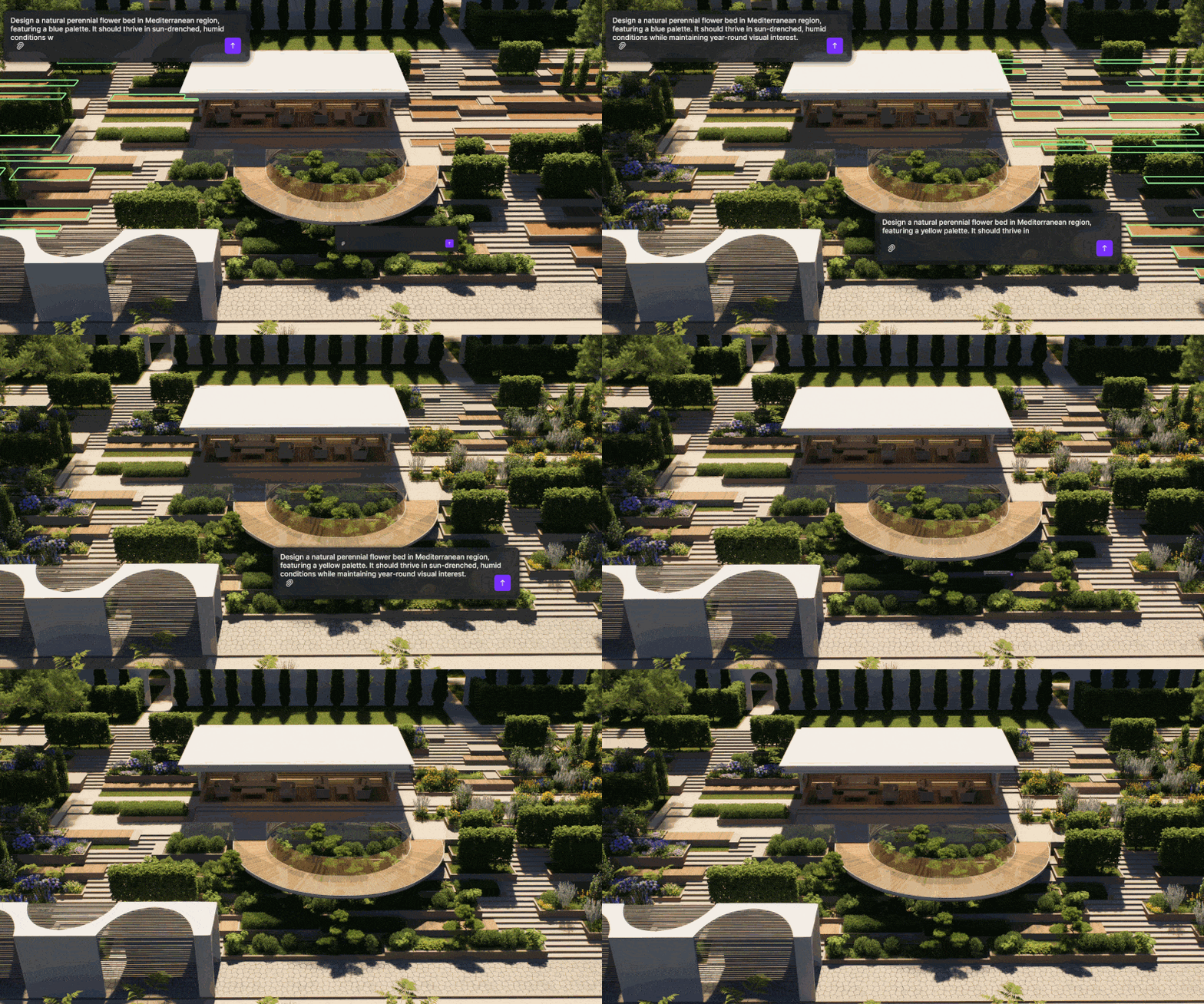
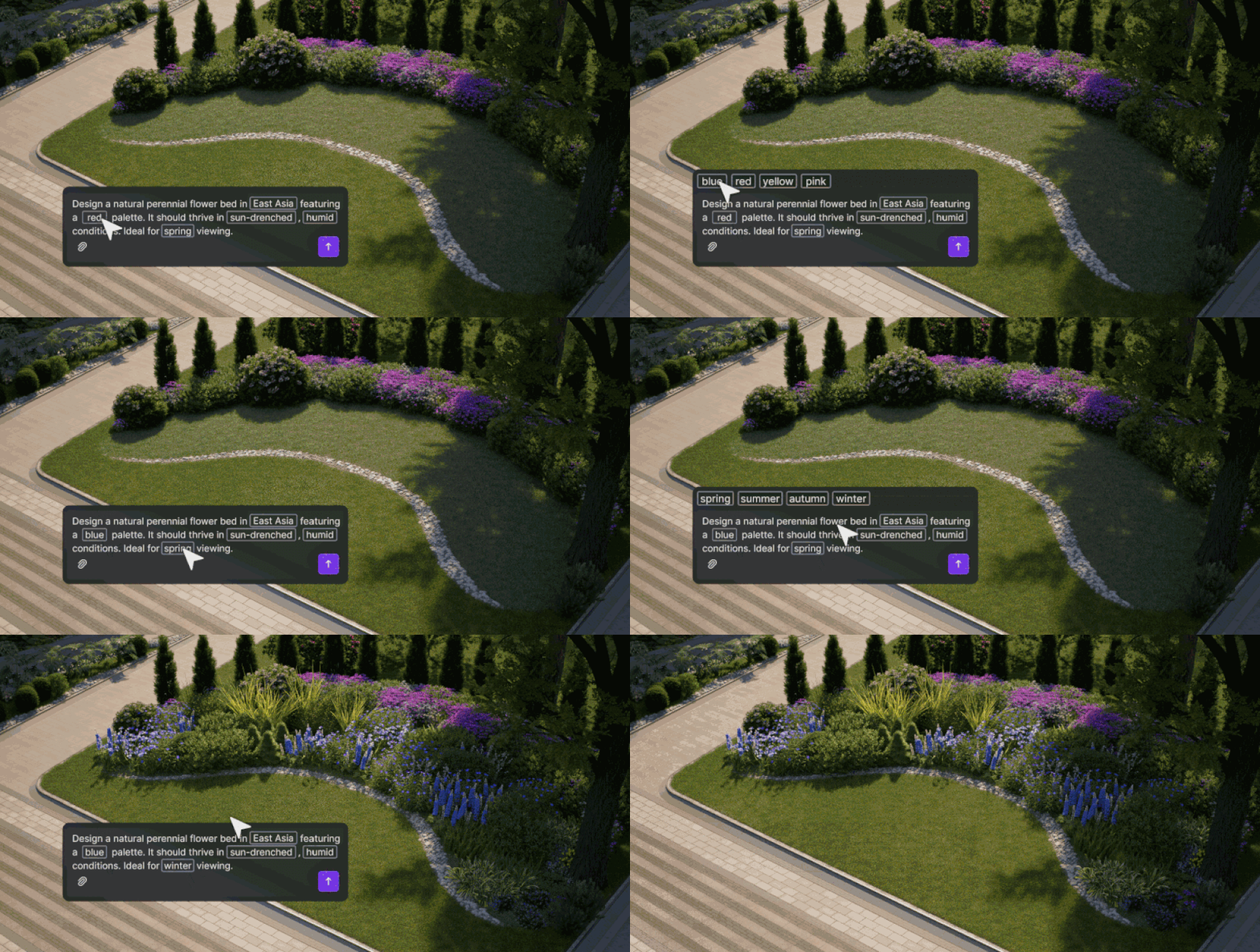
For landscape-heavy projects, the AI Agent's SmartPlanting tool takes this further. Describe your site location and planting style, and it generates an ecologically grounded plant layout automatically — species selected, spacing adjusted, terrain considered. It's worth trying on any exterior scene where planting decisions would otherwise eat up significant time.
4. Lighting & Environment Setup in D5 Render
D5 Render covers all the essential artificial light types — point, spot, strip, rectangular, and disc — giving you precise control over interior and exterior lighting. Rectangular lights work well for broad, even coverage across large spaces; spotlights are better suited for emphasizing specific architectural details. For the overall environment, two main options handle most scenarios:
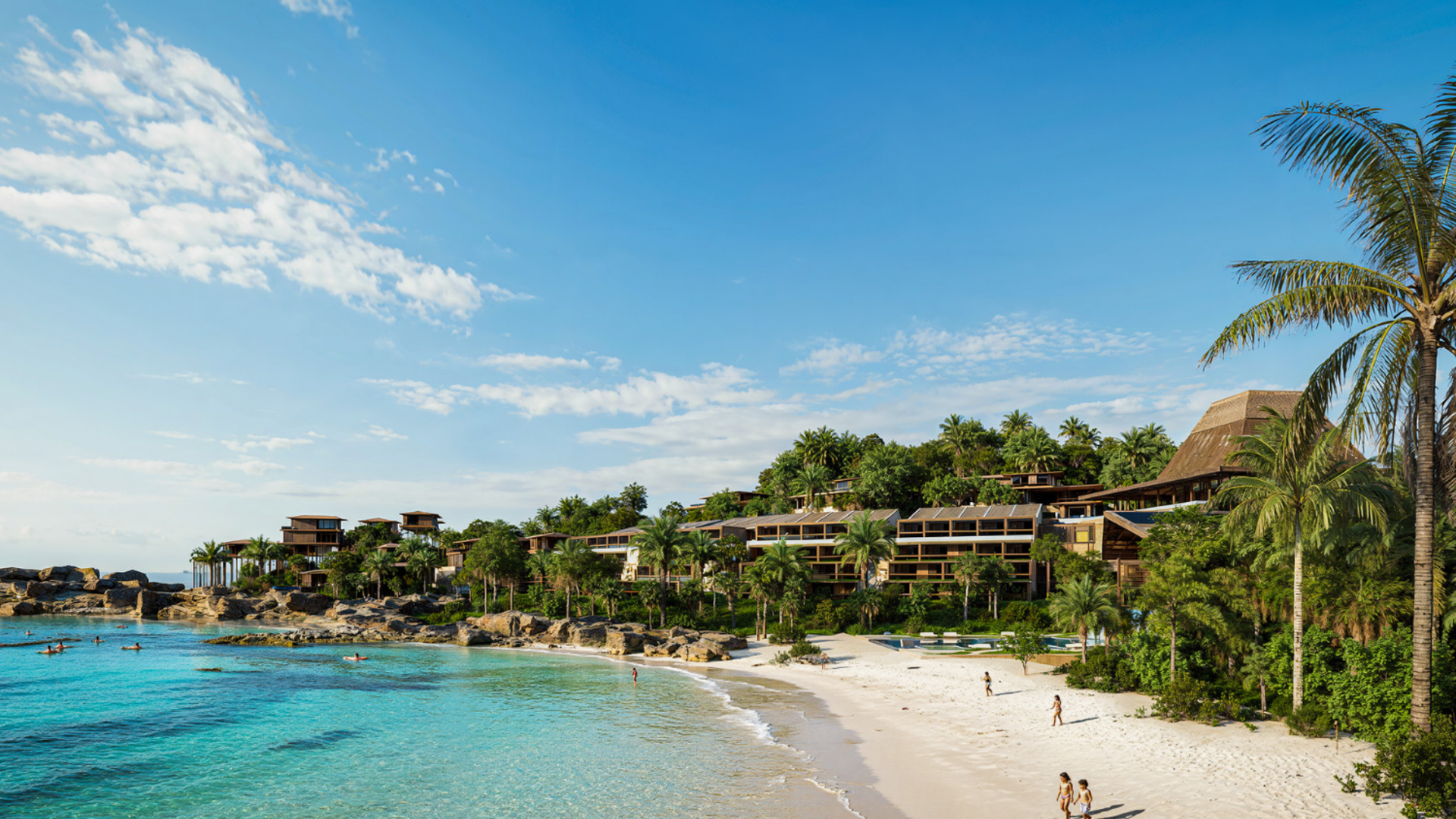
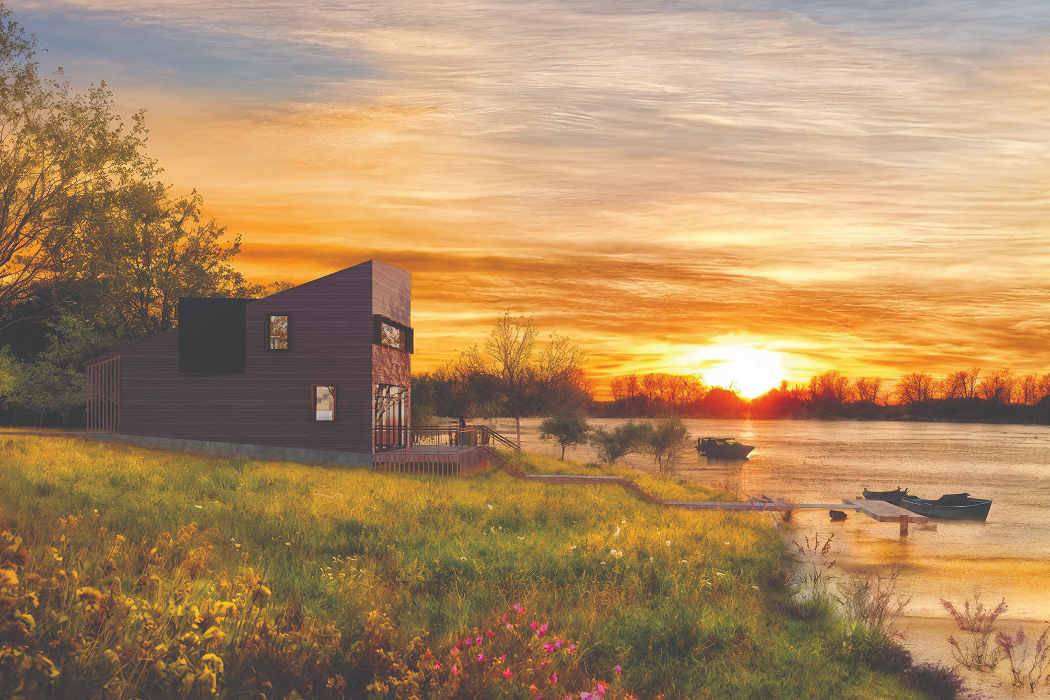
- Geo Sky & Night Mode – Input your project's location, date, and time to simulate accurate sun position and natural light conditions. You can also add volumetric fog for atmospheric depth, or enable precipitation effects for overcast and rainy conditions.
- Custom HDRIs – Load any HDRI from D5's preset library or your own collection to set the tone for the scene quickly.
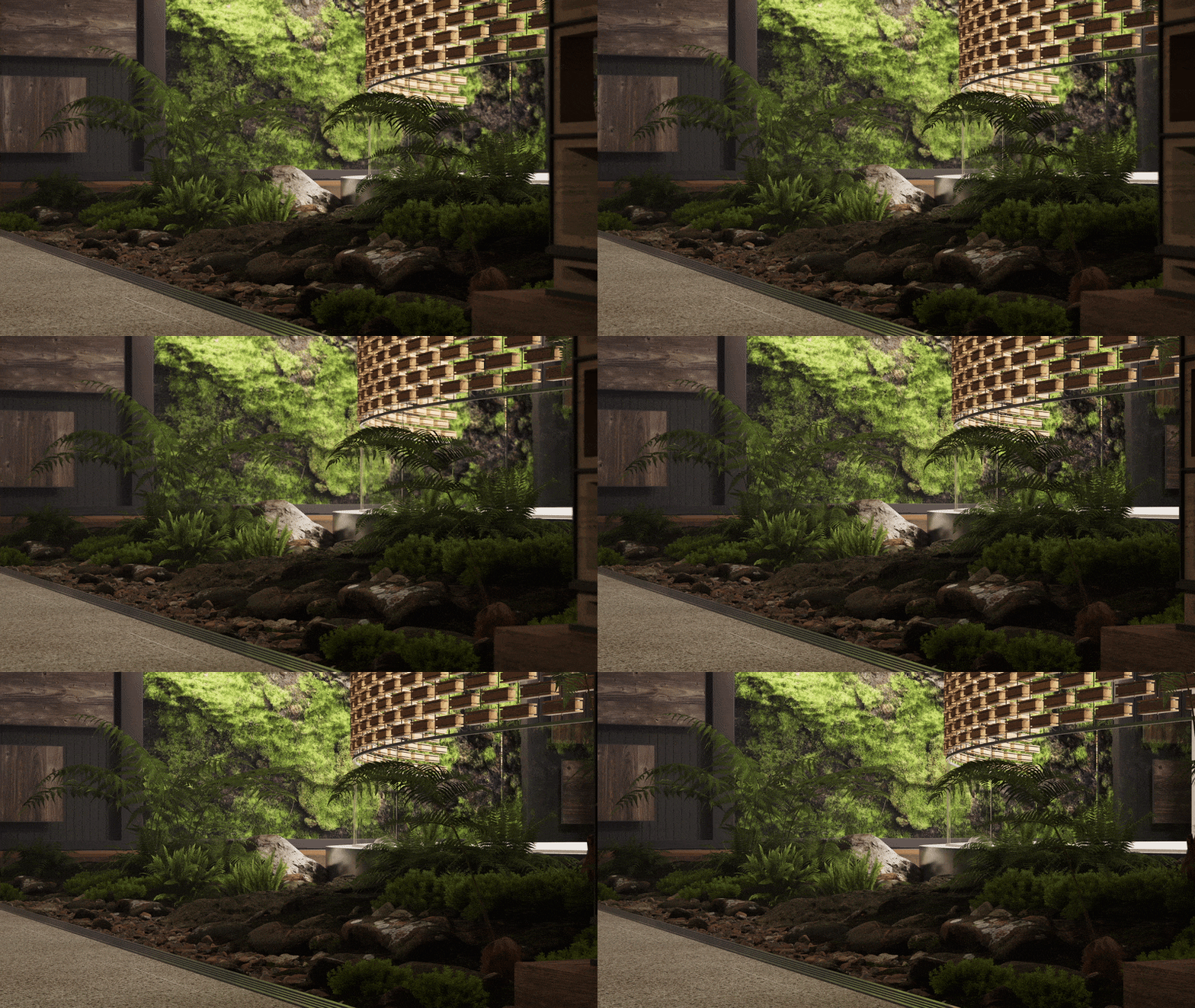
If you're working from a reference image — say, a photo with lighting or mood you want to match — D5 Render's AI Atmosphere Match feature can help. Upload the image, and D5 will generate a matching HDRI and adjust the environment settings to approximate that look. You can save the result as a template to your Studio Cloud for reuse across projects.
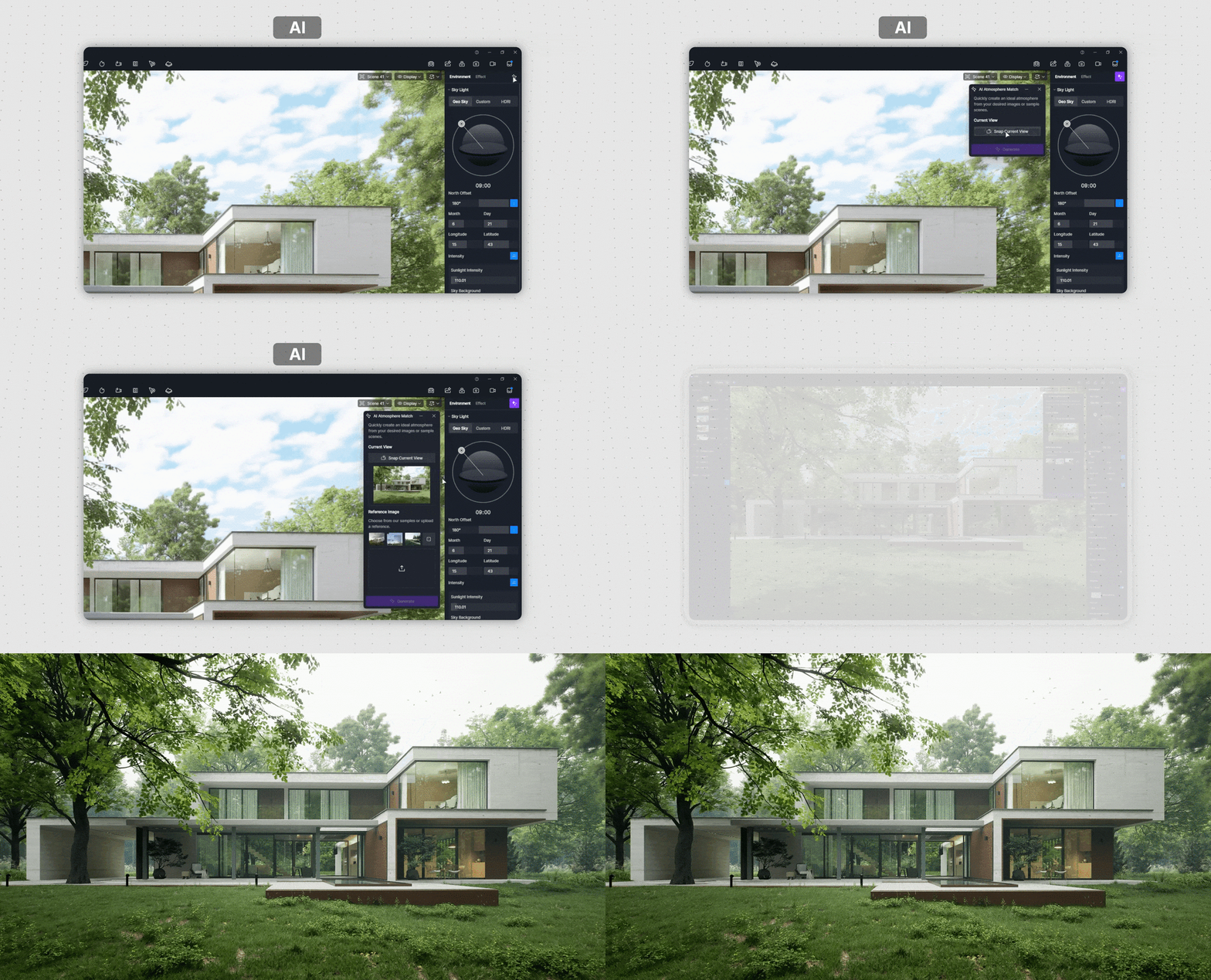
For times when you have a general direction in mind but no reference image, the AI Agent in D5 Render 3.0 includes a new Scene Match tool. Describe the atmosphere you're after, and the AI will configure the environment settings automatically — useful for quickly testing different lighting scenarios without manually adjusting each parameter.
👉 Ditch Manual Setup: D5 Render AI Scene Generation for Archviz
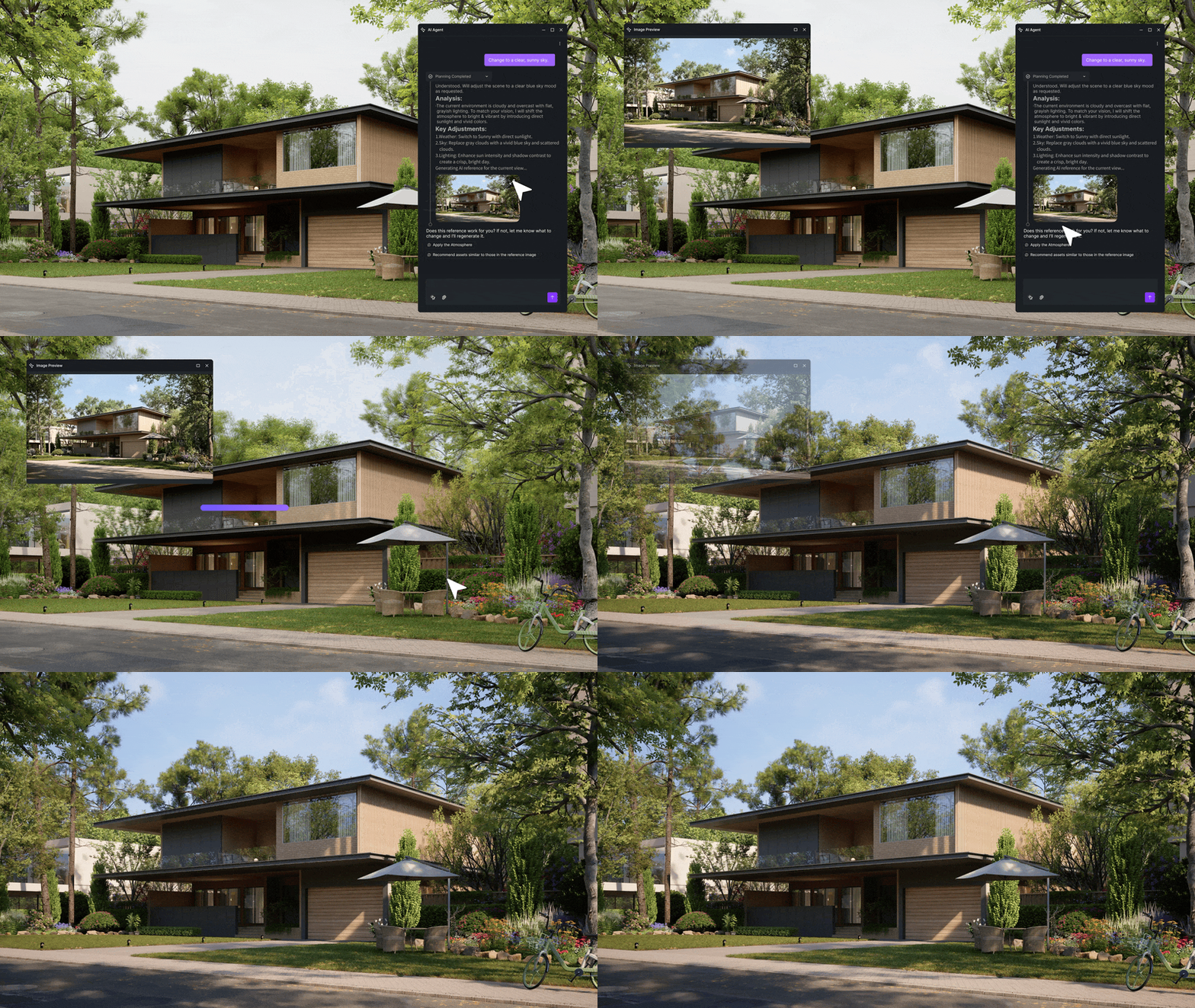
5. AI Post-Processing in D5 Render
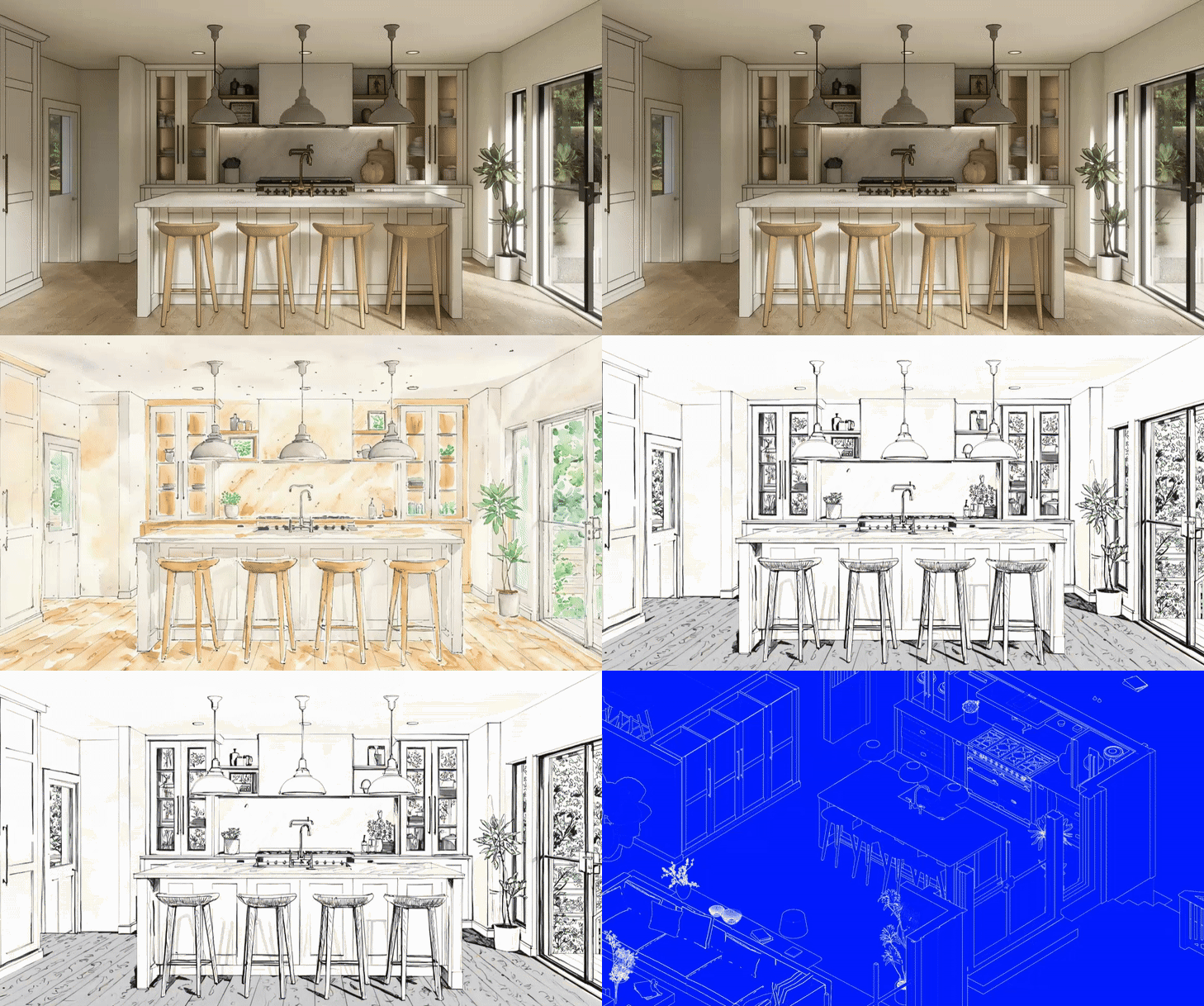
D5 Render includes a built-in post-processing toolset, so most adjustments can be handled without leaving the software. Exposure, shadows, and contrast are all editable natively. You can also enable AO and Outline modes to generate diagrammatic analysis views — handy for presentations alongside photorealistic outputs.
%201.png)
%201.png)
Stylized diagrammatic analysis in D5 Render via integrated AO and Outline modes
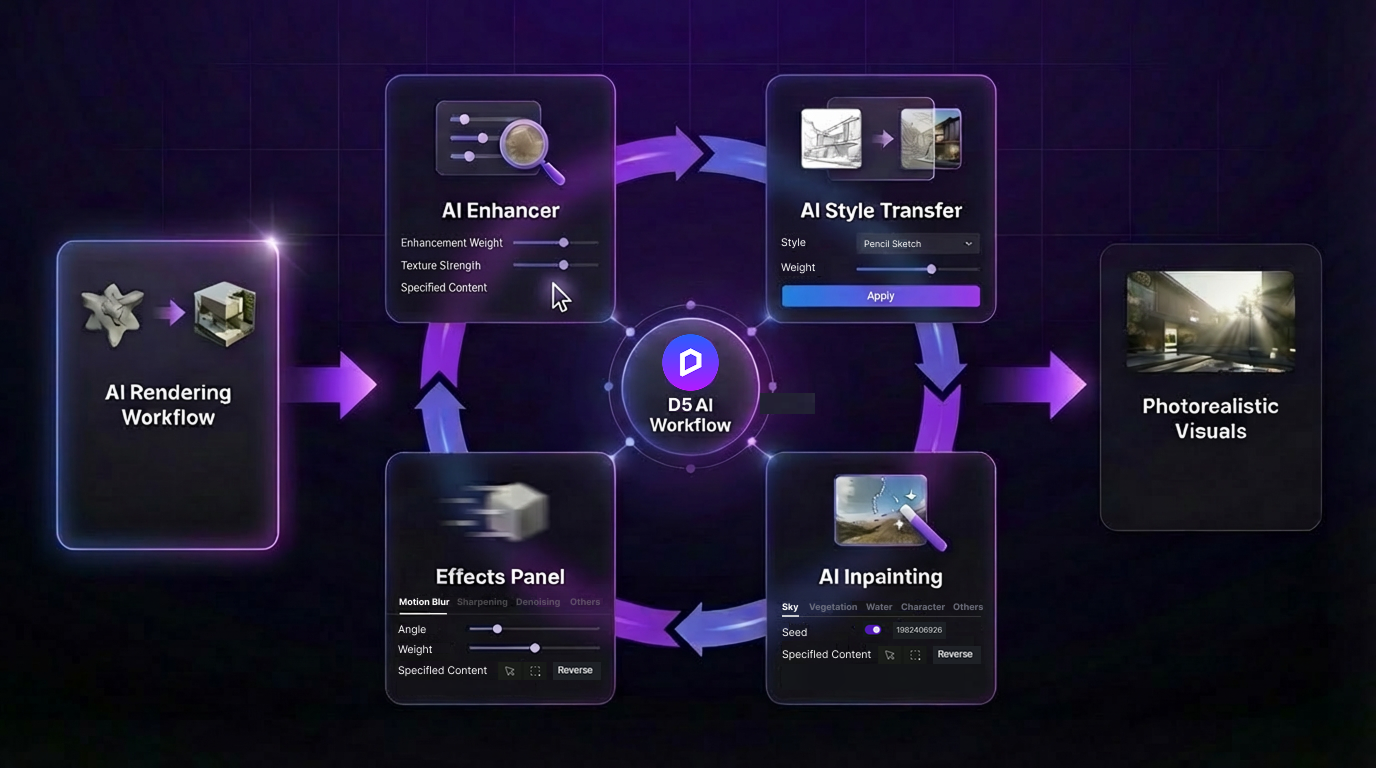
When you're ready to export, go to Image Render mode, set your resolution, and enable the AI Post Channel in the output settings. This unlocks the AI post-processing tools once rendering is complete:
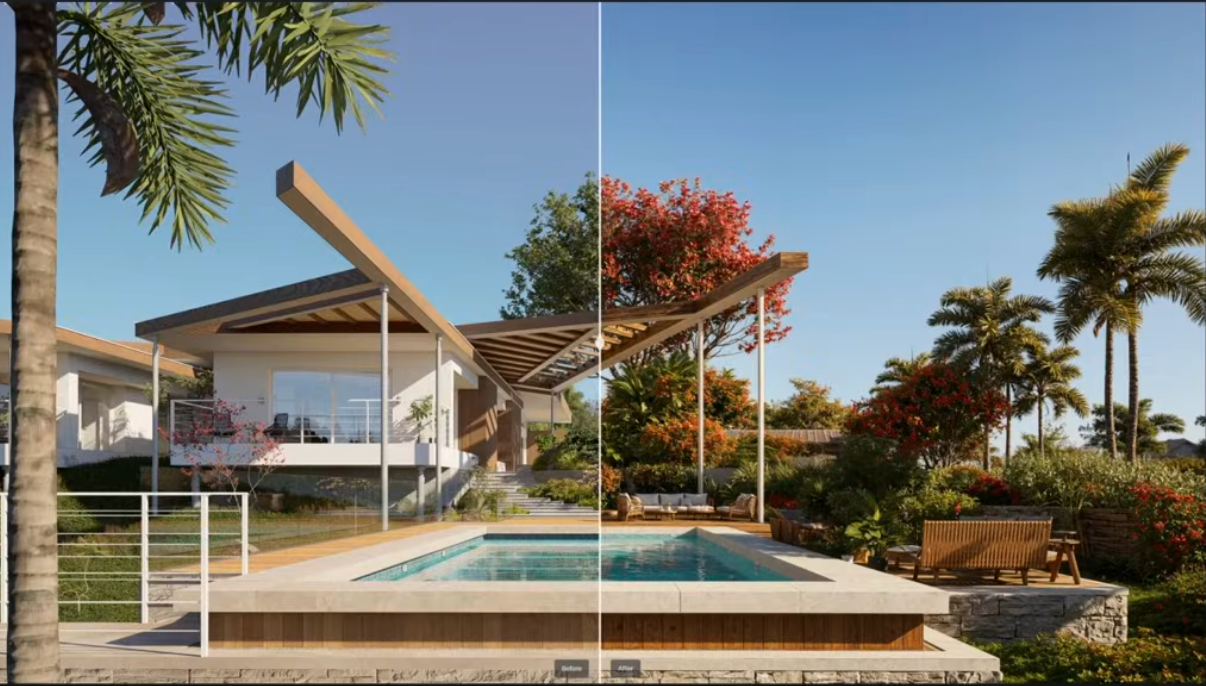
- AI Enhancer – Refines global lighting and fine surface details automatically. A reliable first step for improving overall image quality without manual color grading.
- AI Style Transfer – Applies a different visual style to your finished render. Useful for presenting alternative looks — photorealistic vs. illustrative, or daytime vs. evening — without re-rendering from scratch.

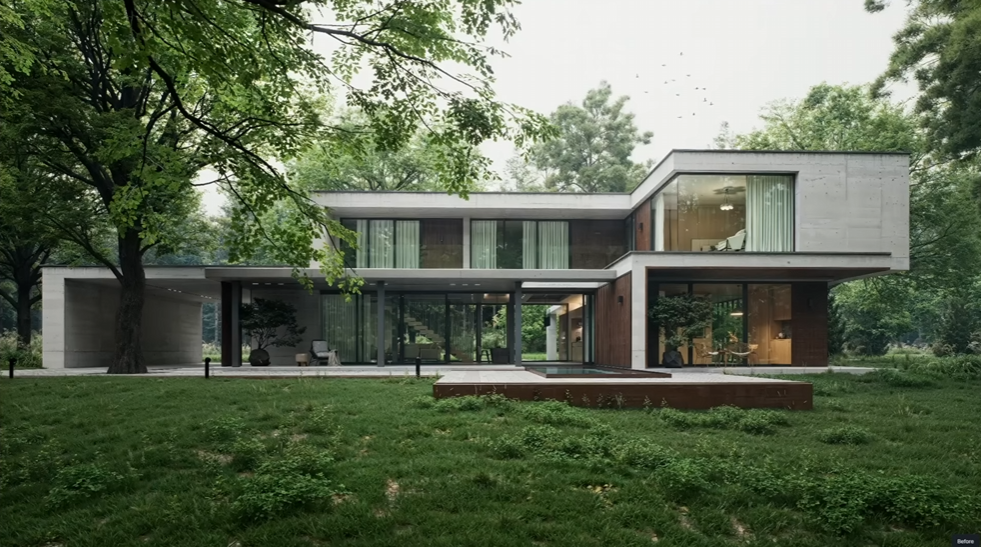
D5 Render AI Style Transfer: Instant aesthetic iterations across a diverse spectrum of visual styles
- AI Inpainting – Lets you edit specific areas selectively: replace the sky, adjust a material, or clean up a zone without affecting the rest of the image.
- Effects Panel – Includes Motion Blur and other adjustments that add movement and cinematic quality to still renders.
👉 Tired of Endless 3D Post Processing? D5 Render Does It in One Click
6. Animation & Virtual Tours in D5 Render
For clients who need more than still images, D5 Render supports both cinematic animation and interactive virtual tours — without requiring a separate tool or complex setup.
- Animation: To create a camera animation, add a new video clip, set your starting keyframe, move to your next camera position, and add a second keyframe. D5 handles the interpolation automatically. You can also use preset camera path templates, or build phasing animations that walk through the construction sequence stage by stage.

- Virtual Tours & XR: For interactive presentations, D5 Render supports Spatial Tours and XR Tours. Set your key camera positions, add hotspots to guide the viewer through the space, and publish directly to D5 Showreel. From there, you can share a link with clients and let them explore the design on their own device — no plugin or app download required on their end.
Ready to Streamline Your Workflow?
Pulling off a high-quality architecture rendering shouldn't mean pulling an all-nighter. With D5 Render's AI-driven tools, real-time lighting, and smart assets, you can wrap up a polished scene in just 15 minutes. It handles the heavy lifting so you can get back to what matters — actually designing.
Want to see how much time you could save on your next project? Head over to the D5 website to download D5 Render for free today, and experience a faster, smarter visualization process.
More Architecture Rendering Tips & Resources >>
Why architecture enterprises choose D5
Best Free Architecture Software for Pro Renders
Explore 10+ AI Features for Architecture Rendering
How Artificial Intelligence is Shaping Modern Architecture
Victor B. Ortiz Architecture: Advanced Green Architectural Design with D5 Render
FAQs: Architecture Rendering with D5 Render



.png)
.png)


.jpg)

.png)
1%20(2).png)





%20(1).png)
.png)
.png)