
Let’s be honest. We’ve all been there—the client just signed off on the massing. The camera’s locked. Then, almost as an afterthought: “Can we try a midnight blue stone for the lobby floor? And make it sunset instead of noon? And can you keep the exact same view?”
If your workflow still runs through a generic text-to-image AI generator, that request sends you back into the same loop: rewrite the prompt, regenerate, and hope the new stone doesn’t warp the geometry or throw the lighting into chaos. It feels less like design and more like rolling dice. In architectural visualization, the whole point of AI should be to work inside your scene, not paint a flat picture on top of it. That’s the core idea behind D5.
Key Takeaways on Scene-Native AI Control
- Generic AI tools output flat images—geometry, lighting, and materials aren’t editable within your project file.
- D5’s scene-native AI tools work within your synced scene—the resulting settings remain tied to your environment, lighting, materials, and assets.
- Scene-native AI control means one fast AI starting point, then fine-tune in the Environment panel or Material Inspector—no endless prompt rewrites.
- Treat AI as a creative partner: let it get you most of the way, then tweak Environment, Effects, and materials before rendering. You own the final polish.

The Generic AI Gap Architects Keep Hitting
Prompt-first image generators such as Midjourney are great for exploratory concept art. But the moment you need editability—not just a pretty picture—they start to slow you down. The problem is simple: their outputs are flat pixels, not scenes.
- Outputs are images, not projects. A disc light doesn’t exist inside a JPEG image, and Roughness on one wall panel isn’t something you dial in on a flat still. When the plan changes, you don’t edit—you re-prompt from scratch.
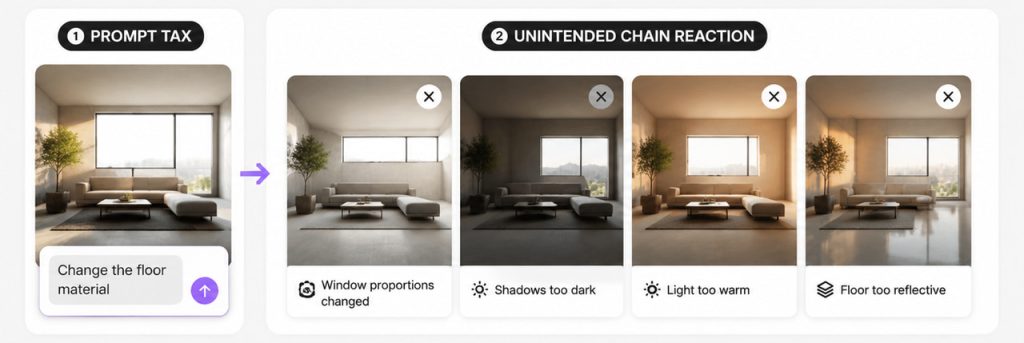
- The prompt tax adds up. Change the floor material and you might lose the window proportions you spent forty minutes stabilizing. Every tweak—darker shadows, warmer light, a more reflective floor—can mean a full re-roll. One wrong word and the style can shift completely.
- Spatial accuracy can drift. Camera height, room depth, and shadow accuracy aren’t guaranteed to match your scene. Fine for concept art. Risky when you need sign-off on a specific lobby, unit type, or lighting condition.
This isn’t about which tool makes “better” images. It’s about which tool respects that architectural visualization depends on spatial decisions. You need an editable scene that you can verify, revise, and re-render—not just a final image.
The D5 Solution: AI That Works Inside Your D5 Workflow
D5‘s approach is straightforward: import or LiveSync your geometry, set up lighting with D5’s real-time global illumination (GI), apply physically based rendering (PBR) materials, and then the AI tools become available inside that scene—not a filter slapped on top of it, but real parameters you can tweak.
That’s the key difference—you’re not handing off the scene. You still own every light, every surface, every shadow. AI simply accelerates the first pass; you retain control of the scene.
After the AI pass, the same full toolkit is still there: built-in light types, Environment presets, Geo Sky, displacement materials, weather tools and more—whatever the shot needs. The render engine maintains physical consistency, and you can manually fine-tune the atmosphere if the match is close but not quite right.
Where Scene-Native AI Control Lives in D5 Workflow
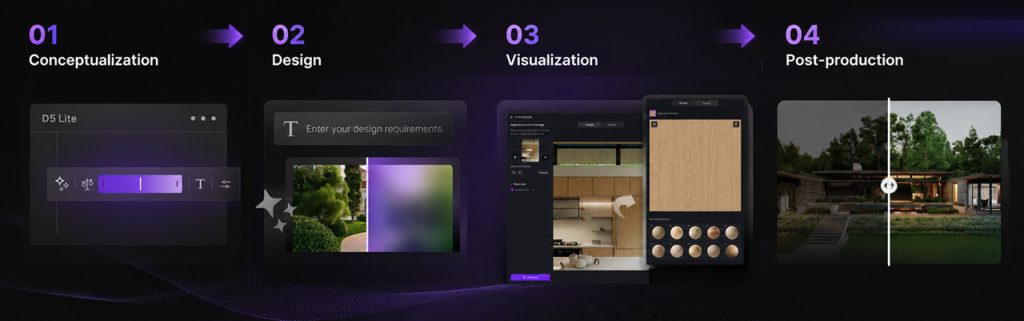
Think of it in layers—from concept to final delivery—with usable AI at each stage, rather than a black box at the end.
① Concept Design Exploration
When you’re still figuring out form, D5 Lite includes an AI-powered concept generation workflow for pushing form and design direction. It offers scene categories, Style Presets, and a Structure Weight slider—so you can balance creative freedom against structural consistency. Describe a scene in words or upload a reference. A few quick generations here can save you from modeling dead ends.
② Atmosphere and Environment
AI Atmosphere Match works from a reference photo—or from an image you generated earlier in D5 Lite. AI Scene Match is your go-to for text-driven exploration and live client reviews. Let your input type decide which to open. This gives you a faster starting point for mood and environment, which you can then tweak the way you always have—through sliders, lights, and sky settings, all still under your control.
③ Materials
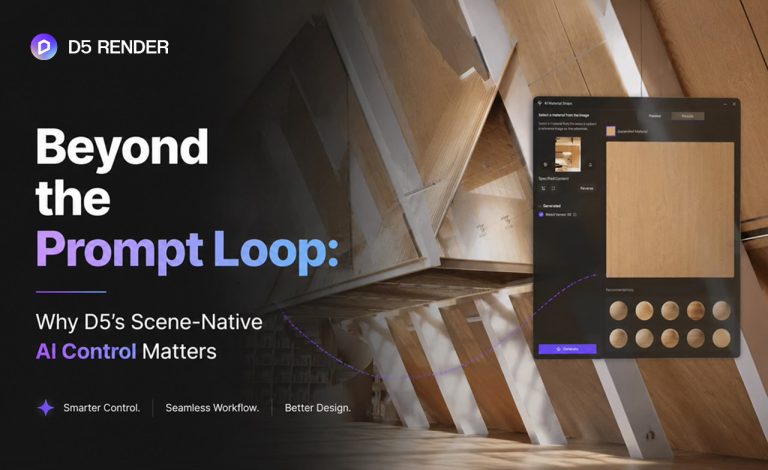
Upload a reference photo of the material you want, and D5’s AI PBR Material Snap turns it into an editable PBR material you can assign straight to a surface. Roughness, UV, and tiling controls remain editable in the Material Inspector. Other built-in AI material tools—AI Material Match, AI-generated Texture Maps, AI Ultra HD Texture, AI Make Seamless—let you refine materials further while keeping everything within D5’s material workflow, instead of sending you on a Photoshop round-trip.
👉 Related read: Free ChatGPT Image Generator vs. D5 Render AI
④ Assets and Context
When neither the built-in Asset Library nor D5 Works has what you need, D5 Render’s AI Model Generation lets you create a custom 3D asset from text or an image, then place it in the scene. Scale it, relight it, or swap it out. AI Asset Recommendation helps you find relevant entourage assets through text or image references. SmartPlanting (in the AI Agent) generates site-specific planting plans and supports Auto Scatter for further refinement.
Across all of these, the pattern is the same: AI proposes; you review and tweak. That’s scene-native AI control in practice.
Scene-Native AI Control in Two Real-World Scenarios
Scenario A: Atmosphere Without Prompt Roulette
Here is a classic headache: a client sends a reference still from a hotel they like. With a prompt-first image generator, you may spend significant time iterating on prompts, hoping to match that mood from your actual camera angle. Now you open AI Atmosphere Match in D5 Render, let it populate sky type, weather, and light temperature from the reference, then nudge sliders and add a touch of manual lighting for softer shadows. Same geometry. Same camera. One edit session.
In a Surviving Architecture video, the creator faced a similar issue on a desert house project. AI-generated renders kept reading too cool and flat for the climate—harsh reflections, lighting that didn’t match the site. Instead of relying on more prompts, she used D5 Render’s AI Atmosphere Match with a desert golden-hour reference photo. Within seconds, the sky, weather, and light temperature snapped into place. A few slider tweaks later, the render matched the client’s intent—with every detail of the geometry intact. As she put it, “Now it feels like a desert.” The key point: the scene stayed editable, without another round of re-prompting.
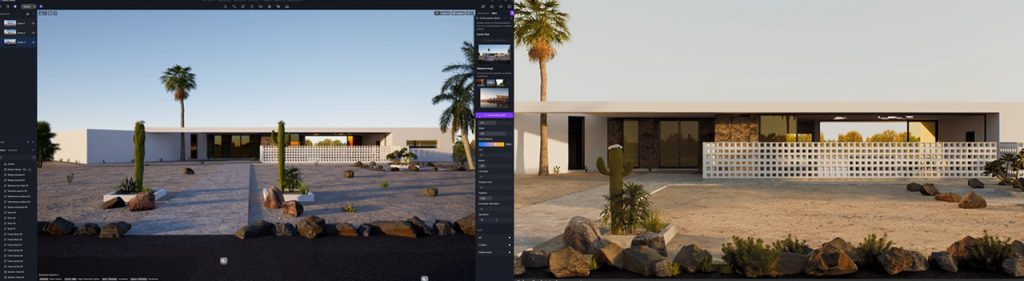
And it’s not just for solo creators. At global architecture firm KPF, atmosphere drafts used to take a week per round. After adopting AI Atmosphere Match, the team cut multi-draft production from a week to a single afternoon—reducing iteration time by up to 80% in some cases. The value is not just a better-looking output; it’s an editable environment setup that the team can revisit and refine.
Scenario B: Materials Without Leaving the PBR Workflow
Your client sends a photo of a rare Italian marble. With a generic tool, you’re basically throwing the scene and reference into a prompt and hoping the AI doesn’t make a mess—like getting the reflections wrong or applying the marble inconsistently across surfaces.
But with D5 Render’s AI PBR Material Snap, you upload the photo, generate the PBR set, and apply it to the surface. If the tiling direction looks off, open the Material Inspector, adjust UV, and tweak Roughness. D5 Render updates the result in real time—an editable material workflow, not another flat image you have to re-prompt. Client changes their mind? Switch to matte wood without rebuilding the shot.
A Practical Loop for Scene-Native AI Control in D5
When scene-native AI is the goal, this sequence works well across projects:
- Block out massing in D5 Lite—explore form, validate direction with the built-in AI generator.
- Sync your model to D5 Render so geometry, camera, and scale are fixed before any AI pass.
- Pick your atmosphere—reference still? AI Atmosphere Match. Words only or a live review? AI Scene Match in the AI Agent.
- Apply and refine—adjust Environment and Effects, then tune the lights manually if a certain zone still reads flat.
- Handle surfaces—run AI PBR Material Snap (or other built-in AI material tools) on key materials; finish in the Material Inspector.
- Render from the same project—no exporting screenshots, rebuilding materials, or recreating the atmosphere in external apps.
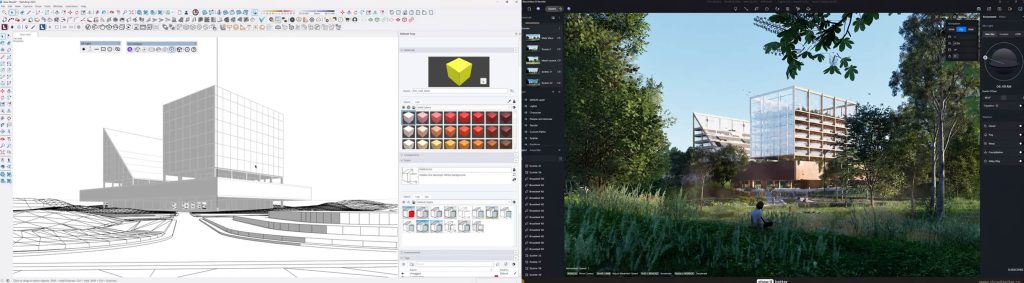
On the YouTube channel Show It Better, Steven brought a school project from SketchUp into D5 and stayed in one file from start to finish. AI handled the first pass—surfaces, planting, sky. He walked the model, tuned sun and fog, adjusted materials where needed. The payoff? Not a one-off render, but a scene he could keep editing and re-rendering. No re-prompting, no round-tripping.
When Generic AI Tools Still Fit
That doesn’t mean generic generators have no place in your workflow. They excel at mood boards, pure concept art, and non-spatial marketing frames. Before you’ve started modeling, or when you need a direction that convinces a client to greenlight the design, a short prompt session can quickly rule out dead ends.
But the line is crossed when spatial design decisions are at stake. Model exploration, lighting studies, material approvals, client sign-offs on a specific room—these demand scene-native control.
The Bottom Line: AI Control Without the Loop
Scene-native AI control in D5 Render is not about prettier stills—it is about keeping geometry, camera, lighting, and materials inside one editable project. AI gets you close; the Environment panel, lights, and Material Inspector get you to client sign-off.
One of the clearest ways to see the difference is to put a project through this workflow yourself. D5 is free to download. No credit card required. See for yourself how it feels to have an AI partner that doesn’t fight your model—it works inside it.
Want more? Read our D5 AI Tips series for practical workflow ideas
From AI 3D Model Generator to D5 Render: Pro Tips for Stunning Visuals
D5 Render’s AI Texture Generator: Speed + Realism Boost
What Is an AI Agent? How D5 Render Automates Landscape Design?
AI Enhancer for Architects: Elevating Render Quality with AI-Powered Precision
Architectural Rendering Styles Made Easy with AI Style Transfer
Need Free PBR Textures? Try AI PBR Material Snap in D5!
FAQ: D5’s AI Control in Architectural Visualization Workflows
It means D5’s AI workflow changes scene settings—environment, lights, PBR materials, assets—inside your live project, not on a flat image. You get a fast first pass from the atmosphere tools, then edit with the Material Inspector and Environment panel you already use. It’s geared toward architects who need to revise, not re-roll.
Generic AI tools (e.g., Midjourney) generate a flat image from a prompt. D5’s built-in AI modifies scene parameters—environment, materials, lights—within your existing, real-time 3D scene. So when you need to adjust a disc light or tweak Roughness after the AI pass, you just do it—no need to rewrite the prompt and hope the layout stays intact. Your geometry, camera, lighting, and materials remain in the project file.
Use D5 Render‘s AI Atmosphere Match when you have a reference image; you can access it from the Resource List in the right sidebar. Use AI Scene Match when you only have a text brief or need to explore mood in a live review from your current camera and geometry—it’s inside the AI Agent panel. Let the type of input you have decide which tool to reach for.
Absolutely. D5 Render’s AI PBR Material Snap generates PBR maps you assign to surfaces, and then Roughness, Normal, UV, and template controls all remain in the Material Inspector. AI material tools supply the first pass; scene-native control comes from manual refinement under D5’s real-time GI.
Yes. D5 Render’s AI Atmosphere Match is a strong first pass—a baseline, not a lock. You can continue to use D5 Render’s Environment sliders and light controls to fine-tune the result—intensity, fog, sun direction—before final rendering. AI saves setup time but keeps decision-making in your hands.
Very much so. On many residential, interior, and boutique commercial jobs, one generalist can LiveSync the model, run an atmosphere AI pass, refine lights and materials, and render—no separate AI specialist or external image pipeline. Everything stays in the same D5 project file your team already uses.
No—and that’s not the goal. D5 AI atmosphere tools speed up the first pass and give you a useful baseline—but you still need to place and tune lights manually, and use Geo Sky or HDRI when the scene requires it. AI narrows the gap from “blank canvas” to “nearly there”; you shouldn’t stop there. Use it alongside D5 Render’s full toolset to refine the result for your project.
 English
 Español
 Français
 한국어
한국어 日本語
日本語