
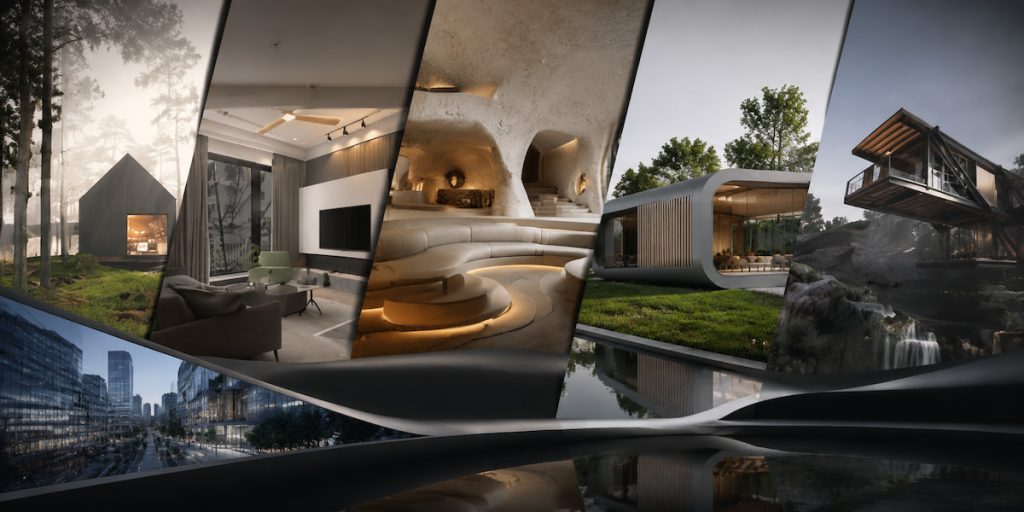
In ArchViz (architectural visualization), achieving photorealism often falls apart in the same places—light that feels pasted on, materials that read flat, and a sky that fights the interior.
D5 Scene Express ships finished .drs render templates—lighting, materials, and sky already dialed in—so you can study how a professional artist balanced each layer before borrowing what works for your project.
Key Takeaways on D5 Scene Express Render Templates
- D5 Scene Express render templates serve as finished lessons in light, materials, cameras, and grade—not just a hero shot to copy or a one-click render.
- Changing one environment or material slider at a time shows what actually moves reflections, fill, and mood in real time.
- Reading camera framing and Inspector values together is more effective than random tweaking when you're learning from any render template.
- Local .d5a assets, D5 Studio presets, and HDRIs/LUTs saved from downloads can be built into a kit you reuse on later ArchViz jobs.

What Are D5 Scene Express Render Templates?
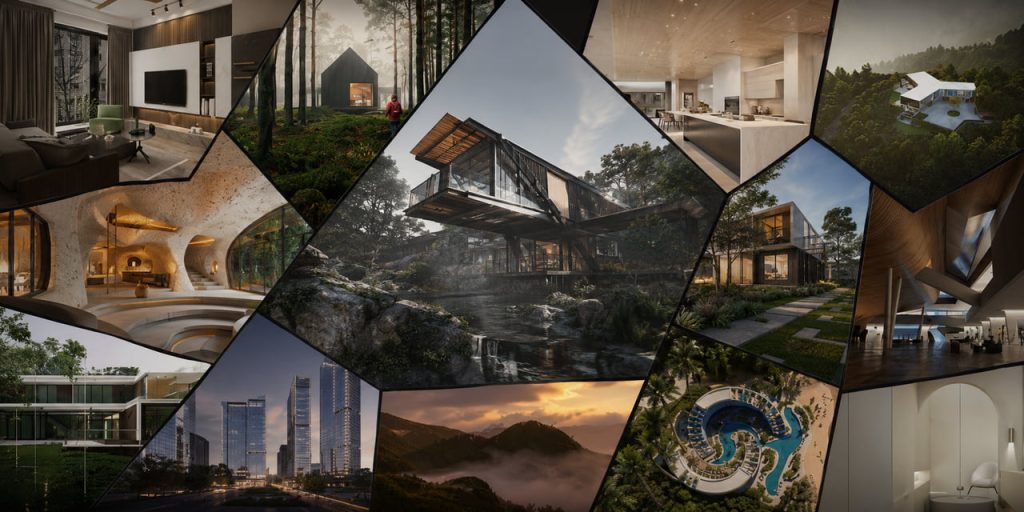
D5 Scene Express is a community-built library of free render templates—high-quality .drs scene files created by users and the D5 team. These scenes range from cozy interiors to lush landscapes, exhibition halls, and resort settings.
Each scene comes with the core setup already configured:
- Lighting tuned for the scene—sunlight carefully aimed, artificial lights with believable color temperatures, HDRI skies matched to the mood.
- Materials that behave like the real thing—wood, concrete, glass, fabric—with PBR settings already tuned for roughness, reflections, and displacement where it matters.
- Cameras that are already framed with deliberate focal length and depth of field—so you can see why the hero shot works.
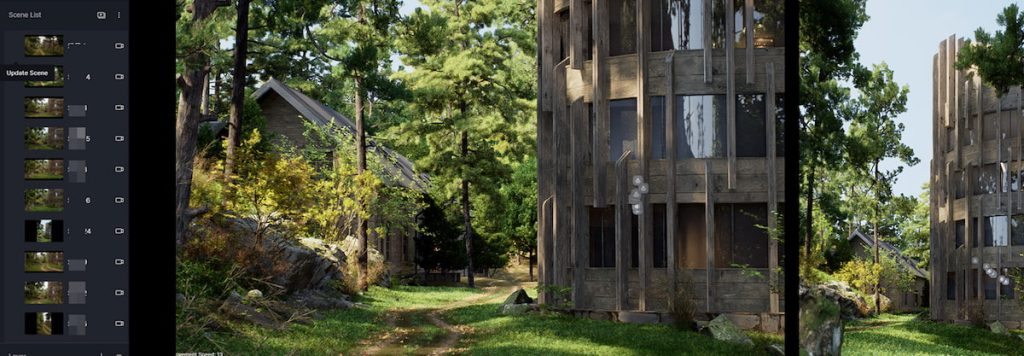
You can get the Scene Express render templates directly from D5's Content Hub. Download the scene package, unzip it, and open the .drs file from the extracted folder in D5 Render. Keep the folder intact—the project data travels with the file. Once you open it, you'll have lighting, materials, cameras, and post-processing already in place.
How to Learn from Scene Express Render Templates
Treat each render template download as a case study: start from the default hero camera, then trace how the artist built the look in the Environment panel and Inspector.
- Study the camera angle and composition. Notice where the focal point sits, how leading lines read, which focal length keeps the main mass in frame. If you move the view yourself, you'll feel how much the space changes.
- Read the lighting layout. From the Environment panel, compare Geo Sky, a Custom setup, or an HDRI—note sun direction, sunlight intensity, and sky parameters. Many artists toggle supplemental artificial lights one at a time to see what each layer adds to the shadows.
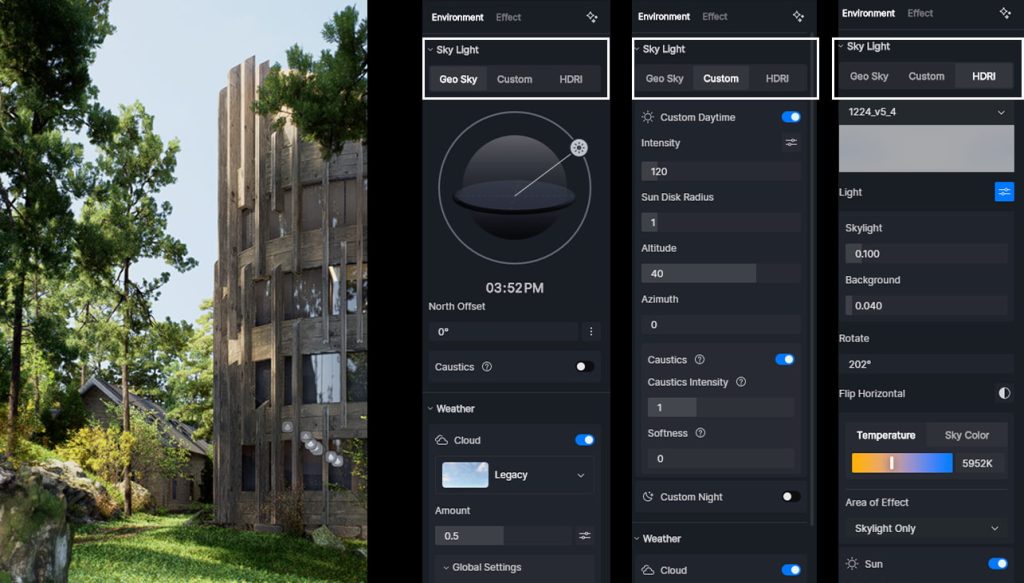
- Take apart tricky materials. Single out the surfaces that usually give you trouble—semi-transparent fabrics, brushed metals, or frosted glass. In the Inspector, compare Base Color, Roughness, and Normal Strength. For example, brushed metal typically sits at 0.3–0.5 roughness. The point isn't memorizing numbers—it's spotting the pattern.
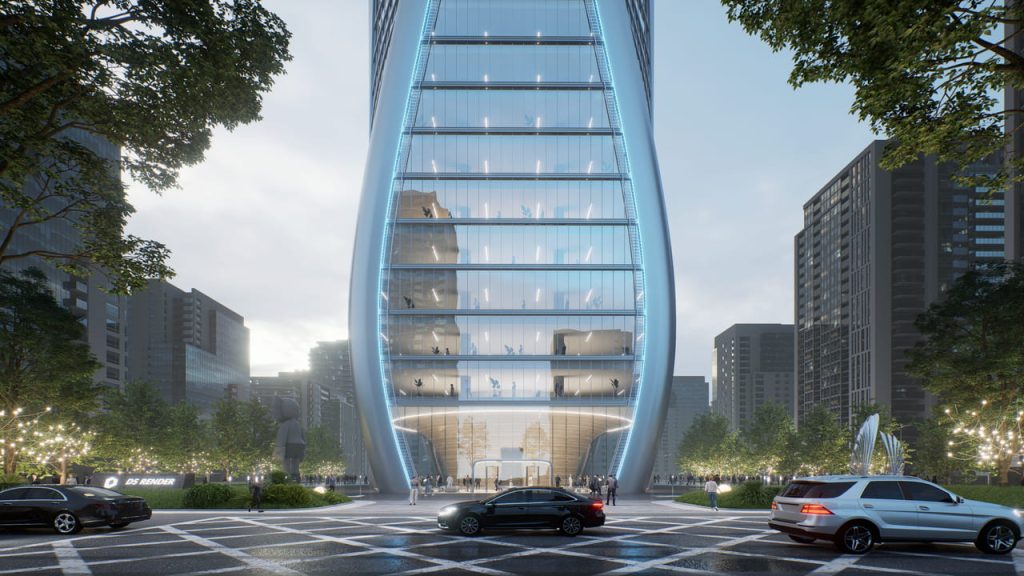
- Experiment in the scene. Change one parameter at a time. For example, bump up the roughness on a floor, shift the HDRI temperature, or crank the sunlight intensity. Because D5 Render's scene viewport updates in real time, you can see how these tweaks impact reflections and alter the scene in seconds.
Turn D5 Scene Express Render Templates into Your Personal Toolkit
After you've picked apart a scene, save the pieces you'll actually reuse: materials, models, atmosphere, and effects. Turn one-off downloads into a growing library of reusable presets.
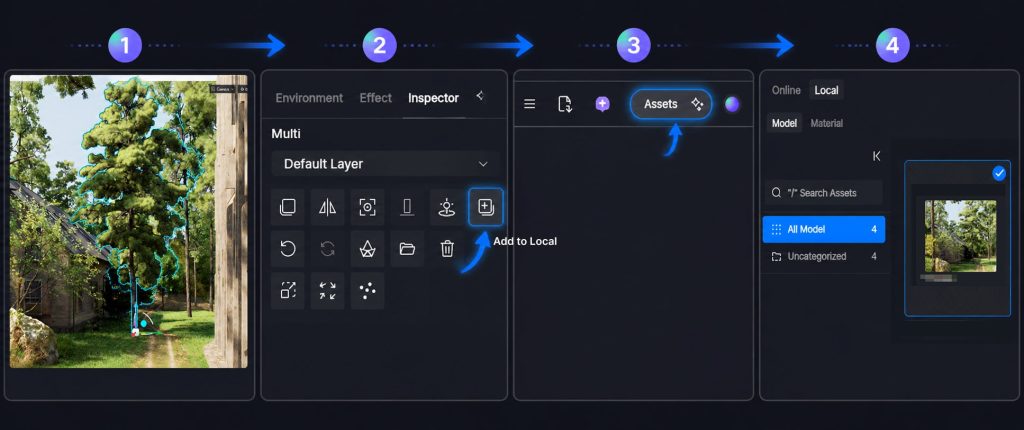
1. Build Your Custom Asset Library
Pull assets from a Scene Express file into Local when something matches your look—furniture, entourage, or a material swatch. Select the object, choose "Add to Local" in the Inspector, and D5 converts it to native .d5a format with all PBR material settings intact. Those items appear under the Local tab, ready to drag into future projects—no remodeling or re‑importing needed.
2. Save a Personal Preset in D5 Studio
Beyond individual models, you can preserve a scene's lighting environment and post-processing as a reusable template through D5 Studio. Suppose you find a moody cinematic interior setup in a Scene Express scene example that matches your style. D5 Studio lets you save those global settings—environment and effects—and reuse them on future projects.
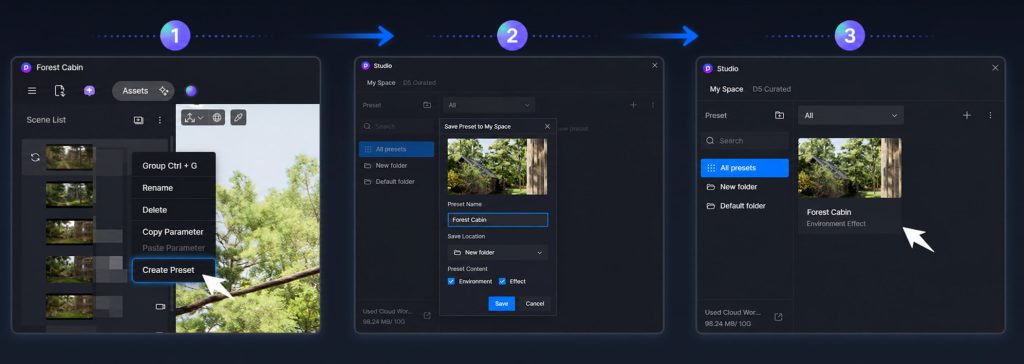
Just right-click the desired camera view in the Scene List and choose "Create Preset." Name it and decide what to include: Environment (sun, HDRI, artificial lights), Effects (bloom, vignette, color grading, LUTs), or both.
3. Save High-Quality HDRI Maps and LUT Presets
Most of that "photoreal" feel comes down to lighting and color grade—D5 Scene Express files often include high-quality custom HDRI skies and LUTs you can save to your own folders in a few clicks.
- To save an HDRI: In the Environment panel, use the folder icon next to the current HDRI to add it to your custom library for one-click access in future projects.
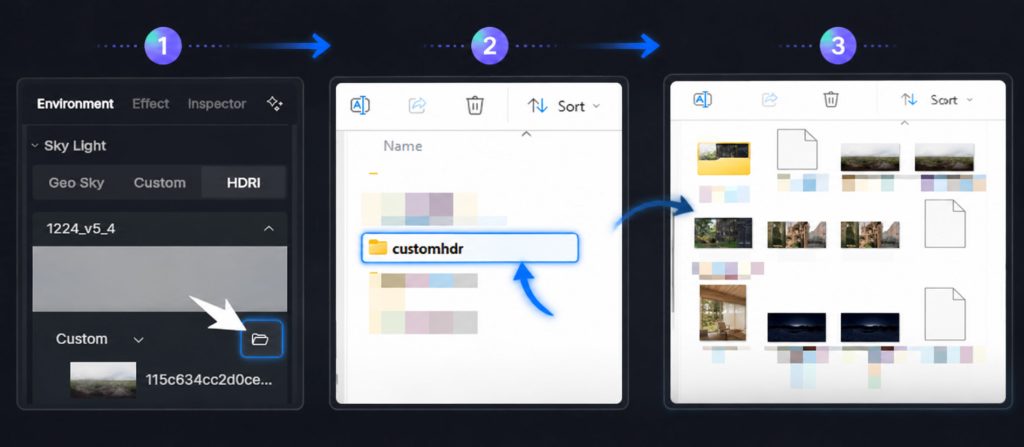
- To save a LUT: In the Effects panel, open the LUT section, choose the preset from the Apply section, then click the folder icon to save it.
Then, next time you start a scene, just click "+Custom HDR" or "+Custom LUT" and you're set—no more digging through folders or external drives. Your go-to HDRI skies and color grades will live directly inside D5.
Scene Express Spotlight: Render Template Examples
1. The Modern Woodland Villa
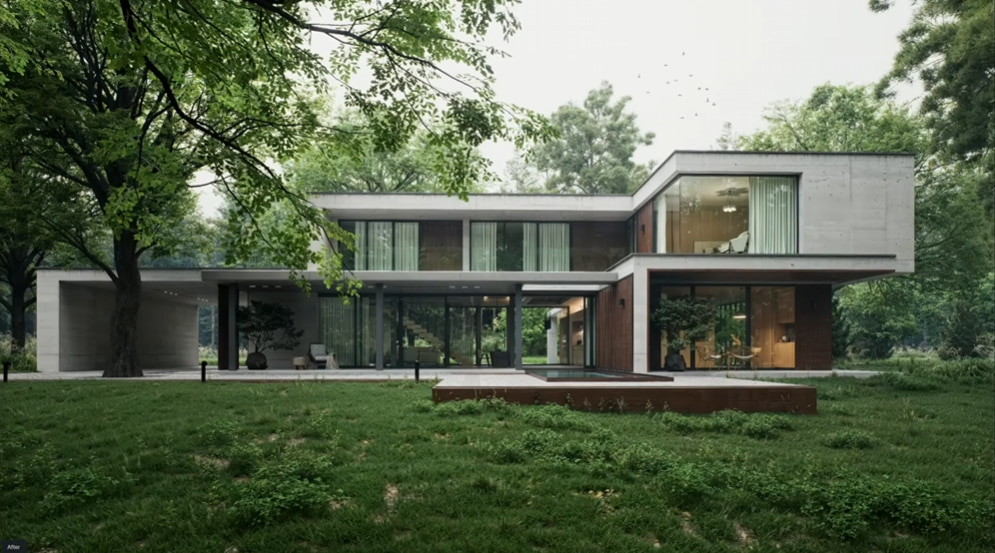
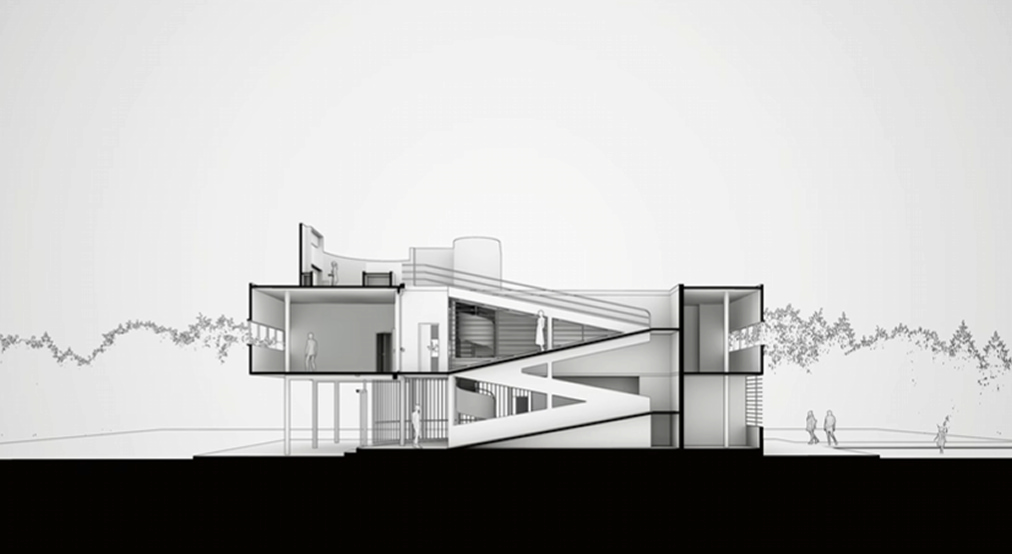
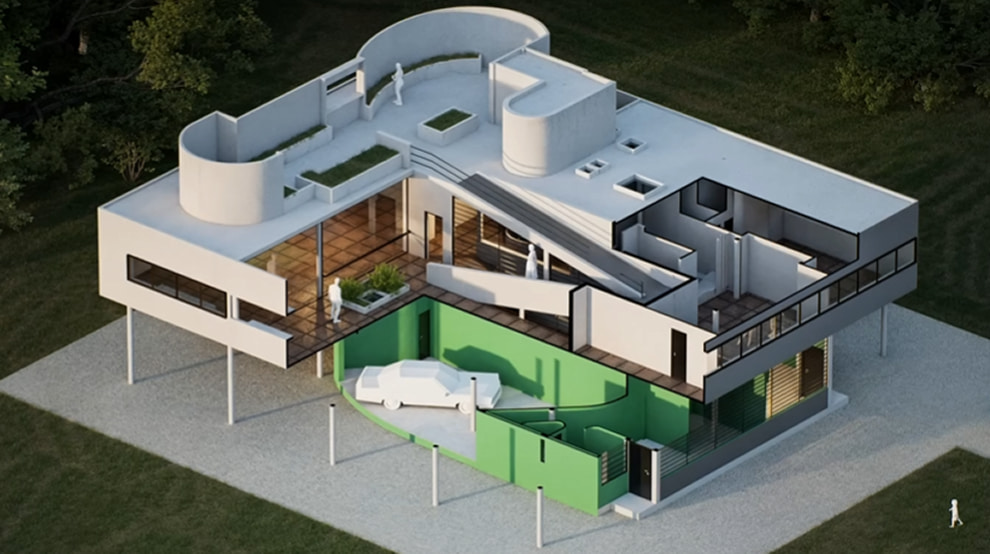
Nestled in a dense forest, this modern villa blends raw concrete with warm timber. Perfect for studying how dappled sunlight interacts with expansive glass panels without washing out interior details. It also includes axonometric and section views—handy if you want to see how interior and exterior lighting are split in one file. The Environment panel is a good place to see how the artist balanced the glass with the forest light.
2. The Courtyard Residential Complex
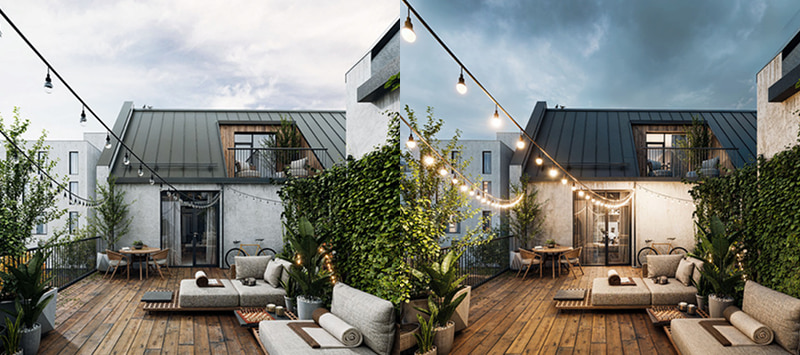
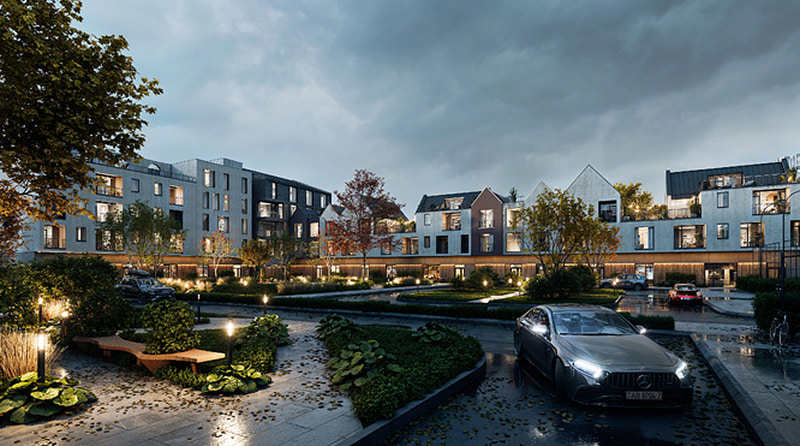
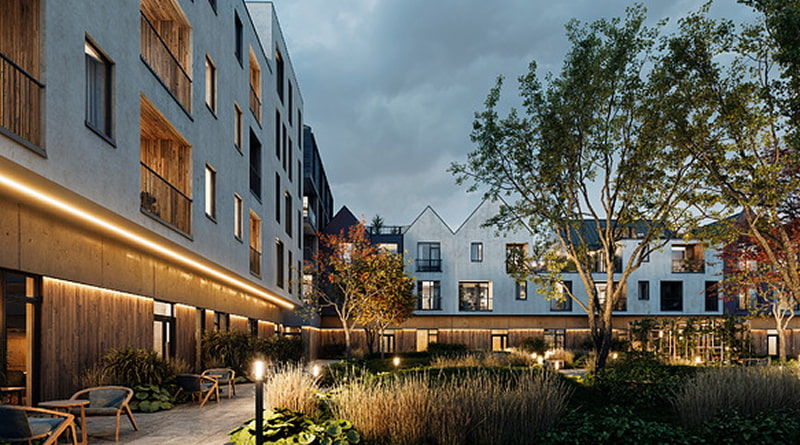
Managing complex exterior lighting can be tricky, but this scene provides an excellent breakdown, showcasing a modern residential courtyard under contrasting atmospheres—from moody, overcast rainy days with wet asphalt reflections to warm, inviting twilight settings lit by string lights and linear LEDs. The courtyard reads like a real neighborhood at dusk—not a flat exterior mock-up.
If exteriors often feel flat, notice how the overcast wide shot differs from the string-light close-up, then switch artificial sources off one at a time in the Environment panel to see what each layer adds.
3. The Cave Hotel
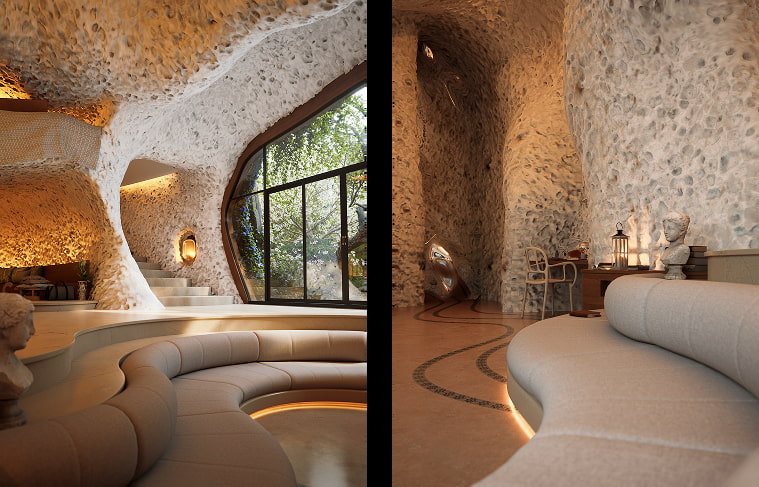
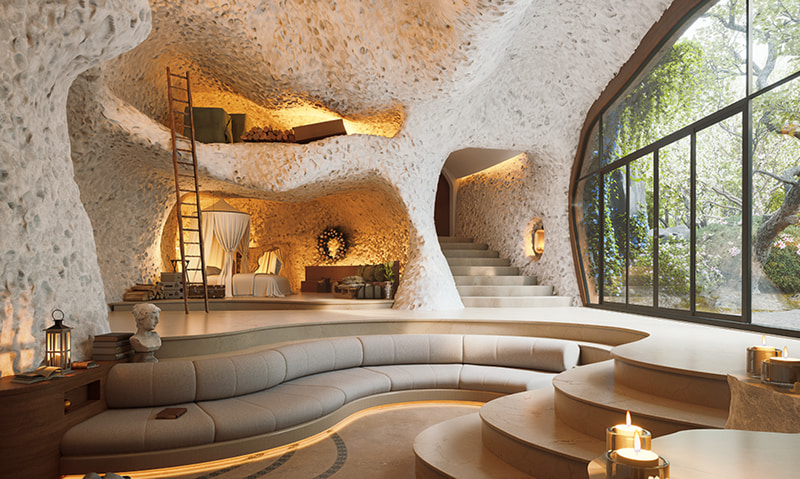
Warm, intimate, and quietly complex—this lounge uses organic curved surfaces to blur the line between walls and furniture. The lighting here is the real lesson: soft overhead strips, hidden cove lights, and a single accent spot that makes the textured plaster pop without harsh shadows. What really stands out is Displacement Material—true‑to‑life depth through real‑time geometric modification—perfect for that organic feel.
4. The Tidal Coast House
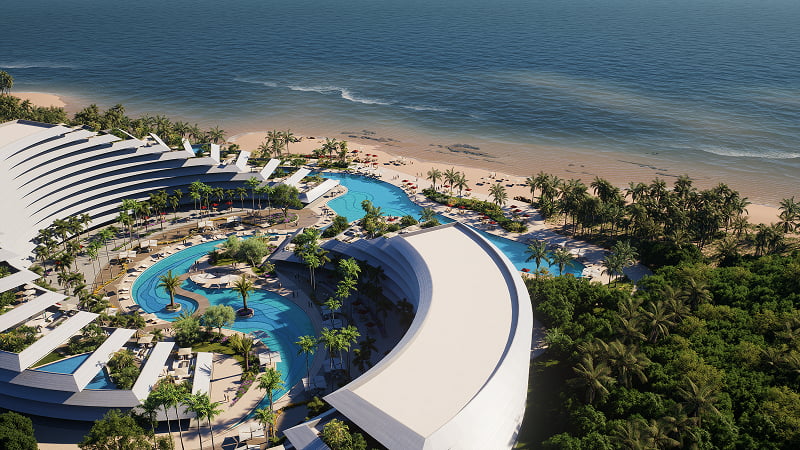
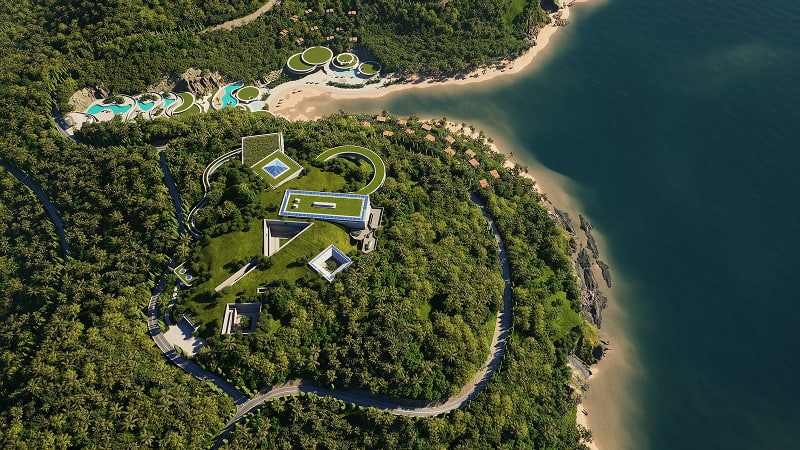
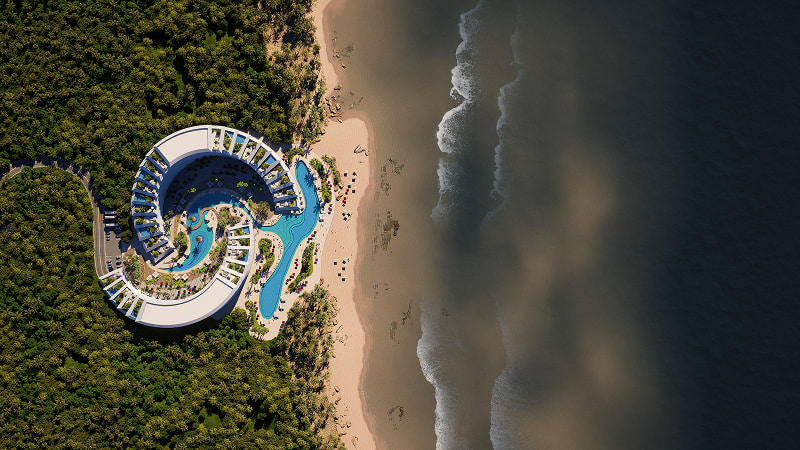
Set along a rugged coastline, this example scene is a great sandbox for testing D5 Render's Ocean system. Watch how the animated waves interact with the shoreline, while foam and reflections shift across the wet sand—great for studying how water surface and sky bleed into each other at dusk. The Environment panel lets you switch between calm surf and stormy swells, so you can feel how much the open water changes the mood.
Explore D5 Scene Express Today
If your next job needs a reference for light, materials, or grade, pick a Scene Express render template close to the brief and take it apart—you'll move from guess-and-check to knowing which choices work because you've seen them in a finished file.
There's no need to start from scratch. Download a Scene Express template from the Content Hub today and start building your own custom library.
Continue Reading: Tips for Photorealistic Scenes
Mastering Displacement Maps: Achieve True Depth in D5 Render
Ditch Manual Setup: D5 Render AI Scene Generation for ArchViz
Essential SketchUp Interior Rendering Tips You Need!
What Is an AI Agent? How D5 Render Automates Landscape Design
AI Rendering in Action: 10 D5 Features That Transform Your Workflow
FAQs: Downloading & Using D5 Scene Express Templates
Yes—all Scene Express .drs files are free to download with a D5 Render account, via Content Hub (or the D5 forum). They're built by community creators and the D5 team.
Yes—especially if you're new to ArchViz. Open a template and treat it as a hands-on lesson: toggle lights one by one, swap materials, change the HDRI, and watch what each control actually moves in the viewport.
Usually not—D5 Render maintains backward compatibility for .drs scene files. If an older template opens differently, D5 may prompt a one-click update to the scene. Keeping your D5 version current can help avoid friction.
Start with The Modern Woodland Villa or The Courtyard Residential Complex—both in D5 Scene Express. They showcase mixed exterior lighting and glass reflections. Pick whichever setting is closer to your current project type.
Rarely. D5 Scene Express downloads are self-contained—materials, textures, and lighting stay with the project folder as long as you keep the extracted files together and don't delete local texture maps.
Use "Add to Local" as you work through D5 Scene Express files—D5 Render stores selections as .d5a assets with full PBR settings. Group them by category (furniture, vegetation, lighting) in the Local tab so drag-and-drop stays fast on the next job.
Yes, through D5 Studio. Right-click a camera view in the Scene List, choose "Create Preset," and save the environment and post-effects. Name it something like "Warm Interior–Golden Hour," then apply it with one click in any new project.
 English
 Español
 Français
 한국어
한국어 日本語
日本語