
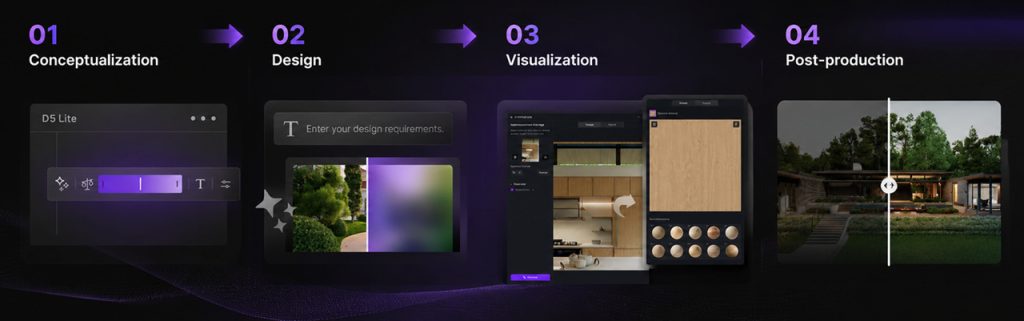
Architects increasingly use AI tools for concept exploration, but many still face the same bottleneck: moving ideas from a generated image into a production-ready visualization workflow. A beautiful AI-generated sky or mood image may inspire a direction, but it rarely connects directly to the model, materials, or camera views used in architectural visualization.
D5 Render‘s built-in real-time AI keeps those choices tied directly to your model. Atmosphere, lighting, and assets all update live in the same viewport—matched to the exact geometry and camera you’re delivering.
Here’s where this unified approach actually saves you time—and why a growing number of studios and independents keep D5 Render in their loop when speed matters but quality can’t slip.
Key Takeaways on Real-Time AI in D5 Render
- D5’s built-in real-time AI reduces much of the trial-and-error typically associated with lighting and atmosphere setup.
- One viewport for AI, rendering, and post-processing beats juggling five standalone tools—especially when camera and materials need to stay locked.
- D5 Community Version and mid-range RTX hardware keep the entry cost low for solo architects and small studios.
- Real case studies prove the impact: architects are saving measurable hours every day.

Why Real-Time AI Beats the “Render and Pray” Workflow
Standalone AI tools are great for generating ideas. But when you need a fixed camera angle, specific material IDs, and exact output specs, a standalone image usually won’t carry those constraints—you’re back to exporting, switching apps, and rebuilding context. In D5’s AI report, 76.6% of designers said frequent tool-switching was a big struggle and cost a lot of time.
Traditional rendering doesn’t fix it either. Same slow cycle: set up, render, wait, tweak, repeat—hours per view.
Real-time AI in D5 Render breaks both loops at once. Lighting, materials, vegetation—they update on screen as you work. A feedback cycle that used to take hours resolves in minutes.
A practicing architectural visualizer puts it bluntly: “Before D5, I’d send a render, wait for feedback, change it, render again. Two days for one view. Now? I sit with the client and move the sun. They see it in real time. The project takes half the time.“
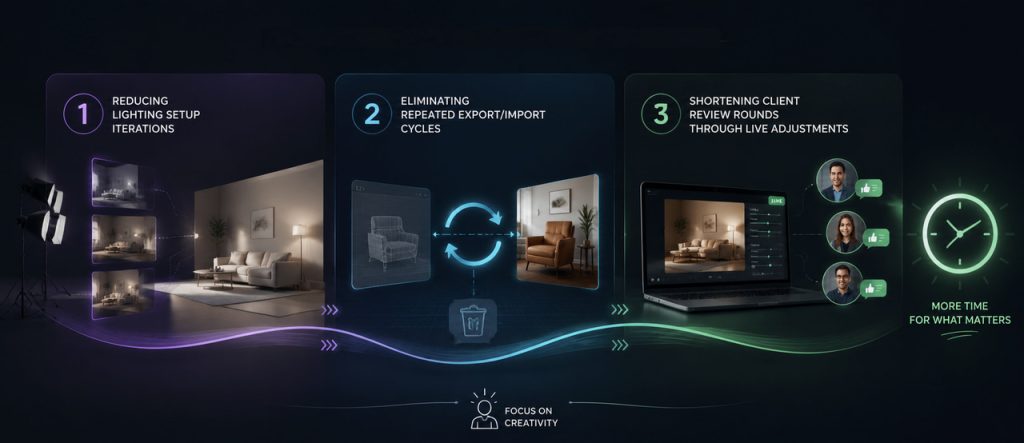
This isn’t an isolated case. Across the board, the biggest time savings usually come from three core areas:
- Reducing lighting setup iterations
- Eliminating repeated export/import cycles
- Shortening client review rounds through live adjustments
Rendering itself may only be part of the equation. For many firms, decision-making speed is the larger productivity gain.
D5 Render’s Built-In AI: The Full Picture
You don’t need every AI feature on every project—in practice, most architects don’t.
For early-stage concept presentations, atmosphere and lighting tools tend to deliver the biggest time savings. Material generation and AI-assisted post-processing become more useful later in the workflow, once design decisions have largely been finalized.
- AI Scene Match works from a text description or a preset. You type “autumn dusk, warm lighting, slightly overcast,” D5 Render reads your current camera and geometry, then applies matching environment and effects. You can then fine-tune via chat.
- AI Atmosphere Match works from a reference image (photo or film still). It maps sky, weather, light, and post-processing—including rain, snow, and fog—directly onto your scene. This is ideal when you need accuracy to a client’s reference image.
Both tools usually get you most of the way there—often close enough that only minor manual tweaks remain.
D5 Render also features a wider AI toolkit: AI PBR Material Snap, AI Enhancer, AI Style Transfer, and more to cover materials, post-processing, and planting when the shot needs them. Setting the initial mood still starts with AI Scene Match, AI Atmosphere Match, and lighting assist; the rest of the AI tools stay in the same project.
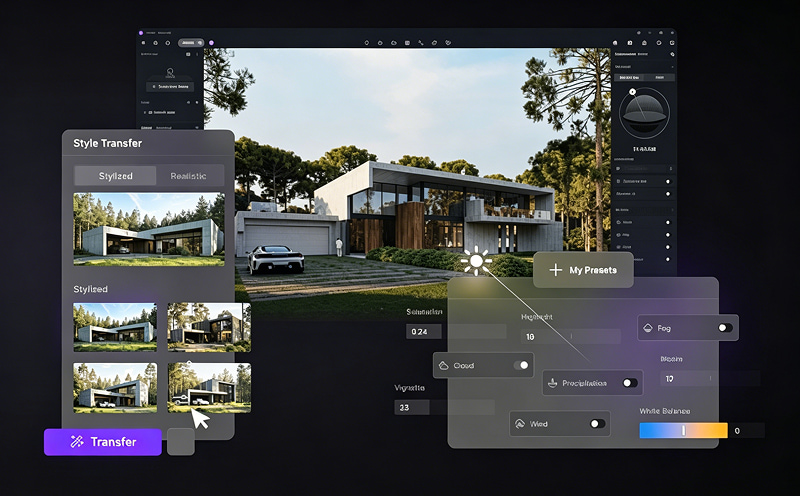
You will still move sliders—just fewer test renders. Sync, match, tweak environment, then render from the same project.
Real-Time AI That Fits Your Studio and Budget
Here’s the part that matters most for smaller teams and independent architects: you don’t need a massive budget or a top-tier workstation to get real-time AI working for you—mid-range RTX GPUs are enough. The D5 Community Version includes core AI tools (typically 50 uses) to test the loop before upgrading.
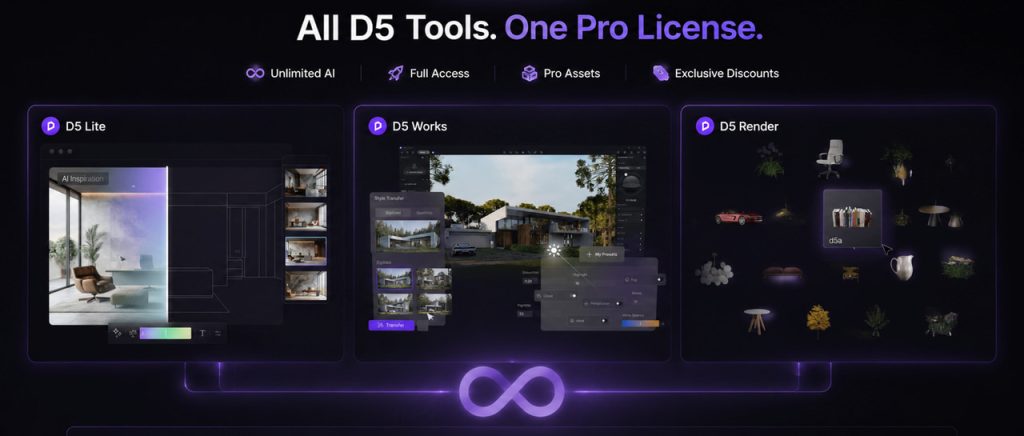
For growing studios, a D5 Pro license adds unlimited use of advanced AI features across D5 Render and D5 Lite—AI Image Generation, AI Atmosphere Match, AI Image to 3D, AI Enhancer, and the rest, with no monthly cap.
One Pro license also includes full access to D5 Render’s pro asset library and exclusive discounts on D5 Works paid assets. Concept exploration, production rendering, and premium assets can scale without stacking separate AI subscriptions or extra licenses.
Real-World Stories: Where Architects Saved Hours with Real-Time AI in ArchViz
Nothing beats hearing from people who’ve lived it.
Chapman Taylor (London Studio)
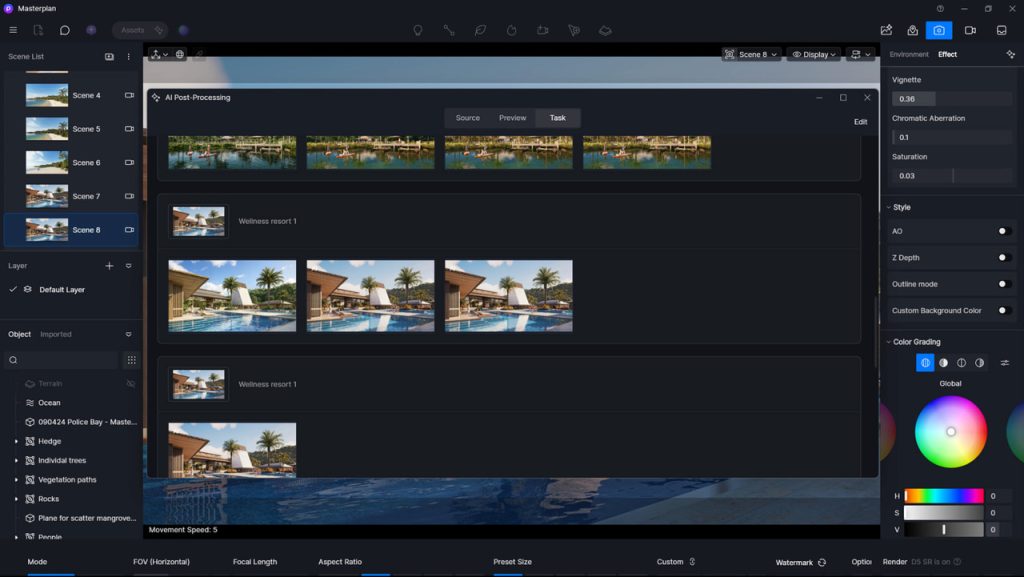
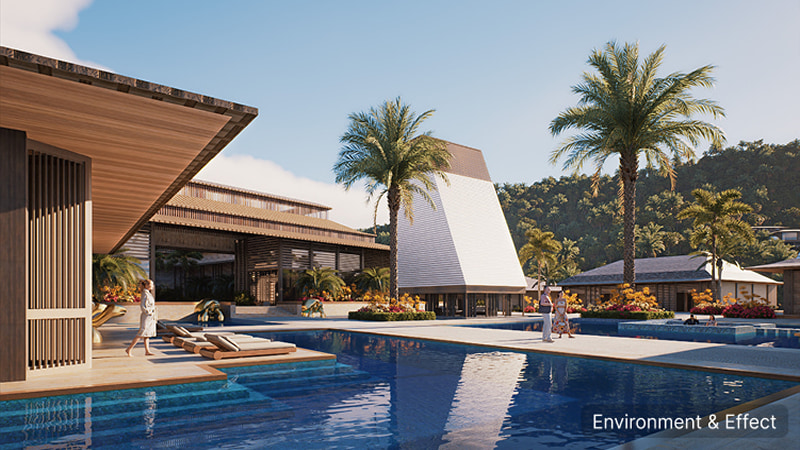
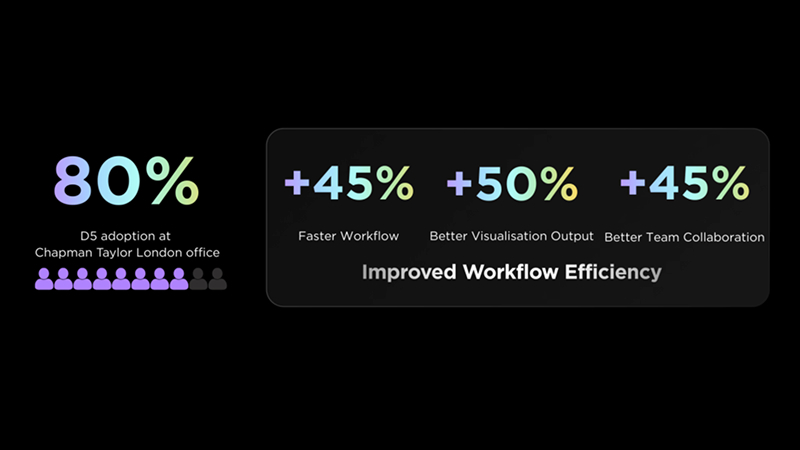
They used to treat visualization as a late-stage task, burning hours on manual mood and lighting. With D5’s built-in AI tools, photorealistic previews now start at the concept stage—lighting and atmosphere stay tied to the model as the design moves. Master plan visuals that once took a full month now wrap in about three weeks, with clearer client communication from the start.

WilkinsonEyre (London)
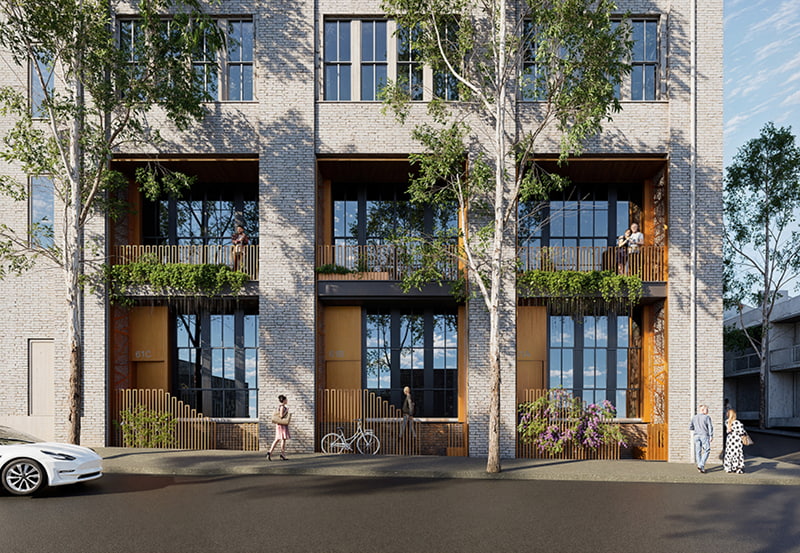
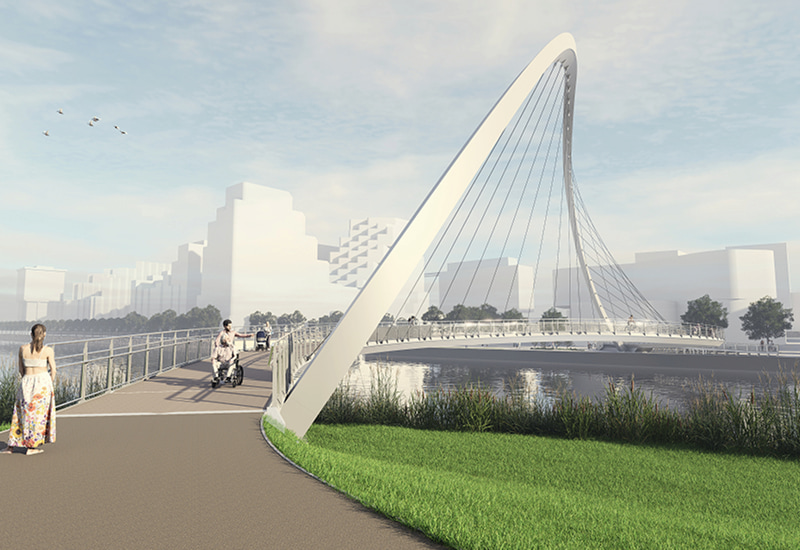
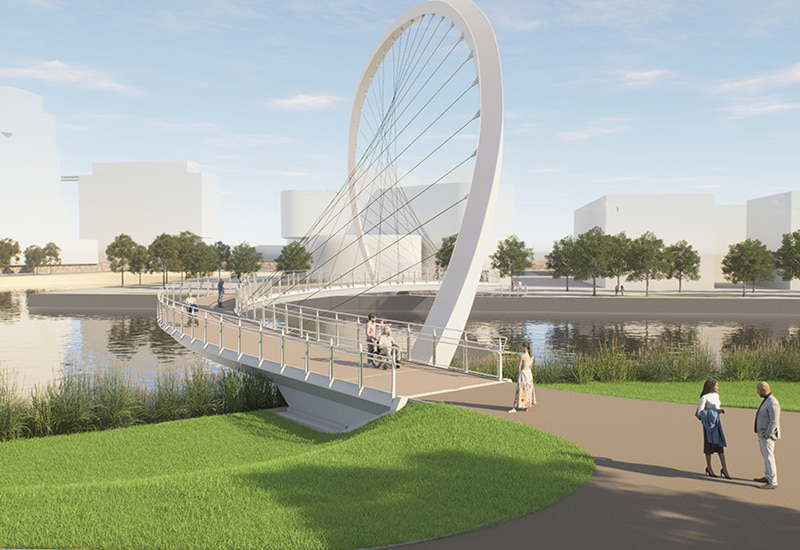
Their non-linear design process often stalled while waiting for offline renders. With D5’s real-time engine and AI Scene Match, they now test materials and lighting on the fly—especially on projects like Keating Bridge. D5 Render’s real-time AI lets them iterate with clients much faster, turning weeks of back-and-forth into quick, confident decisions.
Penta Architecture (Indonesia)
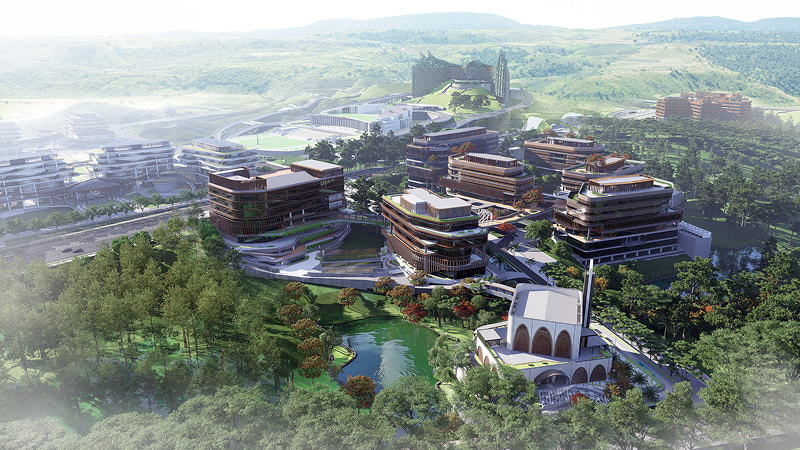
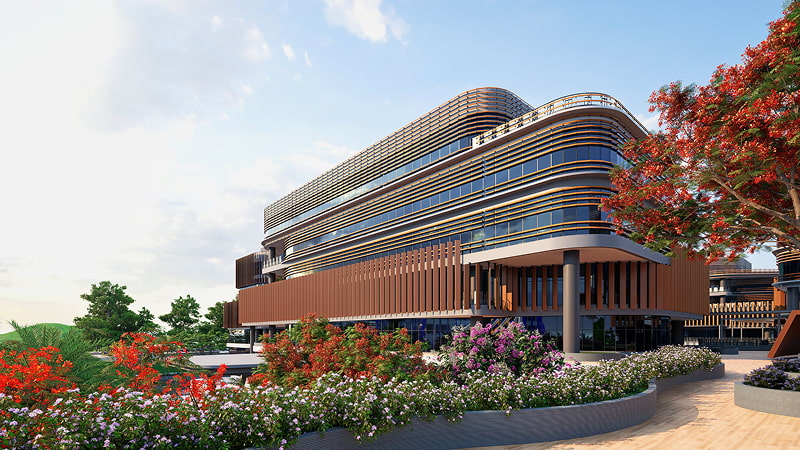
As a mid-sized team, Penta Architecture faced tight government deadlines and frequent revisions. Juggling separate tools slowed them down. Switching to D5’s all-in-one workflow with real-time rendering and AI tools cut turnaround from two weeks to just two or three days per cycle. Rather than rebuilding scenes across multiple applications, the team could maintain a single visualization environment throughout the project lifecycle.
As Technology Manager Arman Arisman notes, this efficiency helps them win more tenders without adding headcount.
A Practical AI Workflow You Can Use
Here’s a workflow we consistently see D5 users adopt—and you’re welcome to steal it:
- Block out your scene in SketchUp, Rhino, Revit, or your preferred modeling software, then LiveSync directly into D5 Render.
- Set the atmosphere with D5 Render’s built-in AI in the viewport. Client reference photo? Try AI Atmosphere Match. Text brief only? AI Scene Match in the AI Agent chat reads your geometry and applies environment, sun, and post-processing on the spot.
- Add assets and finalize materials. Drop in people, plants, and furniture. If the exact model is missing, AI Image to 3D or AI Text to 3D can fill the gap. Tweak roughness, reflection, and texture—the whole material pass usually takes just 3–6 minutes because the lighting is already locked.
- Final check + AI post-processing. Once the scene looks right, render directly. After rendering, use D5’s built-in AI Enhancer or AI Inpainting for minor final touch‑ups—all inside the same viewport.
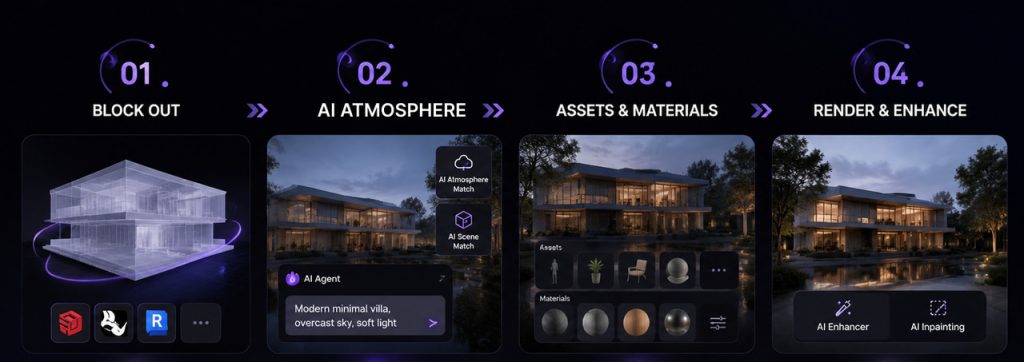
This loop shrinks your iteration path from “viewport → export → external AI → notes → manual rebuild” to just “viewport → match → tweak → render.” Because everything lives in one app, you never lose momentum switching contexts.
Start Saving Time with D5’s Real-Time AI Today
The future of ArchViz isn’t about generating isolated images—it’s about tools that stay connected to your actual model. By bringing real-time AI into a single viewport, D5 Render keeps you in the creative zone, not the loading screen. Whether you’re flying solo or scaling a firm, it’s time to stop waiting and start designing.
Experience the difference for yourself. Download D5 Render for free and step into a faster workflow today.
Explore More Real-Time AI Tips in D5 Render
From AI 3D Model Generator to D5 Render: Pro Tips for Stunning Visuals
D5 Render’s AI Texture Generator: Speed + Realism Boost
What Is an AI Agent? How D5 Render Automates Landscape Design?
AI Enhancer for Architects: Elevating Render Quality with AI-Powered Precision
Architectural Rendering Styles Made Easy with AI Style Transfer
Need Free PBR Textures? Try AI PBR Material Snap in D5!
FAQ on Real-Time AI in D5 Render
It depends on your license. D5 Pro (or Team) includes AI Scene Match, AI Atmosphere Match, AI Image to 3D, AI Enhancer, and the rest with no monthly cap. D5 Community Version includes core AI Agent tools with a monthly credit limit (typically 50 uses)—enough to learn the workflow, not for heavy daily production.
Yes, significantly. Instead of manually dialing in HDRI and sun settings, you can use AI Atmosphere Match or AI Scene Match to set the entire lighting mood in one click. Fine-tune the lighting via text prompts—just describe the change in plain language in the AI Agent. Once you love the result, save it as a preset to reuse in future projects. What used to take 20–30 minutes now takes 2–3.
That is entirely up to your specific needs. D5’s built-in AI handles atmosphere, lighting, asset suggestions, material creation, and post‑processing right inside the viewport—so you can stay in context without switching tools. If you use separate tools for concept ideation or specific image generation, you can still integrate them; but for day‑to‑day visualization, D5’s AI covers most needs without extra subscriptions or context loss.
Absolutely. Small firms benefit the most: one person can LiveSync, run AI Scene Match or AI Atmosphere Match, and polish the environment without a dedicated visualization specialist. It allows a 2-person team to deliver the output of a much larger studio. For residential, interior, and boutique commercial projects, D5’s real‑time AI makes high‑quality visualization affordable and fast.
- Reference photo or film still → Use AI Atmosphere Match. It maps sky, weather, light, and post directly from the image onto your scene.
- Words-only brief or mood exploration → Use AI Scene Match in the AI Agent, then refine via chat.
Both work in the same viewport and apply real‑time adjustments to your actual scene—not a static image—so you can continue iterating on top.
Yes. D5 Render is highly optimized for mid‑range consumer GPUs (e.g., RTX 3060 or higher). You don’t need a $5,000–$10,000 workstation to use real‑time AI. Most architects find that their existing gaming or workstation GPU is enough to run D5 Render smoothly.
Absolutely. With D5’s LiveSync plugin, any change you make in SketchUp, Rhino, or Revit updates in real time inside D5 Render. You can keep modeling while D5’s AI applies atmosphere, lighting, and assets in the background—no manual export/import needed.
The timing varies based on scene complexity, the amount of sky visible, and your network speed. The initial AI pass takes a minute or two to process your reference image and map the sky and lighting. However, once applied, any subsequent tweaks you make to the sun, clouds, or materials update instantly in real time.

 English
 Español
 Français
 한국어
한국어 日本語
日本語