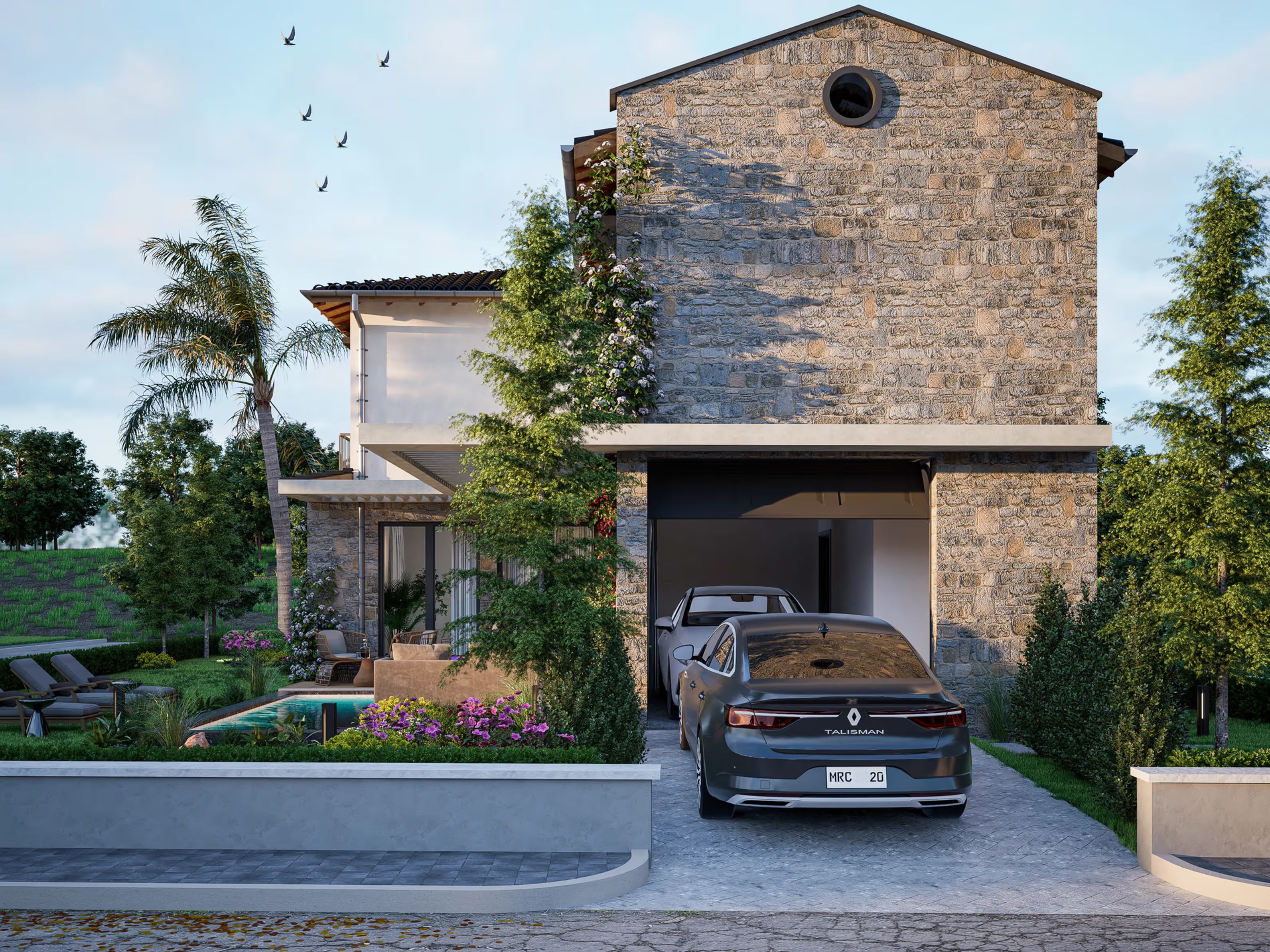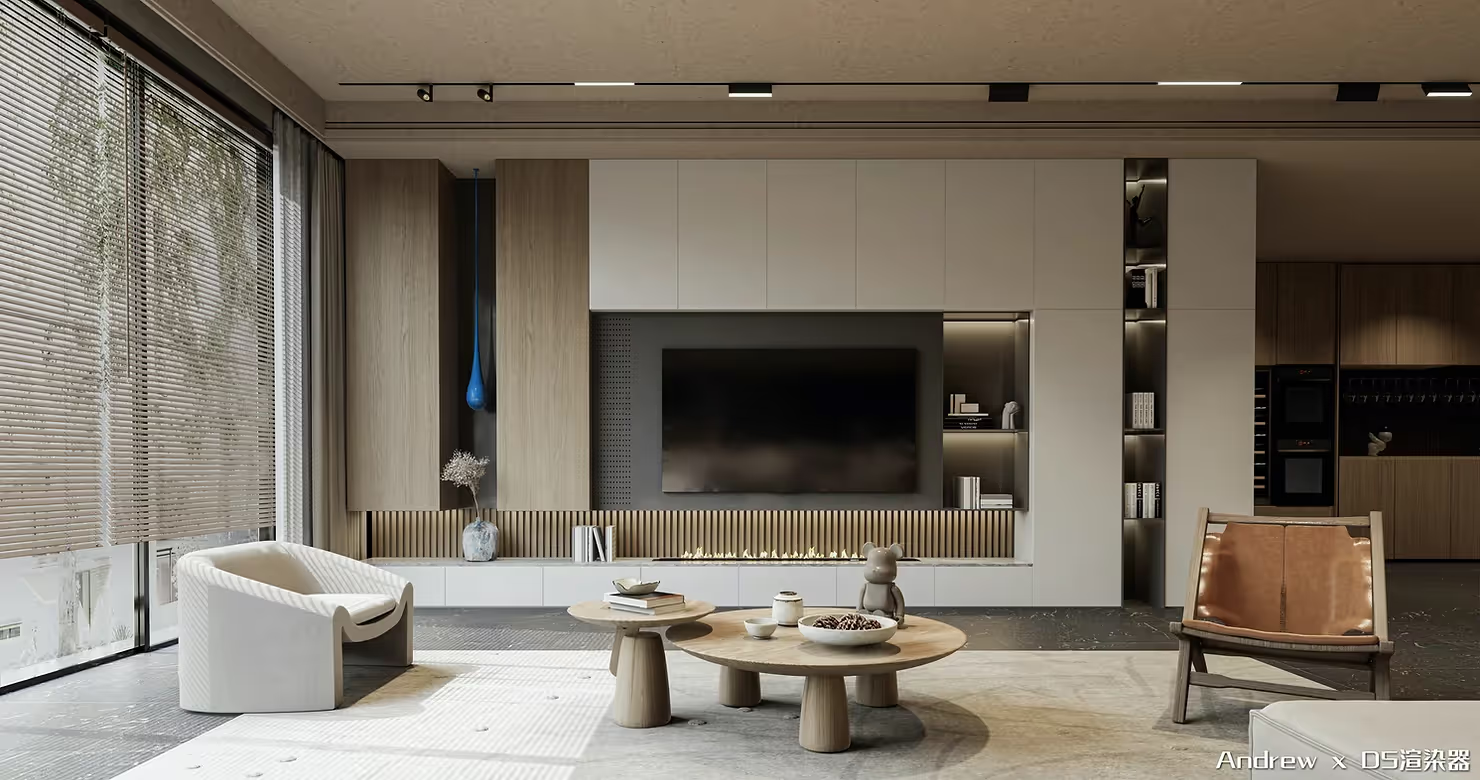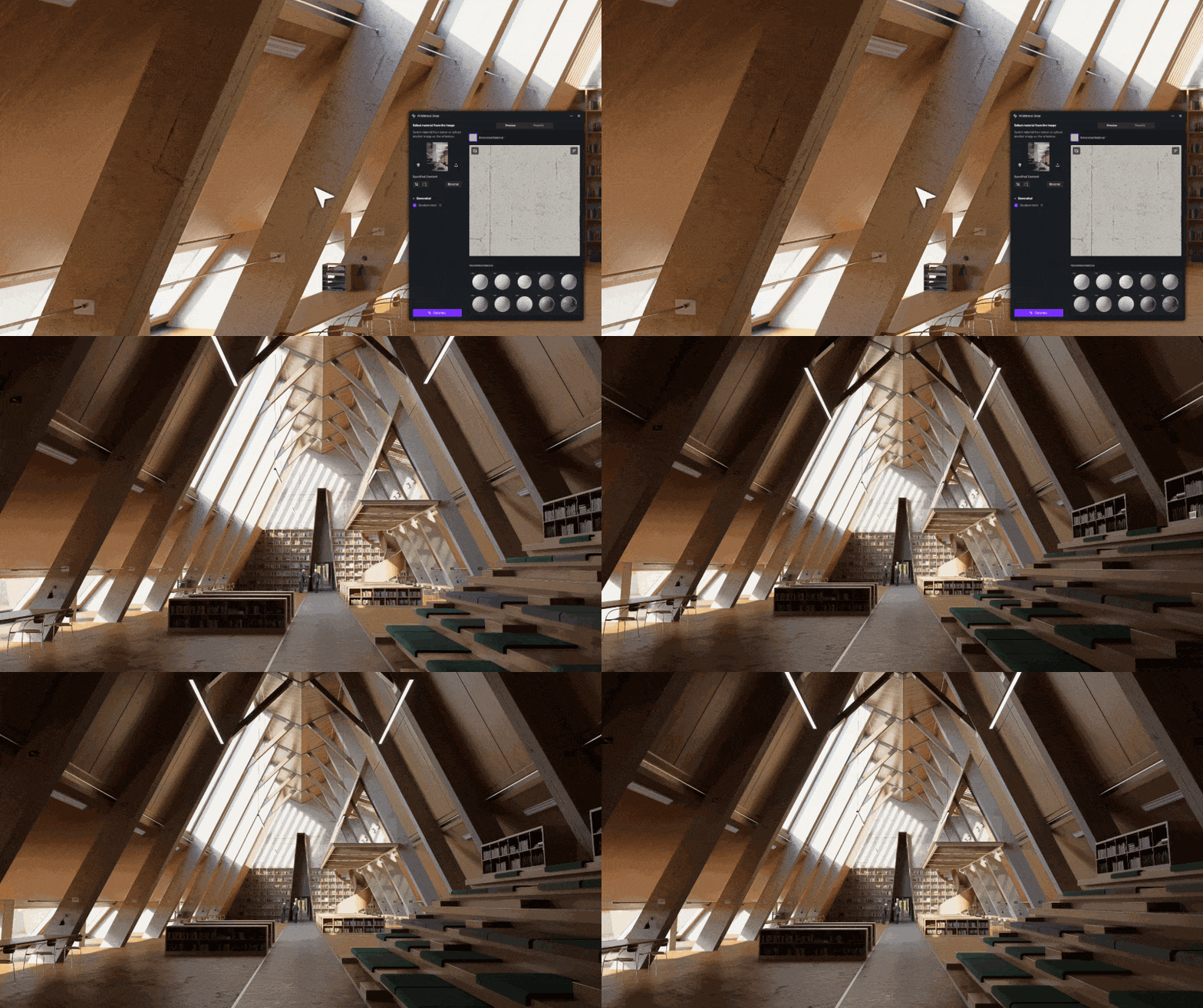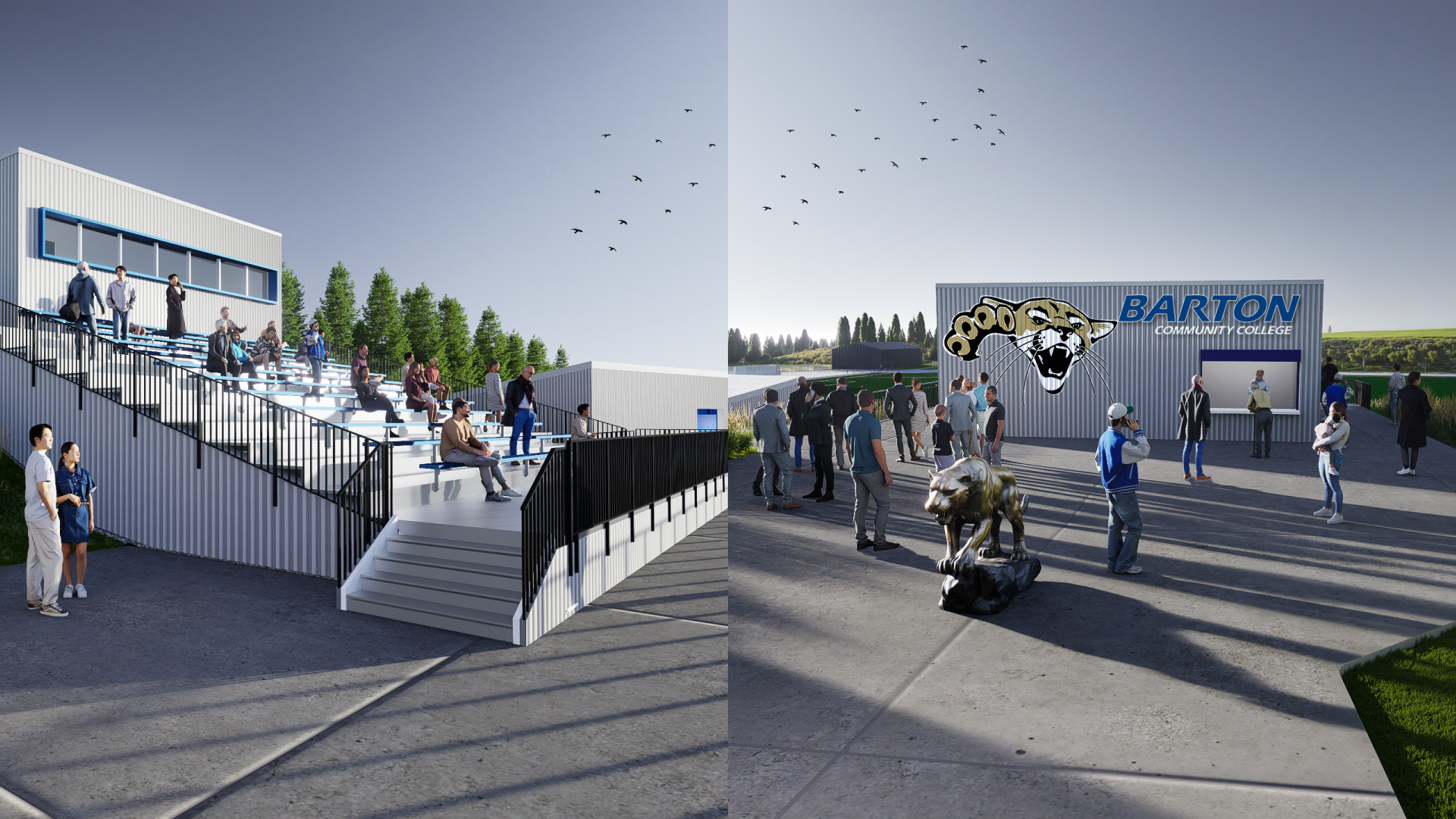
How to Streamline Building Facade Design & Site Planning in D5 Render

How to Streamline Building Facade Design & Site Planning in D5 Render

Home
>
Blog
>
How to Streamline Building Facade Design & Site Planning in D5 Render

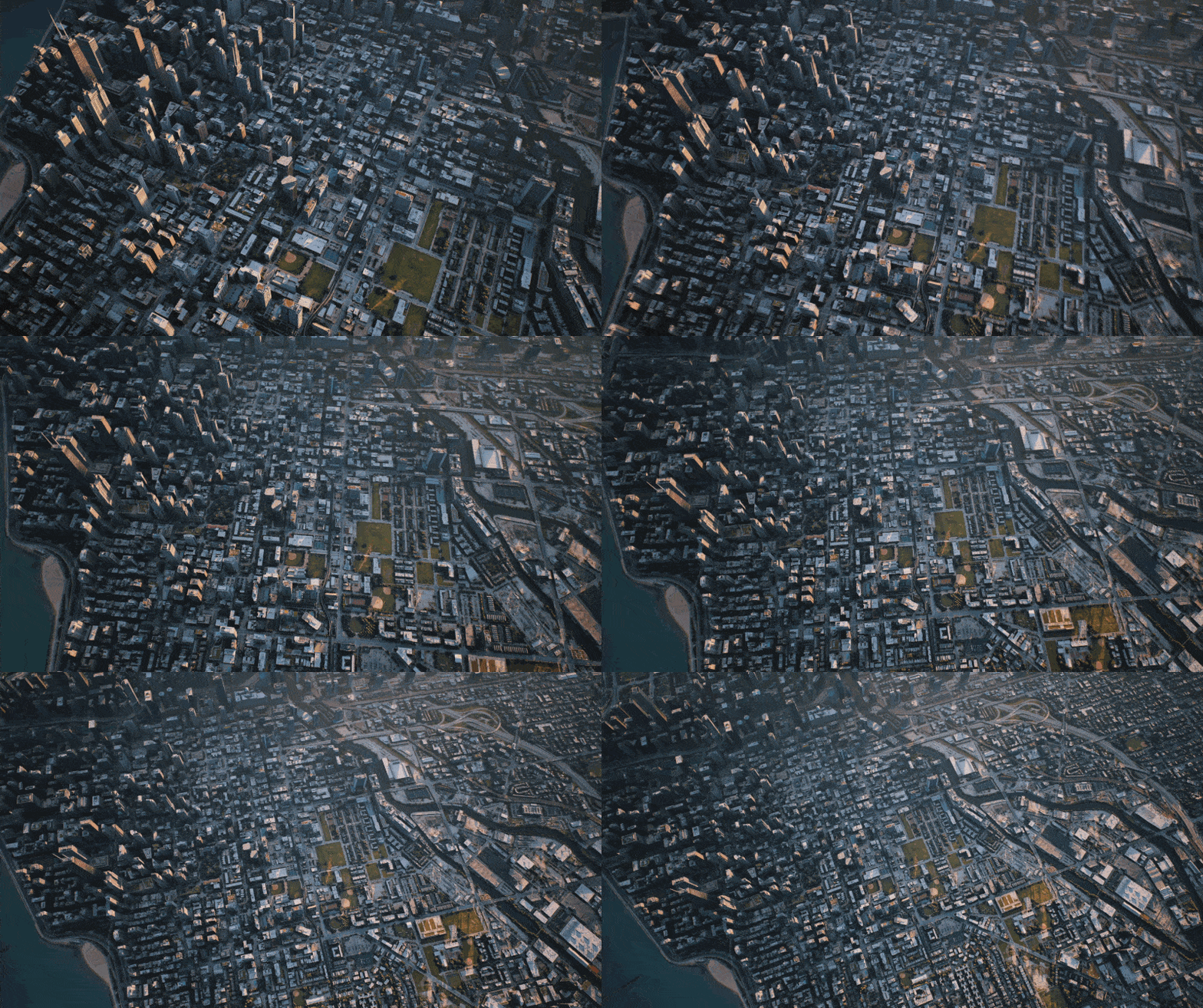
Modeling the surrounding environment is often the most tedious part of any urban architectural project. We all know the feeling: you've spent weeks refining your primary design, only to realize the site context is little more than a "digital desert." While we want every scene to feel lived-in and authentic, manually crafting every background structure is a luxury that tight project timelines rarely afford.

With the D5 Render 3.0 release, we've addressed this workflow bottleneck. By integrating the Procedural Building feature into our City Generator, we're helping designers bridge the gap between rapid site planning and photorealistic context.

📌 Key Takeaways: Building Facade Design & Site Planning in D5 Render

  • D5 Render 3.0 converts basic massing into detailed structures, enabling high-quality building facade design across vast cityscapes with zero manual modeling.
  • One-click styling applies diverse architectural textures across entire districts, letting you curate distinct neighborhood characters while avoiding any visual repetition.
  • Advanced tools like the Section Cube and double-click isolation let you surgically swap existing buildings for your own project, ensuring a seamless, overlap-free fit.

One-click building facade design with D5 Render Procedural Building

Crafting Context: The Enhanced City Generator

Building a sprawling urban context shouldn't feel like a chore. In D5 Render 3.0, the City Generator has been completely reimagined to minimize friction and keep you in the creative zone.

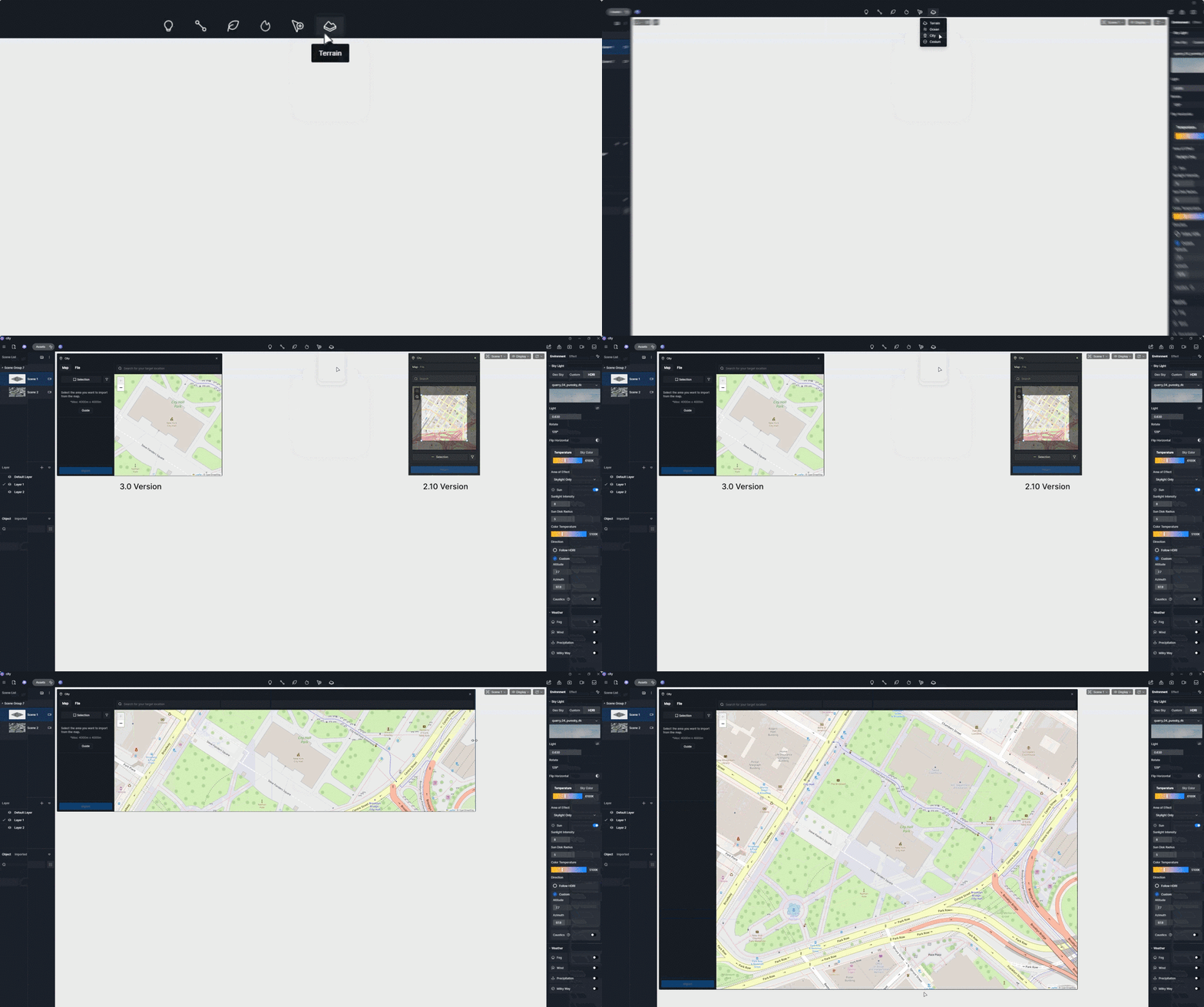
① An Intuitive Workspace: With a fully resizable panel, the City Generator now provides the freedom to navigate maps and manage site data without distraction. This flexible environment ensures that your workflow stays as fluid as your ideas.

One-click building facade design with D5 Render Procedural Building

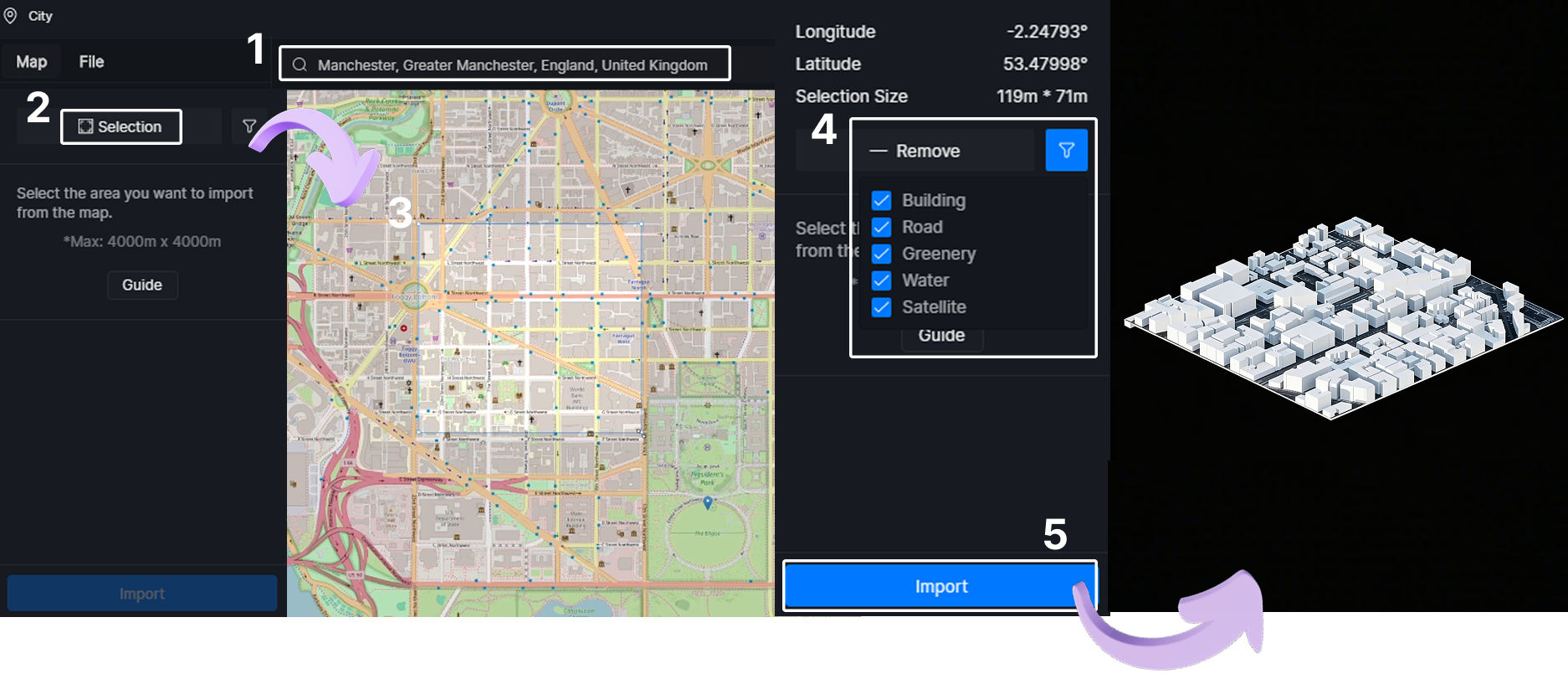
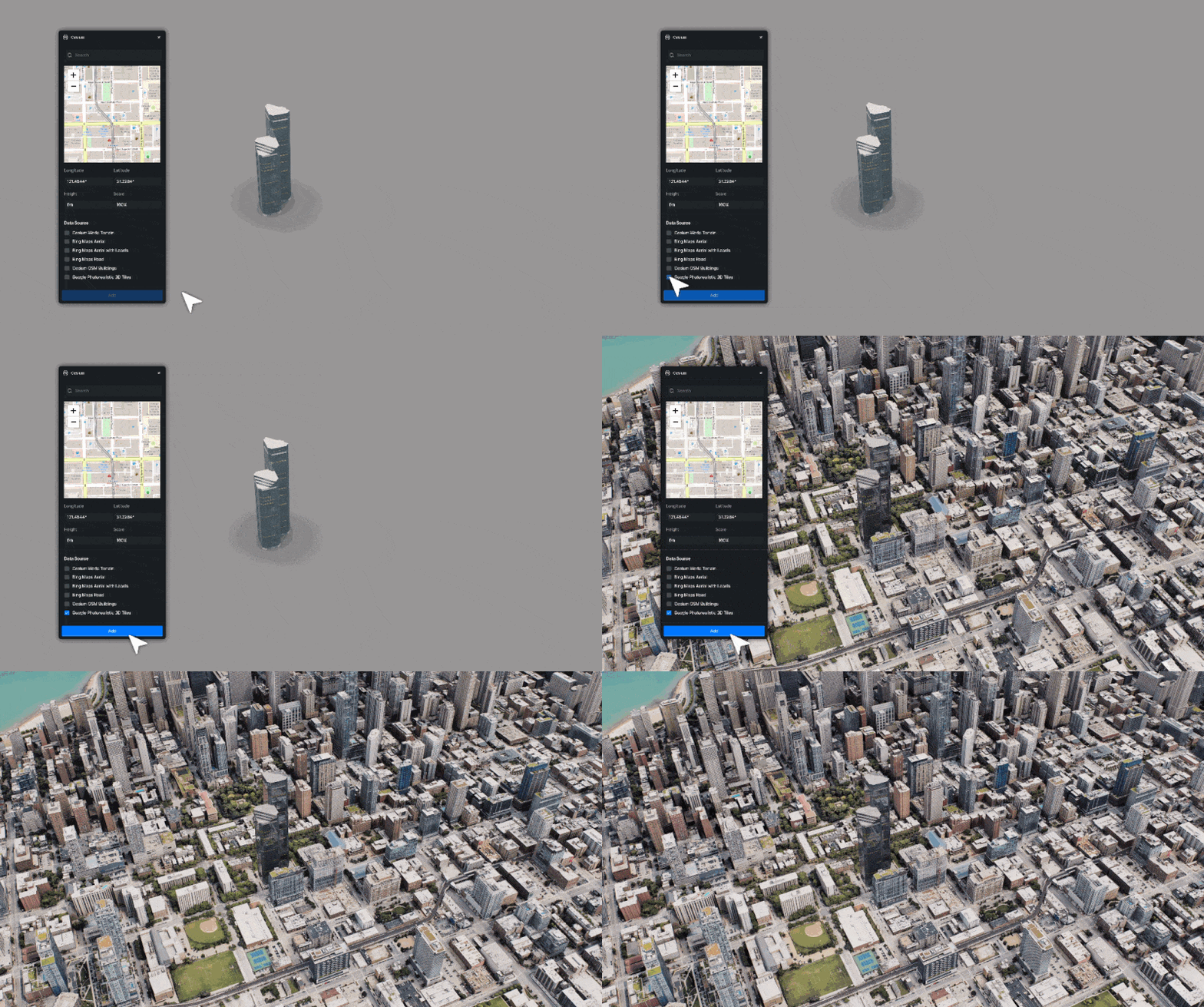
② Precision at Your Fingertips: Skip the heavy lifting by filtering specific elements before you even hit import. Simply search for your site and frame your area; D5 Render handles the rest, keeping your scene lightweight and performant from the very first click.

One-click building facade design with D5 Render Procedural Building

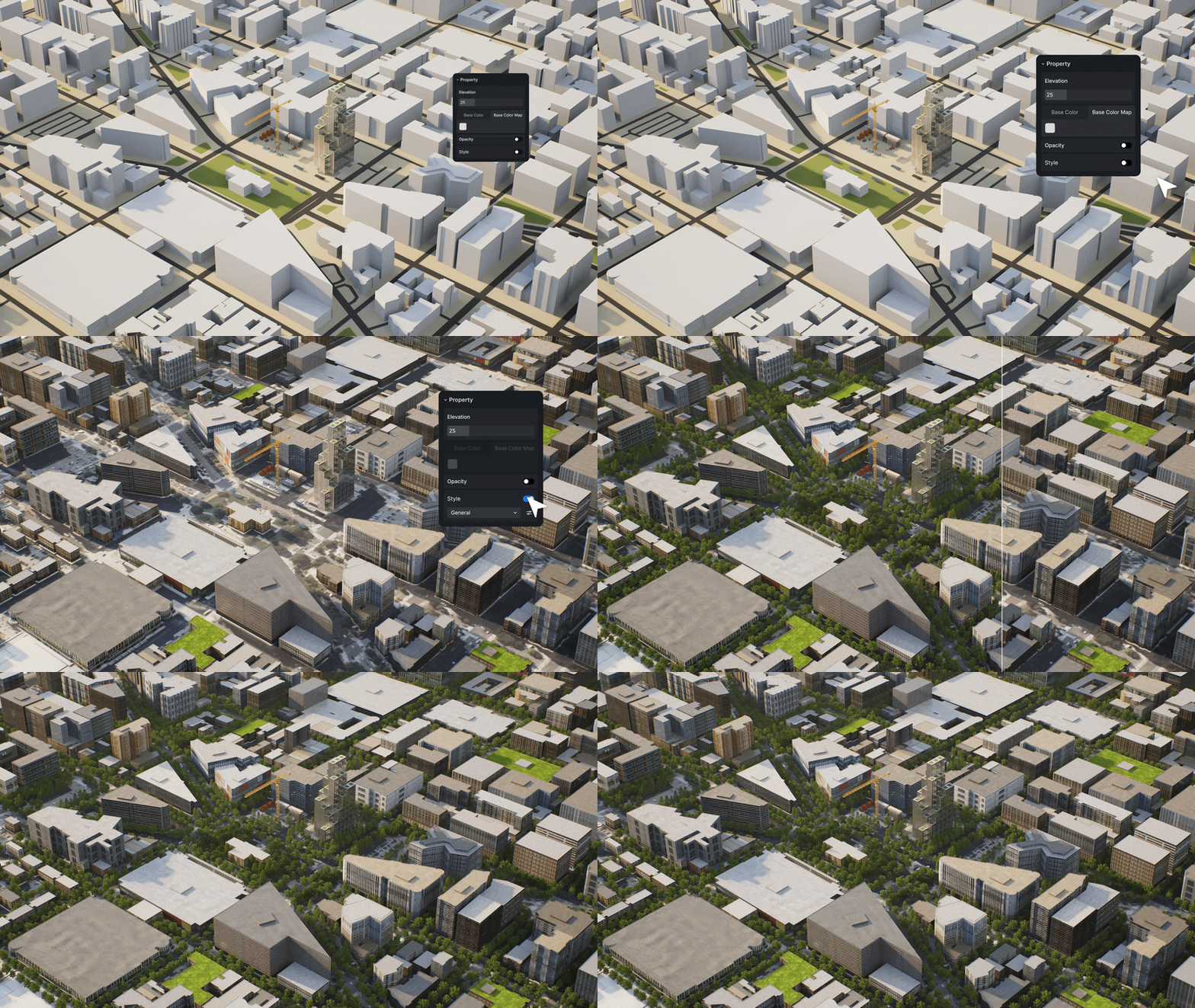
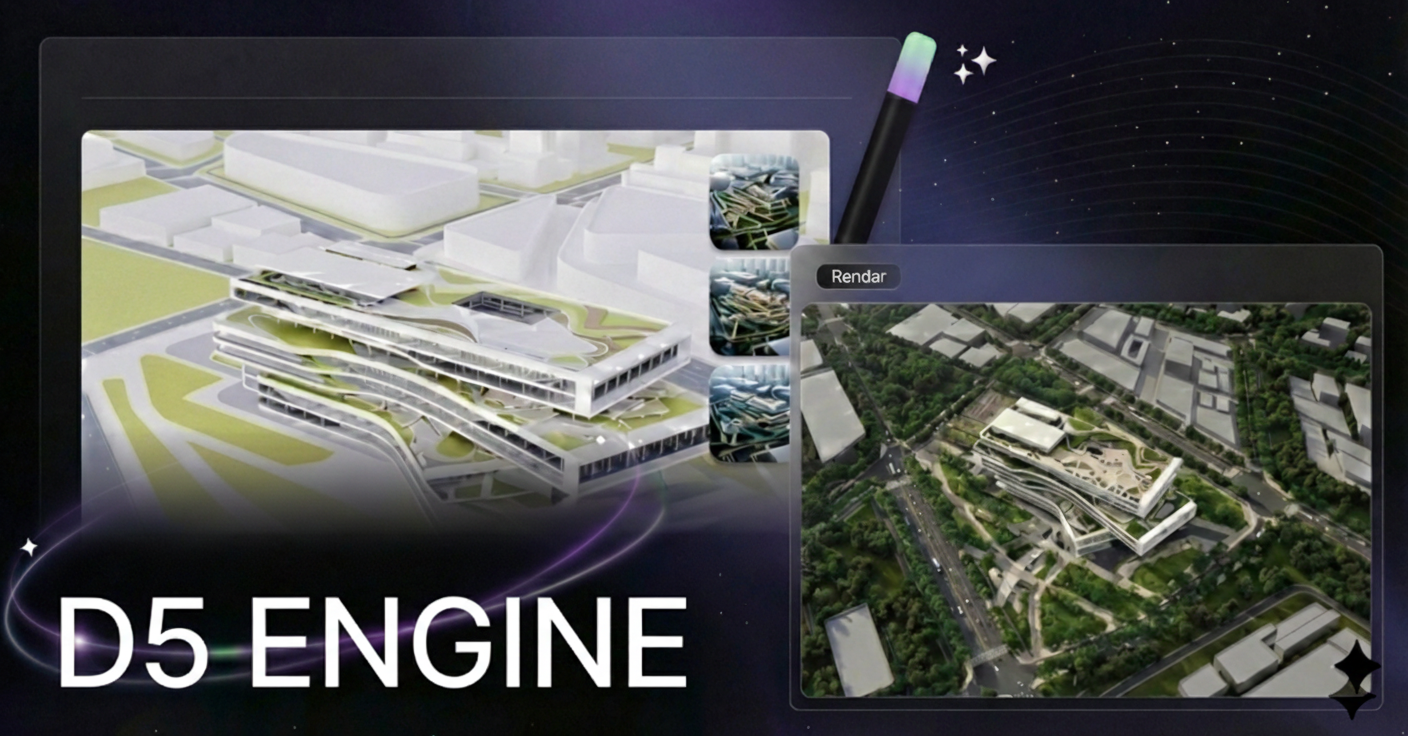
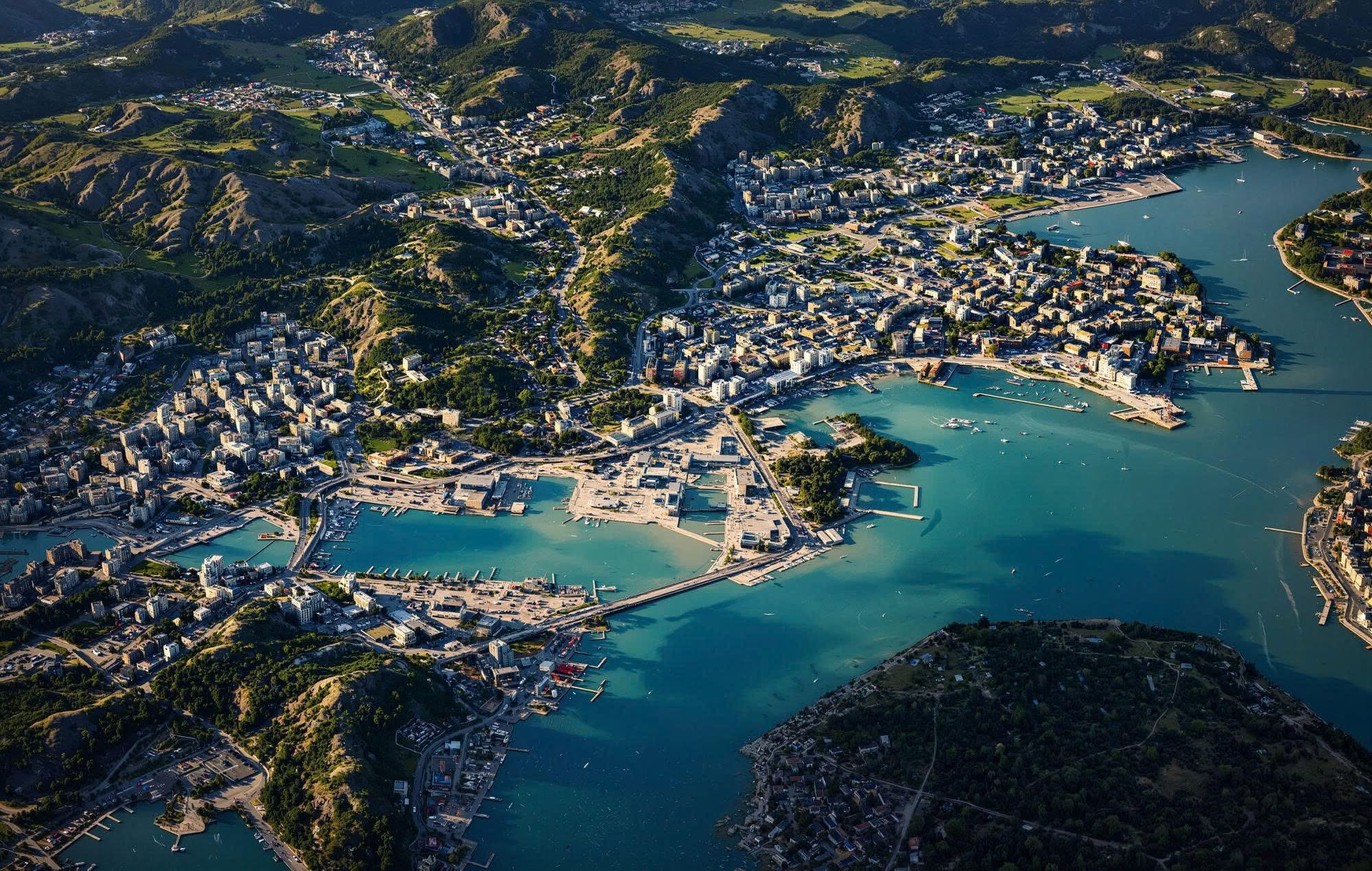
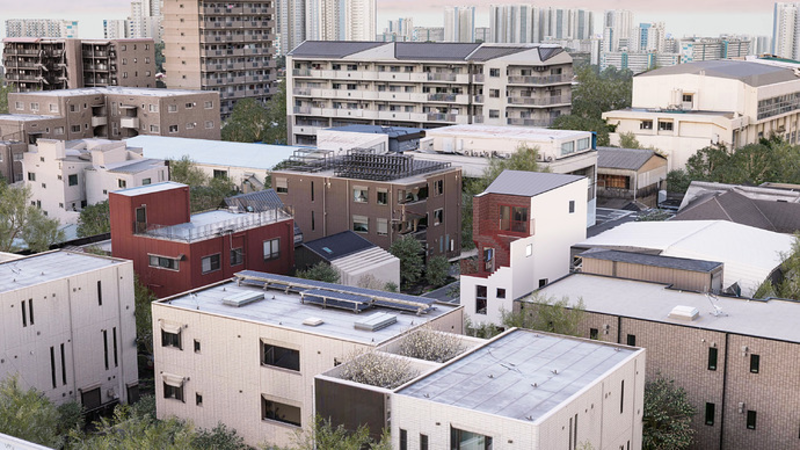
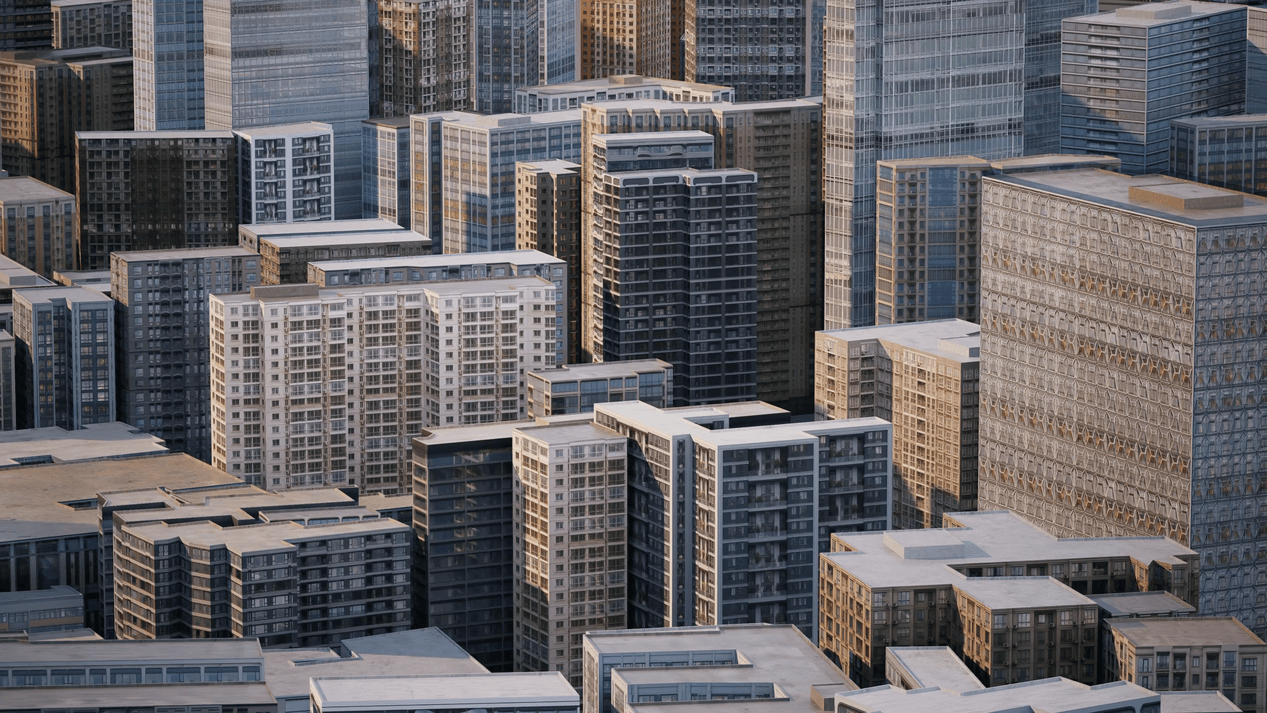
③ Styling: Under the Resource List, expand the city group and toggle Styles. D5 Render can instantly texture basic masses, creating a sophisticated urban fabric that complements your lead design.

Procedural Building in D5 City Generator

Procedural Building in D5 City Generator: Automate stylized architectural appearances

One-click building facade design with D5 Render Procedural Building

Mastering Building Facade Design with Procedural Tools

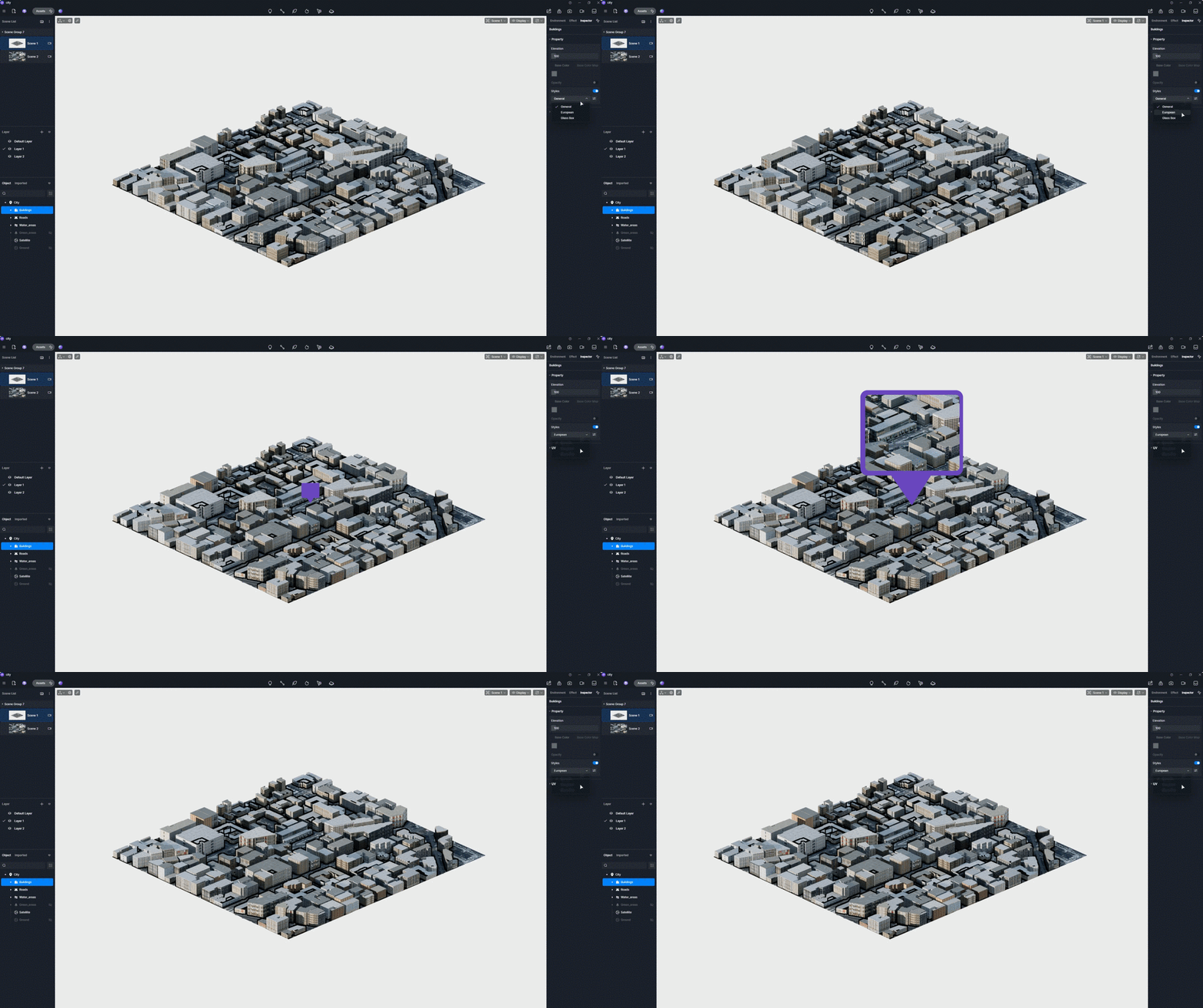
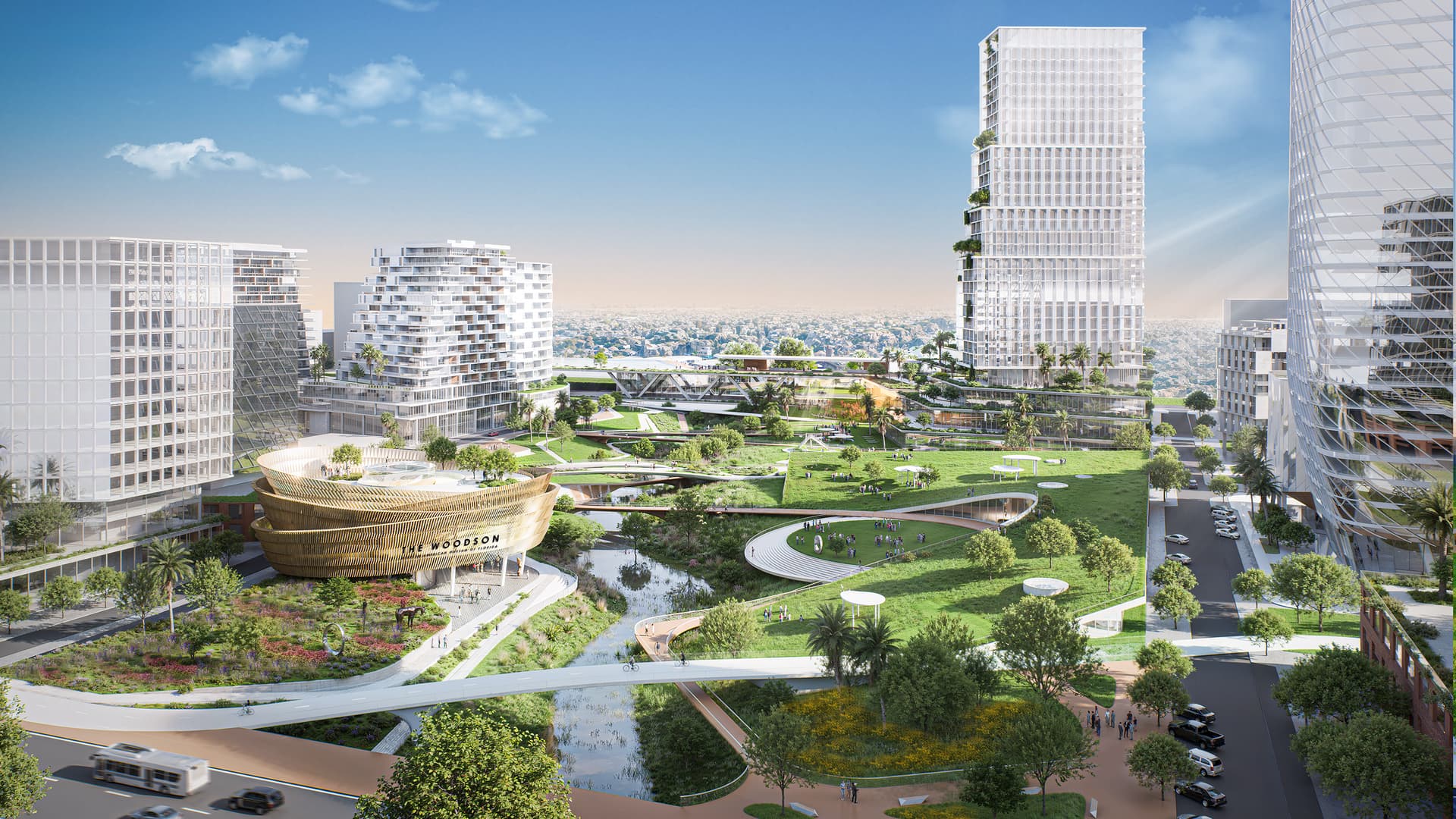
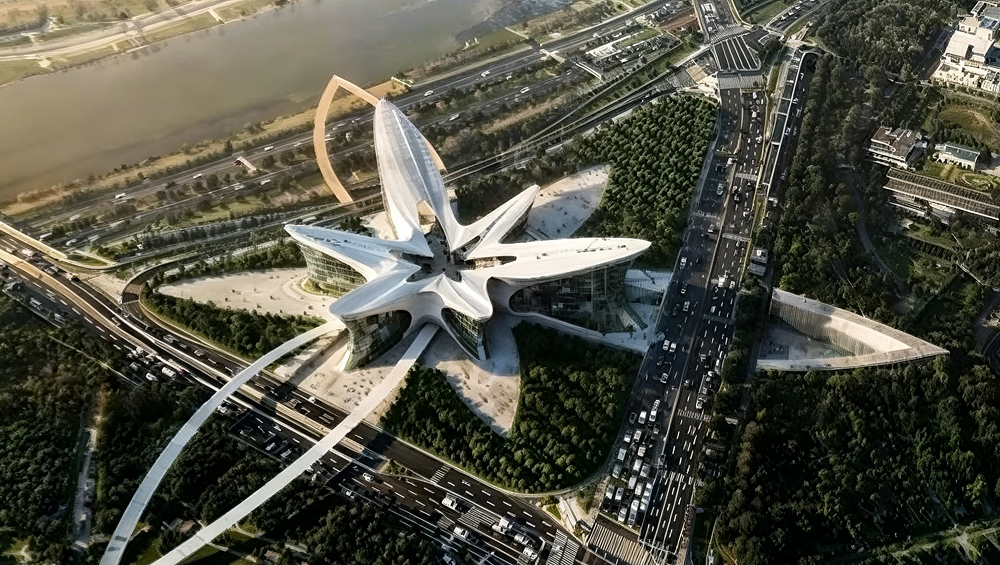
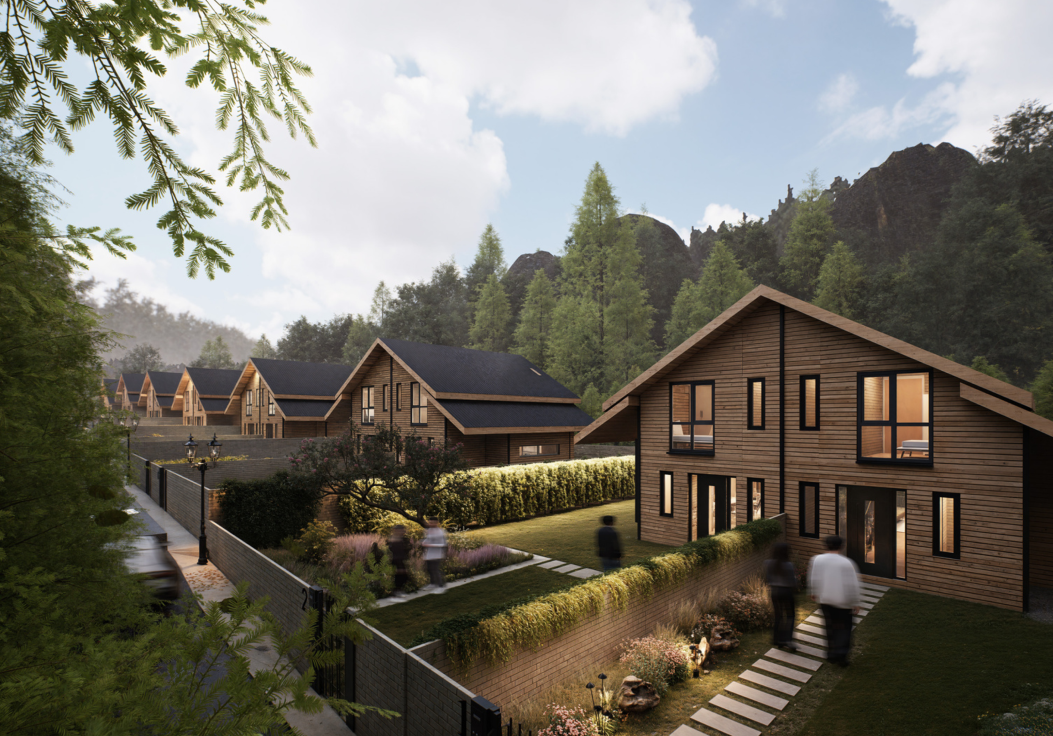
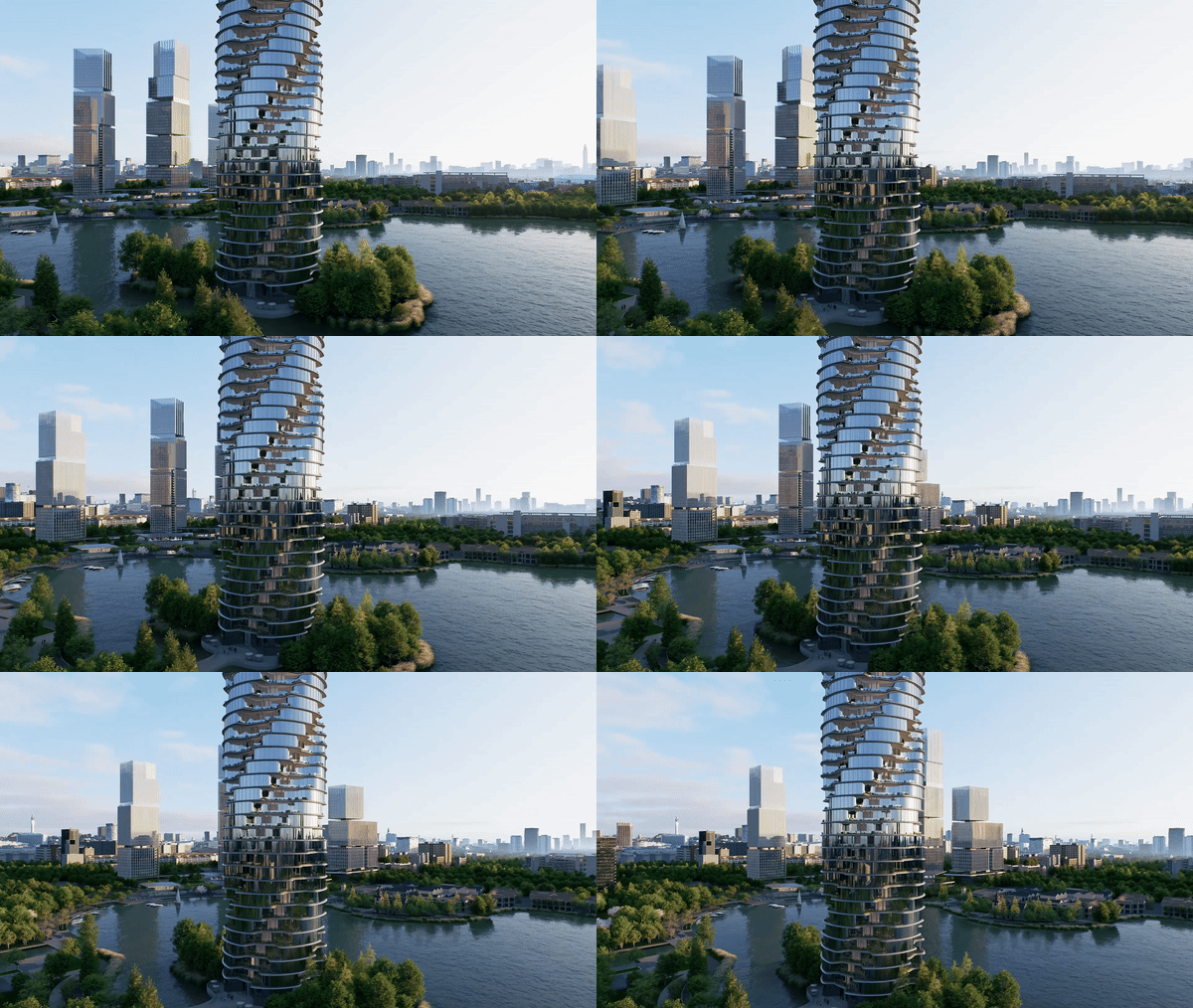
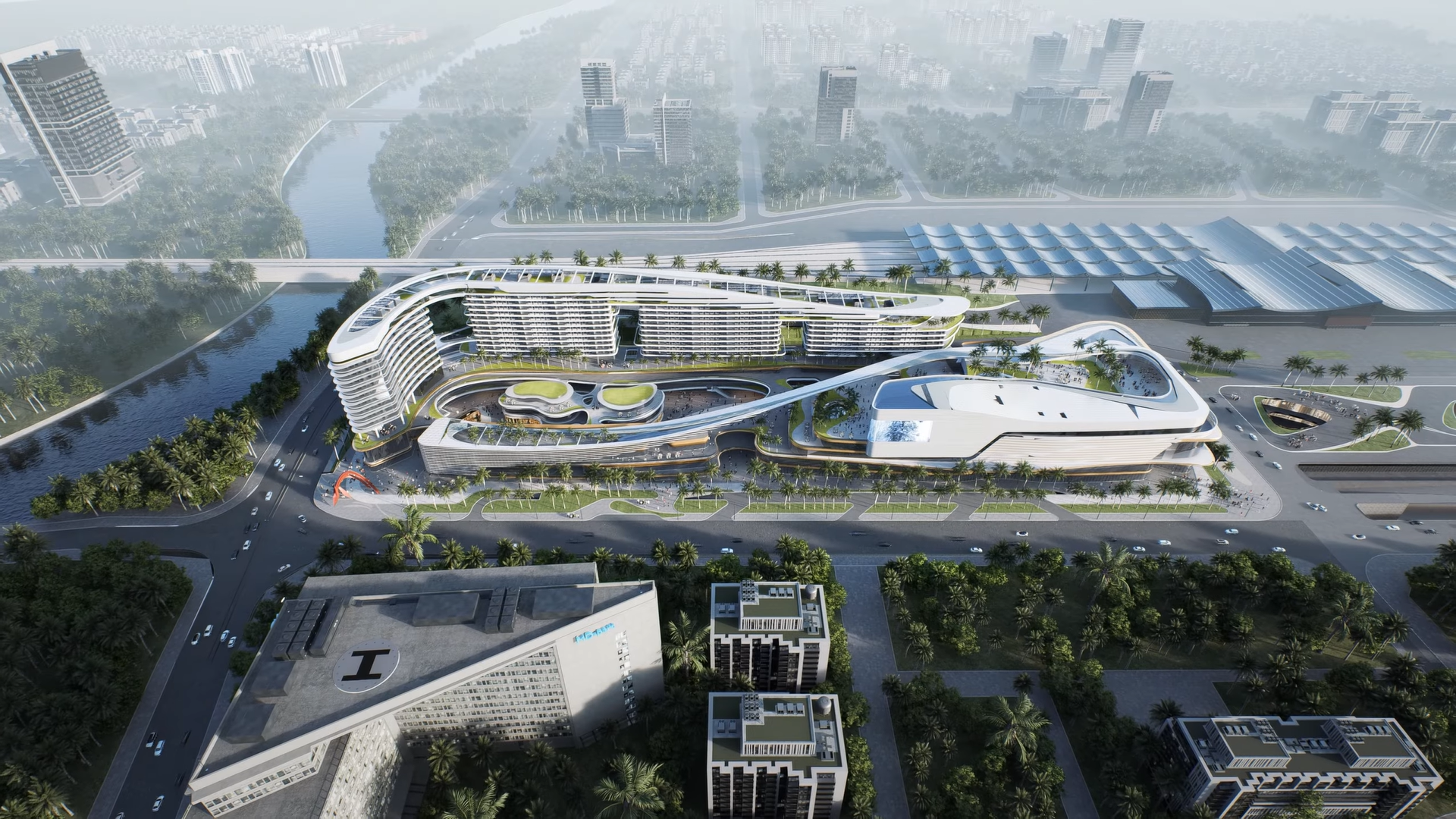
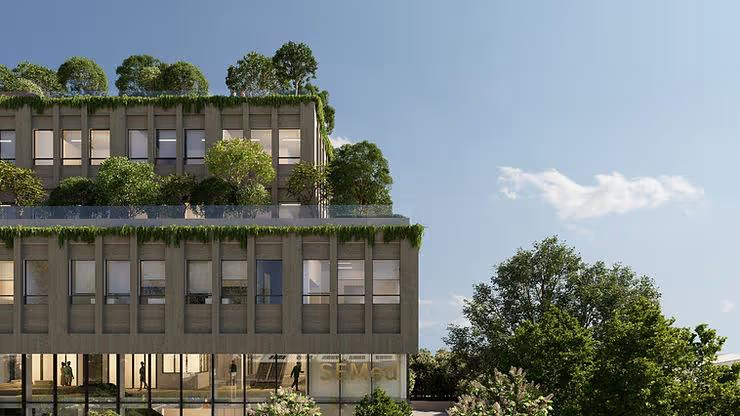
Great architecture is never generic, and its context shouldn't be either. The new Procedural Building feature within the D5 Render City Generator allows you to instantly define a neighborhood's character—whether it's a historic European quarter or a modern glass-box district.

One-click building facade design with D5 Render Procedural Building

To avoid visual repetition, a quick click of the Random button refreshes textures, while the Commercial slider lets you fine-tune the density and activity of a downtown district.

Should a specific building feel out of place, you have the freedom to edit it individually. A simple double-click allows you to swap a residential block for an office tower or adjust its Elevation to perfect the urban silhouette. You can even randomize the facade of a single structure, ensuring your background feels curated and intentional rather than purely algorithmic.

Fine-tune individual buildings

Fine-tune individual buildings in D5 Render to swap architectural styles.

By leveraging these procedural features, D5 Render enables you to maintain high design standards across the entire urban context, allowing you to dedicate your primary focus to the central architectural proposal.

One-click building facade design with D5 Render Procedural Building

Refining the Details: Roofs and Elevations

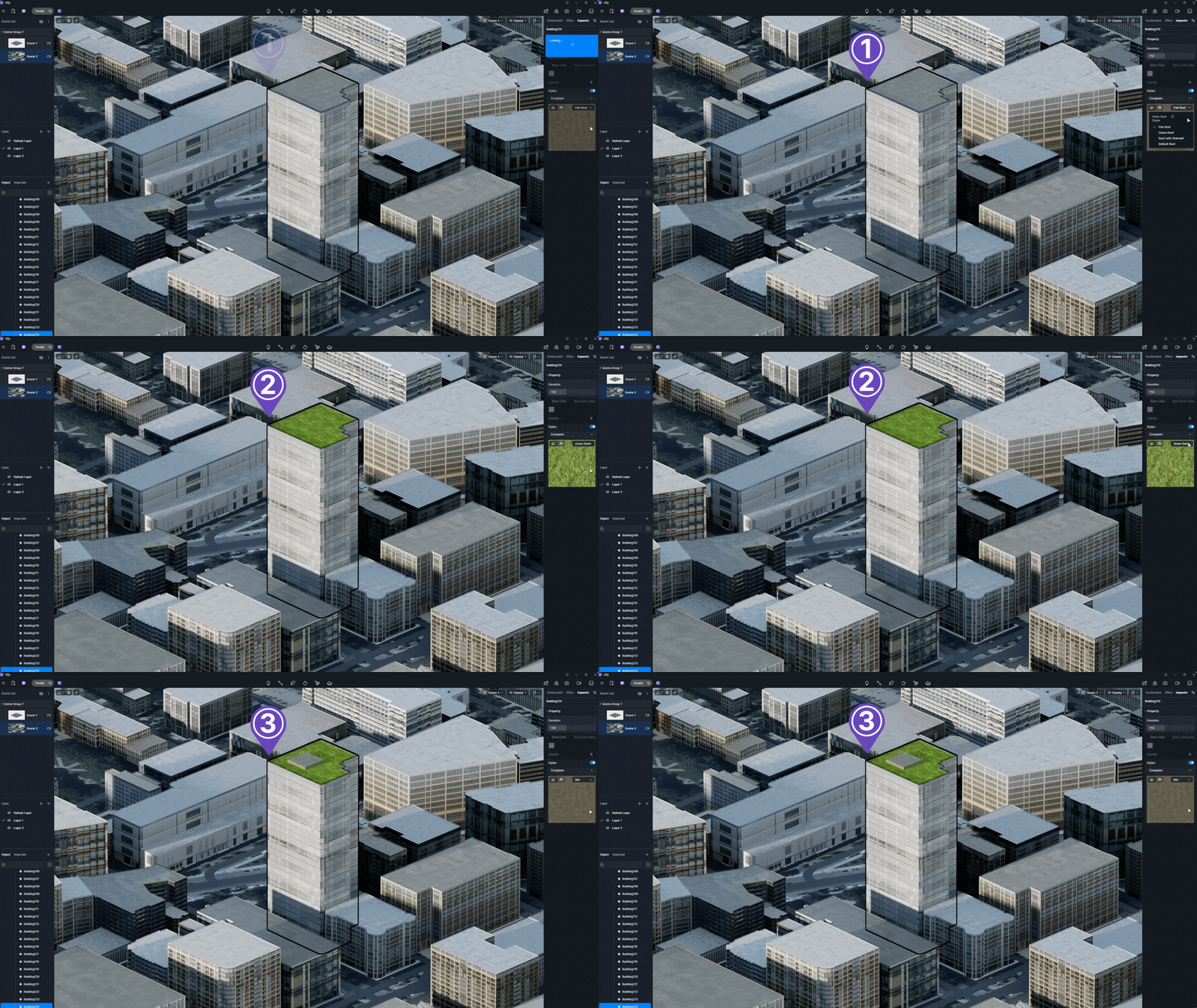
The complexity of a building facade design isn't just about the walls; the roofline is equally important for aerial visualizations. Within D5 Render 3.0, you can customize roof types for individual buildings. By clicking the thumbnail in the control panel, you can choose from various roof geometries to better respect the local architectural vernacular of your site.

Furthermore, if your project requires a specific building height to meet local zoning context, the elevation slider allows you to precisely match the scale of the neighborhood. This level of control ensures that your background buildings provide a professional, cohesive backdrop that enhances, rather than distracts from, your primary design.

One-click building facade design with D5 Render Procedural Building
Fine-tune roof geometries and building elevations in D5 Render for authentic site context

Mastering Site Integration: Swapping Context for Your Project

A frequent challenge for users is dealing with "existing conditions." What if the City Tool or Cesium data includes a building right where your new project is supposed to stand? You don't want your exact footprint clipping through old geometry. In D5 Render, there are two primary ways to "carve out" your space, depending on your data source.

The Section Cube Method (Best for Cesium Data)

Because Cesium data acts as a single, monolithic mesh, you can't simply delete a single building. This is where the D5 Render's Section Cube becomes your best friend.

  1. Layer Isolation is Key: Place your project and the Cesium context on different layers.
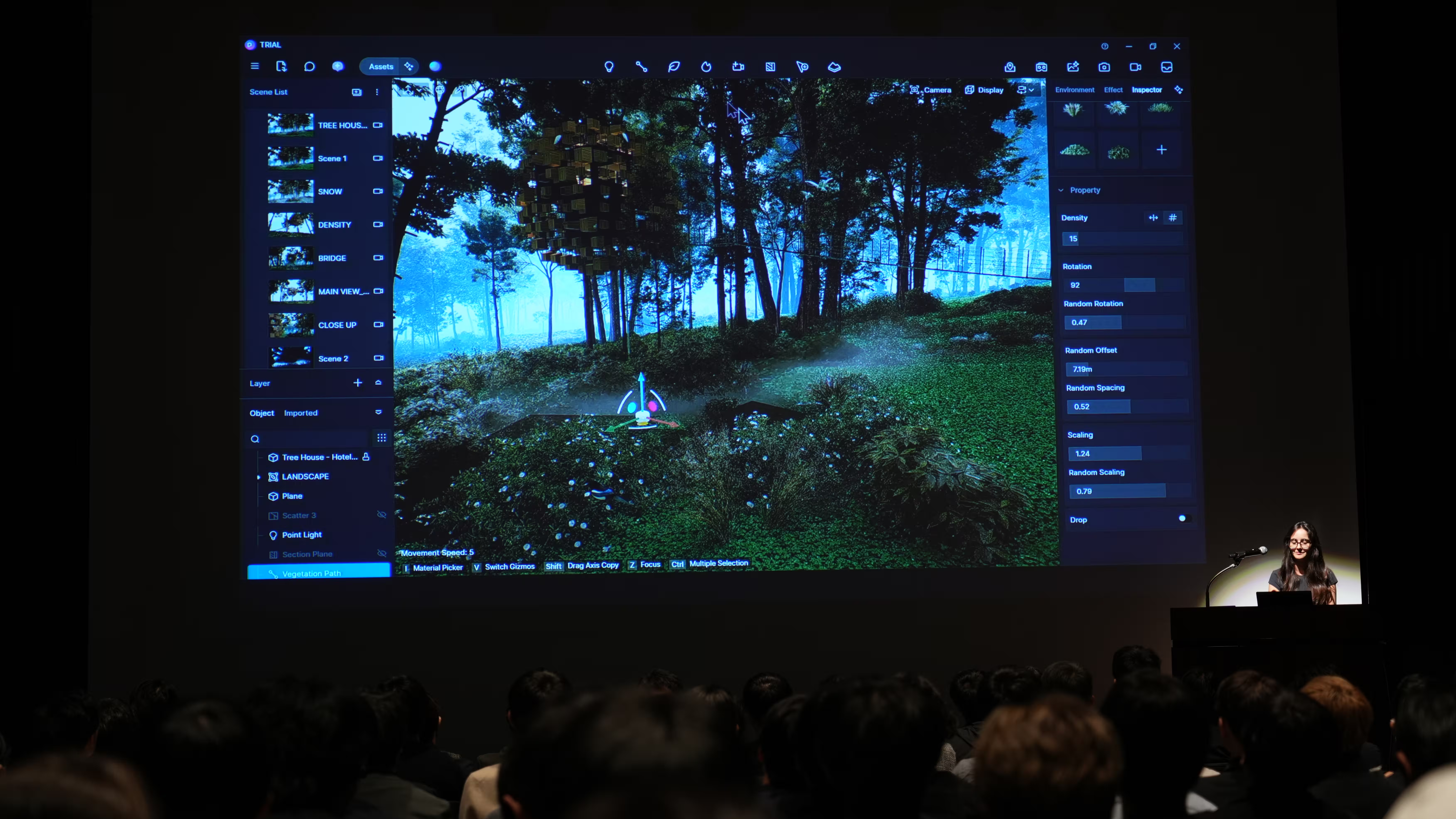
  2. Precision Control: Enable the Section Tool (via Manu > Preference > Widget) and position the cube over the offending structure.
  3. The Pro Move: Toggle off 'Uniform Scale' and hit 'V' to stretch the cube to perfectly match the building's footprint. Setting it to 'Affect Current Layer Only' will cleanly "carve out" the old geometry, leaving your new architecture to sit flawlessly in its place.

👉 How to Use Cesium in D5 Render 2.11 for 3D Mapping (3 Steps)

One-click building facade design with D5 Render Procedural Building

The Double-Click Trick (Best for City Generator Tool/OSM)

If you're working with the OSM-based City Tool, the process is even smoother because D5 Render treats buildings as individual, editable assets:

  1. Isolate & Detach: Simply double-click the building that's clashing with your design. This instantly detaches it from the wider city group.
  2. Clear the Plot: Once isolated, you can toggle its visibility off or delete it entirely from the resource list.

By utilizing these precision workflows, you can replace generic background data with your primary design in seconds, ensuring your project integrates into the urban fabric with zero flickering or overlapping geometry.

👉 How to Replace Existing Buildings with Your Own Project in D5 Render

Conclusion: Elevating Building Facade Design & Urban Site Planning

By weaving these workflows into your creative process, you're doing more than just hitting a deadline—you're crafting a cohesive narrative for your design. Whether you're a solo practitioner or leading a global studio, the ability to generate a rich, photorealistic context in seconds changes the game. It turns the "tedium" of site planning into a seamless part of the storytelling process.

Ready to see your building facade design in its true context? Dive into D5 Render 3.0 today and experience how our procedural tools can breathe life into your next urban masterpiece.

One-click building facade design with D5 Render Procedural Building

Explore More: Advanced Urban Building Design Insights

D5 Urban Planning Software for 3D City Creation >>

The Strategic Secret to Faster, Smarter Urban Projects: Aoya × D5 Render >>

Visualizing an Urban Oasis: Yoga4Arch Studio's Real-Time Workflow for a 650 ha Project >>

What Makes a Walkable City? Key Design Principles and Tools >>

Cyberpunk City in D5 Render: Mastering Neon, Fog & Rain >>

4 Tips You Must Know to Render the Perfect City Aerial View >>

FAQs on Elevating Building Facade Design & Site Planning

The most efficient way to handle massive cityscapes is through procedural automation. Instead of manual modeling, D5 Render 3.0 allows you to apply diverse architectural styles—from historic European quarters to general modern hubs—across entire districts. This workflow converts basic massing into detailed urban fabric in seconds, ensuring your building facade design across complex urban contexts maintains high standards while you focus your creative energy on the primary proposal.

Achieving a realistic urban backdrop is all about breaking the "perfect" look of CG visuals. The integration of the Procedural Building feature within D5 Render 3.0's City Generator prioritizes controlled randomization to avoid a synthetic feel. A single click of the Random button refreshes textures to prevent visual repetition, while the Commercial slider lets you fine-tune the density and activity of a district. These nuanced controls ensure your context feels curated and intentional, complementing your lead design with authentic detail.

Handling vast environments starts with Precision Selection and smart filtering. By filtering specific elements before you import site data, you can keep your scene lightweight and performant in D5 Render. This ensures that even with intricate building facades extending across the entire cityscape, map navigation remains fluid—providing the real-time responsiveness that professional practices require for high-end visualization.

For bird's-eye views, the roofline is just as critical as the building facade. Within the D5 Render City Generator, you can customize individual roof types by selecting from various geometries in the control panel. Combined with the elevation slider—which precisely matches local neighborhood scales—this ensures your aerial renders look grounded and professional, providing the "lived-in" detail necessary for winning competition entries.

To avoid messy visual clipping or Z-fighting, you need to cleanly clear your plot before placing your model. D5 Render 3.0 streamlines this with two intuitive workflows. For Cesium 3D Tiles, use the Section Cube with "Layer Isolation" to carve out your space in seconds. For OSM-based cities, simply double-click to isolate and hide any building in your way. These hassle-free methods ensure your design integrates perfectly into the urban fabric without ever leaving the renderer.

One-click building facade design with D5 Render Procedural Building
문의하기
너는 또한 좋아할지도 모른다
최초의 3D 시각화 협업 플랫폼
D5 렌더를 통한 KPF의 혁신적인 도약