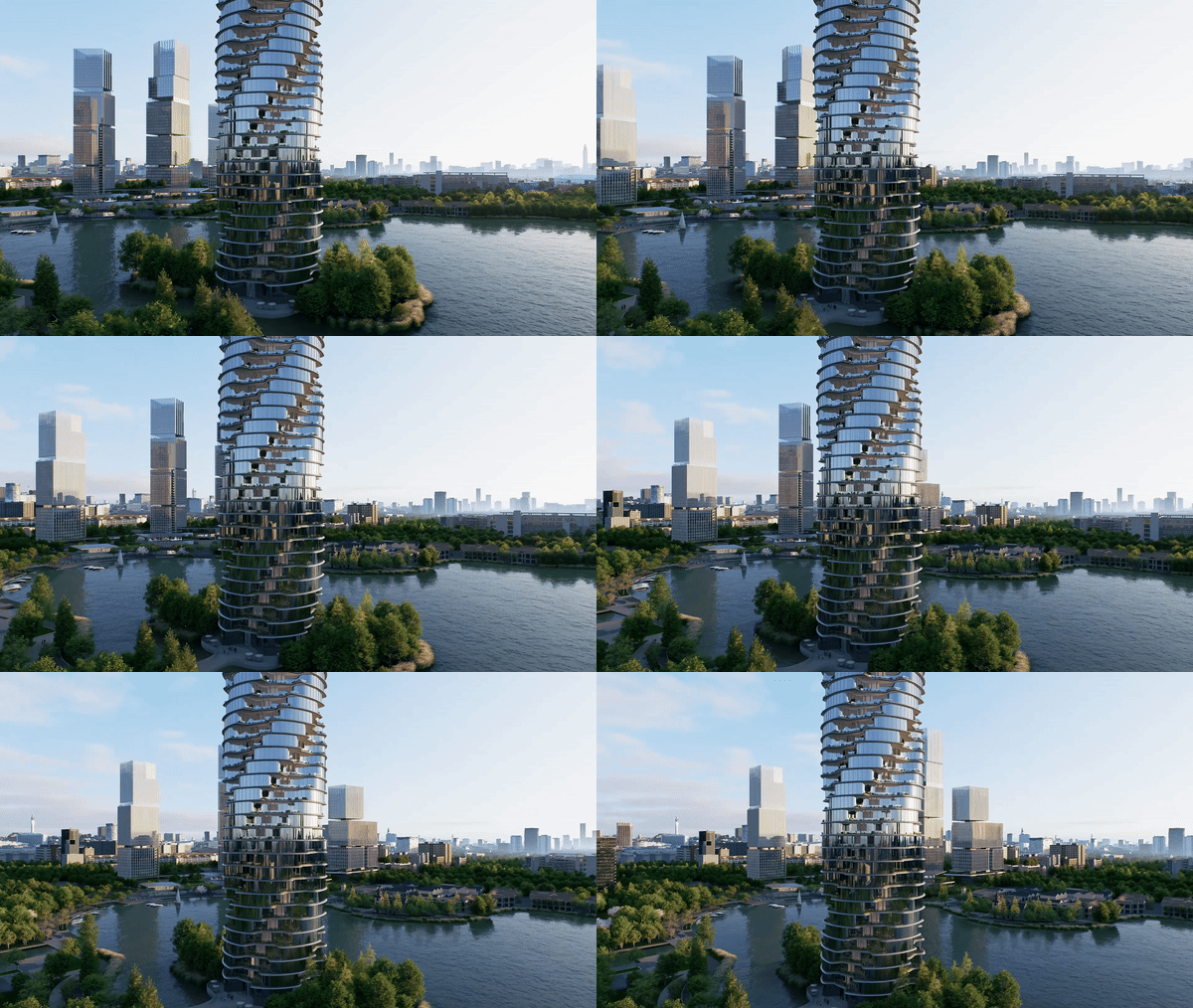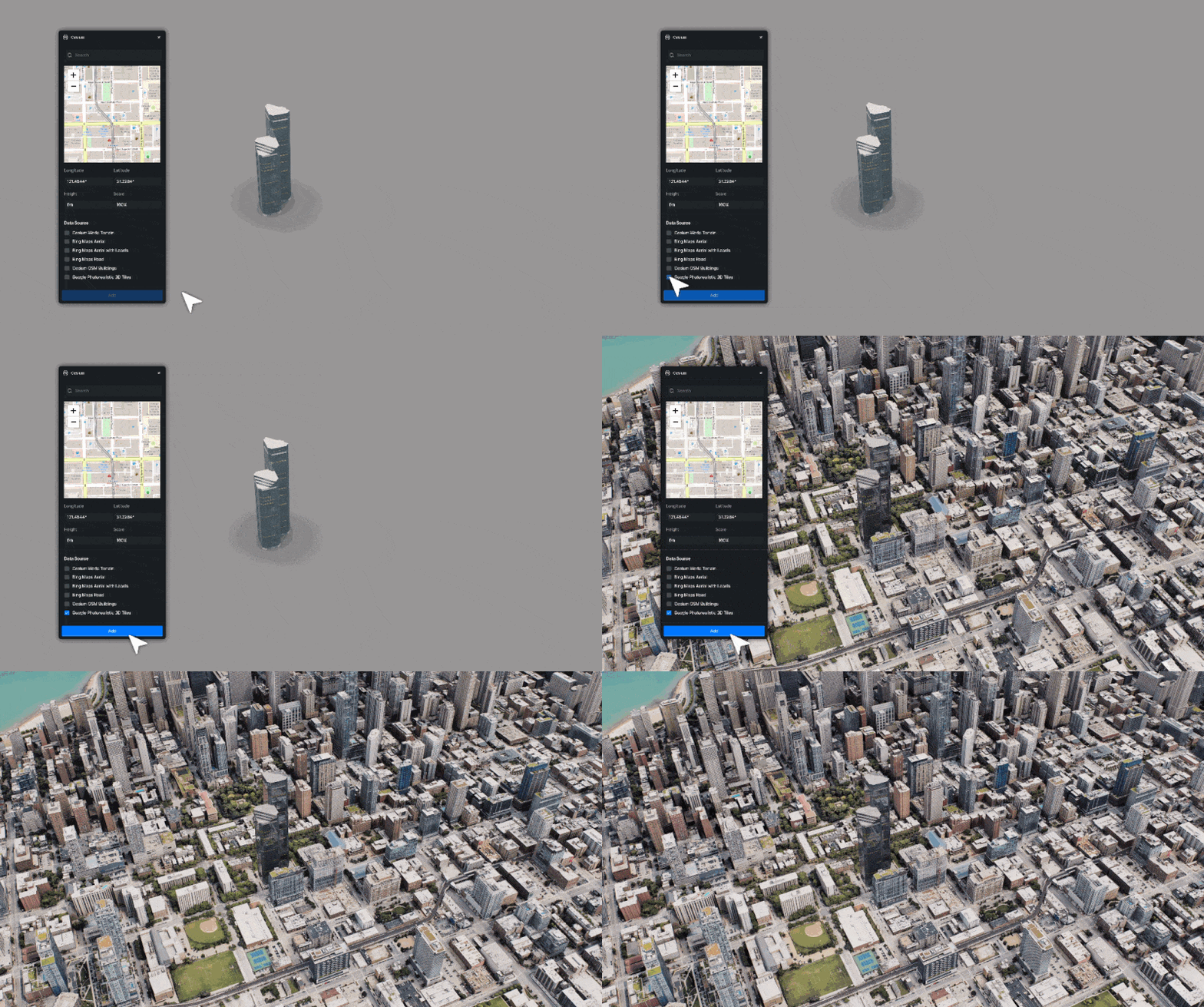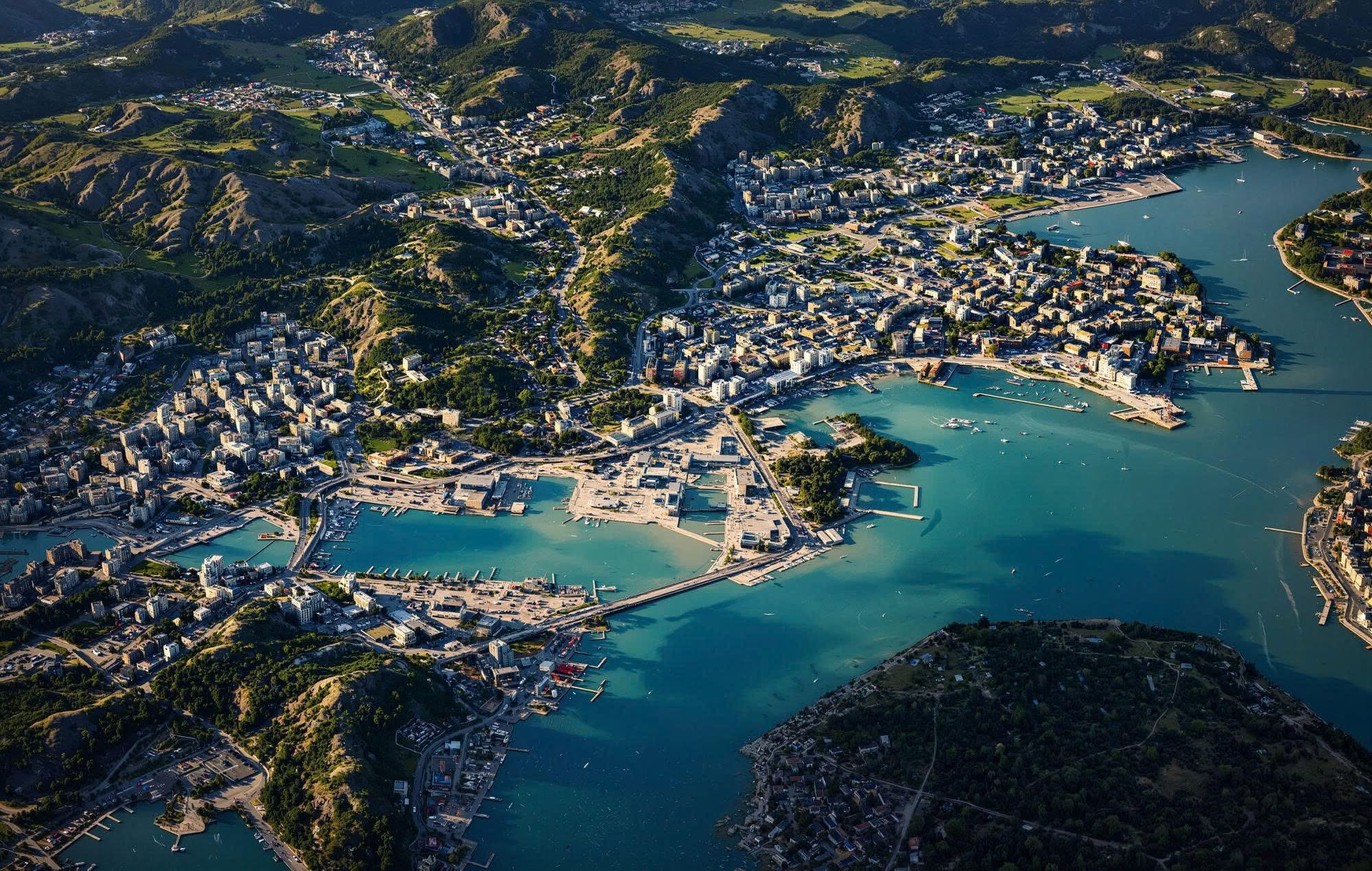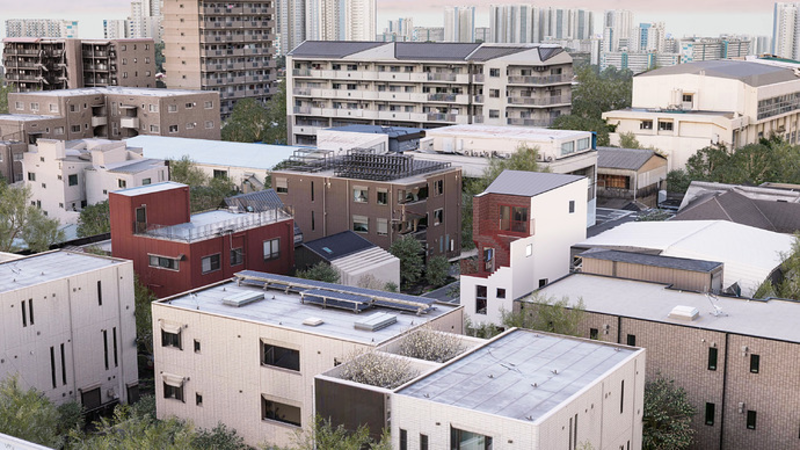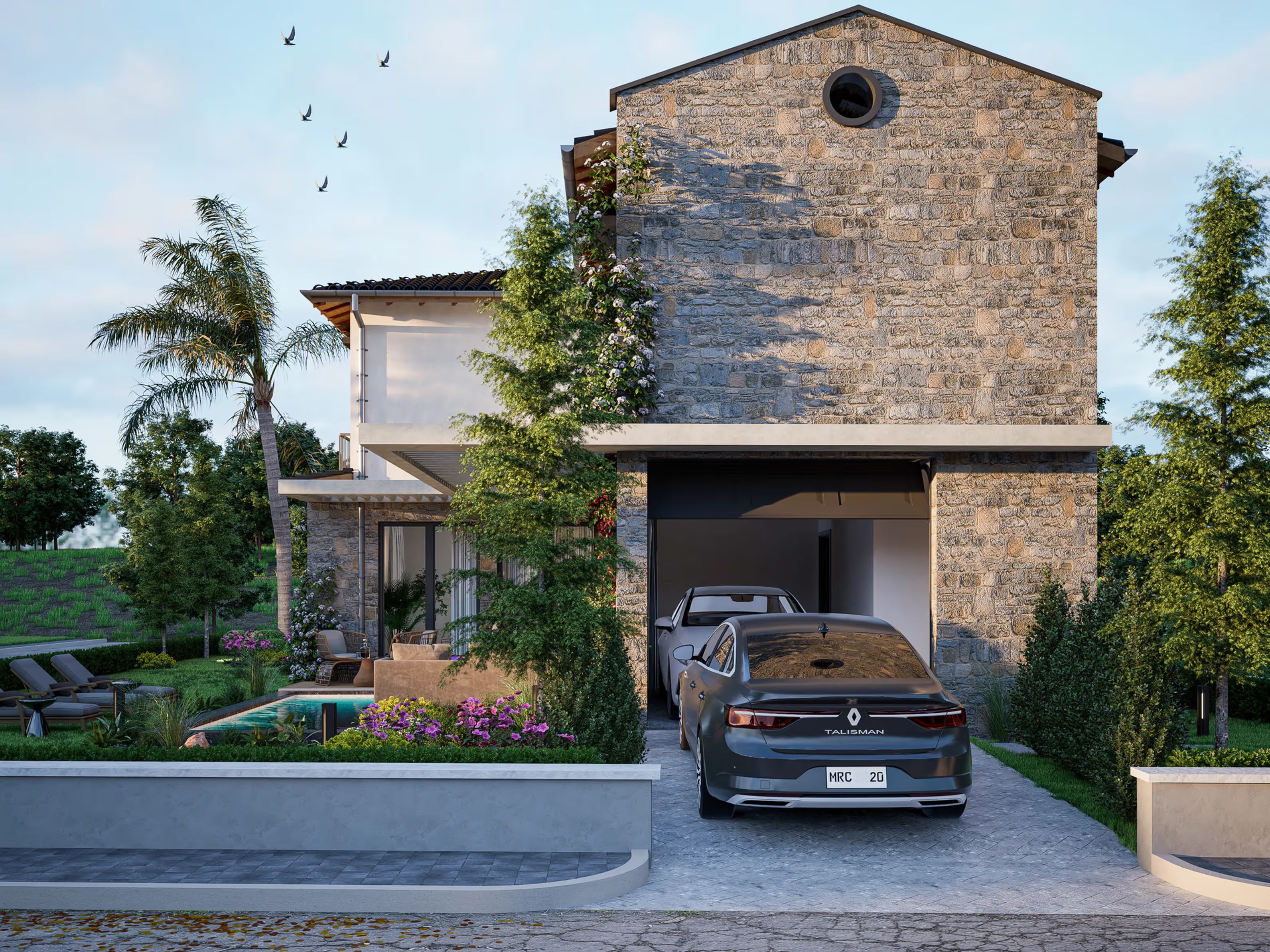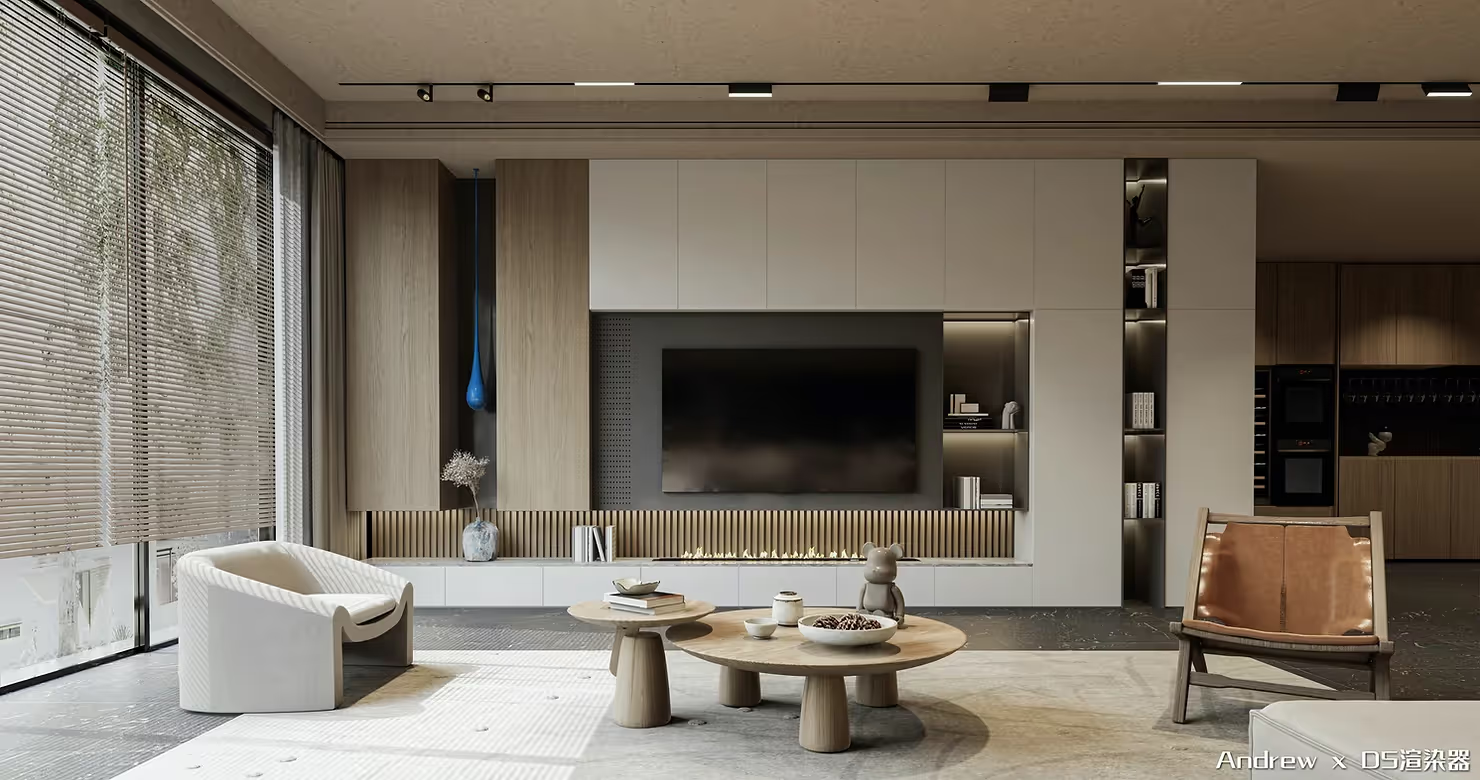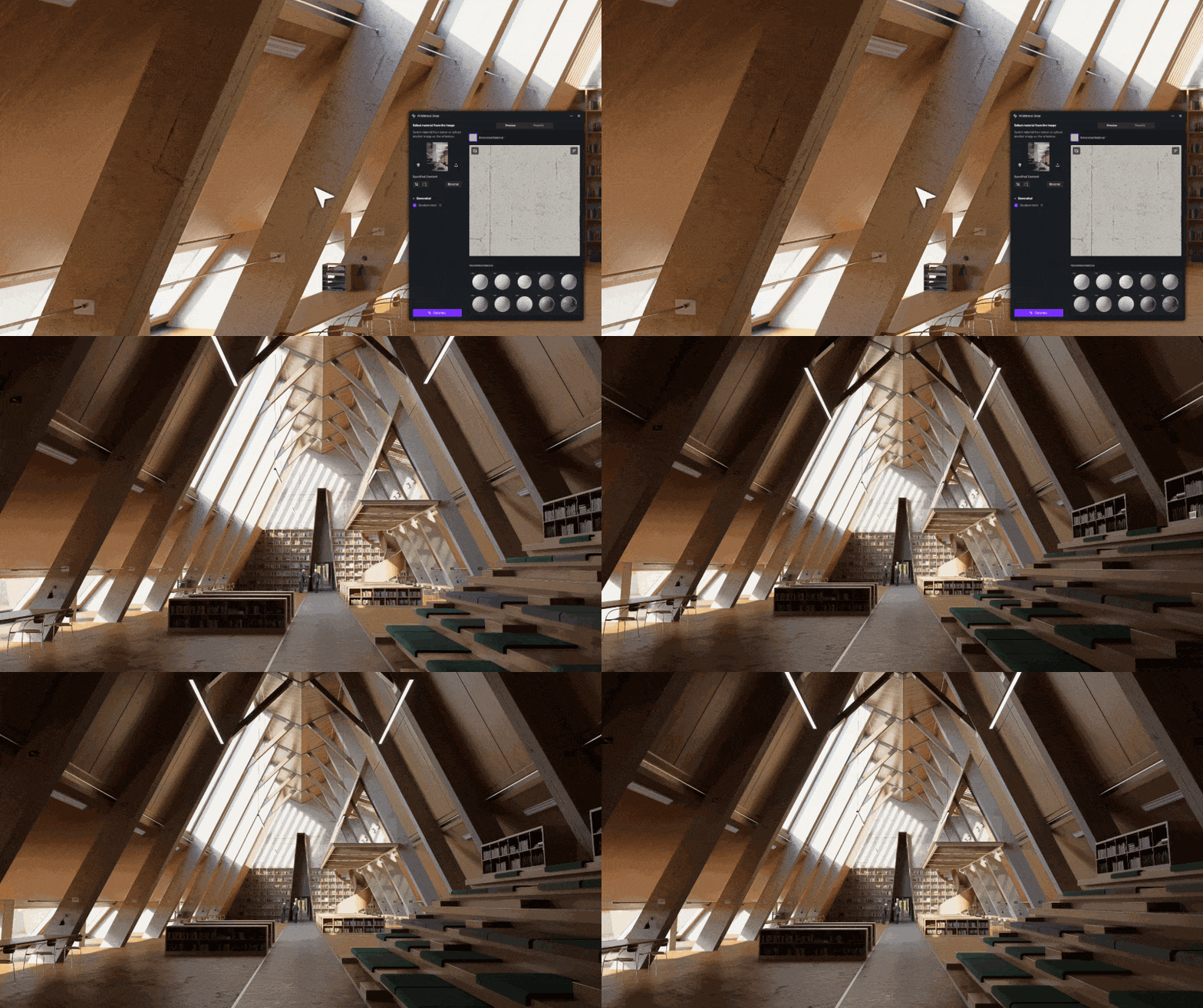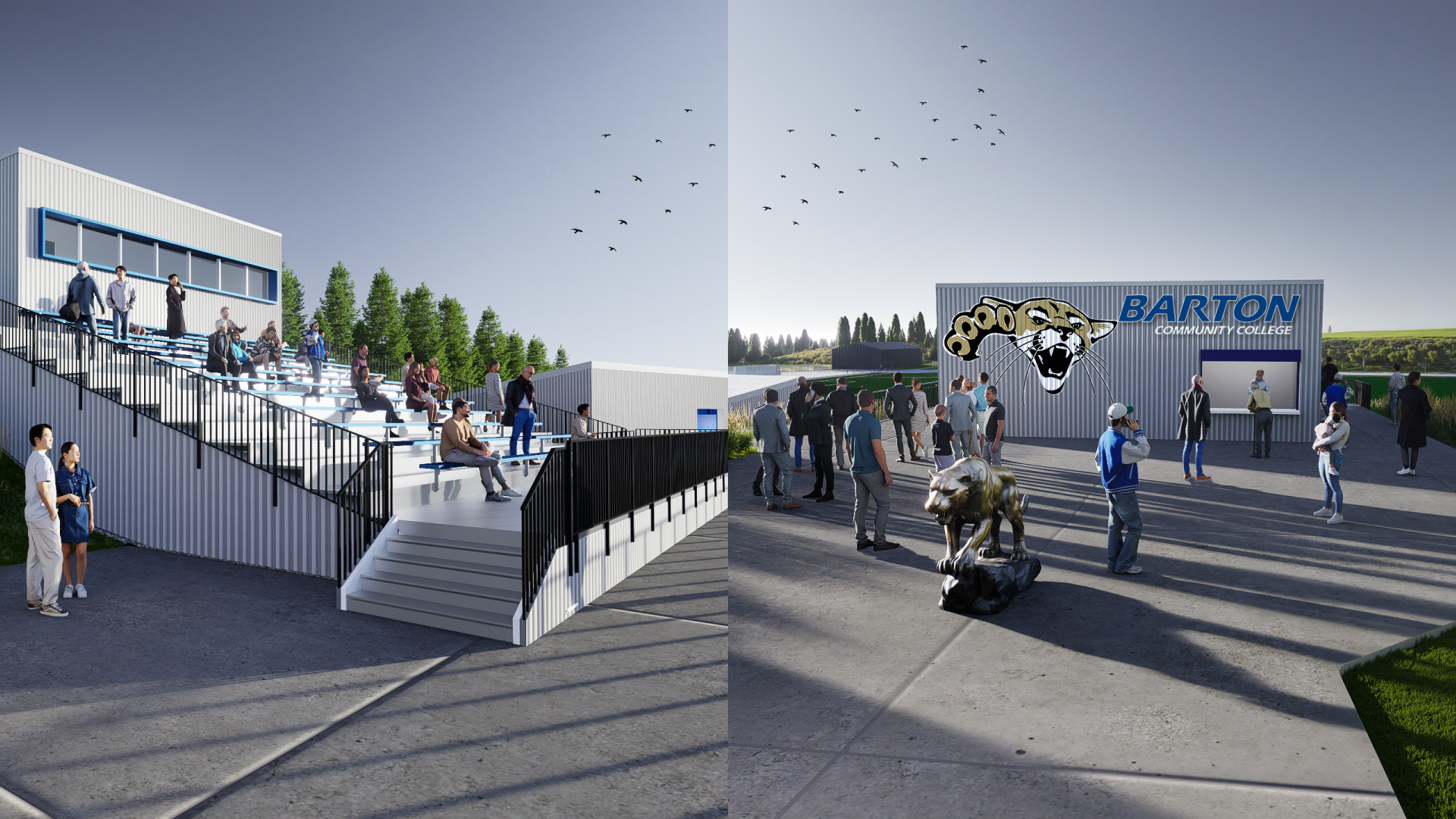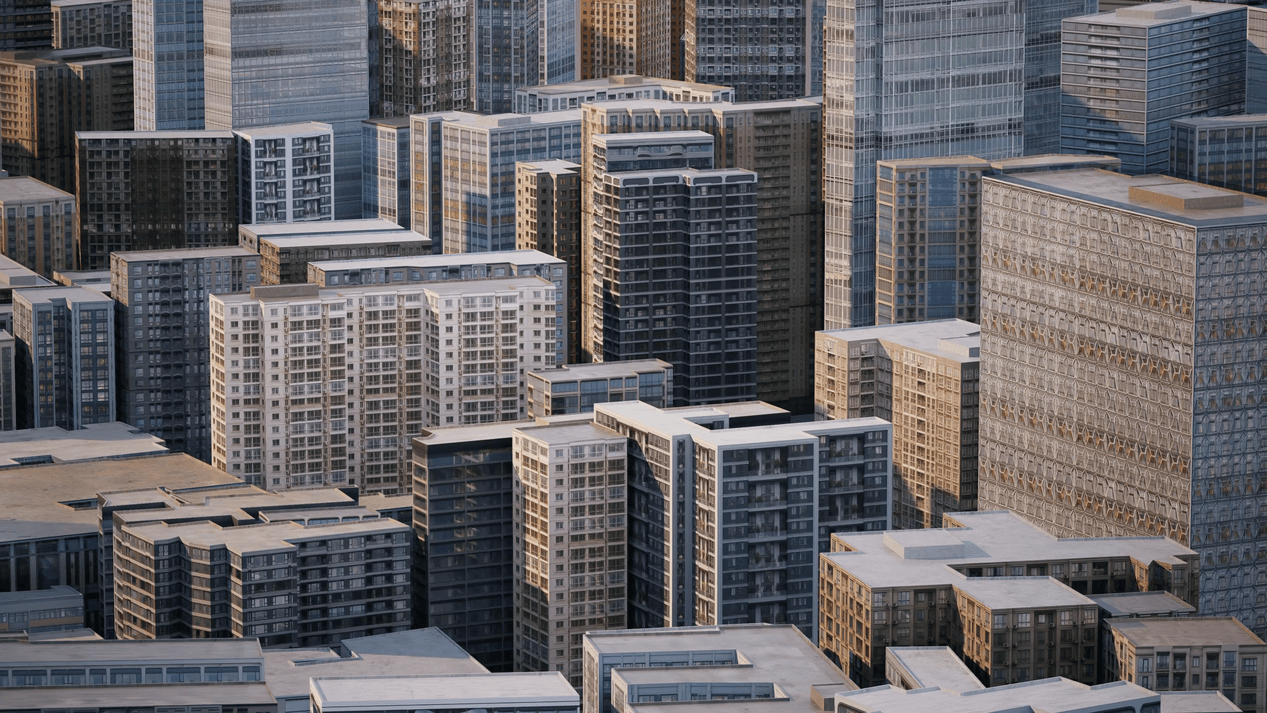


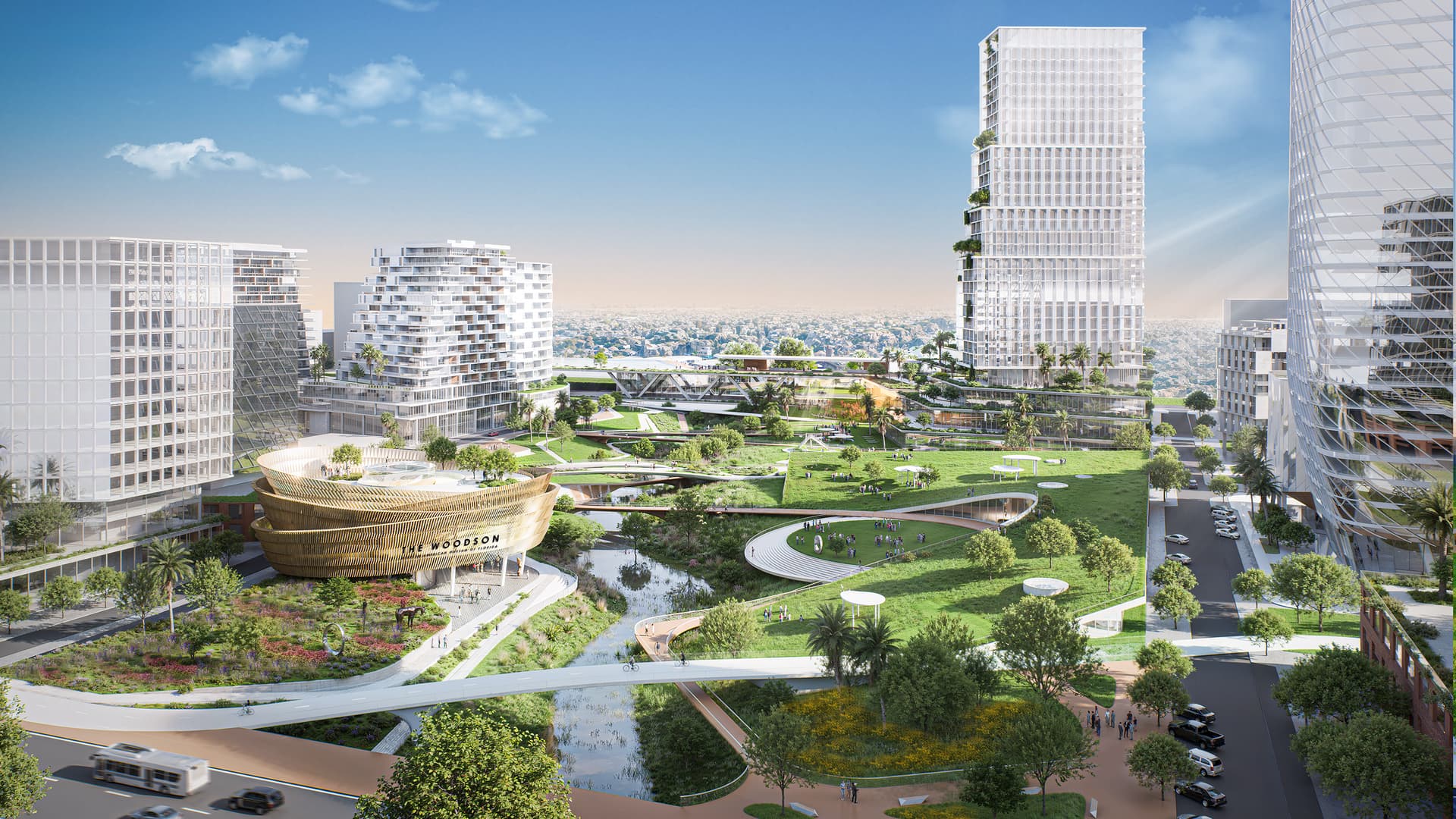
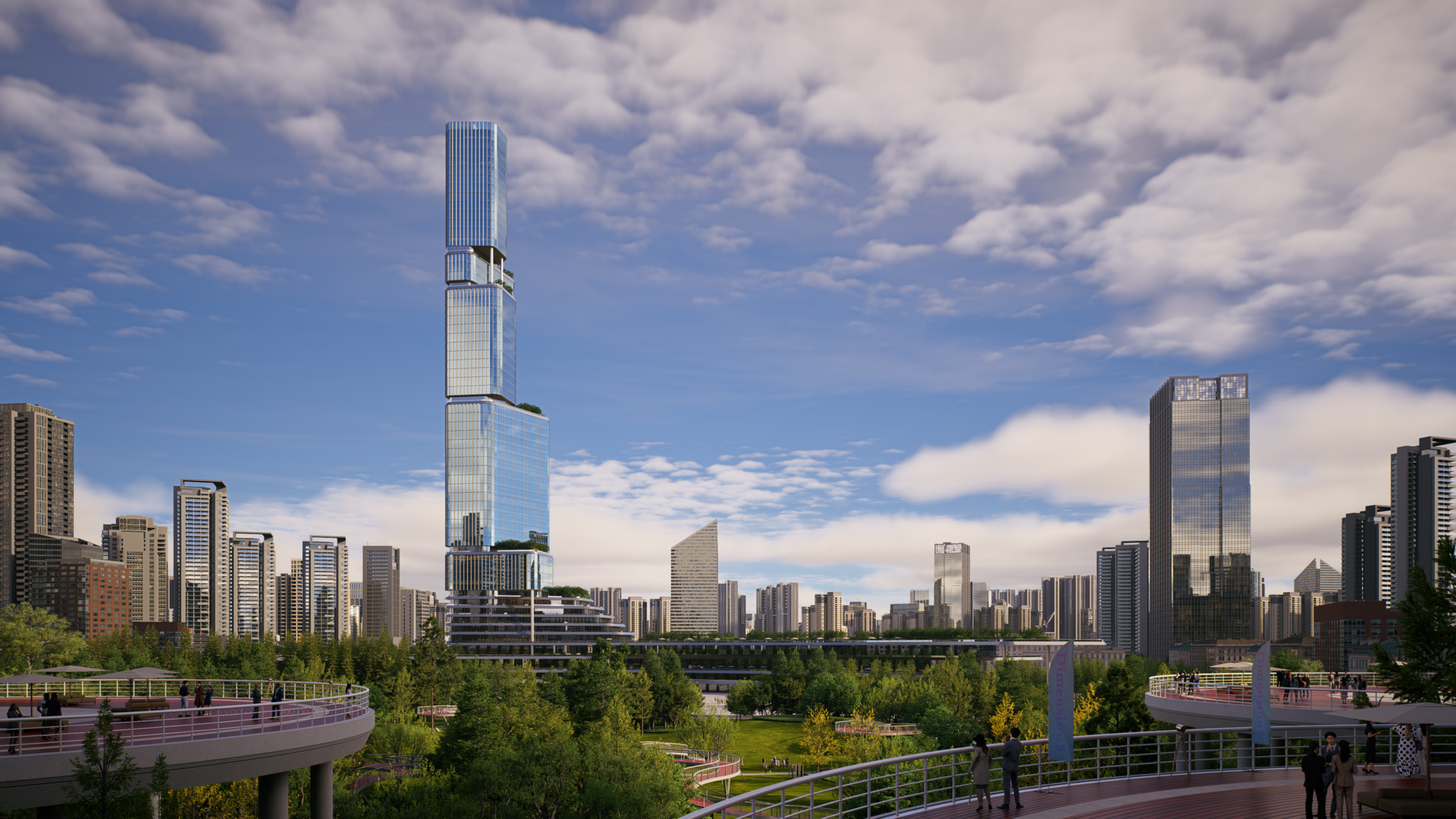
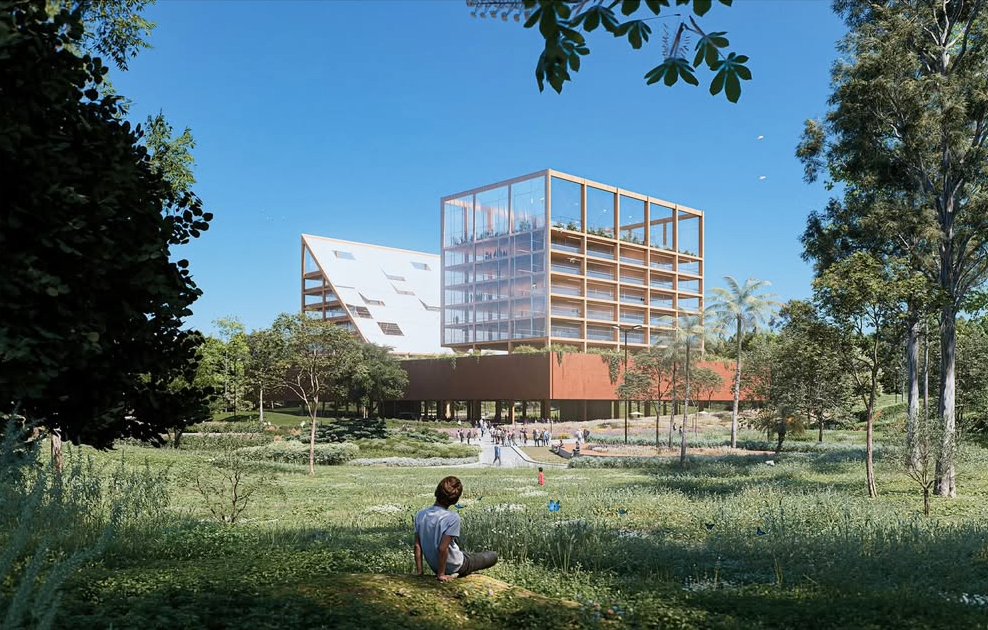
周囲の環境のモデリングは、都市建築プロジェクトで最も面倒な作業であることがよくあります。その感覚は誰もが知っています。何週間もかけて主要なデザインを改良したのに、サイトのコンテキストは「デジタル砂漠」に過ぎないことに気付きました。すべてのシーンに生き生きとした本物のように感じてもらいたいのですが、すべての背景構造を手作業で作成することは、厳しいプロジェクトタイムラインではほとんど実現できない贅沢です。
と D5 レンダー 3.0 リリースでは、このワークフローのボトルネックに対処しました。プロシージャルビルディング機能を当社に統合することで シティジェネレーター、私たちはデザイナーが迅速なサイト計画とフォトリアリスティックなコンテキストの間のギャップを埋めるのを支援しています。
📌 重要なポイント:D5 Renderの建物のファサードデザインとサイトプランニング
- D5 レンダー 3.0基本的な質量を詳細な構造に変換し、手動モデリングなしで広大な都市景観にわたる高品質の建物のファサード設計を可能にします。
- ワンクリックスタイルで地区全体に多様な建築テクスチャを適用できるため、視覚的な繰り返しを避けながら、近所の個性的なキャラクターをキュレーションできます。
- のような高度なツール セクションキューブ また、ダブル・アイソレーションにより、既存の建物を外科的に入れ替えて自分のプロジェクトに組み替えることができるため、シームレスで重なり合うことなくフィットさせることができます。

クラフトコンテキスト:強化都市ジェネレーター
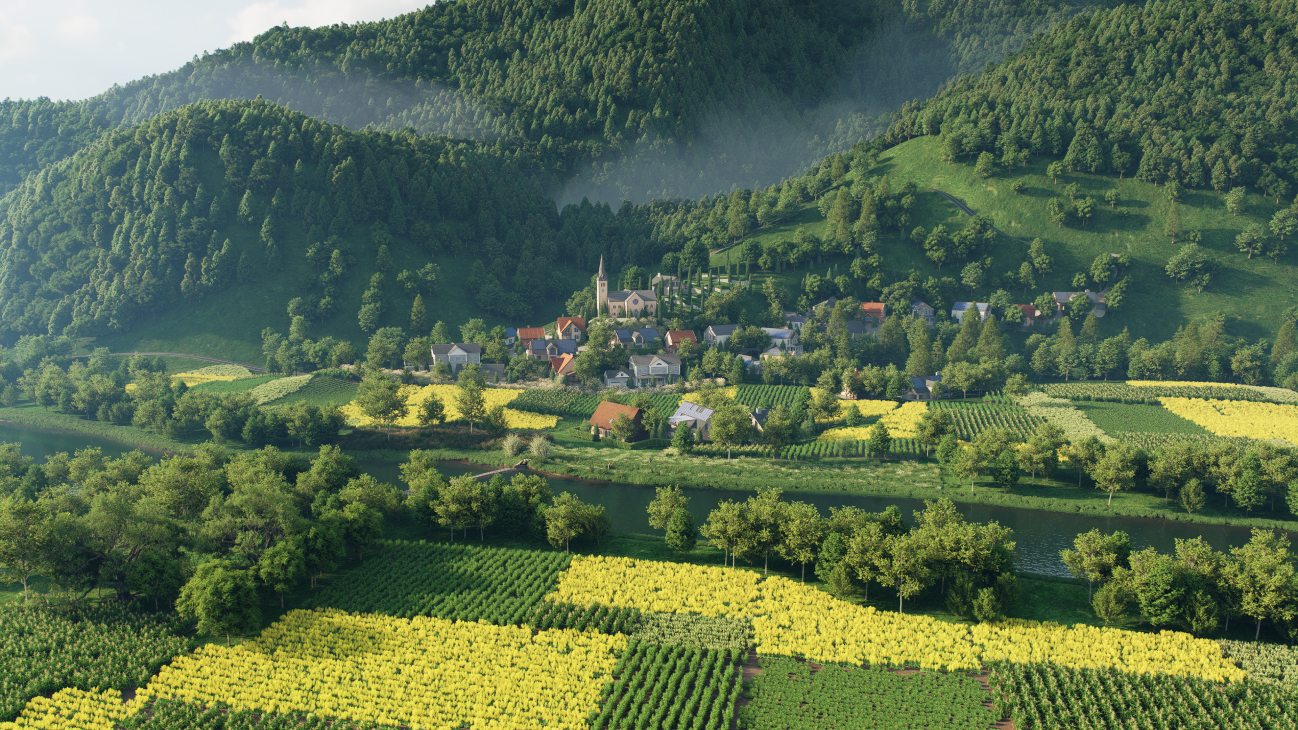
広大な都市環境を構築することは、面倒な作業のように感じるべきではありません。で D5 レンダー 3.0、シティジェネレーターは、摩擦を最小限に抑え、クリエイティブゾーンに留まるように完全に再考されました。
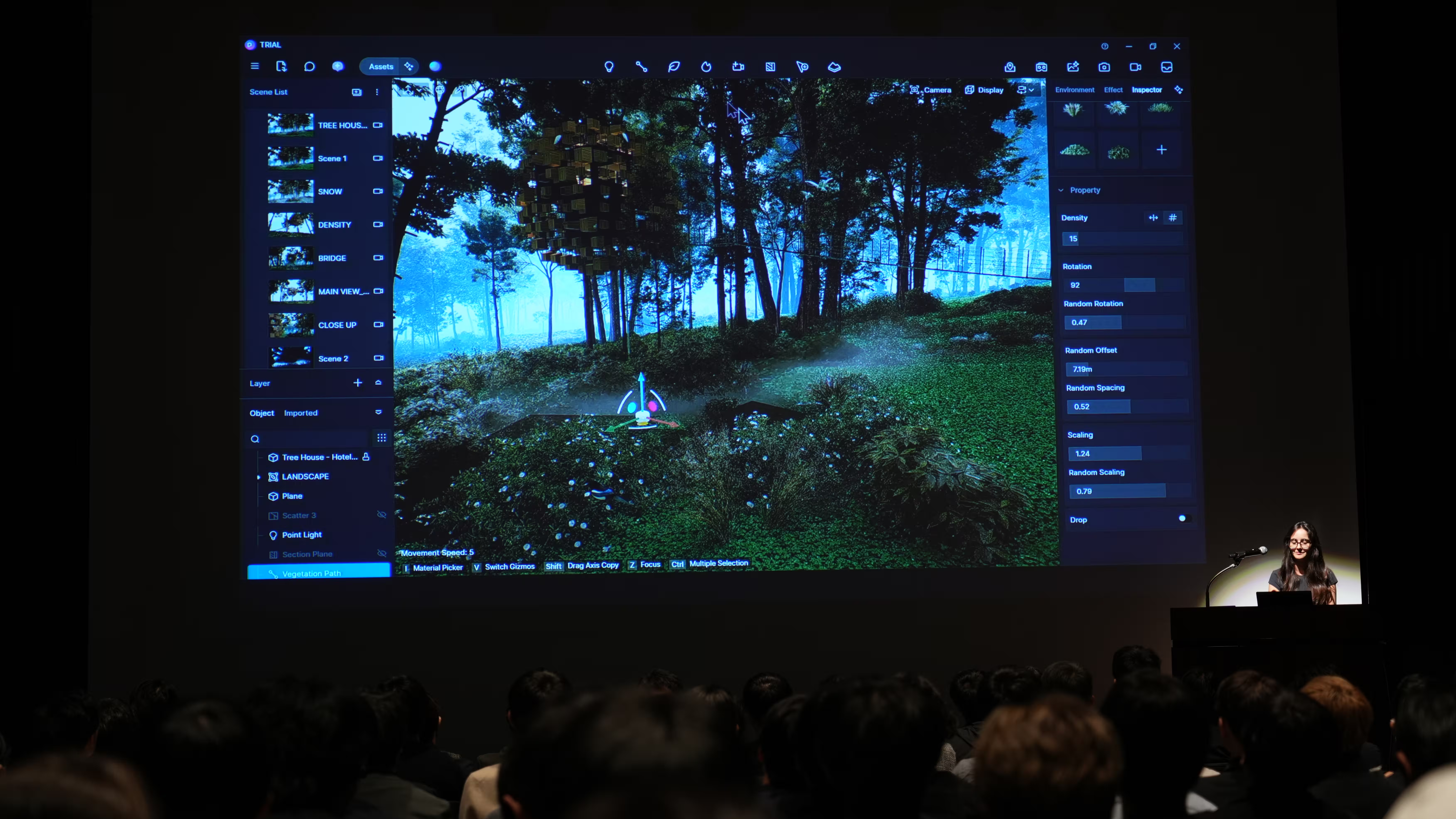
① 直感的なワークスペース: 完全にサイズ変更可能なパネルを備えたCity Generatorでは、気を散らすことなくマップをナビゲートしたりサイトデータを管理したりできるようになりました。この柔軟な環境により、ワークフローはアイデアと同じくらいスムーズに保たれます。
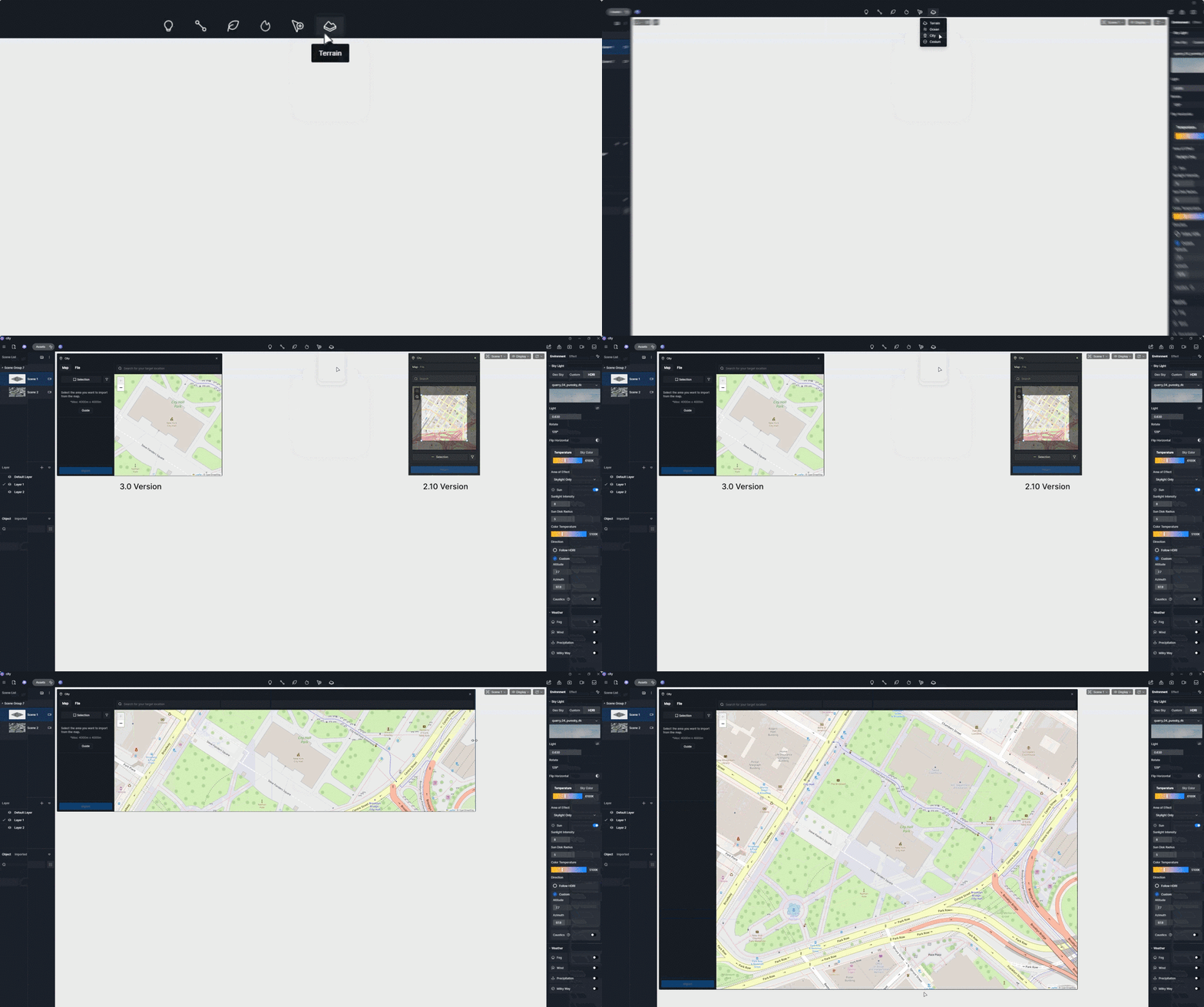
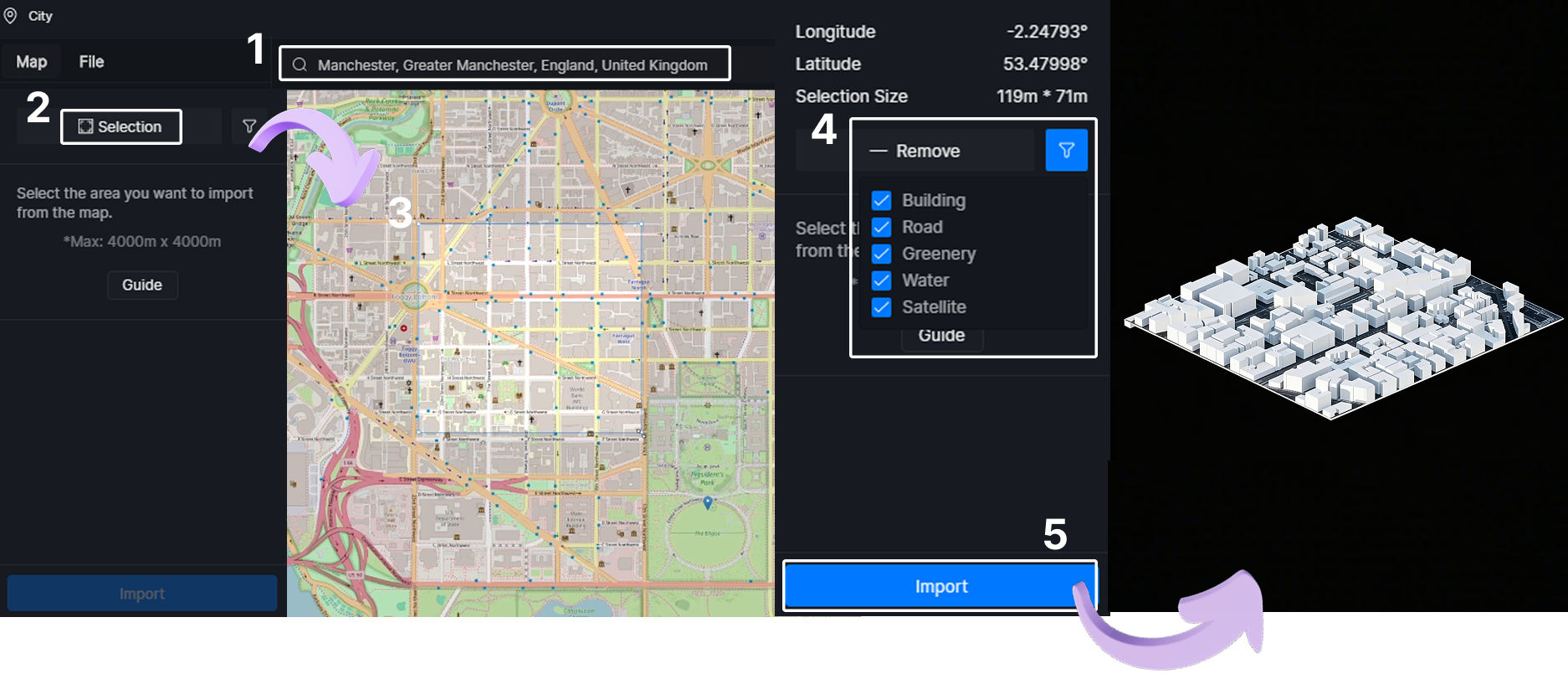
② 指先で操作できる精度: インポートを開始する前に特定の要素をフィルタリングすることで、面倒な作業をスキップできます。サイトを検索して、お住まいの地域をフレーミングするだけです。 D5 レンダリング 残りは自動的に処理され、最初のクリックからシーンの軽量性とパフォーマンスが維持されます。
③ スタイリング: リソースリストの下で、都市グループを展開し、スタイルを切り替えます。 D5 レンダリング ベーシックな素材を瞬時にテクスチャリングできるため、リードデザインを引き立てる洗練された都会的なファブリックを作成できます。
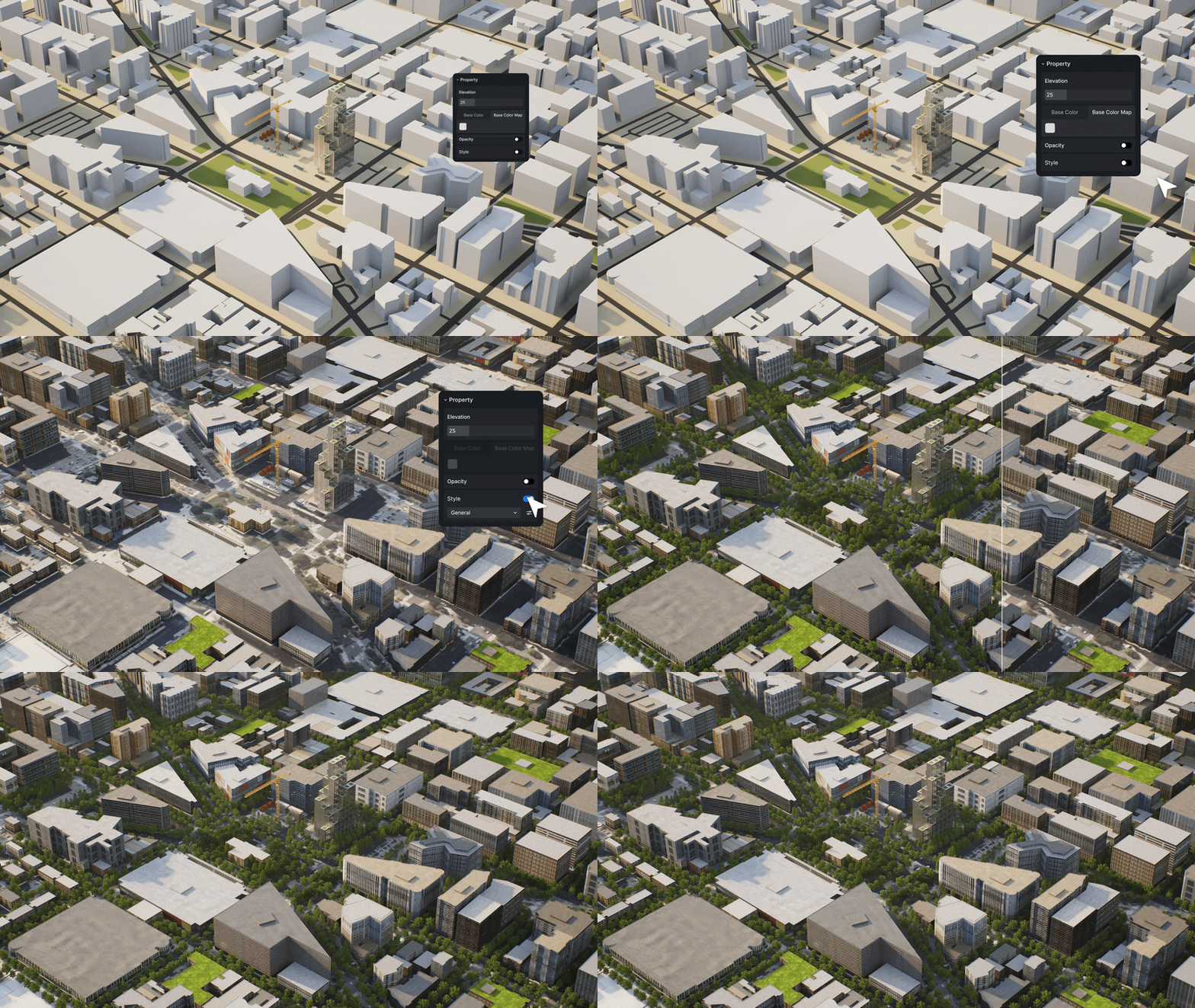
Procedural Building in D5 City Generator: Automate stylized architectural appearances
手続き型ツールによる建物のファサードデザインの習得
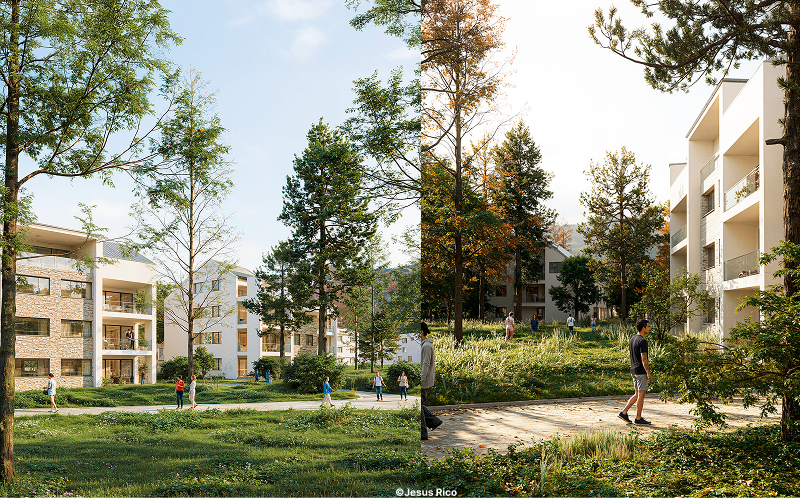
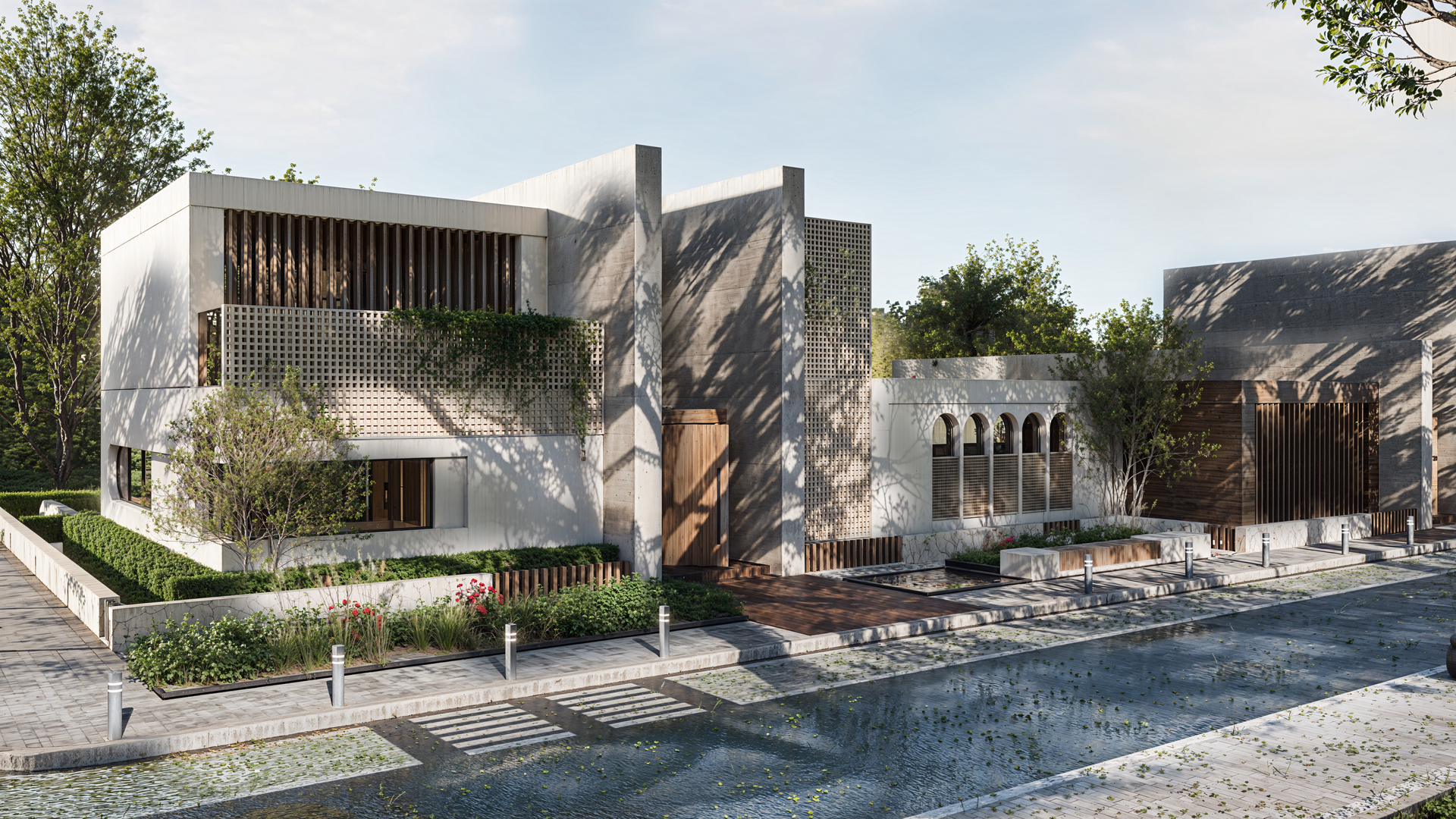
優れたアーキテクチャは決して一般的なものではなく、そのコンテキストもそうであってはなりません。に含まれる新しいプロシージャル・ビルディング機能は D5 レンダリング シティジェネレーター 歴史的なヨーロッパ地区でも、モダンなガラス張りの地区でも、近所の特徴を瞬時に定義できます。
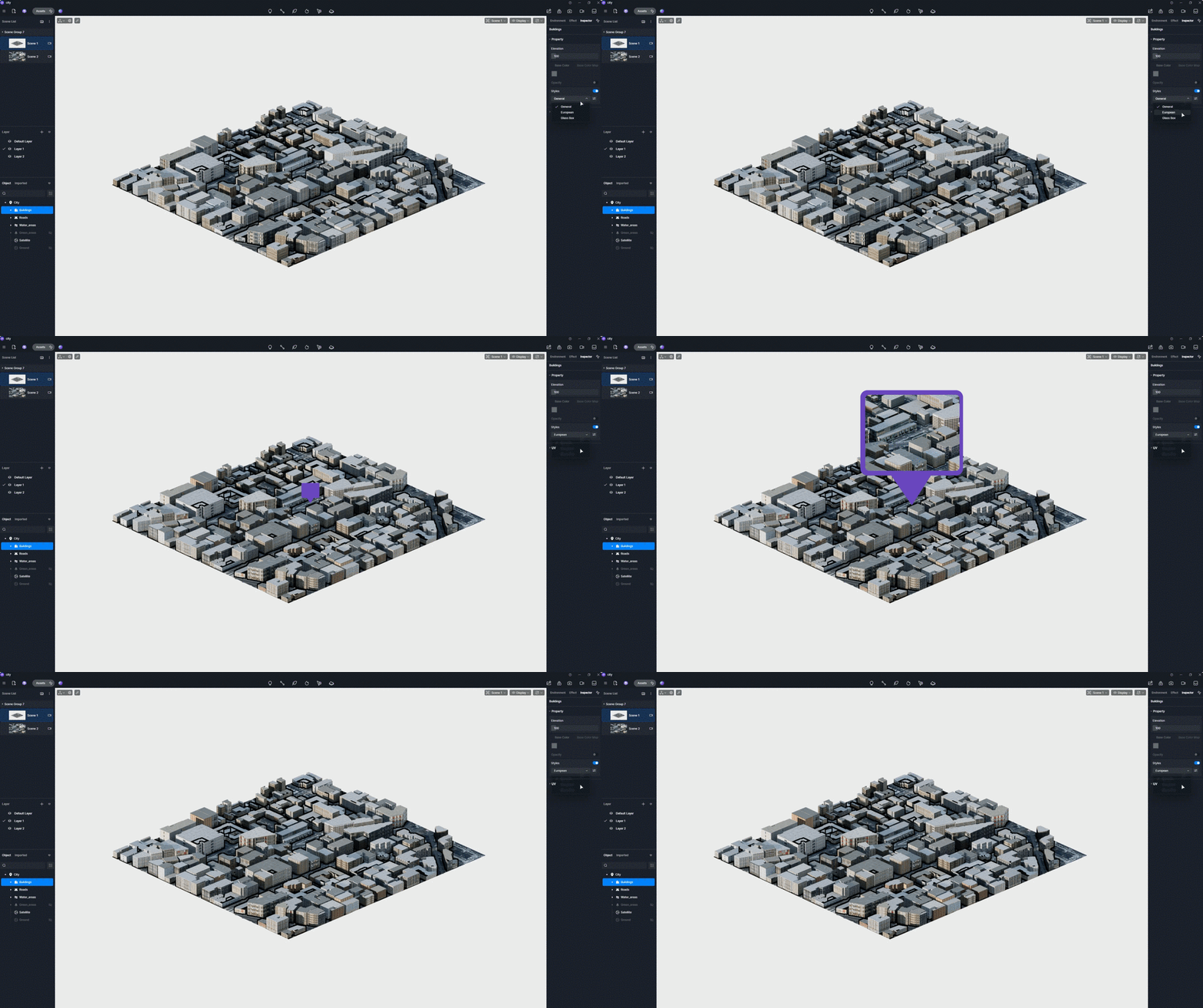
視覚的な繰り返しを避けるため、Random ボタンを素早くクリックするとテクスチャが更新され、Commercial スライダーでは繁華街の密度やアクティビティを微調整できます。
特定の建物が違和感を感じた場合は、個別に編集することができます。ダブルクリックするだけで、住宅街をオフィスタワーに交換したり、高さを調整して都会のシルエットを完璧にすることができます。単一の建物のファサードをランダム化して、背景が純粋にアルゴリズム的なものではなく、意図的で精選されたものに見えるようにすることもできます。

Fine-tune individual buildings in D5 Render to swap architectural styles.
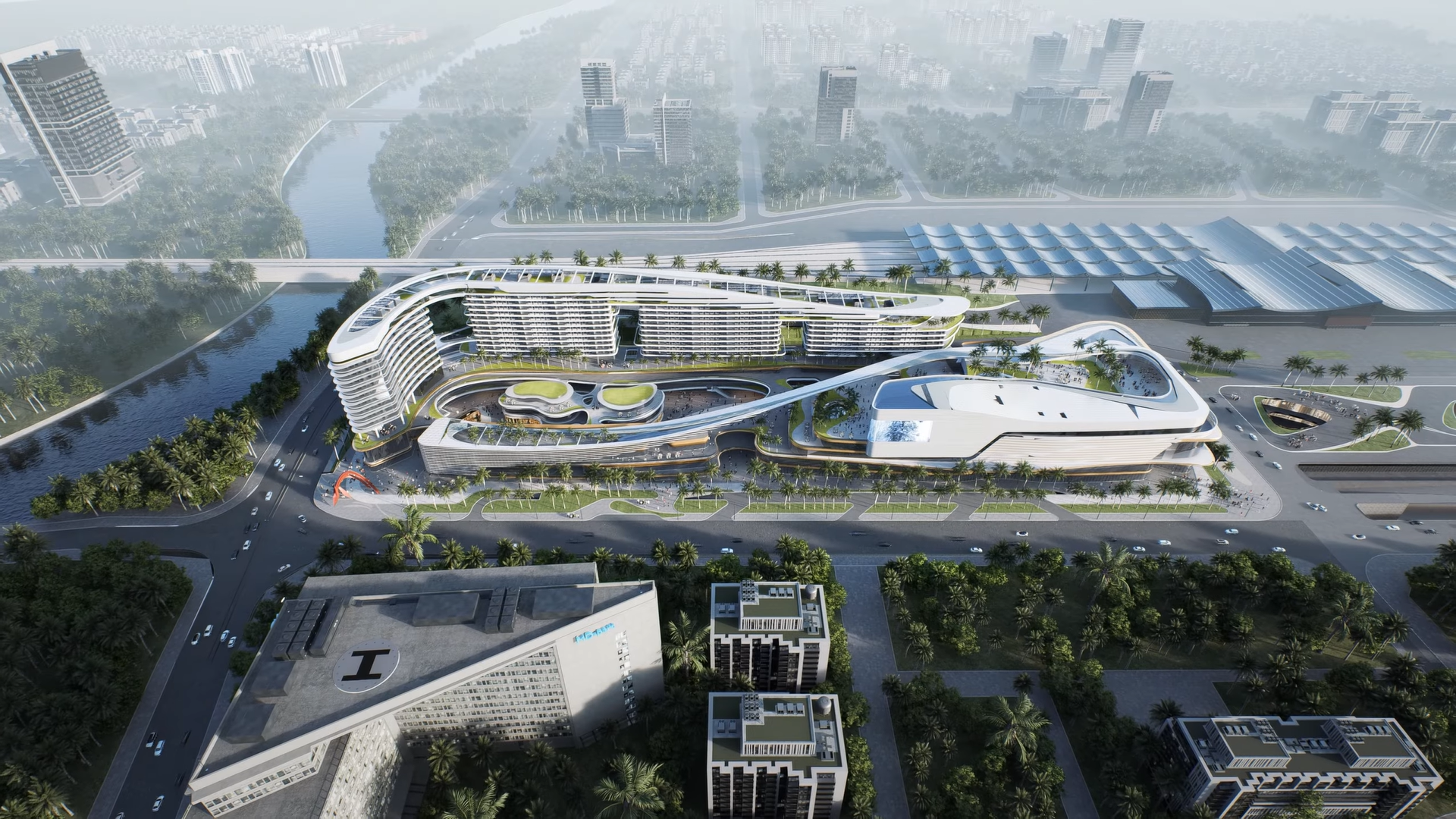
これらの手続き型機能を活用することで、D5 Renderは全体にわたって高い設計基準を維持することができます。 都市全体の状況これにより、主な焦点を次のことに充てることができます 中央建築提案。
ディテールの調整:屋根と立面図
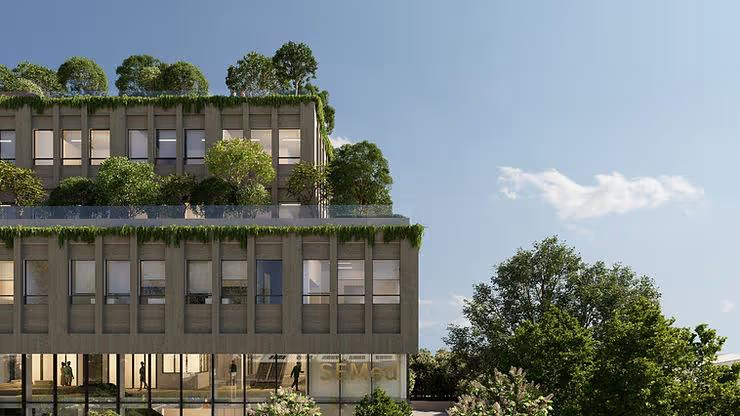
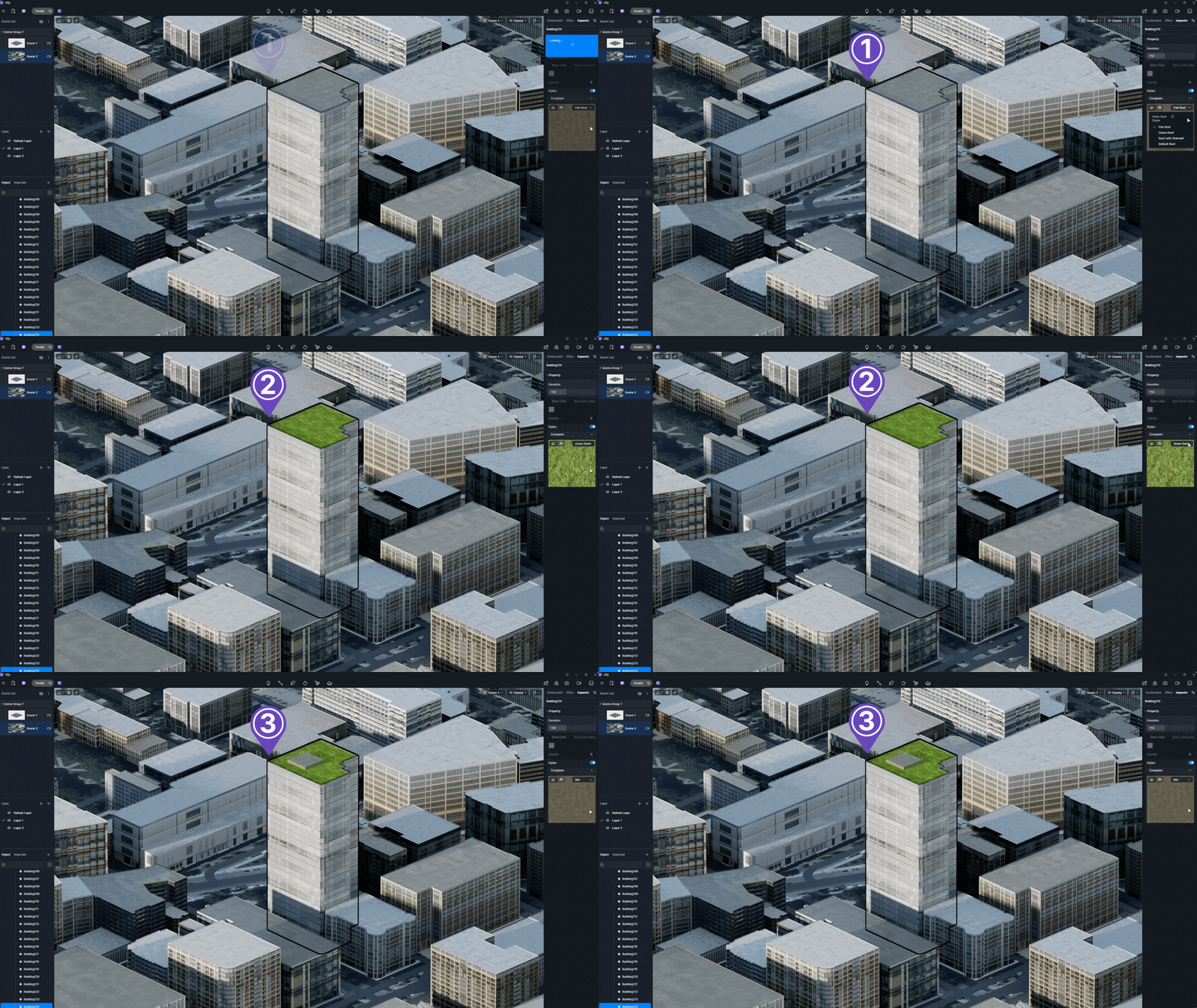
建物のファサードデザインの複雑さは、壁だけではありません。ルーフラインは空中ビジュアライゼーションでも同様に重要です。内部 D5 レンダー 3.0、個々の建物の屋根タイプをカスタマイズできます。コントロールパネルのサムネイルをクリックすると、さまざまな屋根の形状の中から選択して、サイトの現地の建築用語をより的確に反映させることができます。
さらに、プロジェクトで地域のゾーニング状況に合わせて特定の建物の高さが必要な場合、標高スライダーを使用すると近隣の縮尺と正確に一致させることができます。このレベルの制御により、背景となる建物が、本来のデザインから気をそらすのではなく、強調する、プロフェッショナルでまとまりのある背景になります。
サイト統合をマスターする:プロジェクトのコンテキストを入れ替える
ユーザーにとってよくある課題は、「既存の状況」への対処です。シティツールやセシウムのデータに、新しいプロジェクトが建つはずの建物が含まれていたらどうなるでしょうか?正確なフットプリントが古いジオメトリを切り取ってしまうのは避けたいものです。で D5 レンダリング、データソースに応じて、スペースを「切り分ける」主な方法は2つあります。
セクションキューブ法 (セシウムデータに最適)
セシウムデータは単一のモノリシックメッシュとして機能するため、1つの建物を単純に削除することはできません。これがD5 Renderの出番です。 セクションキューブ あなたの親友になります。
- レイヤーの分離が重要: プロジェクトと Cesium コンテキストを別のレイヤーに配置します。
- 精密制御: セクションツールを有効にする (経由 [マヌー] > [設定] > [ウィジェット]) そして、問題のある構造物の上にキューブを置きます。
- プロムーブ:「ユニフォームスケール」をオフに切り替えて「V」を押すと、キューブが建物のフットプリントに完全に一致するように伸びます。に設定します。 '現在のレイヤーにのみ影響' 古いジオメトリをきれいに「彫り出し」、新しいアーキテクチャをその場所に完璧に配置できます。
👉 3DマッピングにD5レンダー2.11でセシウムを使用する方法(3ステップ)

ダブルクリックトリック (都市ジェネレータツール/OSMに最適)
OSM ベースの City Toolを使っているなら、このプロセスがさらにスムーズになります。 D5 レンダリング 建物を個別の編集可能なアセットとして扱います。
- 分離して切り離す: 単に ダブルクリック あなたの設計と衝突している建物。これにより、より広い都市グループから即座に切り離されます。
- プロットをクリア: 分離したら、可視性をオフに切り替えたり、リソースリストから完全に削除したりできます。
これらの正確なワークフローを利用することで、一般的な背景データを主要な設計に数秒で置き換えることができます。これにより、ちらつきやジオメトリの重複をなくして、プロジェクトを都市構造に統合できます。
👉 D5 Renderで既存の建物を独自のプロジェクトに置き換える方法
結論:高架ビルのファサード設計と都市用地計画
これらのワークフローをクリエイティブなプロセスに組み込むことで、締め切りに間に合うだけでなく、デザインのまとまりのある物語を作り上げることができます。個人で活動する場合でも、グローバルスタジオを率いる場合でも、リッチでフォトリアリスティックなコンテキストを数秒で生成できる能力は、状況を一変させます。これにより、サイト計画の「退屈な」作業が、ストーリーテリングプロセスのシームレスな一部に変わります。
建物のファサードデザインを実際の状況で見る準備はできていますか? ダイブ・トゥー D5 レンダー 3.0 今日 当社のプロシージャルツールが、次世代の都会の傑作に命を吹き込む方法をご体験ください。
さらに詳しく:都市建築設計に関する高度な洞察
より速く、よりスマートな都市プロジェクトを実現するための戦略的秘密:Aoya × D5 Render >>
都会のオアシスの視覚化:Yoga4Arch Studioの650ヘクタールのプロジェクト向けリアルタイムワークフロー >>
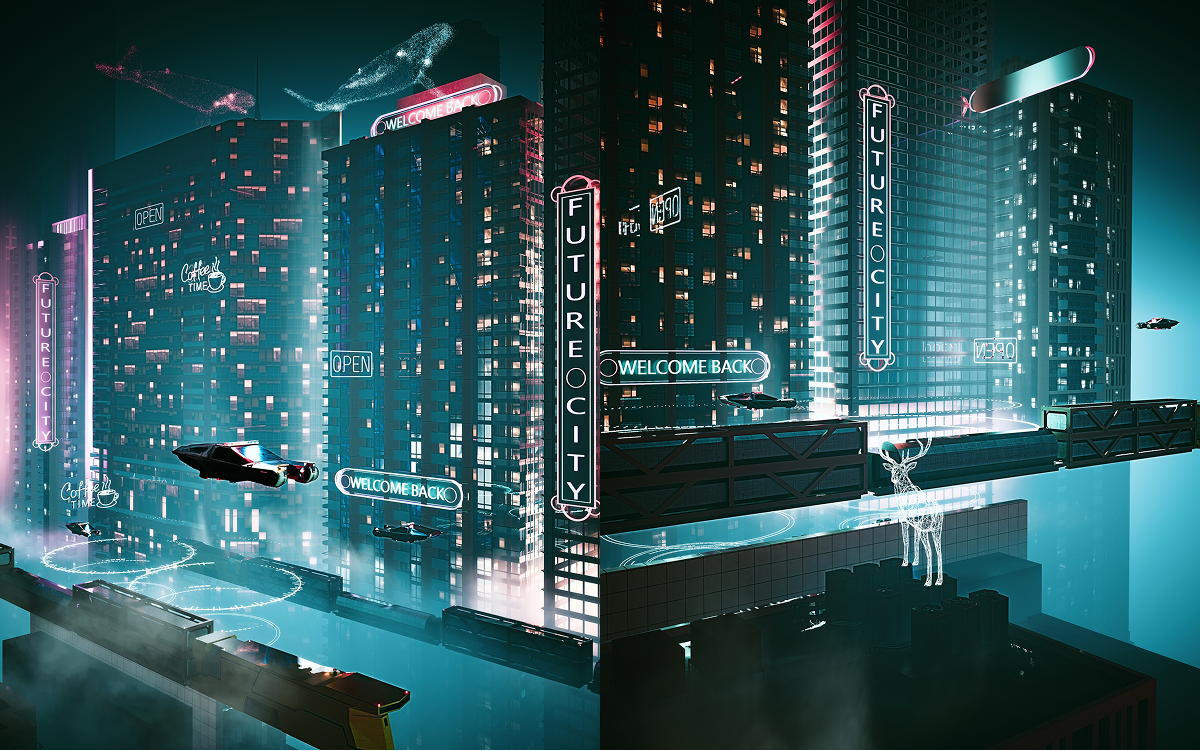
D5レンダリングのサイバーパンクシティ:ネオン、フォグ、レインをマスターしよう >>
完璧な都市空中写真をレンダリングするために知っておくべき4つのヒント>>
エレベーティング・ビルディング・ファサードの設計と用地計画に関するFAQ


.png)

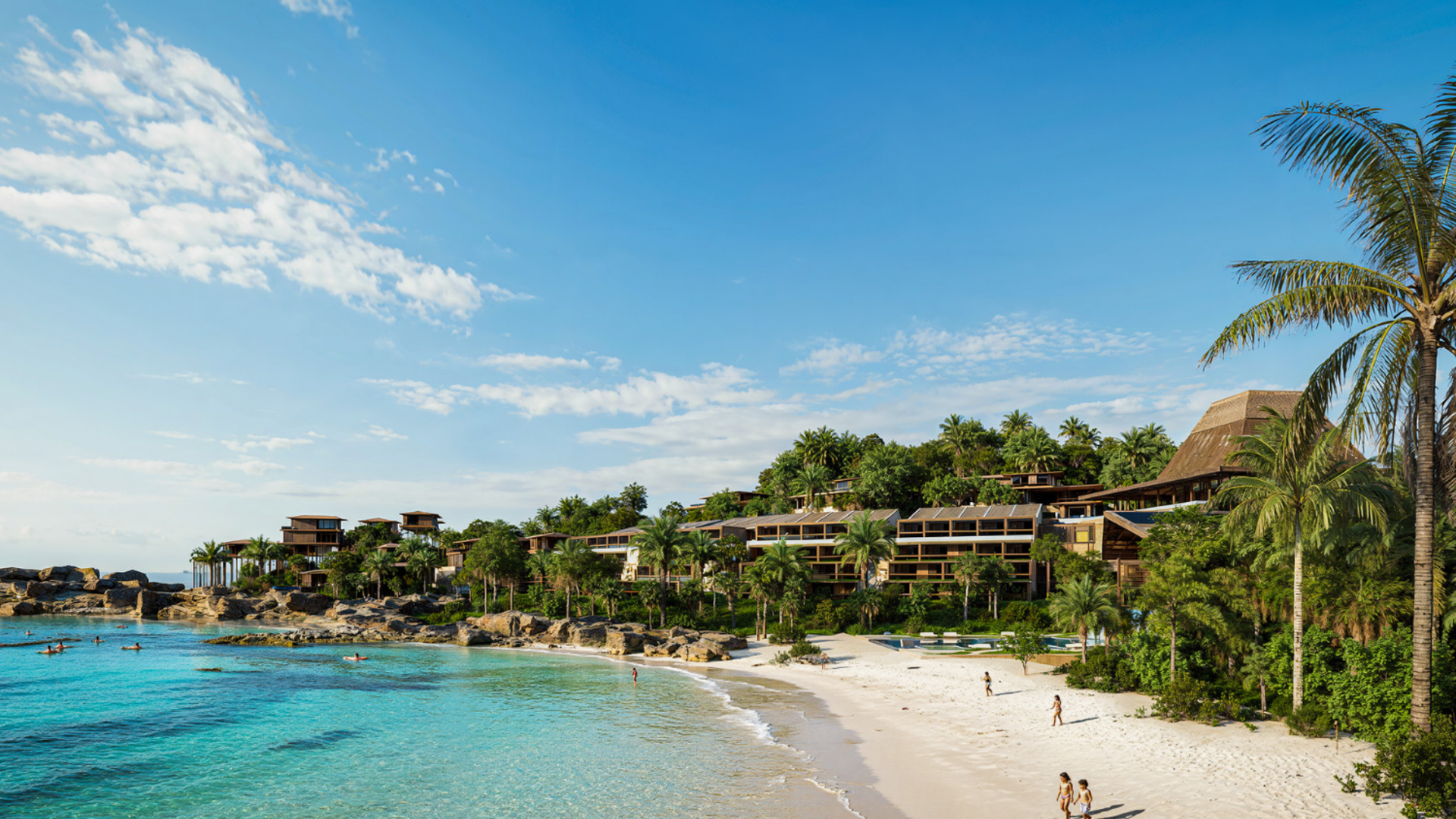


.jpg)
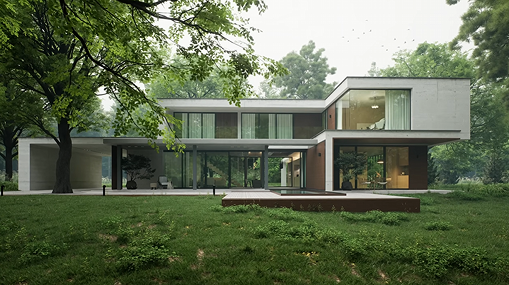
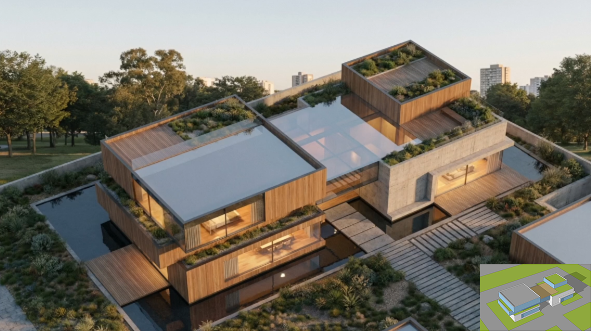
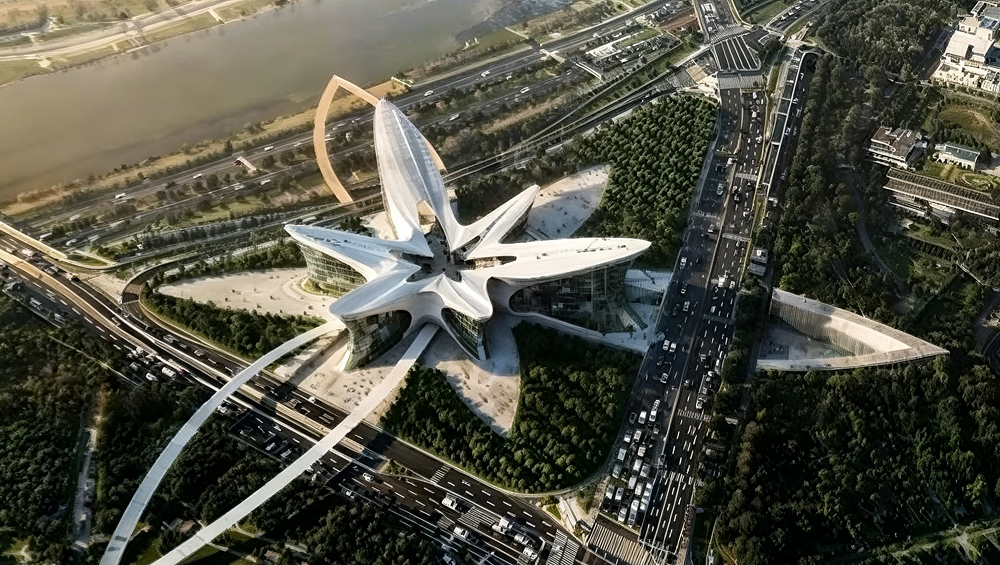

.png)
1%20(2).png)




%20(1).png)
.png)
.png)